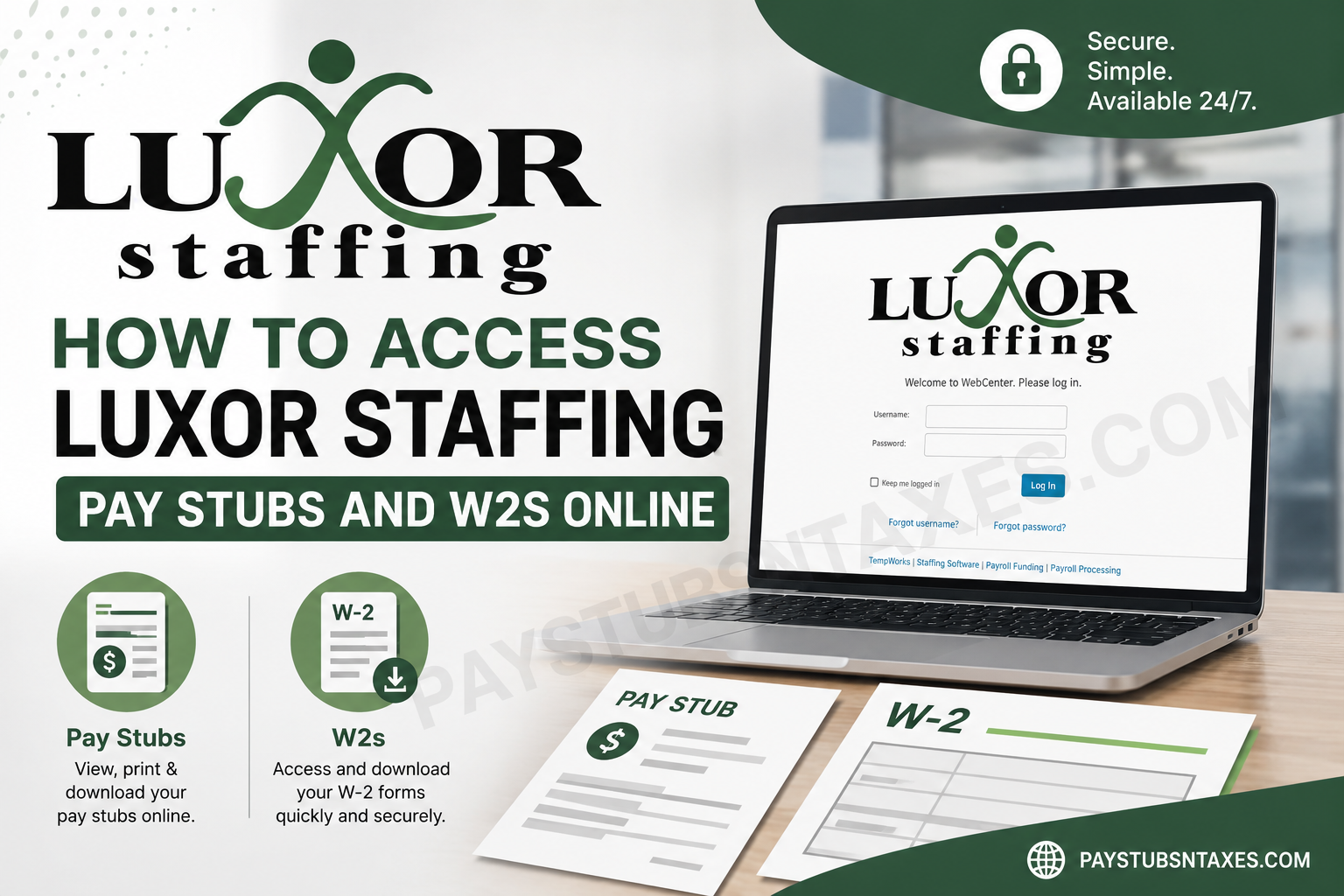
Accessing your payroll records should be straightforward, whether you are checking your latest earnings, preparing proof of income, or getting your tax documents in order. Luxor Staffing employees can use WebCenter to review available pay stubs and download electronic W-2 forms through their employee accounts.
Luxor combines large-scale staffing capabilities with the personal attention associated with a local recruitment firm. Its employee portal extends that convenience to everyday administration, putting important employment information within easy reach.
What You Need Before Logging In
To access your Luxor Staffing pay stubs online, have the following ready:
- Your Luxor Staffing WebCenter username.
- Your password.
- An internet-connected computer, tablet, or smartphone.
Luxor Staffing provides employees with login credentials. If you have not received yours, contact the office that handled your placement so the team can help you establish access.
Depending on the features enabled for your account, WebCenter also allows you to review assignments, submit hours, access documents, and explore available jobs.
How to Log In to Luxor Staffing WebCenter
- Open the Luxor Staffing WebCenter login page.
- Enter your Username and Password in the appropriate fields.
- Select Log In to access your employee dashboard.
The login screen also includes Forgot username? and Forgot password? links. If you cannot remember your credentials, select the relevant option and follow the recovery instructions.
If account recovery does not resolve the problem, contact your Luxor office for assistance.
How to View and Print Luxor Staffing Pay Stubs
The Pay History section is your starting point for reviewing payroll records. To locate a specific paycheck and obtain a printable stub:
- Sign in to your Luxor Staffing WebCenter account.
- Open Pay History.
- Use the Search By field to narrow the results and locate the paycheck you need.
- Click the paycheck to highlight it. Its details will appear on the right side of the screen.
- Select View Printable Version to open the pay stub.
- Use the print controls to produce a paper copy. If your browser or device offers Save as PDF, you can also retain a digital copy.
Before saving or printing, check that you have selected the correct pay period. Reviewing your records regularly can help you identify discrepancies early, rather than leaving them to surface when you urgently need proof of earnings.
If a payment appears incorrect or a paycheck is missing, ask your Luxor representative to review the relevant payroll record.
How to Download Your Luxor Staffing W2 Online
Available electronic W-2 forms can be accessed through WebCenter. Although menu placement may vary by account, look for Manage W-2s on your dashboard, including within Your To Do List.
If You Already Receive Electronic W-2s
- Log in to WebCenter.
- Select Manage W-2s.
- Choose the tax year you need.
- Download the available W-2 PDF.
- Save the document securely and print a copy if required.
If the PDF opens in your browser instead of downloading automatically, use the viewer’s download button to save it.
If You Have Not Opted In to Electronic Delivery
- Open Manage W-2s.
- Select Change W-2 options.
- Choose Click here to receive your W-2’s electronically.
- Complete any consent or confirmation prompts.
- Return to the available tax years and select the W-2 you wish to download.
Electronic consent does not necessarily make an unissued form immediately available. If the year you need is missing, or your account does not display these options, contact Luxor Staffing to confirm availability.
When Should Your W-2 Be Available?
Employers generally must furnish W-2 forms by January 31 following the tax year, with the deadline moving to the next business day when it falls on a weekend or legal holiday. A mailed form may arrive after the applicable deadline; January 31 is therefore not a guaranteed delivery date. IRS employer guidance
Your delivery method depends on your arrangements with Luxor Staffing and any electronic-delivery election you have made. Keeping your mailing address current helps prevent unnecessary delays.
If your paper W-2 has been lost or has not arrived, checking WebCenter for an available electronic copy is a practical first step.
Can You Access Payroll Documents on Your Phone?
You can open the Luxor Staffing WebCenter login page in your phone’s browser and sign in to check the payroll and tax-document options available to your account.
If Luxor has provided access to a WebCenter mobile app, follow the setup instructions supplied by your office. Navigation may differ from the desktop portal, so use the browser version if you cannot locate a document in the app.
Luxor Staffing Contact Numbers for Payroll Assistance
For help with account access, missing payroll records, or W-2 availability, contact the office associated with your employment.
| Office | Phone number |
| West Houston, TX | (713) 429-4140 |
| Dallas, TX | (214) 466-6270 |
| Irving, TX | (972) 573-6180 |
| Arlington, TX | (817) 704-6092 |
| Fort Worth, TX | (817) 546-4950 |
Additional branches are listed in the Luxor Staffing office directory.
Have the relevant pay period or tax year ready when requesting assistance. Once you have downloaded your documents, store them securely and sign out of WebCenter, particularly when using a shared device.
Conclusion
Accessing Luxor Staffing pay stubs and W-2s online is relatively straightforward once you know where to look. Start with the Luxor Staffing WebCenter, log in with your employee credentials, and use Pay History when you need paycheck information or a printable pay stub.
For tax documents, open Manage W-2s. Employees who have already opted for electronic W-2 delivery can select the appropriate tax year and download the form as a PDF; those who have not yet enrolled can use Change W-2 Options to enable electronic delivery.
Whether you need a recent pay statement for an apartment application, an old W-2 for tax preparation, or simply want to keep your employment records in order, WebCenter places essential payroll information within easy reach. If online access hits a brick wall, use the username/password recovery tools or contact Luxor Staffing directly for assistance.
Frequently Asked Questions
1. Where can I find the Luxor Staffing employee login?
Visit the Luxor Staffing WebCenter login page. Enter the username and password provided by Luxor Staffing, then select Log In to access your available payroll records and employment information.
2. How do I get my Luxor Staffing WebCenter username and password?
Luxor Staffing provides employees with WebCenter login credentials. If you have not received yours, contact the branch that handled your placement and request assistance with employee portal access.
3. How do I view my Luxor Staffing pay stubs online?
Log in to WebCenter and select Pay History. Locate the paycheck you need, using the Search By field if necessary, then click it to display its details. Select View Printable Version to open the pay stub.
4. Can I download my Luxor Staffing pay stub as a PDF?
If your browser or device supports it, you can save a printable pay stub as a PDF. Open the paycheck under Pay History, select View Printable Version, and choose Save as PDF from the print options.
5. How do I print a Luxor Staffing pay stub?
Open Pay History, select the relevant paycheck, and click View Printable Version. Use your browser’s print controls to choose a printer and print the document. Check the pay period before printing to ensure you have the correct record.
6. How do I download my Luxor Staffing W2?
Sign in to WebCenter and look for Manage W-2s, which may appear under Your To Do List. Select an available tax year to download its W-2 PDF. If electronic delivery is not enabled, complete the consent process first.
7. How do I opt in to electronic W-2 delivery?
Within Manage W-2s, select Change W-2 options, then choose Click here to receive your W-2’s electronically. Complete any confirmation prompts and return to the list of available tax years. Menu labels and placement may vary by account.
8. Why is my Luxor Staffing W2 not showing in WebCenter?
The form may not have been released for your account, or electronic delivery may require consent. Check your W-2 options and available tax years. If the document remains unavailable, contact your Luxor Staffing office to confirm its status.
9. What should I do if I lost my Luxor Staffing W2?
Check Manage W-2s in WebCenter for an available electronic copy. If the required year appears, download the PDF again. If you cannot access your account or find the form, contact your Luxor office for replacement-document assistance.
10. Can I download previous years’ Luxor Staffing W2s?
You can download a previous year’s W-2 if it is listed in your WebCenter account. Open Manage W-2s and review the available years. Contact Luxor Staffing if you need a form that does not appear.
11. How do I reset my Luxor Staffing WebCenter password?
Select Forgot password? on the WebCenter login page and follow the recovery prompts. If you cannot complete the process, contact your Luxor Staffing office for help restoring access.
12. What if I forgot my WebCenter username?
Select Forgot username? on the Luxor Staffing WebCenter login screen and follow the instructions. If recovery is unsuccessful, ask the office that handled your placement to help you retrieve your account details.
13. Can I access Luxor Staffing pay stubs and W2s on my phone?
Open the Luxor Staffing WebCenter login page in your phone’s browser to access available payroll documents. If Luxor has provided mobile app access, follow its setup instructions. Document availability and navigation may differ between the app and browser versions.
14. What should I do if my pay stub or W2 contains an error?
Contact your Luxor Staffing office and identify the pay period or tax year concerned. Explain which information appears incorrect so the team can review the record and arrange a correction where necessary.
15. Who can help with Luxor Staffing payroll login or W2 problems?
Contact the Luxor Staffing branch associated with your employment. Regional contacts include West Houston at (713) 429-4140, Dallas at (214) 466-6270, Irving at (972) 573-6180, Arlington at (817) 704-6092, and Fort Worth at (817) 546-4950. Additional contacts appear in the Luxor Staffing office directory.
