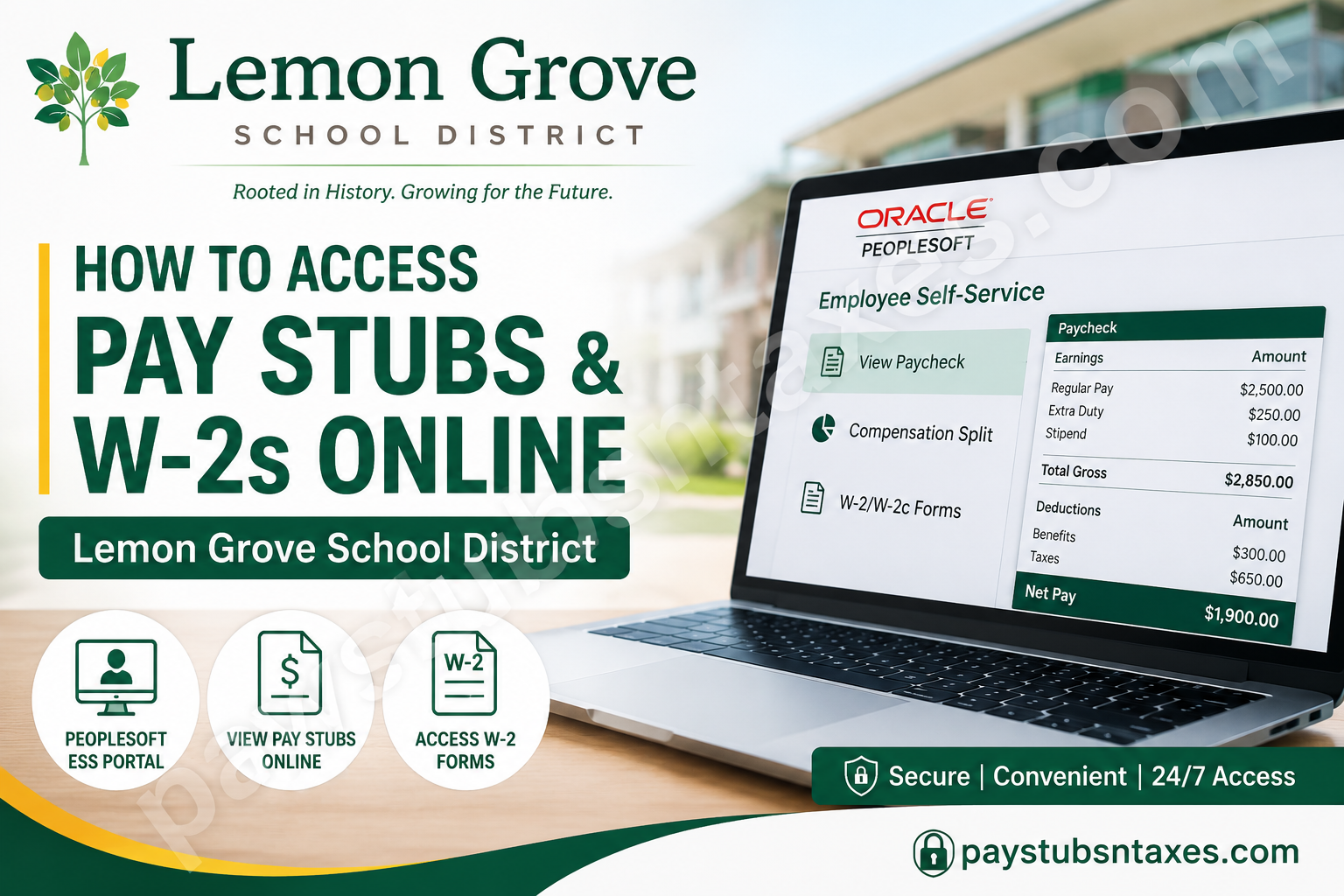
Lemon Grove School District (LGSD), located in Lemon Grove, California, is a Pre-K through eighth-grade public school district serving students across eight schools. Established in 1893, the district has a long-standing presence in the San Diego County education community. For employees, keeping track of payroll records should not be a needle-in-a-haystack exercise. Lemon Grove School District uses Oracle PeopleSoft Employee Self-Service (ESS) within the San Diego County Office of Education payroll environment, enabling employees to review paycheck information online. The district’s Paystubs Online page also provides links for PeopleSoft login assistance, paycheck-reading instructions, and password-reset information. This guide explains how to access Lemon Grove School District pay stubs, review detailed compensation information, troubleshoot login problems, and obtain assistance with W-2 tax forms.
Access the Lemon Grove School District PeopleSoft Portal
Visit the Oracle PeopleSoft portal at: https://myapps.sdcoe.net/
Enter the address directly into your browser’s address bar. For security, confirm that the web address begins with https:// before entering any account information.
You will need:
- Your Employee ID
- Your PeopleSoft password
For an eligible first-time account, the default password may consist of the first four letters of your last name in uppercase, followed by the last four digits of your Social Security number.
For example, an employee with the last name Anderson would begin the password with ANDE, followed by the applicable four digits.
Treat this temporary password as confidential. Do not send it by email, text message, or an unsecured support request. Once you have signed in, create a strong personal password if the system prompts you to do so.
Set Up Your Security Question
Employees are strongly encouraged to configure a security question as soon as they gain access to PeopleSoft. This small precaution can save considerable time later.
If you forget your password, the Forgot My Password option on the login page may allow the system to email you a new temporary password, provided that your security information has already been established.
Choose a question and answer that you can remember but that other people could not easily discover through social media or public records.
How to View Lemon Grove School District Pay Stubs
After signing in to Oracle PeopleSoft, follow these steps:
- Open Payroll and Compensation.
- Select View Paycheck.
You may also select View Paycheck directly from the Quick Links page if that option appears.
The View Paycheck screen displays previously issued paychecks in chronological order. Find the payment date you wish to review, and then select the View Paycheck icon beside it.
For the clearest and most convenient version, make sure the View PDF box is selected in the far-right column. The paycheck will then open as a PDF, which you can review, save, or print for your personal records.
Employees may sign in before payday; however, a new pay stub will not appear until the official payday.
Allow Pop-Ups Before Opening a Pay Stub
PeopleSoft typically opens PDF pay stubs in a new browser tab or window. If your browser blocks pop-ups, selecting the paycheck icon may appear to do nothing.
Before opening your pay stub, allow pop-ups for the PeopleSoft website. You do not need to disable your browser’s pop-up protection for every website—adding an exception for the trusted PeopleSoft portal is the safer approach.
If the PDF still does not appear:
- Look for a pop-up-blocked notification near the browser’s address bar.
- Allow pop-ups and redirects for the PeopleSoft portal.
- Refresh the page and select the paycheck icon again.
- Try a current version of Microsoft Edge, Google Chrome, Mozilla Firefox, or Safari.
- Confirm that your browser can display or download PDF files.
Review the Information on Your Pay Stub
Opening the document is only half the battle; reviewing it carefully can help you identify discrepancies before they become larger payroll issues.
Pay particular attention to:
- Gross earnings: Your total earnings before taxes and deductions
- Hours and earnings: Regular hours, overtime, additional assignments, or other earnings
- Tax withholdings: Federal, state, and other applicable payroll taxes
- Before-tax deductions: Eligible deductions taken before taxable income is calculated
- After-tax deductions: Amounts deducted after taxes have been calculated
- Employer-paid benefits: Benefits funded by the employer rather than deducted from your wages
- Net pay: The final amount issued after taxes and employee deductions
When something does not look right, compare the pay stub with your work schedule, assignment information, benefit elections, and previous paycheck before contacting support.
View a Detailed Compensation Breakdown
Directly beneath View Paycheck, PeopleSoft may display a Compensation Split link. This feature provides a more granular view of the earnings that contribute to your total gross pay.
The Compensation Split area may include:
- Multiple Components of Pay, commonly called MCOPs
- Additional pay
- Stipends
- Payroll earnings
- Other items contributing to gross compensation
This section can be particularly useful for employees with more than one assignment, supplemental duties, stipends, or varying components of compensation.
How to View and Download a W-2
To access a Lemon Grove School District W-2 online, sign in to PeopleSoft and follow this path:
Payroll and Compensation > View W-2 Form > View W-2/W-2c Forms > Year End Form
Alternatively, select View W-2 Form from the Quick Links page.
The system will open the View W-2/W-2c Forms screen. Choose the appropriate tax year, and then select the Year End Form hyperlink to view your W-2.
When the document opens, verify that it displays the correct:
- Employee name
- Mailing address
- Social Security number, shown in the appropriate masked or protected format
- Employer information
- Tax year
- Wage and withholding totals
Save the W-2 only on a trusted, password-protected device. If you are using a shared or public computer, do not download the form, save your password, or leave the document open after your session ends.
What to Do If You Cannot Sign In
If your Employee ID or password is not accepted, begin by checking the basics:
- Confirm that Caps Lock is not turned on accidentally.
- Re-enter your Employee ID carefully.
- Make sure there are no spaces before or after your credentials.
- Use Forgot My Password if you previously established a security question.
- Avoid making repeated guesses, as too many unsuccessful attempts may lock the account.
For assistance, contact:
- Lemon Grove School District Human Resources: humanresources@lemongrovesd.net
- Help Desk: 1-858-298-2203
If district procedures require a technology support request, submit a work order through the staff support system and select PeopleSoft Password Reset as the request type. Include a valid telephone number so the support team can contact you securely. Never place your password or Social Security number in the work-order description.
Useful PeopleSoft Employee Resources
Two particularly useful resources may be available from the Employee Self-Service login page and the PeopleSoft guides or job-aids area:
- Viewing Your Paycheck in ESS: Covers signing in, changing a password, establishing a security question, viewing paychecks, and examining the Compensation Split.
- How to Read Your Paycheck: Explains the principal sections of a pay stub and helps employees interpret earnings, taxes, deductions, and employer-paid benefits.
These resources are worth consulting whenever you need a closer look at a payroll entry or want to understand how gross earnings become net pay.
Final Thoughts
Oracle PeopleSoft gives Lemon Grove School District employees convenient, round-the-clock access to essential payroll and tax records. Once your account is configured correctly—and your browser permits the portal to open PDF files—viewing a pay stub, examining a compensation breakdown, or retrieving a W-2 should be straightforward. Set up your security question early, keep your credentials private, and review each paycheck promptly. A few minutes of careful attention can help ensure that your earnings, deductions, tax withholdings, and personal details remain accurate and secure.
Frequently Asked Questions
1. How do I access Lemon Grove School District pay stubs online?
Visit https://myapps.sdcoe.net/, sign in to Oracle PeopleSoft, and select Payroll and Compensation > View Paycheck. Choose the paycheck date you need and select its corresponding icon.
2. What login information do I need for PeopleSoft?
You need your Employee ID and PeopleSoft password. Eligible first-time users may receive a temporary default password based on the first four letters of their last name in uppercase and the last four digits of their Social Security number.
3. Can I access my Lemon Grove School District pay stub from home?
Yes. Employees may use PeopleSoft Employee Self-Service from home, work, or another location with a secure internet connection.
4. Can I view my pay stub before payday?
You may sign in before payday, but the new pay stub will not become available until the official payment date.
5. Why does my PeopleSoft pay stub not open?
The browser may be blocking the PDF pop-up. Allow pop-ups and redirects for the PeopleSoft portal, refresh the page, and select the paycheck icon again.
6. How do I download a PDF copy of my pay stub?
On the View Paycheck screen, ensure that View PDF is checked in the far-right column. Select the icon beside the relevant payment date, and then use the PDF viewer’s download option.
7. Can I view previous Lemon Grove School District paychecks?
Yes. The View Paycheck screen lists previously disbursed paychecks in chronological order. Select the icon beside the date of the paycheck you want to review.
8. How do I access my Lemon Grove School District W-2?
Sign in to PeopleSoft and select Payroll and Compensation > View W-2 Form > View W-2/W-2c Forms. Choose the relevant tax year and select Year End Form.
9. Where is the W-2 option on the PeopleSoft Quick Links page?
Look for View W-2 Form under Quick Links. This shortcut opens the View W-2/W-2c Forms screen, where you can select the appropriate Year End Form.
10. What is the Compensation Split in PeopleSoft?
The Compensation Split provides a detailed breakdown of earnings contributing to gross pay. It may show Multiple Components of Pay, additional pay, stipends, payroll earnings, and other compensation items.
11. How can I reset a forgotten PeopleSoft password?
Select Forgot My Password on the PeopleSoft login page. If you previously configured a security question, the system may send a temporary password to your registered email address.
12. What should I do if my PeopleSoft account is locked?
Stop making repeated login attempts and contact Lemon Grove School District Human Resources at humanresources@lemongrovesd.net or call the Help Desk at 1-858-298-2203.
13. What does a 403 Access Forbidden error mean?
A 403 error means the website received your request but denied access to the page. Return to the main portal, close old PeopleSoft tabs, try a private browser window, clear the portal’s cookies, or contact support if the error persists.
14. Who should I contact about an incorrect pay stub?
Contact Lemon Grove School District Human Resources at humanresources@lemongrovesd.net. Be prepared to identify the relevant payment date and explain the suspected discrepancy, but never disclose your password.
15. How can I keep my payroll records secure?
Use only the official portal, create a unique password, avoid unsecured public Wi-Fi, sign out after every session, and never save payroll documents on a shared computer. Keep downloaded pay stubs and W-2s in a protected location.
