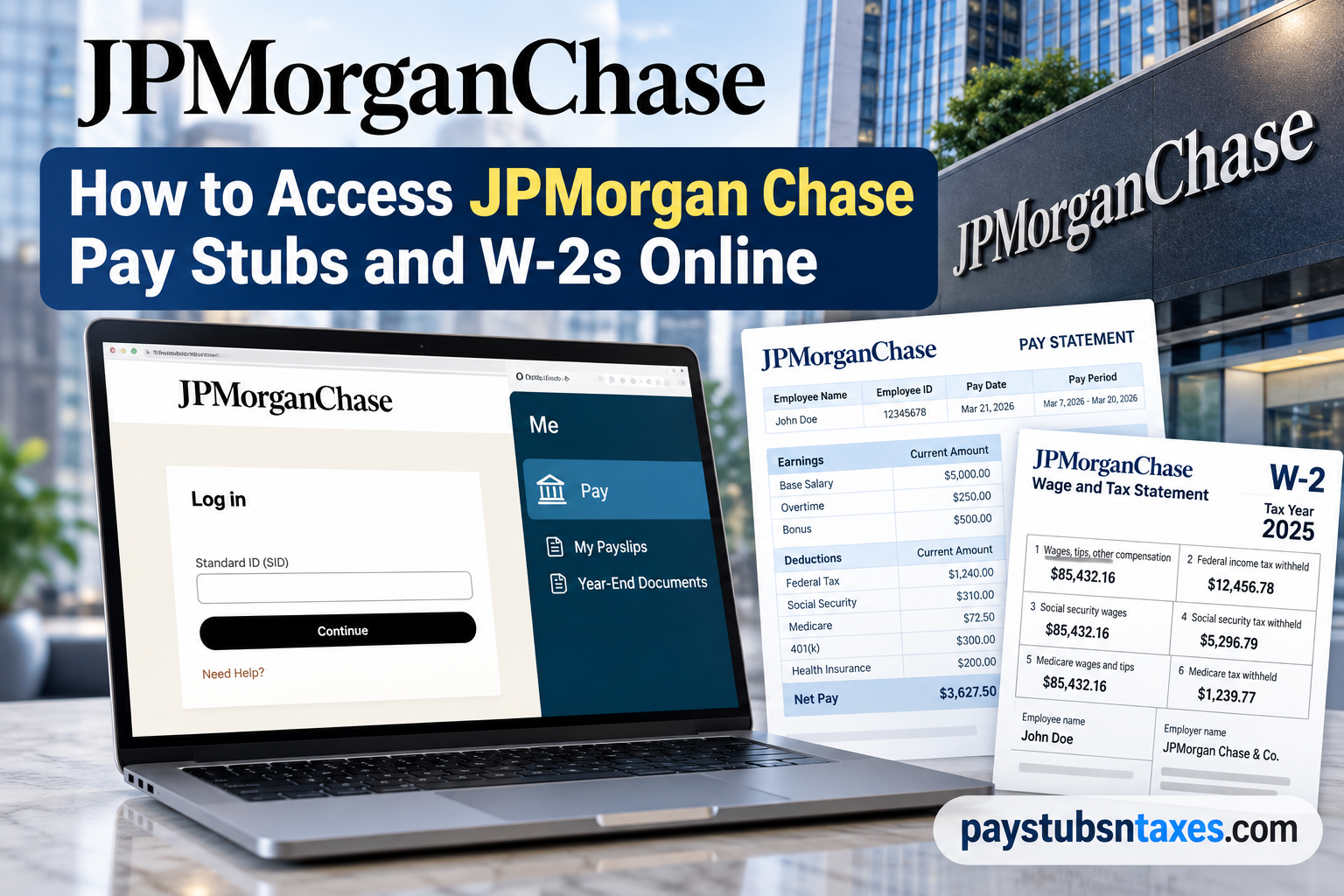
Managing your payroll information should be straightforward, secure, and convenient, particularly when you need immediate access to essential documents such as pay stubs and annual tax statements. For employees of JPMorgan Chase & Co., the company’s Oracle Cloud-based Employee Self-Service (ESS) system provides a centralized platform for reviewing earnings, downloading payslips, and retrieving Form W-2 for tax preparation. Whether you are checking your latest paycheck, verifying payroll deductions, preparing your income tax return, or obtaining proof of employment income, understanding how to navigate the JPMorgan Chase employee portal can save considerable time and unnecessary frustration.
This comprehensive guide explains how to access JPMorgan Chase pay stubs and W-2 forms online, including the employee login process, Oracle Cloud navigation, mobile access, document downloads, and troubleshooting procedures.
About JPMorgan Chase & Co.
JPMorgan Chase & Co., stylized as JPMorganChase, is an American multinational financial institution headquartered in New York City and incorporated in Delaware. With roots extending to 1799, it has grown into one of the oldest, largest, and most widely recognized financial institutions in the world.
The firm serves millions of consumers alongside many of the world’s leading corporate, institutional, and government clients. Its operations encompass consumer and commercial banking, investment banking, asset and wealth management, payment services, and financial advisory solutions.
JPMorgan Chase & Co. is an Equal Opportunity Employer. Qualified applicants receive consideration for employment without regard to race, color, religion, sex, sexual orientation, gender identity, national origin, disability, or protected-veteran status.
Where Do JPMorgan Chase Employees Access Pay Stubs and W-2s?
Employees can access their payroll records through JPMorgan Chase Employee Self Service, which is hosted on Oracle Cloud. The portal provides secure access to:
- Current and previous pay stubs
- Earnings and deduction summaries
- Net-pay distribution details
- Downloadable payslip documents
- Current and prior-year W-2 statements
- Other available year-end tax documents
To begin, visit the official JPMorgan Chase Oracle Cloud careers portal:
https://jpmc.fa.oraclecloud.com/hcmUI/CandidateExperience/en/sites/CX_1001
Open the site menu and select I am an employee. You can also proceed directly to the employee sign-in page:
https://jpmc.fa.oraclecloud.com
The system should redirect you to the JPMorgan Chase Single Sign-On page, where you can enter your Standard ID and continue through the organization’s authentication process.
How to Log In to JPMorgan Chase Employee Self Service
Follow these steps to reach your Oracle Cloud employee account:
- Go to https://jpmc.fa.oraclecloud.com.
- Confirm that the address displayed in your browser belongs to the official jpmc.fa.oraclecloud.com domain.
- Enter your JPMorgan Chase Standard ID in the designated field.
- Select Continue.
- Complete any password, multifactor-authentication, or identity-verification steps presented by the system.
- Once authenticated, open the Oracle Cloud home page and select Me to access employee services.
If you begin on the JPMorgan Chase careers site, open the navigation menu and select I am an employee to reach the appropriate sign-in process.
How to Access JPMorgan Chase Pay Stubs Online
Once you have successfully signed in, retrieving a pay stub is relatively straightforward:
- From the Oracle Cloud home page, select Me.
- Choose Pay.
- Select My Payslips.
- Review the available pay periods.
- Select the payslip you want to examine.
The payslip summary page offers more than a bare list of payments. It provides graphical presentations that make it easier to see where your earnings went and how your take-home pay was calculated.
Depending on the selected pay period, you may be able to review the following categories:
- Earnings: Regular pay, overtime, bonuses, and other applicable compensation
- Deductions: Taxes, insurance premiums, retirement contributions, and other payroll deductions
- Net Pay Distribution: The manner in which your net pay was allocated, particularly when more than one direct-deposit account is involved
- Payslip Preview: A complete preview of the selected payslip document
When you select the earnings or deductions view, the chart may display the chosen payslip alongside the two preceding payslips. This comparison feature can help you spot changes in gross pay, withholding, benefit costs, or other deductions without having to comb through several documents line by line.
How to Download or Print a JPMorgan Chase Pay Stub
To save a copy of a payslip:
- Navigate to Me > Pay > My Payslips.
- Select the relevant pay period.
- Open Payslip Preview if you want to inspect the complete document first.
- Select the payslip you wish to save.
- Use the Export or Download option to obtain a copy.
After downloading the document, open it to ensure that the employee name, pay date, pay period, earnings, deductions, and net-pay information are correct. You can then print it or store it in a secure location.
Payroll records contain highly sensitive personal and financial information. Avoid saving them on public computers, shared devices, or unencrypted cloud folders. If you must use a shared computer, sign out completely and remove any downloaded copies before leaving.
How to Access a JPMorgan Chase W-2 Online
Employees can retrieve available W-2 forms through the year-end documents section of Oracle Cloud:
- Sign in to JPMorgan Chase Employee Self Service.
- Select Me.
- Open Pay.
- Choose Year-End Documents.
- Locate the required tax year.
- Select the relevant W-2 to view it.
- Use the available controls to print or download the form.
The Year-End Documents page may also allow you to search for tax documents from previous years, making it useful when you need an earlier W-2 for tax preparation, income verification, a loan application, or your personal records.
When Will JPMorgan Chase W-2 Forms Be Available?
A W-2 is generally expected to be made available or mailed by January 31 for wages paid during the preceding calendar year. For example, a W-2 covering income earned in 2026 would ordinarily be furnished by January 31, 2027.
Employees who have consented to electronic delivery should check the Year-End Documents section in Employee Self Service. If you have not elected electronic delivery, a paper copy may also be mailed to the address held in the employer’s records.
Because an outdated address can send an important tax document down the wrong path, review your personal and mailing information before year-end and update it through the approved employee process whenever necessary.
How to Access JPMorgan Chase Payslips on a Mobile Device
Mobile access may be available through the Oracle HCM Cloud mobile application. The application’s name, availability, and installation procedure can vary by device, operating system, and current company policy.
To configure mobile access:
- Download the approved Oracle HCM Cloud application from the Apple App Store or Google Play, if it is available and authorized for your device.
- Install the application.
- Open it and accept the End User License Agreement.
- On the Getting Started page, enter the JPMorgan Chase HCM Cloud address:
https://jpmc.fa.oraclecloud.com
- Select Let’s get started.
- Complete the JPMorgan Chase sign-in and identity-verification process.
- Navigate to Me > Pay > My Payslips or Me > Pay > Year-End Documents.
Only install applications from an official app store or an employer-approved source. If you cannot locate the designated application, or if your device displays an installation warning, contact the JPMorgan Chase HR Help Desk before proceeding.
Still Having Trouble?
If you cannot sign in, your account is locked, a payroll document is missing, or the information shown appears incorrect, contact the JPMorgan Chase HR Help Desk:
Phone: 1-844-ASK-JPMC
Numeric number: 1-844-275-5762
When requesting assistance, be ready to verify your identity through the approved process. Do not send your password, complete Social Security number, W-2, or unredacted pay stub through ordinary email or an unsecured messaging service.
Final Takeaway
JPMorgan Chase employees can access pay stubs through Me > Pay > My Payslips and retrieve W-2 forms through Me > Pay > Year-End Documents in Oracle Cloud Employee Self Service. Once signed in, employees can review detailed payroll breakdowns, compare recent pay periods, preview complete payslips, and download the records they need.
Keeping your contact information current, safeguarding your login credentials, and using only official JPMorgan Chase and Oracle Cloud pages will help ensure that the process remains both efficient and secure.
Frequently Asked Questions
1. How do I access my JPMorgan Chase pay stub online?
Sign in to the JPMorgan Chase Oracle Cloud portal at https://jpmc.fa.oraclecloud.com. From the home page, select Me > Pay > My Payslips, then choose the relevant pay period.
2. Where can I find my JPMorgan Chase W-2?
After signing in to Employee Self Service, navigate to Me > Pay > Year-End Documents. Select the appropriate tax year to view, download, or print your W-2.
3. What login credentials do JPMorgan Chase employees need?
Employees generally begin the sign-in process using their JPMorgan Chase Standard ID. The portal may then request a password, multifactor authentication, or another form of identity verification.
4. What is the JPMorgan Chase employee portal URL?
The direct Oracle Cloud employee portal is https://jpmc.fa.oraclecloud.com. Employees can also enter through the JPMorgan Chase careers website and select I am an employee from the menu.
5. Can I download my JPMorgan Chase pay stub?
Yes. Open Me > Pay > My Payslips, select the required payslip, and use the Export or download option to save a copy.
6. Can I print my JPMorgan Chase pay stub?
Yes. Download the selected payslip or open it through Payslip Preview, then use your device’s print function to produce a paper copy.
7. When will my JPMorgan Chase W-2 be available?
W-2 forms are generally made available or mailed by January 31 for income earned during the preceding calendar year.
8. Can I access W-2 forms from previous years?
Available prior-year forms can be found under Me > Pay > Year-End Documents. If the required year is not listed, contact the JPMorgan Chase HR Help Desk.
9. Can I access JPMorgan Chase payslips on a mobile device?
Mobile access may be available through an employer-approved Oracle HCM Cloud application. Enter https://jpmc.fa.oraclecloud.com as the HCM Cloud address and complete the JPMorgan Chase sign-in process.
10. What information appears on a JPMorgan Chase payslip?
A payslip may include gross earnings, taxes, benefit deductions, retirement contributions, net pay, and net-pay distribution details.
11. How can I compare different JPMorgan Chase pay periods?
Select Earnings or Deductions on the payslip summary page. The chart may display the selected payslip alongside the two preceding pay periods for comparison.
12. Where can I review my direct-deposit distribution?
Open the relevant payslip and select Net Pay Distribution. This section shows how your net pay was allocated, including distributions across multiple bank accounts.
13. What should I do if my JPMorgan Chase pay stub is incorrect?
Review the complete payslip carefully, including earnings, deductions, taxes, and net pay. If the discrepancy remains, contact the appropriate payroll team or JPMorgan Chase HR Help Desk promptly.
14. What should I do if I cannot access the employee portal?
Verify the portal address and your Standard ID, then complete any required authentication steps. If your account remains locked or inaccessible, call 1-844-ASK-JPMC (1-844-275-5762).
15. Can former JPMorgan Chase employees access their W-2s online?
Online access for former employees may differ from the process for active employees. If your Standard ID no longer works, contact the JPMorgan Chase HR Help Desk for assistance obtaining payroll or tax documents.
