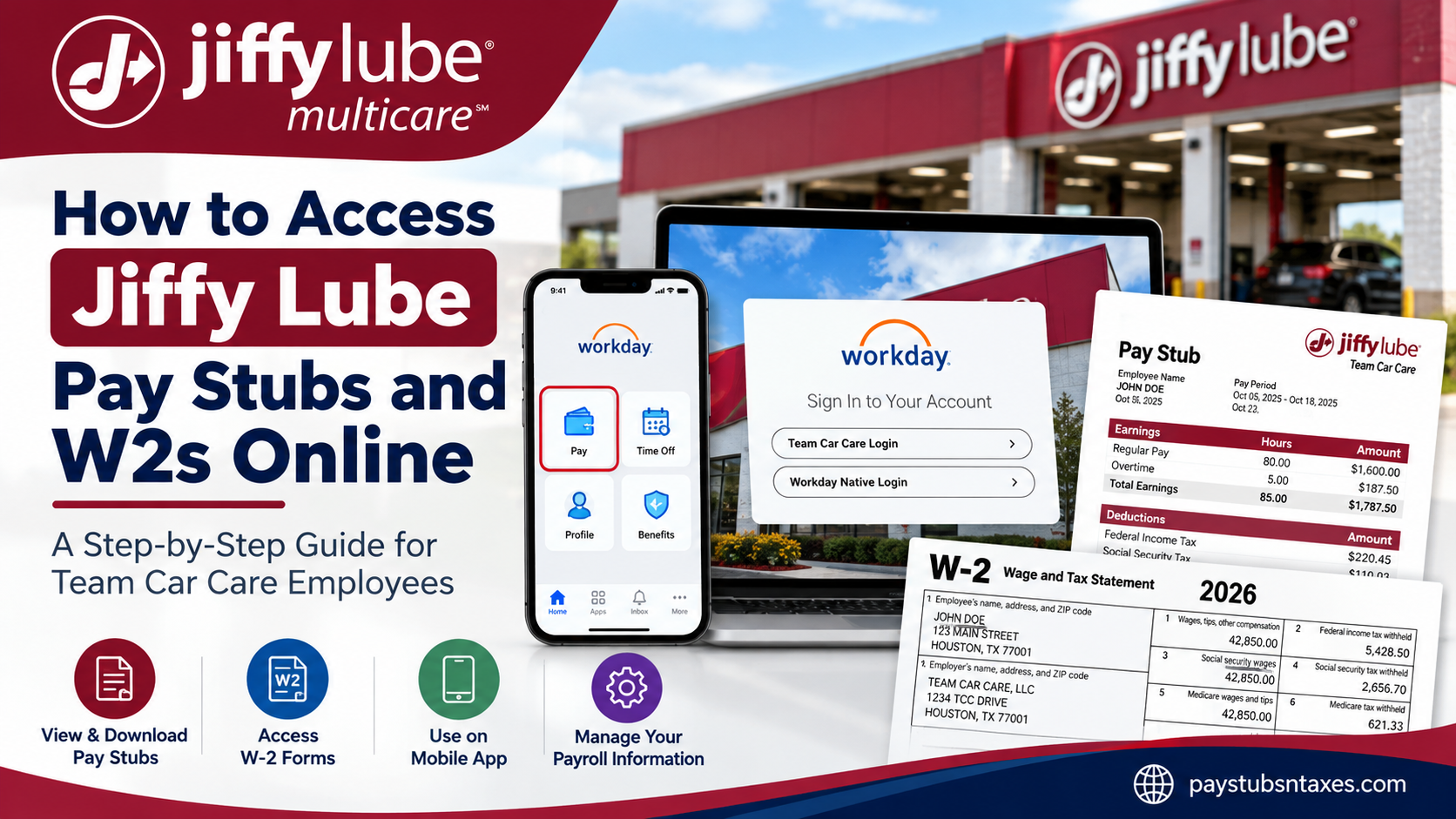
Jiffy Lube is one of North America’s best-known automotive preventive-maintenance brands, with a network of franchised service centers offering oil changes, tire rotations, and other essential vehicle services. Because these locations are independently operated, employee payroll procedures may differ from one franchisee to another. This guide is specifically for employees of Team Car Care, LLC (TCC), a major operator of Jiffy Lube service centers in the United States. If you work for a different Jiffy Lube franchisee, contact your manager, payroll department, or human resources representative for the correct payroll portal and instructions. Team Car Care employees can use Workday to view payroll information, access pay stubs, retrieve year-end W-2 forms, and manage certain personal and employment details. The system provides a convenient, secure way to obtain essential records without waiting for paper copies to arrive.
Understanding the Team Car Care Pay Schedule
Each Team Car Care pay week begins at 12:01 a.m. on Sunday and ends at midnight on Saturday. A complete pay period comprises two consecutive pay weeks, or 14 calendar days.
Payroll is generally distributed every two weeks on the Thursday following the final day of the applicable pay period. Once payroll has been processed, employees can sign in to Workday to review their earnings, taxes, deductions, direct-deposit information, and net pay.
If a payment or pay statement does not appear when expected, check the applicable pay date before contacting payroll, as recently completed time periods may still be undergoing processing.
What Can Employees Access Through Workday?
Workday serves as Team Car Care’s web-based platform for payroll, benefits, and human resources services. Depending on an employee’s role and account permissions, the Employee Self-Service portal may provide access to:
- Current and previous pay stubs
- Gross and net earnings
- Federal, state, and local tax withholding
- Pre-tax and post-tax deductions
- Direct-deposit information
- Year-to-date payroll totals
- W-2 and corrected W-2C tax forms
- Benefits and beneficiary information
- Home address, telephone number, and email address
- Emergency contacts
- Tax elections and withholding details
- Other personal and employment records
Employees should review their Workday profiles regularly. A small error in an address, tax election, bank account, or benefit deduction can become a much larger headache if it is allowed to slip through the cracks.
How to Log In to the Team Car Care Workday Portal
To access your payroll information from a computer:
- Visit the Team Car Care Workday login page.
- Choose the appropriate sign-in method:
- Team Car Care Login: Use this option if you have access to Team Car Care’s single sign-on system.
- Workday Native Login: Use this option if you sign in directly with Workday credentials and do not have single sign-on access.
- Enter your assigned username and password.
- Complete any identity-verification steps that appear.
Newly hired employees generally receive their initial login credentials by email from the appropriate payroll or administrative office. Upon signing in for the first time, they may be prompted to create a new password.
Do not share your credentials with anyone. If you experience difficulty signing in, consult your supervisor or use the password-recovery option displayed on the login page.
How to Set Up the Workday Mobile App
Employees who prefer to manage payroll information on the go can use the Workday mobile app on a compatible Apple or Android device.
- Download the official Workday app from the Apple App Store or Google Play Store.
- Open the app and select the option to connect to your organization.
- Enter the company access code: teamcarcare
- Follow the prompts to reach the Team Car Care sign-in page.
- Select either Team Car Care Login or Workday Native Login, depending on the credentials issued to you.
- Complete any additional authentication steps.
Menu labels and icons can vary slightly according to the device, operating system, and version of the Workday app. If an option is not immediately visible, open View All, Apps, or the main menu.
How to View Jiffy Lube Pay Stubs in Workday
Using a Computer
Follow these steps to access your Team Car Care pay statements through the Workday website:
- Sign in to Workday.
- Open your profile or select View All Apps.
- Choose the Pay application.
- Select Payslips from the available viewing options.
- Review the list of pay periods.
- Select the relevant pay-period date.
- Click View, Print, or the available PDF link to open the pay statement.
- Download or print the document as required.
If the Pay application has already been added to your Workday home page, you can open it directly without first visiting your profile or the complete applications menu.
A Workday payslip may include the pay-period beginning and ending dates, payment date, gross earnings, taxes, deductions, reimbursements, direct-deposit allocations, net pay, and year-to-date totals.
Using the Workday Mobile App
To view or download a payslip from a mobile device:
- Sign in to the Workday mobile app.
- Select the Pay application. If it is not visible, tap View All.
- Locate Pay History.
- Select the pay period you want to review.
- Examine the information displayed on the Pay Details screen.
- Tap Get PDF to generate a copy of the payslip.
- Wait for the document to finish processing.
- Select Open PDF.
- Use your device’s share, export, or save button to store the file in a secure location.
The save or share icon may look different on an iPhone, iPad, or Android device. Once the PDF opens, select an appropriate private folder rather than a shared or publicly accessible location.
How to Access a Jiffy Lube W-2 in Workday
Team Car Care employees can retrieve available W-2 forms from the Pay section of Workday.
- Sign in to Workday.
- Select the Pay application from the main dashboard or applications menu.
- Locate the View section.
- Click More if the full list of options is not displayed.
- Select My Tax Documents.
- Locate the required tax year.
- Click View/Print beside the applicable W-2.
- Open the generated document and save or print it.
If a corrected W-2C is available, review and retain every document for which Workday displays a View/Print option. A W-2C supplements or corrects information reported on an earlier W-2 and should not automatically be treated as a replacement for every page of the original form.
Electronic Consent for the 2026 W-2
Team Car Care employees are expected to provide electronic consent within Workday to receive their 2026 W-2 electronically. Completing this election allows employees to access the tax statement as soon as it becomes available and to retrieve it again whenever necessary.
The precise wording and location of the consent option may vary as Workday is updated. Employees should look within My Tax Documents, their Workday inbox, or their electronic tax-document preferences. Anyone who cannot locate the election should contact a supervisor, payroll representative, or human resources department.
Electronic delivery is convenient, but employees should not leave the matter until the eleventh hour. Confirming consent and verifying personal information in advance can prevent avoidable delays during tax season.
Getting Help With Team Car Care Payroll Records
For questions concerning a Team Car Care paycheck, pay stub, W-2, or Workday access, contact the appropriate supervisor, payroll office, or human resources representative.
Employees may also contact the TCC We Care Hotline:
- Telephone: 877-874-7756
- Online: TCC We Care Hotline
The We Care channel also provides an anonymous option for reporting concerns. When submitting a report, provide enough factual detail for the matter to be reviewed properly, including relevant dates, times, locations, and a clear description of the issue.
Final Reminder
Workday places essential payroll and tax information at your fingertips, but employees should make a habit of checking it rather than waiting until a problem arises. Review each pay statement, verify deductions and direct deposits, keep contact information current, provide electronic consent for the 2026 W-2, and store downloaded documents securely.
A few minutes of routine housekeeping can save hours of frustration when proof of income is needed or tax season rolls around.
Frequently Asked Questions
1. Where can Jiffy Lube employees access their pay stubs?
Team Car Care Jiffy Lube employees can access pay stubs through Workday. After signing in, open the Pay application, select Payslips, and choose the appropriate pay period.
2. What is the Team Car Care Workday login URL?
The employee login page is https://wd1.myworkday.com/teamcarcare/login.htmld.
3. What is the Team Car Care company code for Workday?
The Workday mobile app company access code is teamcarcare.
4. Which Workday login option should I choose?
Select Team Car Care Login if you have company single sign-on access. Select Workday Native Login if you use credentials issued specifically for direct Workday access.
5. How do I view a Jiffy Lube pay stub on my phone?
Open the Workday mobile app, select Pay, and find the required statement under Pay History. Open the pay details and tap Get PDF, followed by Open PDF.
6. How do I download a pay stub from Workday?
Open the required payslip and select its PDF, download, print, or export option. On a mobile device, tap Get PDF, wait for the file to be generated, and then select Open PDF.
7. How do I find my Jiffy Lube W-2 in Workday?
Open Pay, select More under the View section, and choose My Tax Documents. Locate the appropriate tax year and click View/Print beside the W-2.
8. Can I print my W-2 directly from Workday?
Yes. Open the W-2 using View/Print, download the generated document, and print it from a private computer or trusted device.
9. Do Team Car Care employees need electronic W-2 consent?
Employees should complete the electronic-consent process in Workday to receive their 2026 W-2 electronically. Check My Tax Documents, tax-document preferences, or the Workday inbox for the applicable election.
10. When are Team Car Care employees paid?
A Team Car Care pay period generally covers two consecutive pay weeks, or 14 days. Payroll is ordinarily distributed every two weeks on the Thursday following the end of the pay period.
11. Why is my latest pay stub not showing in Workday?
The payroll may still be processing, or the statement may not yet have been released. Confirm the scheduled pay date, sign out and back in, and contact payroll if the payslip remains unavailable.
12. Can former Team Car Care employees access Workday?
Access depends on whether the former employee’s account remains active. Anyone who can no longer sign in should contact Team Car Care’s payroll or human resources department for assistance.
13. Does this Workday process apply to every Jiffy Lube employee?
No. These instructions apply to employees paid through Team Car Care’s Workday system. Employees of other independently operated Jiffy Lube franchises must contact their employer for the correct payroll process.
14. What should I do if I forget my Workday password?
Use the available password-recovery option if you have a Workday Native Login. Employees experiencing single sign-on problems should contact their supervisor or the appropriate Team Car Care support representative.
15. Who should I contact about a missing pay stub or W-2?
Contact your supervisor, payroll office, or human resources representative. Team Car Care employees may also call the TCC We Care Hotline at 877-874-7756 or use the online We Care portal.
