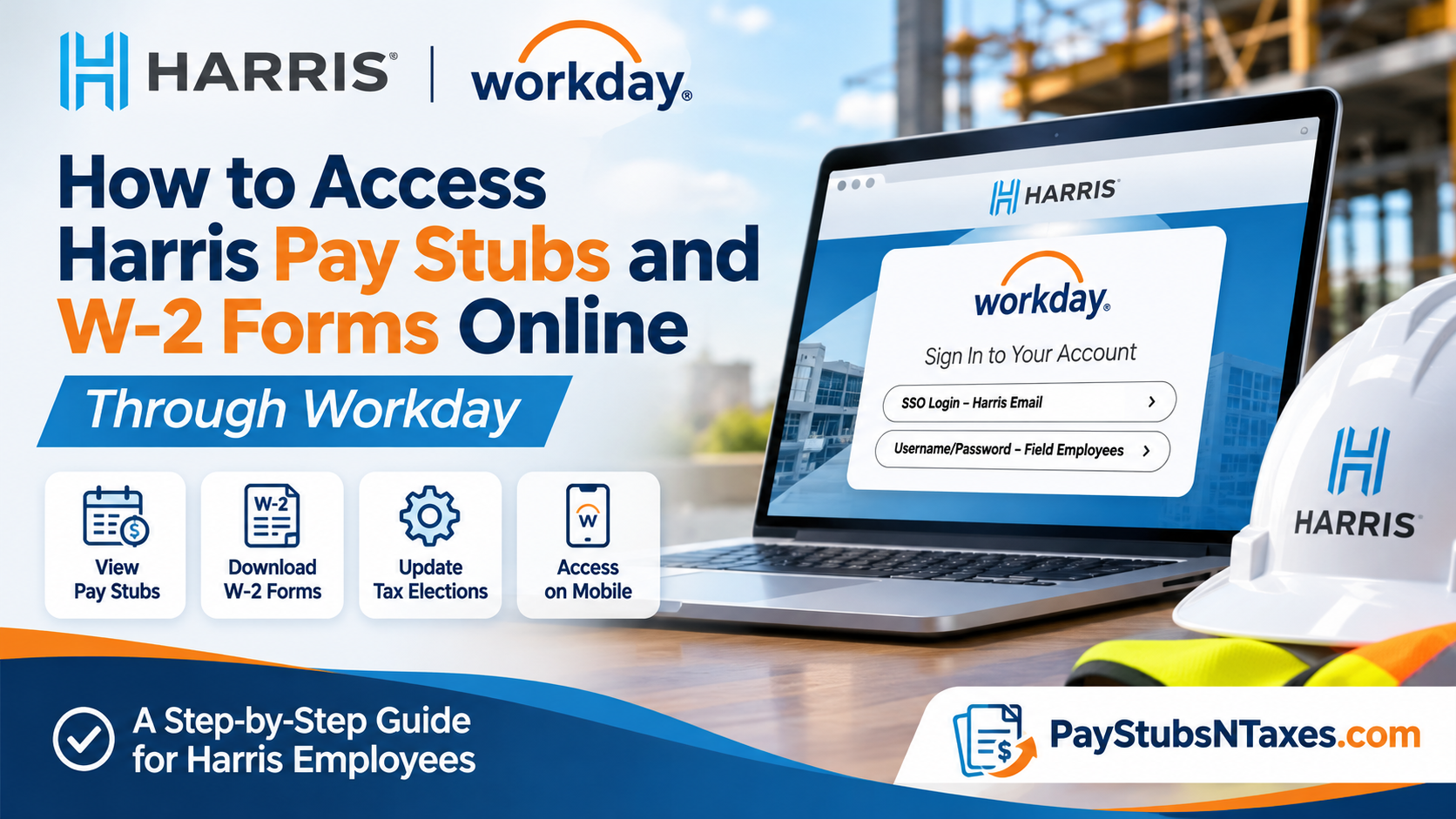
Harris employees can access their pay stubs and available W-2 forms through Workday, the company’s self-service platform for payroll, personal information, benefits, and time tracking. Whether you need to check your latest earnings, download a previous payslip, or retrieve a tax document, Workday brings these essential records together in one convenient location. With separate sign-in options for employees who have a Harris email address and field employees who use a username and password, choosing the correct login method is the first step toward accessing your information.
About Harris
Founded in 1948 in St. Paul, Minnesota, Harris is one of the leading mechanical contractors in the United States, specializing in design and engineering, construction, building automation, manufacturing, service, conveyors, and integrated building systems.
With more than 4,000 employees operating across approximately 20 regional offices, Harris delivers sophisticated mechanical solutions for commercial, industrial, and institutional projects throughout the country.
Its extensive portfolio encompasses manufacturing facilities, hospitals, stadiums, educational institutions, power plants, and other technically demanding environments.
Alongside its commitment to operational excellence, professional development, and employee well-being, Harris has embraced modern workforce management technology to streamline essential administrative processes.
As part of this digital transformation, the company utilizes Workday Human Capital Management (HCM) to provide employees with convenient access to payroll records, personal information, benefits, time tracking, and tax-related documentation.
This integrated system enables eligible employees to manage important aspects of their employment without having to depend exclusively on traditional, paper-based administrative procedures.
Understanding the Harris Workday Portal
Harris, a national mechanical contractor founded in St. Paul, Minnesota, in 1948, uses Workday to help employees manage important employment information. Alongside payroll documents, the platform provides access to personal details and other self-service functions.
Depending on your account permissions and the options available to you, Workday allows you to:
- View and print pay stubs.
- Retrieve available W-2 forms.
- Review tax withholding elections.
- Manage payment elections, including direct deposit.
- Review time-off information.
- Update contact details and emergency contacts.
- Access benefits information.
Employees can access Workday from an internet-connected computer, tablet, or mobile phone. Use an up-to-date supported browser, such as Google Chrome, for a smoother experience.
The Workday on the Hub pages also provide a central starting point for the Workday website, training videos, resources, and step-by-step instructions.
How to Log In to Harris Workday
Start by opening the Harris Workday login page. The sign-in screen provides two options:
| Login option | Who should use it |
| SSO Login – Harris Email | Employees who sign in with their Harris email account |
| Username/Password – Field Employees | Field employees who use their Harris employee ID and Workday password |
Employees With a Harris Email Address
- Select SSO Login – Harris Email.
- Follow the prompts to sign in using your Harris account.
- Complete any additional verification requested.
- Open your Workday home page to access payroll and employee information.
Field Employees Without a Harris Email Address
- Select Username/Password – Field Employees.
- Enter your Harris employee ID number as your username.
- Enter your Workday password.
- Complete any remaining sign-in prompts.
If you are signing in for the first time, use the initial credentials provided through Harris onboarding instructions. Workday will prompt you to reset your initial password and create a new one.
Once you have changed your password, use the new password for subsequent logins. If your initial credentials do not work, contact Harris for assistance.
How to View Harris Pay Stubs Online
Your Worker Profile provides access to employment details, compensation information, and payroll records. To locate your pay stubs:
- Sign in to Harris Workday.
- Select your Profile icon in the upper-right corner.
- Click View Profile.
- Open the Pay tab.
- Select Payslips.
- Locate the payment you want to review.
- Click View to open the detailed statement.
The payslip list displays information such as the payment date, pay-period start and end dates, company, gross pay, and net pay. Opening an individual statement lets you examine additional details, including taxes, benefits, and other deductions.
Checking your payslip regularly helps you keep track of your earnings and identify questions that may need payroll’s attention.
How to Print or Save a Harris Pay Stub
Within Pay → Payslips, find the relevant statement and select its Print option. When the document opens, follow the available printing or downloading prompts.
If your device’s print window offers Save as PDF, you can use that option to retain a digital copy.
To print several statements together, select Print Multiple Payslips and follow the on-screen instructions.
How to Change Your Payslip Printing Election
Workday lets employees review their payslip delivery preferences and choose between electronic access and a paper copy where available.
To update your election:
- Open your Worker Profile.
- Select Pay → Payslips.
- Review your current payslip printing preference.
- Click Change Payslip Printing Election.
- Leave the default company selection unchanged and click OK.
- Select the available electronic or paper delivery option.
- Click OK to confirm your changes.
If you request paper payslips, check that your home address is correct under the Contact tab of your profile.
Your payslip printing election is separate from your direct deposit settings. To review where your wages are deposited, open Payment Elections and follow the relevant Harris instructions.
How to Access Your Harris W-2 Online
When an available W-2 has been added to your account, you can retrieve it through Workday’s Tax Documents section.
- Sign in to Harris Workday.
- Open Profile → View Profile.
- Select the Pay tab.
- Click Tax Documents.
- Find the appropriate tax year and company.
- Under Employee Copy, select View/Print.
- Wait for Workday to generate the document.
- Download or print your W-2 once it becomes available.
Selecting the correct tax year is essential, especially if your account contains more than one year of documents.
What Does “Your Request Is Being Processed” Mean?
Workday may display “Your request is being processed” while it prepares your W-2. You can remain on the page and wait, or select Notify Me Later.
If you choose Notify Me Later, check the Workday notifications icon for a link to the generated document. Open that link to access and download your W-2.
Tax Elections vs. Tax Documents: Which Should You Open?
Although both options appear within the Pay area, they serve different purposes.
| Workday section | Purpose |
| Tax Elections | Review withholding information, including applicable work and home state details |
| Tax Documents | Access available W-2 forms for a selected tax year |
| Payslips | Review earnings, deductions, and net pay for individual pay periods |
| Payment Elections | Review or manage payment arrangements, including direct deposit |
If you need a copy of your W-2, go directly to Tax Documents. Tax Elections contains withholding information rather than the downloadable annual form.
Can Former Harris Employees Access Workday?
Former employees who need Harris pay stubs or W-2 forms should contact the Human Capital team to confirm their access options. Post-employment login arrangements may differ from those available to active employees.
If your former credentials no longer work, ask Harris how to obtain the specific payroll records you need and confirm that the company has your current contact information.
Harris Payroll and Workday Support Information
Employees who encounter difficulties accessing pay statements, retrieving tax documents, updating employment information, or signing in to Workday can seek assistance through Harris’s established support channels.
Company: Harris
Employee Portal: https://wd108.myworkday.com/harris/d/home.htmld
Workday Resource Center: https://harriscompany.com/workday-resources
Human Capital Email: humancapital@harriscompany.com
Official Company Website: https://harriscompany.com
Additional Assistance: Contact your local Harris office.
The Workday Resource Center also provides instructional materials covering account login, password management, personal information updates, direct deposit changes, payroll functions, and mobile application setup.
Using these resources can help employees resolve routine problems without unnecessary delays.
Conclusion
Accessing your Harris pay stubs and W-2 forms online is considerably more convenient when you understand how to navigate the company’s Workday employee self-service platform.
By providing centralized access to payroll statements, tax documents, payment elections, and personal employment information, Workday enables employees to manage essential administrative responsibilities with greater independence and efficiency.
Whether you are reviewing your latest paycheck, downloading several payslips for financial verification, or retrieving a W-2 for your annual tax return, the process generally begins with signing in to your Harris Workday account and navigating to the appropriate section of your Worker Profile.
For pay statements, select Pay → Payslips. For annual wage and tax statements, navigate to Pay → Tax Documents.
Employees should also review their contact information and document delivery preferences periodically, particularly before tax season, to minimize avoidable complications.
If you encounter technical difficulties or cannot locate a required document, Harris Human Capital and your local office remain the appropriate points of contact for additional assistance.
Ultimately, familiarizing yourself with the Harris Workday portal can save valuable time, simplify financial recordkeeping, and ensure that important payroll and tax information is readily accessible whenever you need it.
Frequently Asked Questions
1. Where can I access my Harris pay stubs online?
Sign in to Harris Workday, then navigate to Profile → View Profile → Pay → Payslips. Locate the relevant pay period and select View to review your earnings statement.
2. What is the Harris Workday login website?
The Harris Workday login website is https://wd108.myworkday.com/harris/d/home.htmld. Employees can choose between Harris email SSO and the username/password option for field employees.
3. Which Harris Workday login option should I choose?
Choose SSO Login – Harris Email if you use a Harris email account. Choose Username/Password – Field Employees if you sign in using your Harris employee ID and Workday password.
4. What is my Harris Workday username?
For field employees using the username/password login option, the username is their Harris employee ID number. Employees using Harris email SSO should follow the company account sign-in prompts.
5. How do I sign in to Harris Workday for the first time?
Open Harris Workday, select the appropriate login option, and enter the initial credentials provided by Harris. If you use an initial Workday password, the system will prompt you to create a new password.
6. How do I print a Harris pay stub?
Go to Pay → Payslips, locate the statement you need, and select Print. Follow the document prompts to print it or choose Save as PDF if your device offers that option.
7. Can I print multiple Harris pay stubs at once?
Yes. Open Pay → Payslips and select Print Multiple Payslips. Follow the on-screen instructions to select and print the available statements you need.
8. How do I access my Harris W-2 online?
Sign in to Workday and navigate to Profile → View Profile → Pay → Tax Documents. Find the correct tax year and company, then click View/Print under Employee Copy.
9. What should I do if Workday says my W-2 request is being processed?
Wait for Workday to generate the document, or select Notify Me Later. If you choose the notification option, check your Workday notifications for a link to the completed W-2.
10. What is the difference between Tax Elections and Tax Documents?
Tax Elections contains withholding information, including applicable work and home state details. Tax Documents contains available W-2 forms that you can view, download, or print.
11. Can I access Harris Workday from home or on my phone?
Yes. Active employees can access Harris Workday from an internet-connected computer, tablet, or mobile phone. Use a supported, up-to-date browser and sign in through the appropriate Harris login option.
12. How do I change my Harris payslip delivery preference?
Open Pay → Payslips → Change Payslip Printing Election. Leave the default company unchanged, click OK, select the available electronic or paper option, and confirm. Check your home address if requesting paper copies.
13. Where can I review my Harris direct deposit information?
Open Payment Elections in Workday to review your payment arrangements. Follow Harris’s work instructions when making updates. Direct deposit settings are separate from your payslip printing preference.
14. How can former Harris employees obtain pay stubs and W-2 forms?
Former employees should contact their local Harris office or email humancapital@harriscompany.com to confirm access options and request payroll documents. If previous login credentials no longer work, ask Human Capital how to obtain the required records.
15. Who should I contact about Harris Workday or missing payroll documents?
Contact your local Harris office or email humancapital@harriscompany.com for help with login problems, missing pay stubs, or W-2 questions. Identify the relevant pay period or tax year without including your password.
