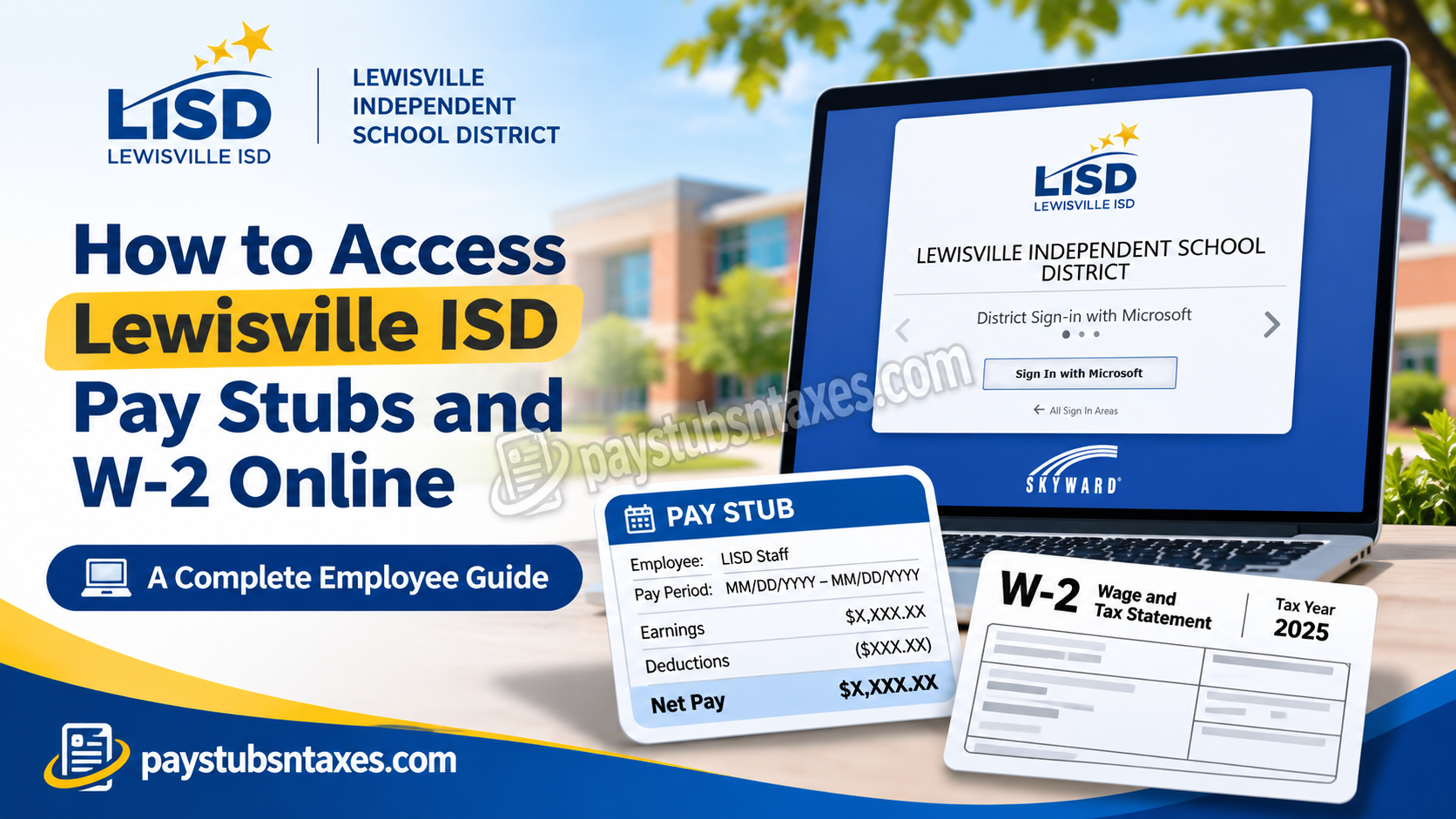
Lewisville Independent School District (LISD) employees can view and print pay stubs and download recent W-2 forms through Skyward Qmlativ Employee Access. To find a pay stub, open Employee Information → Check History. To download a W-2, open W2 Information and select the tax year. For a 2024 or earlier W-2, start with the district’s legacy Munis resources. Whether you need a recent pay stub for a loan application or a prior-year W-2 for your tax records, the quickest route depends on the document and the year you need. This comprehensive guide explains how to log in to Lewisville ISD’s employee portal, view and print paychecks, download W-2 forms, retrieve historical payroll records, and resolve common login difficulties.
| What you need | Where to start |
| A recent Lewisville ISD pay stub | Skyward Qmlativ → Employee Access → Check History |
| A recent Lewisville ISD W-2 | Skyward Qmlativ → Employee Access → W2 Information |
| A 2024 W-2 | Munis Employee Self-Service link on the LISD Employee Access Portal |
| An older W-2 or other archived payroll data | Historical Munis Reports on the LISD network |
| Pay stubs or W-2s after leaving LISD | Skyward Qmlativ → Skyward Only Authentication, using your former-employee credentials |
How to Log In to Lewisville ISD Skyward Qmlativ Employee Access
- Open the district’s Employee Access Portal and select Skyward Qmlativ Employee Access.
- If you use your district Microsoft account, choose District Sign-in with Microsoft and click Sign In with Microsoft. Use the arrows on the sign-in screen to switch to Skyward or Microsoft Accounts or Skyward Only Authentication if your account requires one of those options.
- Sign in with the credentials associated with your account and complete any verification prompts.
- If Skyward opens directly to Employee Access, you can proceed to your payroll records. If you have access to several Skyward areas, click the down arrow beside Home in the upper-left corner and select Employee Access.
How to View and Print Lewisville ISD Pay Stubs
Skyward lists your payroll statements under Check History. If you need proof of income for a specific period, check the pay date before printing or saving the statement.
- From Employee Access, select Employee Information in the upper-left corner.
- Click Check History.
- Select the paycheck you want to review, then click Show Check on the right side of the screen.
- Click Print to open your browser’s print dialog. Choose your printer for a paper copy or Save as PDF if your browser offers that option.
If a statement appears to be missing, check the pay date you selected and make sure you are in Employee Access. Contact LISD Payroll if the statement still does not appear.
How to Download Your Lewisville ISD W-2 from Skyward
Select the tax year printed on the W-2 you need. For example, if you are looking for the form covering wages paid in 2025, select 2025, even if you received the form in 2026.
- Sign in to Skyward Qmlativ and open Employee Access.
- Select W2 Information.
- Choose the tax year you want to view.
- Click the View W2 Form icon.
- Enter your full Social Security number when prompted inside the district’s Skyward portal. The system uses this step to generate the W-2 PDF.
- Open the downloaded file to view, save, or print it. If the PDF does not open automatically, check your browser’s downloads list.
Keep the PDF somewhere you can retrieve it when you need it. Because a W-2 contains sensitive information, use a personal device for downloads and avoid sending your Social Security number or an unprotected copy of the form by ordinary email.
How to Find a 2024 or Earlier Lewisville ISD W-2
For a 2024 W-2, open the LISD Employee Access Portal and follow the Munis Employee Self-Service Portal link. If the legacy ESS menu is available after you sign in, open Pay/Tax Information → W-2, select the year from the drop-down menu, and click View W-2 Image to open the form in a new window.
For earlier years, or if the W-2 you need is unavailable in Munis ESS, check Historical Munis Reports while connected to the LISD network. If you have district access but cannot find the relevant report, submit an Incident IQ support ticket. If you no longer have network access, contact LISD Payroll for help obtaining a copy.
How Former Lewisville ISD Employees Can Access Pay Stubs and W-2s
Former LISD employees can access their payroll history and W-2s in Skyward for 18 months. Once the district approves your resignation or retirement date, check the personal email address you provided to LISD for your new username and sign-in instructions.
- Open Skyward Qmlativ Employee Access and use the arrows to select Skyward Only Authentication.
- Click Forgot your Username or Password? and enter your new username or the personal email address you have on file.
- Follow the reset link sent to your personal email to create a password.
- Sign in with your new credentials and follow the prompts to set up multi-factor authentication.
- Open Check History for pay stubs or W2 Information for tax forms.
If your access period has ended, your personal email has changed, or a W-2 is missing, call LISD Payroll at 972-350-4736. Have the tax year or pay date handy so staff can identify the record you need, and ask how to verify your identity securely if required.
Conclusion
Accessing Lewisville ISD pay stubs and W-2 forms online is considerably easier when employees understand how the district’s current and historical payroll systems operate.
For most current payroll and tax-document needs, Skyward Qmlativ Employee Access serves as the primary destination, allowing authorized employees to review paycheck information, retrieve available W-2 statements, and manage employment-related records.
Employees seeking W-2 forms from 2024 or earlier, however, should consult the district’s historical Munis reporting environment, which is accessible through the LISD network.
By selecting the appropriate portal, following the correct authentication procedures, and maintaining accurate personal information, Lewisville ISD employees can retrieve their essential payroll documents efficiently while safeguarding their confidential financial information.
Should technical difficulties arise or historical documents remain unavailable, Lewisville ISD Human Resources and district technology support provide additional avenues for resolving access-related concerns.
Frequently Asked Questions
1. Where is the Lewisville ISD employee payroll login?
Open the LISD Employee Access Portal and select Skyward Qmlativ Employee Access.
2. Which Skyward sign-in option should current LISD employees use?
If you use your LISD Microsoft account, choose District Sign-in with Microsoft. Use the arrows on the sign-in screen to switch options if your account uses another authentication method.
3. How do I find Employee Access after signing in?
Click the drop-down arrow beside Home in the upper-left corner and select Employee Access. If Skyward opens directly to Employee Access, you can go straight to your payroll records.
4. How do I view a Lewisville ISD pay stub?
Under Employee Access, select Employee Information → Check History. Choose the paycheck by pay date and click Show Check.
5. Can I print or save my LISD pay stub as a PDF?
Yes. Open the pay stub and click Print. Select your printer for a paper copy, or choose Save as PDF if your browser offers that option.
6. How do I download my Lewisville ISD W-2?
Open W2 Information in Skyward Employee Access, select the tax year, and click View W2 Form. Complete the identity verification prompt to download the PDF.
7. Why does Skyward ask for my Social Security number?
Skyward requests your full Social Security number to generate the W-2 PDF. Enter it only when prompted inside the official LISD Skyward portal.
8. What should I do if my W-2 PDF does not open?
Check your browser’s Downloads list. If the file is there, open it directly. If it is missing, return to W2 Information, confirm the tax year, and try View W2 Form again.
9. Where can I find my 2024 Lewisville ISD W-2?
Start with the Munis Employee Self-Service link on the district’s Employee Access Portal. If the legacy menu is available, select Pay/Tax Information → W-2, then click View W-2 Image.
10. How do I get a Lewisville ISD W-2 from before 2024?
Check Historical Munis Reports while connected to the LISD network. If you have district access but cannot locate the report, submit an Incident IQ ticket. If you no longer have network access, contact LISD Payroll.
11. Can former Lewisville ISD employees access pay stubs and W-2s online?
Yes. Former employees can access payroll history and W-2s in Skyward for 18 months. Check the personal email address you provided to LISD for your new username and sign-in instructions.
12. Which Skyward sign-in option should former LISD employees choose?
Choose Skyward Only Authentication and sign in with your former-employee credentials. On your first sign-in, follow the prompts to set up multi-factor authentication.
13. How do former LISD employees reset their Skyward password?
On the Skyward Only Authentication screen, click Forgot your Username or Password? Enter your new username or the personal email address on file, then follow the reset link sent to your inbox.
14. What if my mailing address has changed and I need a W-2?
Call LISD Payroll at 972-350-4736 and ask how to update your address or request a copy securely. Have the tax year ready when you call.
15. Who should I contact if my LISD pay stub or W-2 is missing?
Call Lewisville ISD Payroll at 972-350-4736. Provide the paycheck date or W-2 tax year so Payroll can identify the record you need.
