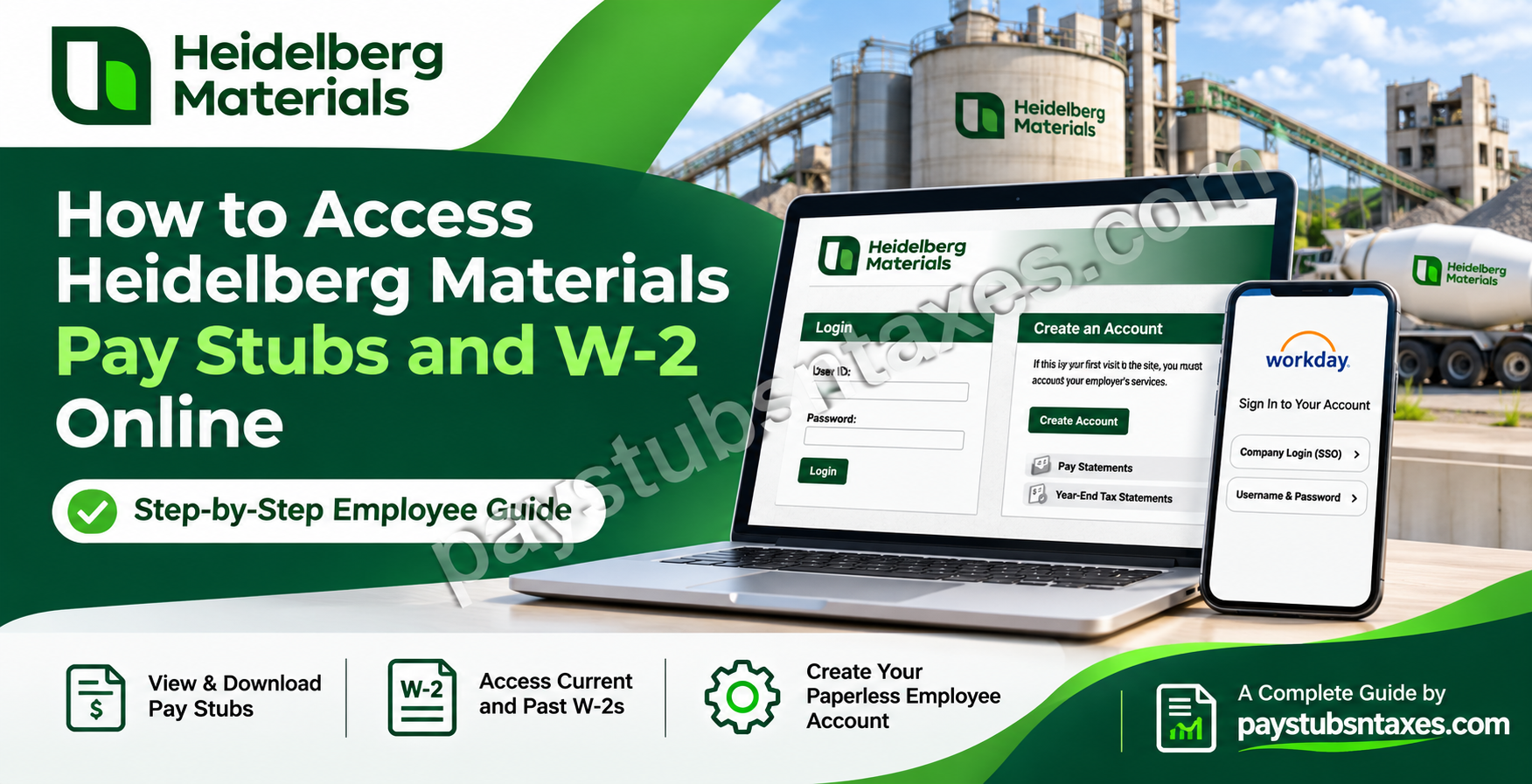
U.S. employees of Heidelberg Materials can use Paperless Employee to view and print pay stubs, check pay summaries, and download available W-2 forms. Sign in with your Paperless Employee User ID and password, then choose Pay Statements for pay stubs or Year-End Tax Statements for W-2s. If you’re visiting for the first time, select Create Account on the Heidelberg Materials U.S. payroll portal.
Heidelberg Materials supplies cement, aggregates, ready-mixed concrete, and asphalt across North America. Its broader employee systems include Workday, which can provide access to payroll documents where enabled. For U.S. pay stubs and W-2s, start with the dedicated Paperless Employee portal. The steps below cover first-time registration, electronic W-2 delivery, and what to do if you need records after leaving the company.
How to Create a Heidelberg Materials Paperless Employee Account
Have your employee ID, Social Security number, and date of birth ready. You’ll also need access to a contact method already on file to receive a verification code, and to a personal email address you can verify.
- Open the Heidelberg Materials Paperless Employee login page.
- Select Create Account on the right side of the page.
- Enter your employee ID, Social Security number, and date of birth, then select Authenticate & Create Account.
- Complete the required fields and create a User ID and password. If prompted, verify your identity using the code sent to a contact method on file before selecting Save and Continue.
- Set up your security questions and answers, then select Save Security Questions.
- Enter your primary personal email address and select Verify Email. Complete the verification to activate access. You may also add an alternate email address or mobile number if the portal offers those fields.
- Choose your electronic statement notification preferences and select Save Notification Option Settings.
- Check your inbox for the account confirmation from Paperless Employee.
If you’ve already registered, enter your User ID and password on the login page and select Login. The Forgot User ID and Password links beneath the form take you to the relevant recovery options.
How to View or Download Heidelberg Materials Pay Stubs
Paperless Employee offers two ways to review your pay. Open the full statement when you need a PDF for your records, or use the summary when you want to check a pay period at a glance.
Download a Full Pay Statement
- Sign in and select Pay Statements in the left-hand navigation or Access Pay Statements on the home page.
- Find the pay date you need and tick its checkbox in the Full Statement column. You can select multiple statements.
- Select View/Print Selected Pay Statements.
- When the PDF opens in a new browser tab, use the PDF viewer to save or print it.
If no tab opens, check whether your browser blocked it. You can also check your downloads folder in case your browser saved the file automatically.
View a Pay Statement Summary
On the Pay Statements screen, find the relevant pay date and select Show Summary on the same row. The summary expands beneath that entry, so you can review it without leaving the page. If you need a copy to keep or share, select the full statement for that pay date.
How to Access Your Heidelberg Materials W-2 Online
To receive your W-2 electronically, opt in through Paperless Employee. Once the form is released and appears in your account, you can view, download, or print it. If you already opted in during registration, you can go straight to the tax statements section.
Sign Up for Electronic W-2 Delivery
- From the home page, select Manage Electronic Tax Statement Options.
- Scroll to Electronic Statement Notification Options.
- Select Yes when asked whether you want to receive the indicated year’s tax statements electronically.
- Choose the contact method or methods you want the portal to use when a statement becomes available.
- Select Save Notification Option Settings.
The saved electronic delivery preference carries forward to future years. If your email address or phone number changes, update the contact information used for notifications so you can receive the next availability alert.
Download Current and Prior-Year W-2s
- Select Year-End Tax Statements in the left-hand navigation. From the home page, you can also choose Access Current Year-End Statements for the latest available form or Access Prior Year-End Statements for an older form.
- On the Get Tax Statements screen, confirm the tax year and tick the checkbox for the form you need in the Select column.
- Select Review & Complete Order and follow the prompts to download the form.
- Save or print the PDF for your records.
If a form is missing, check that you selected the correct tax year and that your electronic delivery preference was saved. If you still cannot find it, ask your Area Office to confirm availability or explain how to request a copy.
How Former Heidelberg Materials Employees Can Get Payroll Records
If you previously set up a Paperless Employee account, try signing in with the User ID and password you created for that portal. Check Pay Statements for your final pay stub and Year-End Tax Statements for any available W-2s. If you can’t recover your account or the document you need is unavailable, contact your Area Office and specify the pay date or tax year.
If you were issued separate Workday credentials, the Heidelberg Materials Workday sign-in page offers a Username & Password option. Employees who have an active company email address can use Company Login (SSO). Payroll documents available in Workday depend on your account access. For U.S. records, use Paperless Employee first.
Where to Get Help With Heidelberg Materials Payroll Access
Contact your Area Office if you need help confirming your employee ID, updating a contact method used for verification, or obtaining a missing pay stub or W-2. For sign-in assistance, call the Help Desk at 877-426-6291. When requesting a document, have the pay date or tax year handy so the office can identify the record you need.
Conclusion
Accessing Heidelberg Materials pay stubs and W-2 forms online is a relatively straightforward process once you identify the payroll platform assigned to your employment arrangement. For eligible employees in the United States, the Heidelberg Materials USA Paperless Employee portal provides a convenient way to create an account, review full and summary pay statements, register for electronic W-2 delivery, and retrieve available current or historical tax documents.
Meanwhile, employees assigned to Workday can access their authorized employee self-service functions using either Company Login (SSO) or separately issued credentials. Whether you are checking your latest earnings, preparing your annual income tax return, or retrieving historical payroll information after leaving the company, maintaining accurate login details and securely preserving important documents can make the process considerably more manageable. If you encounter account registration difficulties, missing statements, or restricted access, contact your Heidelberg Materials Area Office or employee support team for further assistance.
With the appropriate credentials and a clear understanding of the available payroll systems, you can access the financial information you need while maintaining the security and confidentiality of your employment records.
Heidelberg Materials Pay Stubs and W-2 FAQs
1. What is the Heidelberg Materials payroll login for U.S. employees?
Use the Heidelberg Materials U.S. Paperless Employee portal. The sign-in page reads Welcome, Heidelberg Materials US Employees.
2. How do I create a Heidelberg Materials Paperless Employee account?
Select Create Account, enter your employee ID, Social Security number, and date of birth, and click Authenticate & Create Account. Follow the prompts to create your credentials, set up security questions, and verify your email address.
3. What if I can’t receive my Paperless Employee verification code?
Choose another contact method if the portal offers one. If you no longer have access to the contact details on file, ask your Area Office for help updating them.
4. How do I recover my Paperless Employee User ID or password?
Select the User ID or Password recovery link below the login form and follow the prompts for the credential you need to recover.
5. How do I download a Heidelberg Materials pay stub as a PDF?
Open Pay Statements, check the box beside the relevant pay date in the Full Statement column, and select View/Print Selected Pay Statements. Use your browser’s PDF viewer to save the file.
6. Can I print several Heidelberg Materials pay stubs at once?
Yes. Select the checkboxes for each pay period you need, then click View/Print Selected Pay Statements. Print the statements from the PDF that opens in your browser.
7. How do I view a pay summary without downloading a PDF?
In Pay Statements, select Show Summary next to the pay date you want to review. The summary expands beneath the selected entry on the same page.
8. How do I sign up for electronic Heidelberg Materials W-2 delivery?
Open Manage Electronic Tax Statement Options, select Yes under Electronic Statement Notification Options, and choose how you want to be notified. Click Save Notification Option Settings.
9. Do I need to opt in to electronic W-2 delivery every year?
Your saved electronic delivery preference carries forward to future years. Keep your email address and other notification details current so you can receive alerts when a form becomes available.
10. How do I download my latest Heidelberg Materials W-2?
After the form is released, select Access Current Year-End Statements from the Paperless Employee home page. Check the box next to the correct tax year, select Review & Complete Order, and follow the prompts to download the form.
11. Where can I find a Heidelberg Materials W-2 from a previous year?
Choose Access Prior Year-End Statements from the home page. Select the available form for the tax year you need, then click Review & Complete Order.
12. Can former Heidelberg Materials employees access pay stubs and W-2s online?
If you previously registered, try signing in with your Paperless Employee credentials. If you can’t sign in or the record is missing, contact your former Area Office with the pay date or tax year you need.
13. Can I use Workday to access Heidelberg Materials payroll documents?
Workday may show payroll documents where access is enabled. The Heidelberg Materials sign-in page offers Company Login (SSO) for employees with a company email and Username & Password for users issued separate Workday credentials. U.S. employees should start with Paperless Employee.
14. What should I do if my Heidelberg Materials W-2 is missing?
Check the tax year under Year-End Tax Statements and confirm that your electronic delivery preference was saved. If the form still doesn’t appear, ask your Area Office whether it has been released and how to request a copy.
15. Who can help with Heidelberg Materials payroll portal access?
Contact your Area Office for help with employee ID verification, outdated contact details, or missing payroll records. For sign-in assistance, call the Help Desk at 877-426-6291.
