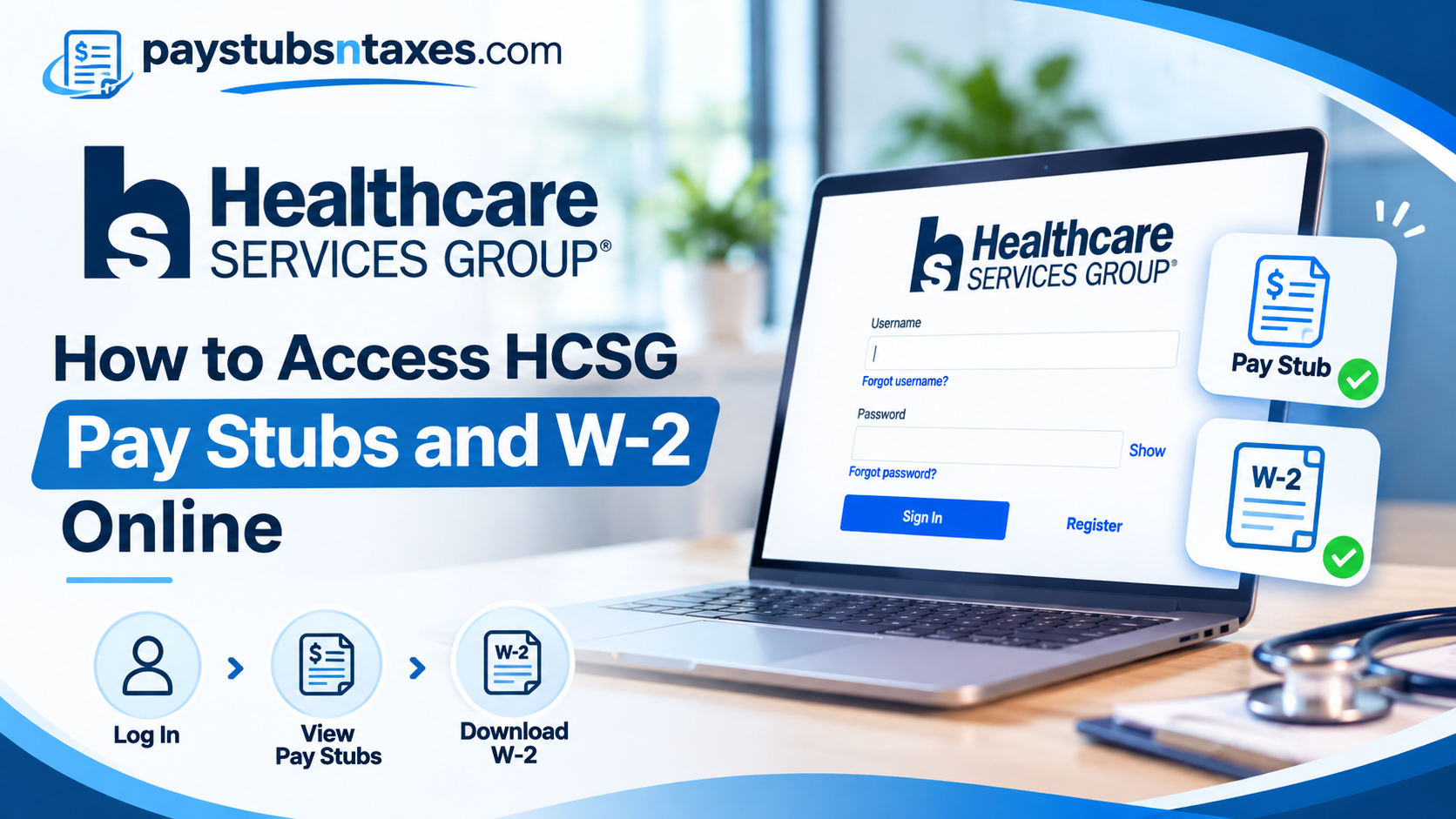
Current and former Healthcare Services Group (HCSG) employees can use the PrismHR Employee Self-Service Portal to view pay stubs, download W-2 forms, and update their contact information. For a pay stub, sign in and select Pay, then View Paystub and View Check. For a W-2, open Taxes, select W-2, and choose the tax year you need. If you have trouble signing in, call 866-636-2855 for assistance.
HCSG provides housekeeping, laundry, dining, and nutrition services to healthcare facilities. Whether you work on one of those teams or have already left the company, PrismHR gives you a place to retrieve the payroll records you need. The steps below cover first-time registration, account verification, and downloading a copy of each document. This comprehensive guide explains how to access Healthcare Services Group pay stubs and W-2 forms online, register for a PrismHR account, troubleshoot login difficulties, and obtain payroll assistance when necessary.
About Healthcare Services Group (HCSG)
Healthcare Services Group, Inc. (HCSG) is an established provider of essential services to healthcare facilities throughout the United States. With approximately five decades of industry experience, the company specializes in housekeeping, laundry, dining, and nutritional services, helping healthcare organizations maintain clean, safe, and comfortable environments for residents and patients.
Operating across 48 states and supporting approximately 3,000 facilities, HCSG employs around 35,000 individuals who contribute to its extensive service network.
The organization’s commitment to integrity, collaboration, empowerment, perseverance, and service excellence underpins its approach to workforce development and operational efficiency.
Recognizing that employees are fundamental to its success, HCSG provides digital resources designed to simplify administrative responsibilities, including electronic access to payroll statements, tax documents, and personal employment information.
One of these resources is PrismHR, which serves as an online employee self-service system for both current and former HCSG employees.
How to Sign In to the HCSG PrismHR Employee Portal
Open the HCSG PrismHR Employee Portal on your phone or computer. You can also reach PrismHR through the HCSG Employee Resources page, which is a useful starting point if a saved link stops working.
If you already have a PrismHR account, enter your username and password and select Sign In. Keep a valid email address on file, since you may need it to verify your account or recover access. If you have just joined HCSG, allow approximately one week after submitting your new-hire paperwork for your employee profile to become available.
Registering for the first time
Employees hired on or after December 5, 2021 can use self-registration. Select Register on the sign-in page, complete the required fields using details that match your HCSG payroll record, and submit the form. A mismatch between the information you enter and the information on file can prevent registration from going through.
If you were hired before December 5, 2021, use the credentials you previously set up. If your account still uses the original sign-in format and you need help recovering it, use Forgot username? or Forgot password? on the login screen, or call HCSG’s PrismHR support number.
Verifying your account with a security code
On your first sign-in, PrismHR may ask you to verify your account. If a mobile number is on file, you may be able to choose between a text message and email. Choose an available method and select Send Security Code.
Enter the five-digit code and select Submit to open your dashboard. If you chose email, look for a message from noreply@prismhr.com and check your junk or spam folder if it does not appear. If the code expires or never arrives, select Resend Security Code and use the new code.
How to View, Download, or Print HCSG Pay Stubs
The Pay widget on your PrismHR dashboard displays your three most recent pay stubs. To find an older statement, select View More in the widget or open Pay from the left-hand menu.
- Find the pay period you need and select View Paystub.
- When the pay summary opens, select View Check to generate the pay stub PDF.
- Open the downloaded PDF to review, save, or print it.
If the PDF does not appear, check your browser’s download history or your device’s Downloads folder. If your browser blocked a pop-up, allow pop-ups for the PrismHR site and select View Check again. Before sharing a copy for an income verification request, check the pay date so you send the statement the recipient asked for.
How to Download Your HCSG W-2 Online
Your W-2 is listed under Taxes. To retrieve it, follow these steps.
- Sign in to the HCSG PrismHR Employee Portal.
- Select Taxes from the left-hand menu.
- Select W-2 and choose the tax year.
- Open the available W-2 and download a copy.
If the year you need is missing, check that you selected the correct year, then contact HCSG for help locating the form or requesting a copy. If your mailing address has changed, review the contact information in PrismHR so any payroll correspondence goes to the right place.
How to enroll in electronic W-2 delivery
If you prefer to receive your W-2 through PrismHR, open Taxes, select W-2, and scroll to Early W-2 Election. If a yellow notice indicates that you have yet to enroll, review the consent language, check the consent box, and select Enroll.
Once enrolled, you will receive a notification when your W-2 becomes available in the portal. The electronic form may be available before mailed copies arrive. Your election stays in effect until you revoke it, so review your delivery preference if you later want to receive a paper copy by mail.
How Former HCSG Employees Can Access Payroll Records
Former employees can use the same PrismHR portal to retrieve available pay stubs and W-2 forms. Start with your existing credentials and use the account recovery links if necessary. If the email address or mobile number on file is no longer accessible, call 866-636-2855 for help regaining access. For broader employment or HR questions, call the HCSG Human Resources Hotline at 833-474-4274.
Once you are signed in, download the records you need and save them somewhere you can find them again. Label pay stubs by pay date and W-2 forms by tax year, especially if you are keeping records from several jobs or filing years.
Conclusion
Healthcare Services Group has simplified access to essential payroll documentation by providing employees with the PrismHR Employee Self-Service Portal, a centralized platform for reviewing earnings, downloading electronic pay stubs, retrieving W-2 tax statements, and managing certain personal employment details.
Current employees can access their recent paycheck information through the dashboard’s Pay section, while historical statements can be retrieved through the expanded payroll menu. Similarly, available W-2 documents can be downloaded by selecting Taxes → W-2 → Tax Year → Download. Employees hired on or after December 5, 2021, should follow the applicable self-registration procedure, whereas earlier hires may need to use the original credential format if their accounts have not been updated.
Former HCSG employees can also use PrismHR to access available employment-related records, although individual account access may require assistance. For the most reliable experience, employees should begin at the official login portal: https://hcs.prismhr.com/hcs/auth/#/login.
If login problems, missing documents, or account verification difficulties arise, contact HCSG PrismHR Support at 866-636-2855. By familiarizing themselves with the portal’s registration, navigation, and document retrieval features, HCSG employees can manage their payroll information efficiently, securely, and with considerably greater independence.
Healthcare Services Group Pay Stubs and W-2 FAQs
1. Where do I log in to view my HCSG pay stubs?
Use the Healthcare Services Group PrismHR login page on your phone or computer. Enter your username and password, then select Sign In.
2. Can former Healthcare Services Group employees access PrismHR?
Yes. Former HCSG employees can use PrismHR to view available pay stubs and W-2 forms. If you can no longer access the email address or phone number linked to your account, call 866-636-2855 for login assistance.
3. How do I register for the HCSG PrismHR portal?
If you were hired on or after December 5, 2021, select Register on the login page and complete the required fields. Enter your information as it appears in HCSG’s payroll records and make sure you have a valid email address on file.
4. How do I sign in if HCSG hired me before December 5, 2021?
Use your existing sign-in credentials. If your account still uses the original login format and you need help accessing it, try the account recovery links or call 866-636-2855.
5. When can new HCSG employees access PrismHR?
Your PrismHR profile should be ready approximately one week after you submit your new-hire paperwork. If registration still fails after that, check that the details you entered match your payroll record.
6. How do I recover my HCSG PrismHR username or password?
Select Forgot username? or Forgot password? on the PrismHR login page and follow the prompts. If you cannot complete the recovery process, call 866-636-2855.
7. What should I do if my PrismHR security code does not arrive?
If you requested the code by email, check your spam or junk folder for a message from noreply@prismhr.com. If the code never arrives or has expired, select Resend Security Code and enter the new five-digit code.
8. Where can I find older HCSG pay stubs?
The Pay widget on your dashboard shows your three most recent pay stubs. To see earlier statements, select View More or open Pay from the left-hand menu.
9. How do I save or print an HCSG pay stub?
Open the statement with View Paystub, then select View Check to generate the PDF. Open the downloaded file to save or print a copy.
10. Why won’t my HCSG pay stub PDF open?
Check your browser’s download history or your device’s Downloads folder first. If the browser blocked a pop-up, allow pop-ups for the PrismHR site and select View Check again.
11. How do I download an HCSG W-2 from a previous year?
In PrismHR, go to Taxes → W-2 and select the year you need. Open the available form and download a copy. If the year is missing, contact HCSG for help obtaining the form.
12. How do I sign up for electronic W-2 delivery?
Go to Taxes → W-2 and scroll to Early W-2 Election. Review the consent terms, check the consent box, and select Enroll to receive your W-2 electronically through the portal.
13. Do I need to enroll in electronic W-2 delivery every year?
No. Your electronic delivery election stays in effect until you revoke it. If you later prefer a mailed copy, review your delivery preference in PrismHR and confirm that your mailing address is current.
14. Can I update my contact information in the HCSG PrismHR portal?
Yes. You can use PrismHR to update your contact information. Keep a valid email address on file for account verification and review your mailing address if you expect to receive payroll documents by mail.
15. Who do I contact for HCSG payroll portal or HR help?
Call 866-636-2855 for PrismHR login assistance. For broader employment or HR questions, call the HCSG Human Resources Hotline at 833-474-4274.
