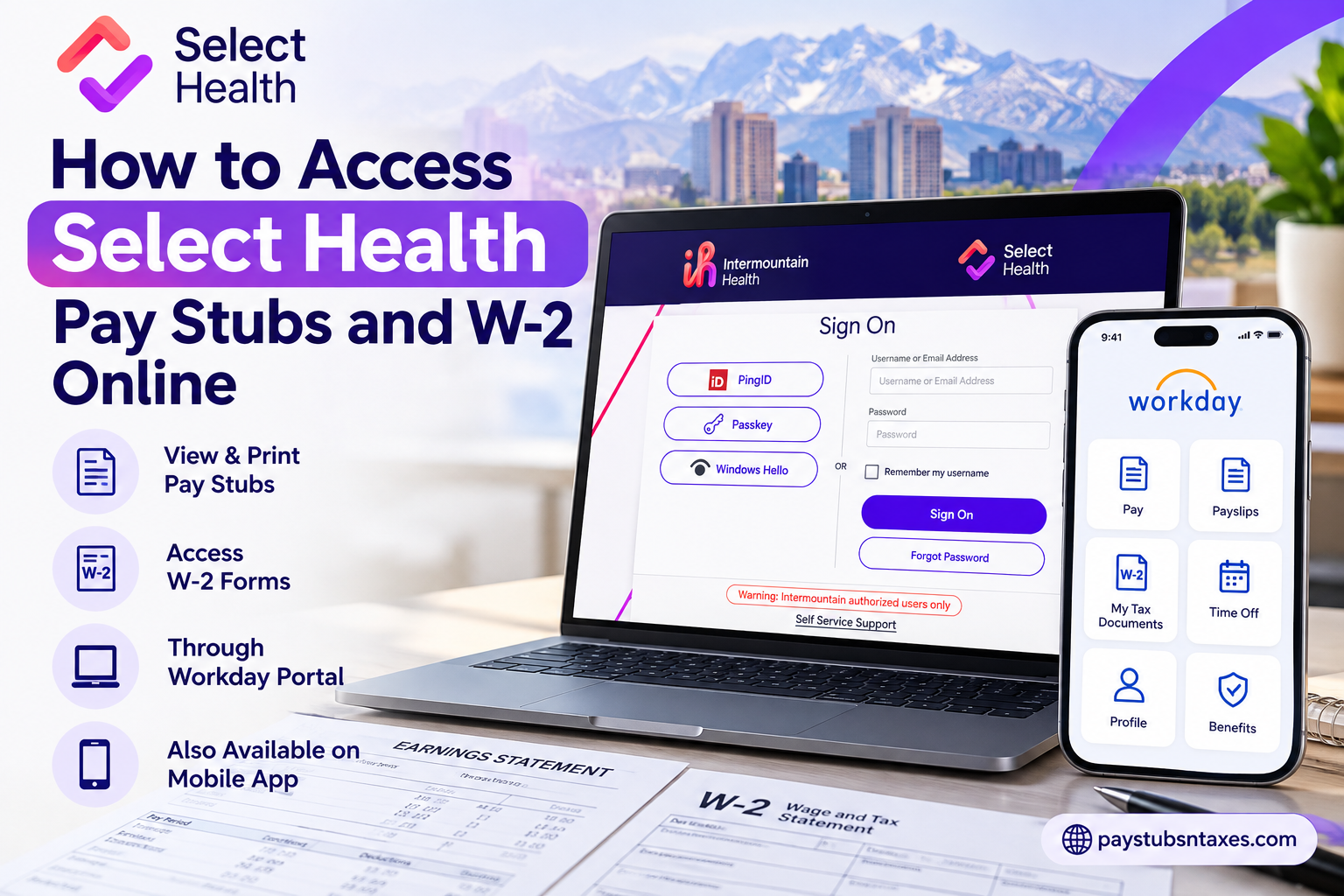
Select Health employees can access their pay stubs and W-2 statements through the Workday employee portal and mobile app. After signing in with their employee credentials and completing single sign-on authentication, employees can open Pay → Payslips to retrieve pay statements or Pay → My Tax Documents to access available W-2 forms.
Select Health is a nonprofit health plan dedicated to simplifying healthcare access for more than 1.1 million members across the Mountain West. Alongside its commitment to helping people live healthier lives, the organization provides employees with digital access to essential HR and payroll information.
Whether you need a payslip to verify your income or a W-2 statement for your records, Workday makes it easier to retrieve these documents without requesting a printed copy each time. This guide explains how to sign in, locate your payroll records, and resolve common access problems.
Understanding the Select Health Workday Portal
Workday is a web-based employee self-service platform that brings HR and payroll information together in one place. For Select Health employees, it provides access to available payslips and year-end tax documents through a secure account.
Employees can access Workday using the following details:
- Workday login URL: https://wd108.myworkday.com/imh/login.htmld
- Mobile app: Workday
- Mobile organization code: imh
- Sign-in method: Employee single sign-on, or SSO
- Authentication options: PingID, Passkey, or Windows Hello, depending on account and device setup
Because payroll documents contain sensitive personal information, use a private computer, such as your home computer, when downloading or printing copies.
What You Need Before Accessing Workday
Before signing in, make sure you have your employee login credentials and access to your configured authentication method.
For new employees, login information is expected to become available within approximately 48 hours after completing orientation. If your credentials are still unavailable after that period, contact your onboarding representative or the appropriate support team.
Getting acquainted with Workday before your first payday is a sensible precaution. By confirming that your account works early, you give yourself time to resolve any access difficulties before you urgently need a payroll document.
How to Log In to Select Health Workday
Follow these steps to access your account through a web browser:
- Open your browser and visit https://wd108.myworkday.com/imh/login.htmld.
- Select the employee SSO sign-in option if prompted.
- Enter your employee login credentials.
- Complete authentication using PingID, Passkey, or Windows Hello, as configured for your account.
- Once signed in, locate your employee profile or the Pay application.
Although several authentication options may appear, choose one that has already been configured for your account and is supported by your device. If you cannot complete the sign-in process, contact regional support for assistance.
How to Access Select Health Pay Stubs Online
Workday provides two routes for accessing your payslips: through your employee profile or through the Pay application on your home page.
Method 1: Access Payslips Through Your Employee Profile
- Sign in to your Workday account.
- Open your employee profile.
- Select Pay.
- Click Payslips.
- Find the pay period you want to review.
- Click the PDF link beside the relevant pay period.
- View, download, or print your pay statement.
Before saving the document, check that you have selected the correct pay period. This is particularly useful when collecting several payslips for income verification or other personal records.
Method 2: Access Payslips Through the Pay Application
If you have added the Pay application to your Workday home page:
- Sign in to Workday.
- Open the Pay application.
- Under View, select Payslips.
- Locate the required pay period.
- Open the corresponding PDF link.
- Download or print the statement as needed.
If the Pay application does not appear on your home page, look for Configure Applications and add it where that option is available. Alternatively, access your payslips through your employee profile.
How to Download and Print Select Health Pay Stubs
Once you have opened the payslip PDF, you can save a digital copy or print it for your records.
To download your pay stub:
- Open the PDF for the required pay period.
- Select the Download or Save option in the document viewer.
- Choose a secure folder on your private computer.
- Give the file a recognizable name that includes the pay period.
To print your pay stub:
- Open the payslip PDF.
- Select the Print option.
- Review the print preview.
- Confirm that the correct printer and all required pages are selected.
- Print the document and collect it promptly.
Keeping your statements organized by year and pay period makes it easier to retrieve the right document when needed.
How to Access Select Health W-2 Forms Online
Available W-2 statements can be viewed and downloaded from the My Tax Documents section in Workday.
Follow these steps:
- Log in to your Workday account.
- Locate the Applications section on the main dashboard.
- Click the Pay icon.
- Under View, click More to expand the available options.
- Select My Tax Documents.
- Find the W-2 for the required tax year.
- Click View/Print beside the document.
- Download a copy or print it using a private computer.
Always confirm the tax year before saving or printing your W-2. If the required statement is missing, contact payroll or HR to check its availability and request assistance.
How to Access Select Health Workday on Your Mobile Device
The Workday mobile app offers a convenient way to access employee information when you are away from your computer.
To set up the app:
- Download the Workday app from your device’s official app store.
- Open the app and follow the setup prompts.
- Enter imh when asked for your organization code.
- Continue to the employee SSO sign-in page.
- Enter your employee credentials.
- Complete the required authentication.
- Locate Pay or the relevant payroll options.
The mobile layout and available document features may differ from the browser version. If you cannot locate a document or printing option in the app, sign in to the Workday website from a private computer.
Select Health Workday, Payroll, and HR Support
If you need help with Workday access, payroll documents, or an HR-related question, use the support contacts provided for your organization.
Email: epicvalidation@imail.org
Regional support numbers:
- Canyons Region: 1-800-442-4566
- Peaks Region: 1-303-866-8282
- Desert Region: 1-702-253-2680
When requesting assistance, describe the issue clearly and include the relevant pay period, tax year, or error message. Never share your password or authentication codes.
About Select Health
Select Health is a Utah-based nonprofit health insurance organization committed to making quality healthcare more accessible and affordable for individuals, families, and communities throughout the Mountain West.
Serving more than 1.1 million members, the organization provides commercial and government-sponsored medical insurance plans, dental coverage, wellness solutions, and pharmacy benefit management services.
Guided by its mission of Helping People Live the Healthiest Lives Possible, Select Health strives to deliver healthcare experiences that are simple, sincere, and seamless.
Its close integration with Intermountain Health and other clinical partners enables the organization to coordinate healthcare services while emphasizing affordability, accessibility, and quality.
Beyond its commitment to members, Select Health recognizes that supporting its workforce is essential to achieving its broader organizational objectives. Employees work across numerous professional disciplines, including healthcare administration, information technology, finance, marketing, and customer service.
Conclusion
The Select Health Workday employee self-service portal offers a convenient and secure way for employees to manage essential payroll information without relying on traditional paper-based processes.
Whether you need to review your latest paycheck, download a historical pay stub, or retrieve your annual W-2 statement, Workday brings these important documents together within an accessible digital environment.
By signing in through the designated Intermountain Health Workday portal, navigating to the appropriate payroll section, and selecting the required document, employees can obtain available records with minimal administrative effort.
The Workday mobile application further enhances accessibility, enabling employees to review supported payroll information from compatible smartphones and tablets.
Ultimately, becoming familiar with the Select Health Workday login process, payslip navigation, and W-2 retrieval procedures can save valuable time, simplify tax preparation, and help employees maintain accurate financial records throughout their employment.
For login difficulties, missing documents, or payroll-related inquiries, employees should contact the designated support team or their Human Resources Department for additional assistance.
Frequently Asked Questions
1. Where can Select Health employees access pay stubs online?
Select Health employees can access their pay stubs through Workday at https://wd108.myworkday.com/imh/login.htmld. After signing in, open Pay → Payslips and select the PDF beside the required pay period.
2. How do I log in to Select Health Workday?
Visit the Workday employee portal, select employee SSO if prompted, and enter your credentials. Complete authentication using PingID, Passkey, or Windows Hello, depending on your account and device setup.
3. When will new employees receive Workday login information?
New employees should generally receive Workday login information within approximately 48 hours after completing orientation. If your credentials remain unavailable, contact your onboarding representative or support team.
4. How do I find payslips through my Workday profile?
Open your employee profile, select Pay, and click Payslips. Locate the required pay period and open its PDF link to view, download, or print the statement.
5. Can I access payslips from the Workday home page?
Yes. If the Pay application appears on your home page, open it and select Payslips under View. Choose the relevant pay period and open the corresponding PDF.
6. What should I do if the Pay application is missing?
Look for Configure Applications and add the Pay application where available. Alternatively, open your employee profile and navigate to Pay → Payslips.
7. How do I download a Select Health pay stub?
Open Pay → Payslips, select the required pay period, and click its PDF link. Use the document viewer’s Download or Save option to retain a copy securely.
8. How do I print my Select Health pay stub?
Open the payslip PDF in Workday and select the document viewer’s Print option. Use a private computer and trusted printer, then check the print preview before printing.
9. How do I access my Select Health W-2 online?
Sign in to Workday and open Pay from the Applications section. Under View, click More, select My Tax Documents, and click View/Print beside the required W-2.
10. Can I download and print my W-2 from Workday?
Yes. Open My Tax Documents, locate the correct tax year, and select View/Print. Once the document opens, use the available download or print controls.
11. What is the organization code for the Workday mobile app?
The Select Health Workday mobile organization code is imh. Enter this code during setup, then follow the employee SSO sign-in and authentication prompts.
12. Can I access Select Health payroll information on my phone?
Yes. Install the Workday app, enter imh as the organization code, and sign in. Look for the available payroll options. If you cannot locate a document or printing feature, use the Workday website on a private computer.
13. What should I do if a payslip or W-2 is missing?
Check that you have selected the correct pay period or tax year. If the document is still unavailable, contact payroll or HR to confirm its availability and request assistance.
14. What should I do if I cannot sign in to Workday?
Verify your employee credentials and use an authentication method configured for your account. If PingID, Passkey, or Windows Hello does not work, contact your regional support team.
15. Who can I contact for Select Health Workday assistance?
For Workday, payroll, or HR-related assistance, email epicvalidation@imail.org or call your regional support number:
- Canyons Region: 1-800-442-4566
- Peaks Region: 1-303-866-8282
- Desert Region: 1-702-253-2680
