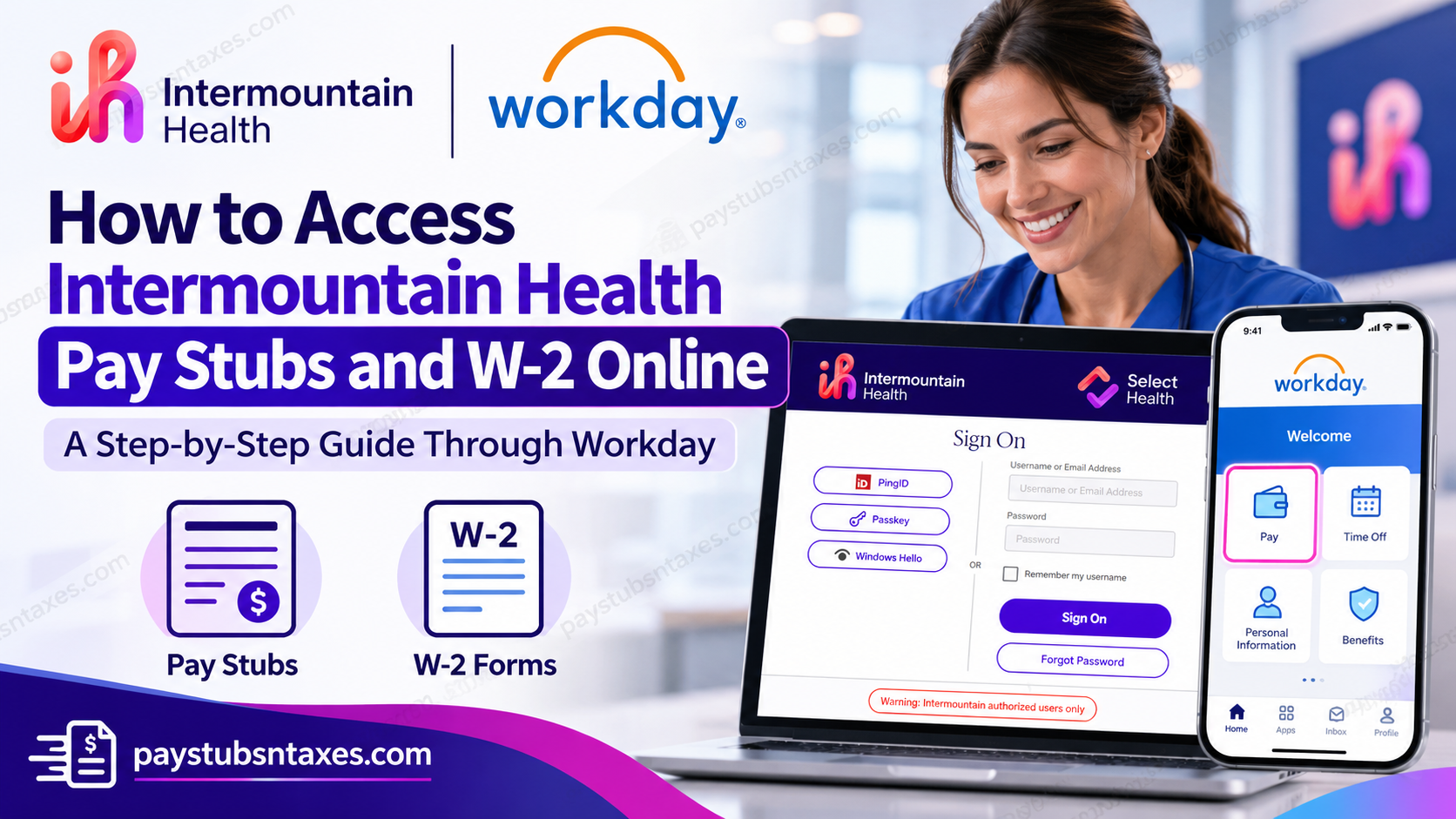
Intermountain Health employees can access their pay stubs and W-2 forms through the Workday employee portal. Whether you need to review your latest earnings, download an earlier payslip, or retrieve a year-end tax statement, Workday provides a convenient way to manage your payroll documents online.
To access Intermountain Health pay stubs, sign in to Workday, select Pay, and open Payslips. Choose the relevant pay period, then open the PDF to download or print your statement. For W-2 forms, navigate to Pay → More → My Tax Documents and select View/Print beside the required document. This guide explains how to sign in, locate your payroll records, use the Workday mobile app, and obtain assistance when access issues arise.
About Intermountain Health
Intermountain Health, formerly known as Intermountain Healthcare, is a prominent American nonprofit healthcare organization headquartered in Salt Lake City, Utah. Recognized for its commitment to clinical excellence, preventive medicine, and community well-being, the organization provides comprehensive healthcare services throughout the Intermountain West.
With a network encompassing approximately 34 hospitals and 400 clinics, Intermountain Health serves communities across Utah, Colorado, Idaho, Montana, Nevada, and Wyoming.
A significant milestone in the organization’s development occurred in April 2022, when Intermountain Healthcare merged with Colorado-based SCL Health. This strategic integration expanded its geographical footprint, strengthened its clinical capabilities, and established a broader healthcare delivery network.
Today, Intermountain Health employs tens of thousands of healthcare professionals, commonly referred to as caregivers, including physicians, nurses, administrative personnel, technicians, and support staff.
Guided by its mission of helping people live the healthiest lives possible, the organization continually seeks to improve healthcare accessibility, affordability, and patient outcomes.
Beyond its clinical operations, Intermountain Health recognizes the importance of providing employees with dependable administrative tools. Its adoption of Workday supports this commitment by offering a centralized digital environment for managing employment-related information.
Understanding Intermountain Health’s Workday Portal
Intermountain Health is a nonprofit healthcare system headquartered in Salt Lake City, Utah, serving communities across the western United States. Its caregivers use Workday to access employment information, including available pay statements and annual tax documents.
By keeping these records in one place, Workday makes it easier to review your compensation and maintain personal financial records without relying exclusively on paper copies. Although the layout may differ slightly between desktop and mobile versions, the essential process remains straightforward: sign in, locate the appropriate payroll section, and select your document.
What You Need Before Signing In
Before accessing your Intermountain Health payroll account, have the following ready:
- Your Intermountain employee login credentials.
- Access to your enrolled authentication method.
- A private computer, smartphone, or tablet with an internet connection.
- A PDF viewer or a browser that can display PDF documents.
New caregivers should follow the account setup instructions provided during onboarding. Intermountain’s onboarding information explains that employees receive details for establishing a master account and configuring PingID; anyone who has not received the necessary information by their first day should contact onboarding support.
Getting your account ready early helps prevent a last-minute scramble when you need your first pay statement.
How to Log In to Intermountain Health Workday
To access your employee account through a web browser:
- Open the Intermountain Health Workday login page.
- Select the employee Single Sign-On, or SSO, option when prompted.
- Enter your Intermountain credentials if requested.
- Complete authentication using an available method, such as PingID, Passkey, or Windows Hello.
- Once authenticated, proceed to your Workday dashboard.
Choose the authentication method already configured for your account. The options displayed may depend on your device and account setup.
How to View and Download Intermountain Health Pay Stubs
Your payslip provides a detailed record of your earnings and deductions for a particular pay period. To retrieve an available statement:
- Sign in to Workday.
- Open your profile.
- Select Pay.
- Choose Payslips.
- Locate the pay period you want to review.
- Click the PDF link beside that pay period.
- Download the file or select the print option.
Before saving or printing, check that you have selected the correct payment date, particularly when retrieving several statements for an application or personal record.
Alternative Route Through the Pay Application
If the Pay application appears on your Workday home page, you can use this route:
Workday Home → Pay → View → Payslips → Select Pay Period → PDF
If Pay is not displayed, look for Configure Applications and add it where your account permits. Keeping frequently used applications within easy reach can save time when checking payroll records regularly.
What to Check on Your Pay Stub
When reviewing a statement, pay attention to the information applicable to your employment, including:
- Pay period and payment date.
- Regular earnings and any additional compensation.
- Recorded hours, where shown.
- Tax withholding.
- Benefit contributions and other deductions.
- Net pay and year-to-date totals.
If something appears incorrect, contact payroll or HR for clarification. Having the relevant pay date and a clear description of the discrepancy will help them investigate.
How to Access Intermountain Health W-2 Forms Online
When your W-2 is available in Workday, follow these steps:
- Log in to your Intermountain Health Workday account.
- Select Pay from the dashboard’s Applications section.
- Under View, click More to expand the available options.
- Select My Tax Documents.
- Locate the W-2 for the required tax year.
- Click View/Print.
- Download the document or print a copy for your records.
Quick navigation:
Workday → Pay → View → More → My Tax Documents → View/Print
Check the tax year before downloading, especially if more than one document appears. If the W-2 you need is missing, ask payroll whether it has been released or whether another retrieval process applies to your employment record.
How to Access Payroll Information Through the Workday Mobile App
The Workday mobile app offers a practical way to check available payroll information while away from your computer.
Set Up the App
- Download the official Workday app from the Apple App Store or Google Play Store.
- Open the app and begin the organization setup process.
- When prompted for your organization ID or code, enter imh.
- Continue to Intermountain’s sign-in screen.
- Complete SSO and the required authentication prompts.
View Available Payslips
After signing in:
- Open the Pay application or locate the payroll options available in your account.
- Select Payslips.
- Choose the relevant pay period.
- Open the statement and use any available viewing or download options.
Mobile menus and document functions may differ from the desktop portal. If you cannot locate a tax document or need a printed copy, use Workday through a private computer and follow the desktop instructions above.
How to Print Pay Stubs and W-2 Statements
For the clearest printing experience, open the document’s PDF version on a private computer.
- Select the required payslip or W-2 in Workday.
- Open its PDF or View/Print option.
- Review the document to confirm the date or tax year.
- Select the printer icon.
- Check the print preview and print the required pages.
You can also save a PDF copy for future reference. Store downloaded payroll documents securely because they contain sensitive employment and financial information.
Intermountain Health Workday Support Numbers
For account access and authentication assistance, Intermountain lists the following regional support numbers.
| Region | Support number |
| Canyons Region | 1-800-442-4566 |
| Peaks Region | 1-303-866-8282 |
| Desert Region | 1-702-253-2680 |
Additional Email Contact: epicvalidation@imail.org
For questions about incorrect earnings, deductions, missing statements, or tax document details, contact your payroll or HR team through your established employee support channel.
When requesting help, describe the problem and provide the relevant pay period or tax year. Never share your password or authentication codes.
Conclusion
Accessing Intermountain Health pay stubs and W-2 statements online is a convenient process through the Workday employee self-service portal. By consolidating essential payroll and tax information within a secure digital environment, Workday empowers employees to review their compensation records, monitor deductions, and retrieve important financial documents whenever authorized access is available.
Whether you prefer the desktop portal or the Workday mobile application, the process generally begins with signing in through Intermountain Health’s authentication system and navigating to the appropriate payroll section.
For pay stubs, employees can access the Pay → Payslips section, while annual W-2 statements are available through Pay → My Tax Documents, once issued.
New employees should establish their Workday access soon after orientation, while existing caregivers are encouraged to review their payroll statements regularly to ensure accuracy.
Ultimately, becoming familiar with the Intermountain Health Workday system can save valuable time, minimize unnecessary administrative complications, and make managing employment-related financial records significantly more efficient.
Frequently Asked Questions
1. Where can I access my Intermountain Health pay stubs online?
You can access your pay stubs through Intermountain Health’s Workday portal. After signing in, open Pay → Payslips, select the relevant pay period, and open the PDF statement.
2. What is the Intermountain Health Workday login URL?
The Workday login address is https://wd108.myworkday.com/imh/login.htmld. Use your Intermountain employee credentials and complete the required SSO authentication.
3. How do I sign in to Intermountain Health Workday?
Open the employee Workday portal and follow the SSO prompts. Complete authentication through an available method configured for your account, such as PingID, Passkey, or Windows Hello.
4. How do I download an Intermountain Health pay stub?
In Workday, select Pay → Payslips, locate the required pay period, and click its PDF link. Once the statement opens, use the download option to save a copy.
5. Can I print my Intermountain Health payslips?
Yes. Open the payslip PDF in Workday and select the print icon. Use a private computer and a trusted printer because your statement contains sensitive financial information.
6. How do I access my Intermountain Health W-2 online?
Sign in to Workday, open Pay, and select More under the View section. Choose My Tax Documents, locate the required W-2, and click View/Print.
7. Can I download and print my W-2 from Workday?
Yes. When your W-2 is available, select View/Print beside the document in My Tax Documents. Open it to download a PDF or print a copy.
8. What is the organization code for the Intermountain Health Workday app?
The Workday mobile organization code is imh. Enter it when prompted during app setup, then follow the Intermountain sign-in and authentication instructions.
9. Can I view Intermountain Health pay stubs on my phone?
Yes. Sign in to the Workday mobile app using organization code imh, open the available Pay options, and select Payslips. Choose the pay period you want to review.
10. What should I do if I cannot find the Pay application?
Check your Workday profile for Pay. You may also be able to add the Pay application through Configure Applications. If payroll options remain unavailable, contact employee support.
11. Why is my Intermountain Health W-2 missing from Workday?
The document may not yet be available, or you may be viewing the wrong tax year. Check Pay → More → My Tax Documents, then contact payroll if the required W-2 is still missing.
12. Can I access previous Intermountain Health pay stubs?
You can view earlier statements that are available in your Workday Payslips list. Select the required pay period and open its PDF. Contact payroll if you need a statement that is not listed.
13. What should new employees do if they have not received Workday login information?
Review your onboarding emails and account setup instructions. If your login information is missing or your account is not ready, contact onboarding support or your regional service desk.
14. What should I do if PingID, Passkey, or Windows Hello does not work?
Try another authentication method already enabled for your account. If you still cannot sign in, contact your regional support team for help restoring access.
15. Who can help with Intermountain Health Workday login problems?
Contact the service desk for your region:
- Canyons Region: 1-800-442-4566
- Peaks Region: 1-303-866-8282
- Desert Region: 1-702-253-2680
For incorrect earnings, deductions, or missing payroll documents, contact your payroll or HR team through your established employee support channel.
