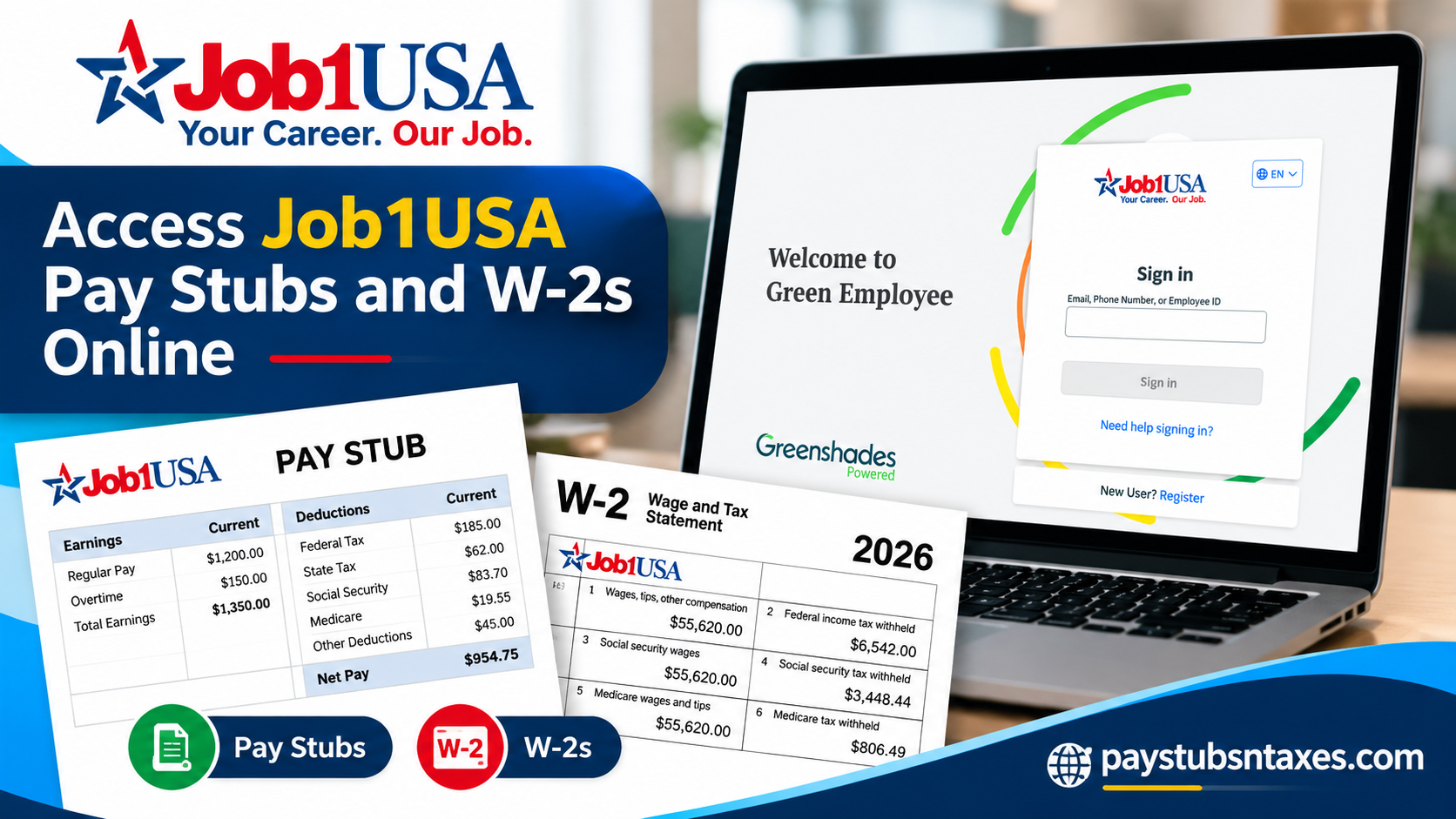
Job1USA employees can access their pay stubs, direct-deposit records, tax documents, and selected personal information online through the Green Employee portal, powered by Greenshades. The secure Employee Self-Service system places essential payroll records at your fingertips, allowing you to review, download, or print them whenever necessary. Whether you are setting up your account for the first time, looking for an earlier pay statement, or preparing to retrieve your year-end W-2, this guide walks you through the process from start to finish.
About Job1USA
Founded in 1951 by Frank H. Rumpf, Job1USA is a Five-Star Employment Agency headquartered in Toledo, Ohio, with offices and employees across the United States. Rumpf, a career personnel administrator, also served as the first president of the National Association of Temporary Services.
Job1USA provides contract staffing, contract security, direct-hire services, and customized workforce solutions. Although the company supports thousands of employees and business clients nationwide, its service model remains highly individualized—an approach aptly reflected in its enduring motto: “Your Career, Our Job!”
What Is the Job1USA Green Employee Portal?
Green Employee is Job1USA’s web-based Employee Self-Service portal for payroll, tax, benefits, and HR-related information. Depending on the options available to your account, you may use the portal to review or manage:
- Pay stubs and direct-deposit statements
- Gross pay, taxes, deductions, and net pay
- Current and previous W-2 forms
- Contact and personal information
- Mailing address details
- Direct-deposit information
- Tax withholding information
- Emergency or beneficiary contacts
- Payroll-document notifications
Because inaccurate personal or payroll information can cause problems further down the road, make a habit of checking your account regularly. Confirm that your address, contact details, deductions, benefits, and payment information remain correct.
Job1USA Green Employee Login
To access your payroll account, visit:
https://job1usa.greenemployee.com
The sign-in page allows you to enter your email address, telephone number, or employee ID. If you have already registered, enter your established credentials and select Sign in.
For privacy and security, use a trusted device and a private internet connection—particularly when viewing documents containing sensitive personal, payroll, or tax information.
How to Create a Green Employee Account
If you have never used the Job1USA Green Employee portal, complete the registration process in one sitting. Leaving the process unfinished may create avoidable account-access complications.
Step 1: Open the registration page
Go to Job1USA.greenemployee.com and select Register or Create an Account, depending on the wording displayed on the sign-in page.
Step 2: Enter your email address
Provide the same email address that you previously supplied to your Job1USA account manager. Using a different address may prevent the system from matching you to the correct employee record.
Step 3: Create a secure password
Choose a password that satisfies all requirements displayed on the screen. Use a password that is difficult for others to guess and avoid recycling one that you already use for unrelated services.
Step 4: Check your email
Green Employee will send an account-setup message to the email address you entered. Open that message and select Continue Account Setup.
If the message does not arrive promptly, examine your spam or junk folder before requesting further assistance.
Step 5: Confirm your identity
In the first identity-verification field, enter either:
- Your employee ID; or
- Your Social Security number.
In the second field, enter either:
- Your date of birth; or
- Your last name.
Select Continue after entering the requested details.
Step 6: Request a verification code
The portal will display the available methods for receiving your verification code, such as email or text message. Choose an option to which you currently have access, and then select Continue.
Step 7: Enter the access code
Retrieve the code sent to you and enter it on the verification screen. Verification codes may expire, so it is prudent to complete this step without delay.
Step 8: Sign in to your new account
Once your identity has been confirmed, sign in with the email address and password you created. You should then be able to open your pay history and other available employee records.
How to Access Job1USA Payroll Records Without an Account
If you do not know your login credentials, the portal may offer a Need help signing in? or Access without an account option.
To verify your identity:
- Open Job1USA.greenemployee.com.
- Select the account-access or sign-in assistance option.
- Enter your Social Security number without dashes.
- Enter your date of birth with slashes in the requested format.
- Choose whether to receive the verification code by text message or email.
- Enter the code to confirm your identity.
- If prompted during your first visit, choose whether you wish to receive eligible tax forms electronically or on paper.
Never send your Social Security number, password, or verification code through an unsecured message. Enter sensitive information only on the legitimate Green Employee website.
If the contact details displayed during verification are outdated or incorrect, contact your Job1USA supervisor or account manager. They can coordinate with the appropriate payroll or accounting personnel to update your information.
How to View Your Most Recent Job1USA Pay Stub
After signing in, you can usually find your latest payment information in the Most Recent Paystub section of the homepage.
This summary may display:
- Gross earnings
- Taxes withheld
- Payroll deductions
- Net pay
- Current pay-period totals
- Year-to-date totals
Select View to open the complete pay document. Depending on how you receive your wages, the document may appear as a check stub or a direct-deposit statement.
How to Find Previous Pay Stubs
To retrieve an older Job1USA pay stub or direct-deposit record:
- Sign in to Green Employee.
- Open the Pay History section from the navigation menu.
- Use the available menu or document selector to browse earlier pay periods.
- Identify the record by its pay date and payment amount.
- Select the appropriate row to display the document.
- Open the document in a separate window if that option is available.
- Download or print a copy for your records.
The newest payment generally appears by default, so you will need to select a different pay period when searching for a historical statement.
How to Download or Print a Job1USA Pay Stub
Once the full pay document is open, use the available download, print, or open-in-new-window option. If the statement is displayed inside an embedded viewer, you may need to scroll within the frame or open the document separately before saving it.
When printing payroll or tax documents, use a private computer and a trusted printer. Shared computers and public printing facilities can expose confidential information long after you leave.
How to Choose Electronic W-2 Delivery
Electronic delivery allows you to receive an email notification as soon as your W-2 becomes available in Green Employee. The notification is sent to the email address associated with your portal login.
To provide electronic consent:
- Sign in to Green Employee from a computer.
- Open Settings or Account Settings.
- Select Notifications.
- Scroll to Year End W-2 and 1095-C Distribution Preferences.
- Select Change your W-2 and 1095-C Distribution Preferences or the similarly worded W-2 preference option.
- Enter the authorization code displayed on the screen.
- Select I want to receive “green” W-2 electronically through this website.
- Save or confirm your selection.
All employees who wish to receive their 2026 W-2 electronically must complete the electronic-consent process within Green Employee.
The names and placement of menu options may vary slightly as the portal is updated, but the W-2 delivery preference should remain under the account or notification settings.
How to Access Your Job1USA W-2 Online
When your W-2 has been posted, a notification should appear on the Green Employee homepage. Year-end tax statements are generally available through the same area as your check stubs and direct-deposit records.
To retrieve your W-2:
- Use a computer to sign in at Job1USA.greenemployee.com.
- Open the notification concerning your available W-2, or navigate to the year-end forms or pay-history area.
- Select the correct tax year.
- Open the W-2.
- Download the form and save it in a secure location.
- Print a copy if needed.
W-2 forms are not available through the phone application; use the Green Employee website on a computer instead.
Job1USA employees should expect their 2026 W-2 to become available by January 31, 2027, accompanied by an email notification. Because Job1USA strongly encourages employees to retrieve their forms online rather than request office-printed copies, downloading the document promptly is the surest course of action.
Previous years’ documents may remain available online only until December 31 of each year. Do not leave retrieval until the eleventh hour—download any records you may need while they are still accessible.
Verify Your Mailing Address Before W-2 Distribution
Even if you prefer electronic delivery, ensure that Job1USA has your correct mailing address. Download your most recent pay stub and confirm that the address printed on it is accurate.
An incorrect address could delay or misdirect a paper W-2. If you discover an error, contact your branch, supervisor, account manager, or local Job1USA representative as soon as possible.
Green Employee Pay-Document Notifications
You may be able to receive an email or text message whenever a new pay document becomes available.
To review these settings:
- Open Account Settings.
- Select Notifications.
- Enable or modify your pay-document alerts.
- Choose whether email notifications should go to your personal or work email address.
- If enabling text notifications, enter the requested mobile number and carrier details.
- Save the changes.
Notifications can spare you the trouble of checking the portal repeatedly and help ensure that important payroll or tax documents do not slip through the cracks.
What About Form 1095-C?
Although W-2 delivery preferences may appear beside 1095-C settings, eligible employees should receive Form 1095-C by mail rather than through Green Employee. For that reason, keeping your mailing address current is particularly important.
Troubleshooting Job1USA Green Employee Access
If you cannot register, sign in, or retrieve a document, work through the following checks:
- Confirm that you are using the email address supplied to your Job1USA account manager.
- Make sure your employee ID, Social Security number, date of birth, or last name matches Job1USA’s records.
- Check your spam or junk folder for the account-setup email.
- Request a fresh verification code if the original has expired.
- Confirm that Job1USA has your current telephone number and email address.
- Use a computer rather than the mobile application when accessing a W-2.
- Try a current web browser and ensure that pop-ups or downloads are not being blocked.
- Contact your account manager if the portal cannot match your identity.
If your verification options show an outdated email address or telephone number, do not attempt to work around the problem. Contact your supervisor, branch representative, or account manager so the underlying employee record can be corrected.
Job1USA Payroll and W-2 Support
For questions concerning a Job1USA paycheck stub or W-2, contact the Corporate Human Resources Hotline:
- Telephone: (567) 661-0608
- Email: hr@job1usa.com
For registration problems or discrepancies in your employee information, you may also contact your Job1USA account manager or local representative.
Final Reminder
The Job1USA Green Employee portal provides a convenient, centralized means of managing payroll and year-end tax records. Register with the email address already associated with your employment profile, keep your contact and mailing information current, submit electronic W-2 consent if desired, and download important documents before their online availability expires. A few minutes spent maintaining your account today can prevent a far greater inconvenience when payday arrives or tax season is in full swing.
Frequently Asked Questions
1. How do I access my Job1USA pay stubs online?
Visit Job1USA.greenemployee.com and sign in with your registered email address, telephone number, or employee ID. Your latest statement should appear under Most Recent Paystub. Select View to open the complete document.
2. Where can I find my previous Job1USA pay stubs?
After signing in, open Pay History and use the document selector to browse earlier pay periods. Identify the required statement by its pay date and amount, then open, download, or print it.
3. How do I create a Job1USA Green Employee account?
Visit Job1USA.greenemployee.com, select Register or Create an Account, and enter the email address supplied to your Job1USA account manager. Create a password, follow the account-setup link sent by email, verify your identity, and enter the access code you receive.
4. Can I access Job1USA payroll records without an account?
If the option is available, select Need help signing in? or Access without an account. Enter the requested identifying information, choose email or text-message verification, and submit the access code sent to you.
5. What information is available through Green Employee?
The portal may provide access to pay stubs, direct-deposit statements, W-2 forms, gross earnings, taxes, deductions, net pay, contact details, mailing information, tax withholding, direct-deposit settings, and payroll notifications.
6. How do I download or print a Job1USA pay stub?
Open the required statement from Most Recent Paystub or Pay History, then use the available download, print, or open-in-new-window option. Handle printed payroll documents carefully because they contain confidential information.
7. How do I access my Job1USA W-2 online?
Sign in to Green Employee from a computer, open the W-2 notification or year-end tax forms area, select the appropriate tax year, and download the document. W-2 forms are not available through the mobile application.
8. When will my 2026 Job1USA W-2 be available?
The 2026 W-2 should be available through Green Employee by January 31, 2027. Employees should receive an email notification when their tax document is ready to view and download.
9. Can I view my Job1USA W-2 on my phone?
No. Although employees can use a phone to access certain Green Employee features, Job1USA W-2 forms must be retrieved through the Green Employee website on a computer.
10. How do I consent to electronic W-2 delivery?
Open Settings or Account Settings, select Notifications, and locate Year End W-2 and 1095-C Distribution Preferences. Choose the option to change your preferences, enter the displayed authorization code, select electronic W-2 delivery, and confirm your choice.
11. What should I do if my Green Employee verification details are incorrect?
Contact your Job1USA supervisor, branch representative, or account manager. They can work with the appropriate payroll or accounting personnel to correct an outdated email address, telephone number, or other employee information.
12. How do I receive notifications about new pay documents?
Sign in to Green Employee, open Account Settings, and select Notifications. Enable email or text-message alerts for new payroll documents, provide the requested contact information, and save your preferences.
13. How can I update the address shown on my Job1USA pay stub?
First, download your latest pay stub and verify the address printed on it. If it is incorrect, contact your Job1USA branch, account manager, supervisor, or local representative to request an update.
14. Are previous Job1USA W-2 forms always available online?
No. Previous years’ tax documents may remain available online only until December 31 of each year. Download and securely retain any W-2 forms you may need before they are removed.
15. Who should I contact about a Job1USA pay stub or W-2 problem?
Contact the Job1USA Corporate Human Resources Hotline at (567) 661-0608 or email hr@job1usa.com. For registration or identity-verification problems, you may also contact your Job1USA account manager.
