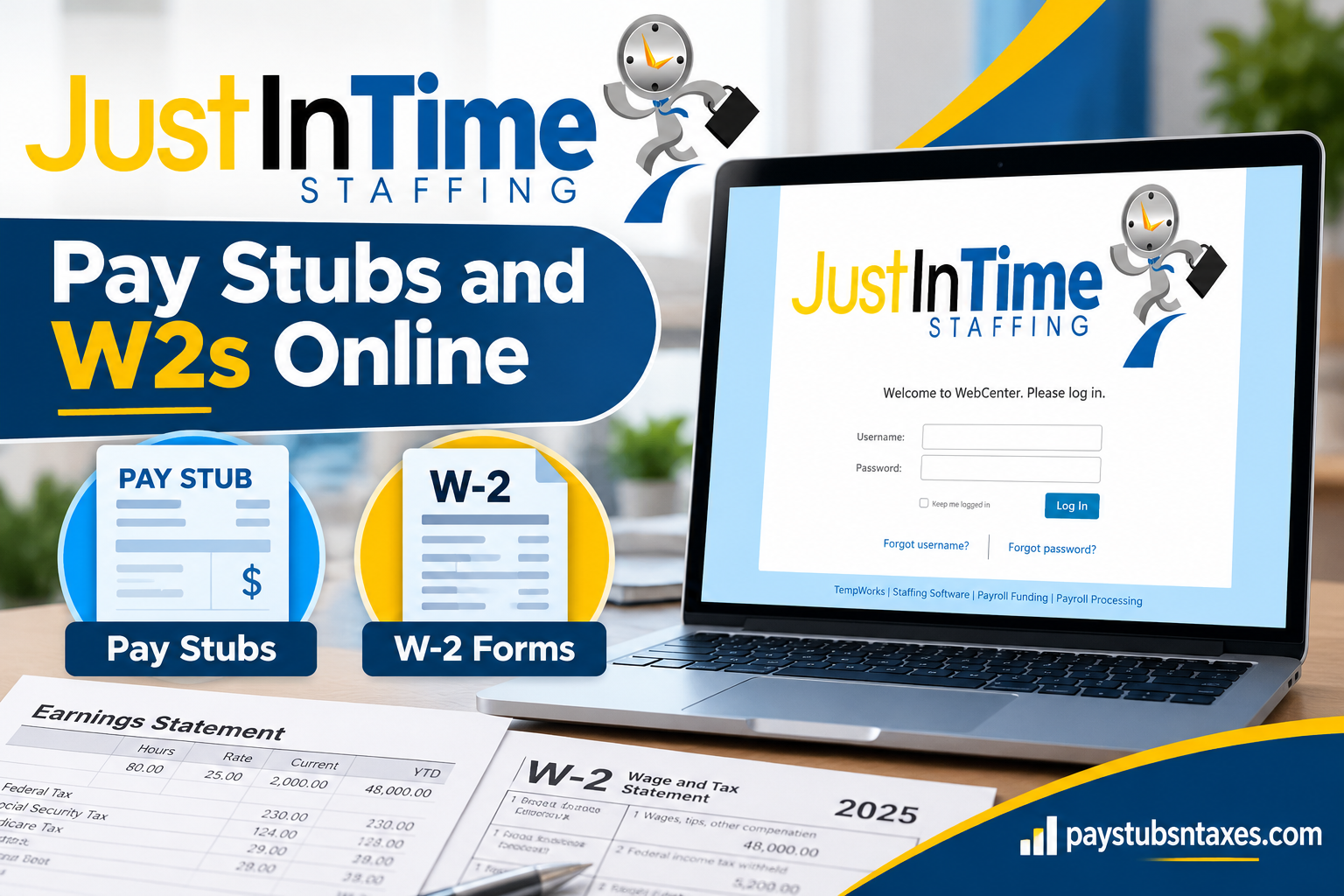
Just In Time Staffing employees can access their payroll history, pay stubs, W-2 forms, assignment information, employment documents, timesheets, and job opportunities online through the WebCenter employee portal. This secure, convenient platform places essential employment records at your fingertips, eliminating the need to chase paperwork whenever proof of income or tax documentation is required. Whether you need a recent pay stub for a mortgage application, want to review year-to-date deductions, or need to download a W-2 before filing your taxes, this guide explains how to find, save, and print your documents online.
About Just In Time Staffing
Founded in 2003, Just In Time Staffing began with a straightforward yet powerful belief: placing the right people in the right roles at the right time can transform a business. From a single office in Northeast Ohio, the company has grown into a multi-state staffing operation with 15 offices across Ohio, New York, Pennsylvania, and Nevada.
Just In Time Staffing provides general staffing, professional staffing, transportation, maintenance, and operational consulting services. Its teams support businesses in manufacturing, healthcare, hospitality, construction, and other demanding industries where reliable staffing can make all the difference.
With more than 800,000 job placements and a reported 98% client satisfaction rate, the company has built its reputation on responsiveness, flexibility, and a people-first approach. Employers receive customized staffing solutions for seasonal, part-time, full-time, and direct-hire positions, while job seekers gain access to employment opportunities, transportation assistance, ongoing support, and potential pathways to long-term work.
What Is the Just In Time Staffing WebCenter?
WebCenter is the online employee portal used by Just In Time Staffing to provide access to payroll and employment information. Employees receive a username and password that allow them to sign in and manage important records over the internet.
Depending on the features available to your account, WebCenter may allow you to:
- Review your payroll history and pay stubs
- Access and download electronic W-2 forms
- View current or previous assignment information
- Enter and submit hours
- Review employment documents
- Search for and apply to jobs on the job board
- Update certain account and delivery preferences
Because pay stubs and W-2 forms contain sensitive financial and personal information, access WebCenter from a trusted device and avoid using an unsecured public computer or public Wi-Fi network.
Just In Time Staffing WebCenter Login
To access your employee records, visit the official Just In Time Staffing WebCenter login page:
Log in to Just In Time Staffing WebCenter
Enter the username and password issued to you, and then select Log In.
When signing in for the first time, you may be able to change your password through the account or personal-information section. Choose a strong, unique password and store it securely. Never share your login credentials with anyone who does not have a legitimate reason to access your employment records.
If you cannot remember your credentials, use the Forgot username? or Forgot password? option displayed on the login page. Follow the prompts carefully to recover your account information or reset your password.
How to View Just In Time Staffing Pay Stubs Online
A Just In Time Staffing pay stub provides a detailed account of your paycheck, including current earnings, year-to-date totals, taxes, deductions, adjustments, and other payroll information. Pay stubs are frequently requested when applying for a home, apartment, vehicle loan, personal loan, or any service requiring proof of income or employment.
Follow these steps to view your pay stubs through WebCenter:
- Open the Just In Time Staffing WebCenter login page.
- Enter your username and password, and then select Log In.
- From the WebCenter home page, select the Pay History tab in the top menu.
- Locate and select the pay date you want to review.
- Use the available tabs to examine the different sections of your paycheck.
Review the information carefully, particularly your hours, gross earnings, taxes, deductions, adjustments, and net pay. If something appears incorrect, contact your HR Account Specialist or the Just In Time Staffing Helpdesk as soon as possible.
How to Download or Print a Pay Stub
If you need a physical copy or a digital file for your records, WebCenter provides a printable version of your pay stub.
- Sign in to WebCenter and open Pay History.
- Select the relevant pay date.
- Choose View Printable Version.
- Your paycheck stub should open in a separate window.
- Select Save, and then choose the file format in which you want to save the document.
- Open the saved version and use your device’s print command to print it.
For greater privacy, use a personal computer and a trusted printer whenever possible. If you must use a shared device, sign out of WebCenter when you finish, close all open windows, and remove any downloaded copies from the device.
What Information Appears on a Pay Stub?
Although the precise layout may vary, a typical WebCenter pay stub may display:
- Employee and employer information
- Pay period and payment date
- Regular and overtime hours
- Hourly rate or other compensation information
- Gross earnings
- Federal, state, and local taxes
- Other payroll deductions or adjustments
- Year-to-date earnings and deductions
- Net pay
Your pay stub is more than a routine payroll notice; it is an important financial record. Comparing your hours and earnings against your own records can help you identify discrepancies before they snowball into larger problems.
How to Access Your Just In Time Staffing W-2 Online
Form W-2 reports your taxable wages and the taxes withheld from your pay during the previous calendar year. You will generally need this document when preparing your federal, state, and local income-tax returns.
To find your W-2 through WebCenter:
- Visit the Just In Time Staffing WebCenter portal.
- Sign in with your username and password.
- Select Manage W-2s.
- If you have already elected electronic delivery, select the tax year you need.
- The W-2 should download automatically as a PDF.
Save the file in a secure location using a clear filename, such as JIT-Staffing-W2-2025.pdf. Because a W-2 contains highly sensitive personal and financial information, do not store it on a shared computer or send it through an unsecured messaging service.
How to Opt In to Electronic W-2 Delivery
If you have not yet agreed to receive your W-2 electronically, you may need to update your delivery preference before downloading the form.
- Sign in to WebCenter.
- Select Manage W-2s.
- Choose Change W-2 options.
- Select the option labeled Click here to receive your W-2s electronically.
- Return to Manage W-2s and select the year you want to download.
Before confirming electronic delivery, read any disclosure or consent notice displayed in the portal. Keep your email address and mailing address current so that important tax-related communications do not fall through the cracks.
When Will Your W-2 Be Available?
Your W-2 should generally be made available through WebCenter by January 31 for income earned during the previous calendar year. If you have not consented to electronic delivery, a printed copy should also be mailed by the applicable deadline.
Postal delivery can take additional time, so confirm that Just In Time Staffing has your correct mailing address well before the end of January. If you move during the year, promptly update your contact information through the appropriate employee channel.
What to Do If You Cannot Find Your W-2
If your W-2 does not appear in WebCenter, work through the following checklist:
- Confirm that you are looking under Manage W-2s
- Make sure you selected the correct tax year
- Verify that you completed the electronic-delivery opt-in process
- Check whether your browser blocked the PDF download
- Look in your device’s Downloads folder
- Allow additional time if a paper copy was mailed
- Confirm that your mailing address is correct
- Contact the Just In Time Staffing Helpdesk if the form remains unavailable
A browser may occasionally block an automatic download or open the PDF in a new tab instead of saving it. If that happens, permit the download for the WebCenter website and try again.
Just In Time Staffing Payroll and HR Contact Information
When online troubleshooting does not resolve your concern, contacting Just In Time Staffing directly is generally the most effective course of action.
Employees experiencing difficulties with paycheck statements, W-2 forms, account access, or employment records can seek assistance through the following channels.
Company: Just In Time Staffing
Corporate Office: 8130 Tyler Blvd, Mentor, OH 44060
Helpdesk Email: alyiah@jitstaffinginc.com
Phone: (440) 205-2002
Official Website: https://justintimestaffing.com/
WebCenter Employee Login: https://webcenter.ontempworks.com/TWProcessing/JustInTimeStaffing/Account/LogIn
When contacting the support team, explain the nature of your issue clearly and specify whether you need assistance with payroll history, a particular pay stub, W-2 availability, or login credentials.
Providing the relevant pay date or tax year can help the support representative understand your request and direct it to the appropriate department.
Final Thoughts
WebCenter gives Just In Time Staffing employees a practical way to manage essential payroll and tax records without wading through a sea of paperwork. Once signed in, you can review your pay history, open a printable pay stub, manage electronic W-2 delivery, and download available tax documents in just a few steps.
Keeping your credentials secure, reviewing each pay statement, and saving important records in a protected location will help you stay organized throughout the year. Should a payroll discrepancy, missing document, or access problem arise, contact your HR Account Specialist or the Just In Time Staffing Helpdesk for assistance.
Frequently Asked Questions
1. Where can I access my Just In Time Staffing pay stubs?
Sign in to the Just In Time Staffing WebCenter portal and select Pay History. Choose the relevant pay date to view the corresponding paycheck details.
2. How do I log in to Just In Time Staffing WebCenter?
Open the WebCenter login page, enter the username and password issued to you, and select Log In. Keep your credentials private because the portal contains sensitive payroll and tax information.
3. What should I do if I forget my WebCenter username?
Select Forgot username? on the WebCenter login screen and follow the account-recovery prompts. If you cannot recover your username, contact your HR Account Specialist or the Just In Time Staffing Helpdesk.
4. How can I reset my WebCenter password?
Select Forgot password? on the login page and follow the instructions sent through the available recovery method. Create a strong, unique password and store it securely.
5. How do I view a specific Just In Time Staffing pay stub?
After signing in, select Pay History and choose the pay date you want to review. WebCenter will display the available paycheck information for that payment period.
6. How do I print a pay stub from WebCenter?
Open the required record under Pay History, select View Printable Version, and save the document in an available format. Open the saved file and use your computer or mobile device’s print function.
7. Can I download my Just In Time Staffing pay stub as a file?
Yes. Open the printable version of the pay stub, select Save, and choose an available file format. Store the downloaded document in a secure location.
8. What information appears on a Just In Time Staffing pay stub?
A pay stub may show the pay period, payment date, hours worked, pay rate, gross earnings, taxes, deductions, adjustments, year-to-date totals, and net pay. The exact information displayed may vary.
9. Where can I find my Just In Time Staffing W-2?
Sign in to WebCenter and select Manage W-2s. If electronic delivery is active, choose the appropriate tax year to download the W-2 as a PDF.
10. How do I opt in to receive my W-2 electronically?
Open Manage W-2s, select Change W-2 options, and choose Click here to receive your W-2s electronically. You can then return to the W-2 section and download an available form.
11. When will my Just In Time Staffing W-2 be available?
Your W-2 should generally be available through WebCenter by January 31 for wages paid during the previous calendar year. If you have not consented to electronic delivery, a paper copy should also be mailed by the applicable deadline.
12. Why is my W-2 not appearing in WebCenter?
Confirm that you selected the correct tax year and completed the electronic-delivery opt-in process. You should also check whether your browser blocked the download or saved the PDF in your device’s Downloads folder.
13. Can I access pay stubs and W-2s from previous years?
Historical pay stubs and W-2s may be available under Pay History and Manage W-2s. The number of records displayed depends on what has been retained and made available through your WebCenter account.
14. Is it safe to access WebCenter from a public computer?
A private, trusted device is preferable because pay stubs and W-2s contain sensitive information. If you must use a shared computer, do not save your password, sign out completely, close the browser, and delete downloaded documents.
15. Who should I contact for help with a pay stub or W-2?
Contact your HR Account Specialist or the Just In Time Staffing Helpdesk at alyiah@jitstaffinginc.com or (440) 205-2002. Never email your password or complete Social Security number.
