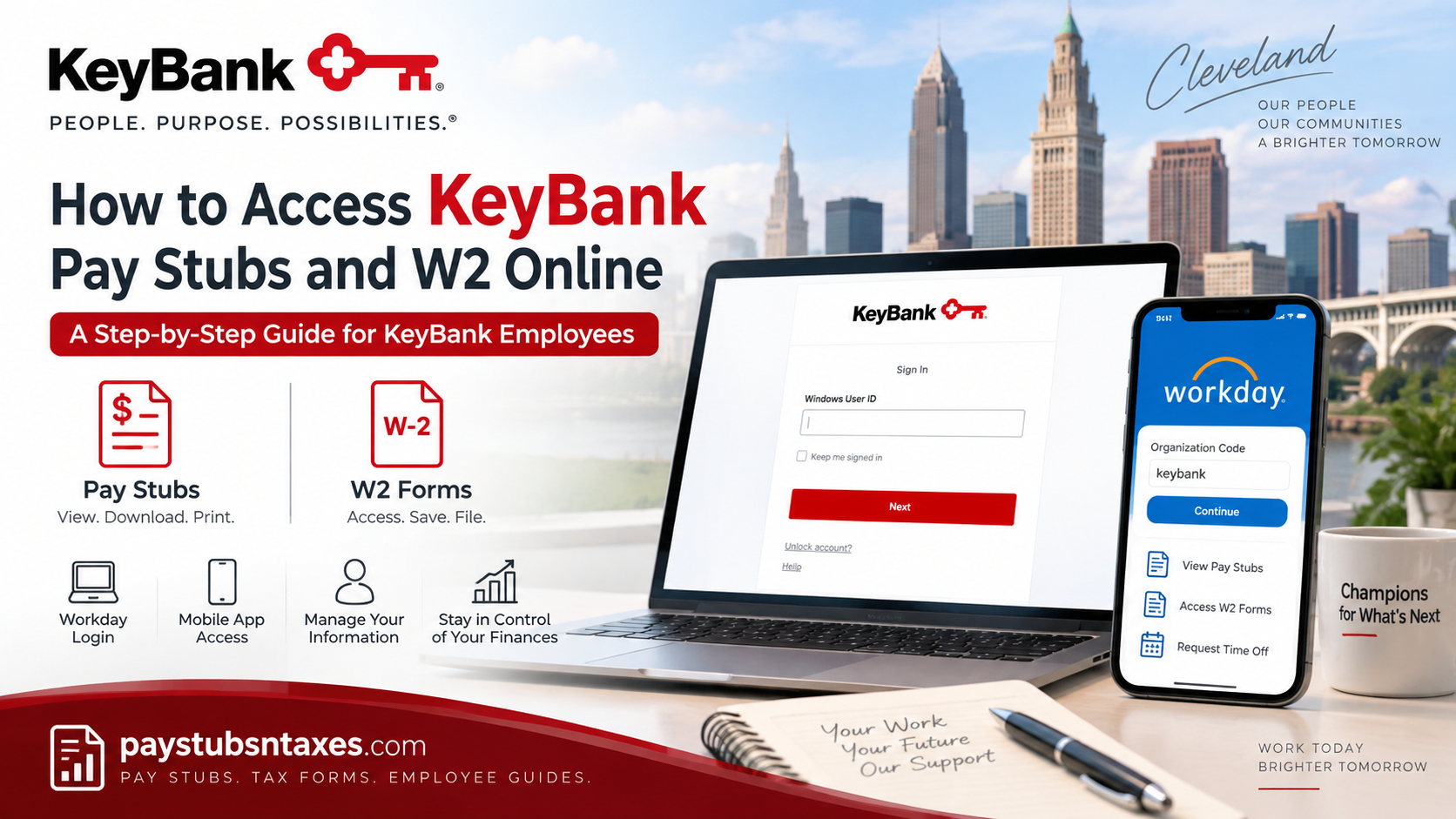
KeyBank employees can access their pay stubs and W-2 tax statements online through the Workday self-service portal, while the Workday mobile app provides an equally convenient way to review payroll information on the go. Current employees generally enter the system through KeyBank’s Single Sign-On environment, whereas former employees may receive separate credentials for limited post-employment access.
Beyond payroll records, Workday gives employees a centralised platform from which they can manage personal information, review compensation details, update contact information, request time off, and access other employment-related services. In practical terms, it puts many routine HR tasks at employees’ fingertips rather than requiring them to contact Human Resources every time they need a document.
About KeyBank
Headquartered in Cleveland, Ohio, KeyBank is one of the largest bank-based financial services companies in the United States. Key’s official company information reports that, as of June 30, 2026, it operated in a 15-state consumer-banking footprint, with approximately 950 full-service branches, 1,100 ATMs, $191 billion in assets, and around 18,000 full-time-equivalent employees.
KeyBank provides consumer and commercial banking services, including deposit and investment products, lending, mortgage and home-equity services, credit cards, treasury services, wealth management, equipment financing, and other financial solutions.
The organisation also emphasises teamwork, professional development, an inclusive working environment, accessible leadership, and opportunities for employees to develop their careers.
KeyBank Workday Login Information
Current KeyBank employees can begin by visiting the following Workday login page:
KeyBank Workday portal:
https://wd5.myworkday.com/keybank/login.htmld
Enter your KeyBank Windows User ID and continue through the Okta authentication process. Depending on your account’s security settings, you may also be asked to complete multifactor authentication.
If you are using a shared or public computer, do not select Keep me signed in. Always sign out after accessing payroll or tax information, since these documents contain sensitive personal and financial data.
How to Access KeyBank Pay Stubs in Workday
A KeyBank pay stub—also called a payslip—provides a detailed account of your gross earnings, deductions, taxes, benefits, net pay, payment distribution, and year-to-date totals.
To view or print a pay stub:
- Sign in to the KeyBank Workday portal using your authorized employee credentials.
- Open your employee profile.
- Select Pay, followed by Payslips.
- Review the list of available pay periods.
- Select the date corresponding to the pay stub you need.
- Click the PDF link beside the relevant pay period.
- When the document opens, download it to your device or use the print option.
If the Pay application has already been added to your Workday home page, you may take a shorter route:
- Open the Pay application from the home screen.
- Find the View section.
- Select Payslips.
- Choose the applicable payment date.
- Open the PDF statement to view, save, or print it.
The exact labels and screen arrangement may vary slightly following a Workday update, but the payroll records should remain available within the Pay area.
How to View and Print a KeyBank W-2 Online
Form W-2 summarizes the wages paid to you during the tax year and the federal, state, Social Security, and Medicare taxes withheld from those earnings. You will ordinarily need this form when preparing your annual income tax return.
To access a KeyBank W-2 through Workday:
- Log in to Workday through KeyBank’s secure sign-in page.
- Open the main Menu or locate the applications displayed on your Workday home page.
- Select Pay.
- If necessary, choose More to reveal additional payroll options.
- Select My Tax Documents.
- Find the appropriate tax year and W-2 form.
- Click View/Print.
- Open the generated PDF, then save or print the document.
Workday may need a few moments to prepare the file. If a Notify Me Later message appears, select it and wait for processing to finish. When the document is ready, open the notification indicated by the bell icon, then select the completed PDF.
Some employees may see more than one W-2, particularly if their work location, payroll arrangement, legal employer, or state tax obligations changed during the year. If several forms display a View/Print button, open and retain every applicable document.
Access KeyBank Pay Stubs Through the Workday Mobile App
Employees who prefer using a smartphone can install the Workday mobile app from the Apple App Store or Google Play Store.
When configuring the application for KeyBank, use:
Organization Code: keybank
After establishing the connection, follow the KeyBank authentication prompts to sign in.
The Workday mobile platform is designed to provide convenient access to information such as personal details and payslips while employees are away from their computers.
Depending on the functions enabled for your account, Workday can also provide access to personal and contact information, payroll details, time-off functions, and other employee services.
Why Use Workday Mobile?
For employees who travel frequently or do not always have access to a company computer, the mobile app can make payroll management considerably more convenient. Instead of being tied to a desktop, you can review available payslips and employment information from a supported mobile device.
Nevertheless, convenience should never come at the expense of security. Avoid signing in on public or shared devices, protect your phone with a passcode or biometric authentication, and sign out when necessary.
What Else Can KeyBank Employees Do in Workday?
Workday is more than a repository for payroll records. Subject to the permissions assigned to your account, you may also be able to:
- Review and update your home address and telephone number
- Maintain emergency-contact information
- Examine benefits and dependent details
- Request time off and check available balances
- Review notifications and inbox items
- Access employment-related documents
- View payment history and year-to-date earnings
- Update other permitted personal information
Keeping your contact and mailing details current is particularly important before year-end, as inaccurate information can delay the delivery of tax documents and other essential correspondence.
Workday Access for Former KeyBank Employees
Former KeyBank employees may retain limited access to Workday for payroll and tax documents, although regular employee access through KeyBank’s Single Sign-On system may end after separation.
If post-employment access has been enabled, you may receive separate Workday credentials or instructions explaining how to enter the former-employee portal. These credentials may allow you to retrieve available W-2 forms without providing access to the full range of employee services.
Because access arrangements can vary, former employees who cannot sign in should contact the KeyBank Employee Help Desk rather than repeatedly attempting to use an inactive SSO account.
What If You Cannot Log In to KeyBank Workday?
Login difficulties can arise for several reasons: an incorrect Windows User ID, an expired password, a locked account, a change in employment status, or an authentication problem.
The KeyBank login page provides options including Unlock account? and Help.
If those options do not resolve the problem, contact:
KeyBank Employee Help Desk
Local: (216) 813-4357
Toll-Free: (800) 967-3333
When calling for assistance, be prepared to verify your identity. However, you should never send sensitive login credentials, passwords, or one-time security codes through an insecure channel.
Final Thoughts
Accessing KeyBank pay stubs and W2 forms online is considerably easier when employees know where to look. For current employees, Workday serves as the central gateway: Pay → Payslips leads to earning statements, while Pay → My Tax Documents provides access to available W-2 forms. The Workday mobile app, configured with the organization code keybank, offers an additional layer of convenience for employees who need payroll information while away from a desktop.
Former employees may also have a route to electronic W-2 access through limited Workday credentials, although post-employment login arrangements can vary. If access becomes a stumbling block, the KeyBank Employee Help Desk is the most appropriate point of contact.
Note: Workday layouts, authentication procedures, and menu labels can change as systems are updated. Employees should always follow the options displayed in their authorised KeyBank account and use official KeyBank support channels when assistance is required.
Frequently Asked Questions About KeyBank Pay Stubs and W-2s
1. Where can KeyBank employees access their pay stubs?
KeyBank employees can access pay stubs through the Pay section of Workday. After signing in, select Payslips, choose a pay period, and open the corresponding PDF statement.
2. What is the KeyBank Workday login URL?
The KeyBank Workday login page is: https://wd5.myworkday.com/keybank/login.htmld.
Current employees generally sign in through KeyBank’s Okta Single Sign-On system.
3. How do I view my KeyBank pay stub in Workday?
Sign in to Workday, open your profile, and select Pay > Payslips. Choose the desired payment date and click the PDF link to open the complete pay statement.
4. How do I download a KeyBank pay stub?
Open the relevant payslip PDF in Workday and select the download option provided by your browser or PDF viewer. Save the document in a secure location on your device.
5. How do I print a KeyBank pay stub?
Open the payslip PDF and select Print from the PDF viewer or browser menu. Before printing, verify that the correct pay period appears on the document.
6. How can I access my KeyBank W-2 online?
Sign in to Workday and navigate to Pay > My Tax Documents. Locate the appropriate W-2 and select View/Print to generate the downloadable document.
7. Where is “My Tax Documents” in KeyBank Workday?
Open the Pay application and look for My Tax Documents. If the option is not immediately visible, select More to expand the available payroll menu.
8. Why does Workday show “Notify Me Later” when I request my W-2?
Workday may require additional time to generate the W-2 PDF. Select Notify Me Later, wait for processing to finish, and check the bell-shaped notification area for the completed document.
9. What is the KeyBank organization code for the Workday mobile app?
The KeyBank organization code is keybank. Enter this code when configuring the official Workday mobile application.
10. Can I view KeyBank pay stubs through the Workday mobile app?
Yes. Open the Workday app, sign in, and select the Pay or Pay Slips section. Choose a payment date and tap View PDF Statement to see the complete payslip.
11. Can I download my KeyBank W-2 on a mobile phone?
If My Tax Documents is available in the mobile app, select the required W-2 and tap View/Print. If the option is unavailable, use the full Workday website through a secure browser or computer.
12. Can former KeyBank employees access their W-2s online?
Former employees may receive separate Workday credentials that provide limited post-employment access to tax documents. Anyone without working credentials should contact the KeyBank Employee Help Desk for assistance.
13. What information appears on a KeyBank pay stub?
A pay stub generally shows gross earnings, taxes, benefit deductions, other withholdings, net pay, payment distribution, and year-to-date totals.
14. What should I do if my KeyBank W-2 is incorrect?
Contact the appropriate KeyBank payroll, human resources, or employee-support team. Employees should not alter the form themselves; KeyBank may need to issue a corrected Form W-2c.
15. Who should I contact if I cannot access KeyBank Workday?
Contact the KeyBank Employee Help Desk for login or account assistance:
- Local: (216) 813-4357
- Toll-free: (800) 967-3333
For security, never disclose your password or one-time authentication code to anyone.
