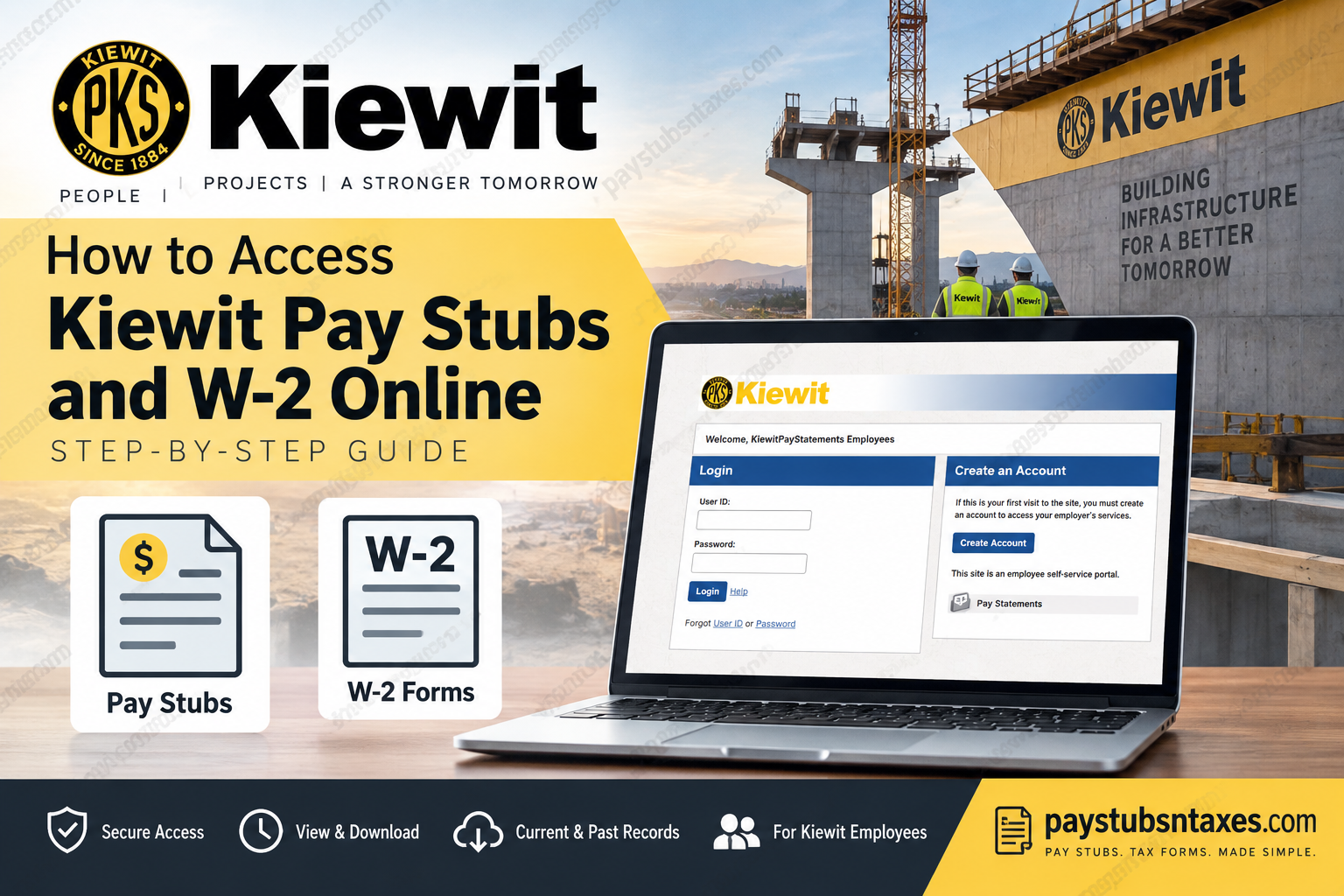
Kiewit employees can securely view, download, save, and print their pay statements and year-end tax documents through the Paperless Employee Self-Service portal. Because pay stubs and W-2 forms are housed in separate portals, employees must use the correct Kiewit Paperless Employee login page for the document they need. This guide explains how to access Kiewit pay stubs and W-2s online, retrieve current or previous statements, and obtain assistance if an account or tax-document issue brings the process to a standstill.
Kiewit Paperless Employee Login Portals
Use the appropriate portal below:
- Kiewit pay stubs: https://www.paperlessemployee.com/kiewitpaystatements/PE/Login
- Kiewit W-2 statements: https://www.paperlessemployee.com/kiewitus
Although both websites are operated through Paperless Employee, they serve different purposes. The first portal provides access to Kiewit pay statements, whereas the second is dedicated to year-end tax documents. Using the correct link from the outset will save time and prevent unnecessary confusion.
How to Log In to the Kiewit Paperless Employee Portal
Open the portal associated with the document you wish to retrieve, then enter your User ID and password in the login area.
If this is your first visit, select Create Account and follow the on-screen registration instructions. Employees who have forgotten their credentials can use the User ID or Password recovery links displayed beneath the login form.
Before entering personal information, examine the address bar and confirm that the website begins with: https://www.paperlessemployee.com/
This simple precaution helps ensure that sensitive payroll and tax information is entered only on the legitimate Paperless Employee website.
How to Access Kiewit Pay Stubs Online
Kiewit employees may view either a complete pay statement or a concise summary, depending on how much information they need.
Download a Full Kiewit Pay Statement
- Visit the Kiewit Pay Statements portal and sign in.
- Select Pay Statements from the navigation menu on the left. Alternatively, choose Access Pay Statements in the main section of the home page.
- On the Pay Statements screen, locate the required pay period.
- In the Full Statement column, check the box beside each pay statement you wish to retrieve. You may select more than one statement when necessary.
- Click View/Print Selected Pay Statements at either the top or bottom of the page.
The selected Kiewit pay stub or pay stubs should open in a new browser tab as PDF documents. From there, you can review, print, or save each file for your records.
A PDF reader may be required to open downloaded statements. Most contemporary browsers can display PDFs without additional software; nevertheless, if the document does not open, install a reputable PDF reader and try again.
View a Pay Statement Summary
If you merely need a quick snapshot rather than the complete document, a pay statement summary may fit the bill.
- Sign in to the Kiewit Pay Statements portal.
- Select Pay Statements from the left-hand menu or click Access Pay Statements on the home page.
- Find the applicable pay period and click Show Summary on the right-hand side of the entry.
The summary will appear beneath the selected statement on the same screen, allowing you to review essential information without opening or downloading the full PDF.
How to Access Kiewit W-2 Forms Online
Electronic access to Kiewit W-2 forms is available after the relevant year-end tax statements have been released and the employee has registered for electronic delivery.
Visit the Kiewit W-2 portal and log in with your Paperless Employee credentials.
Register for Electronic W-2 Delivery
If electronic delivery was selected when the account was created, there is no need to register again. Otherwise:
- From the home page, select Manage Electronic Tax Statement Options.
- Scroll to Electronic Statement Notification Options.
- Choose Yes when asked whether you would like to receive your tax statements electronically.
- Select the email address, telephone number, or other available contact method through which you would like to be notified when a statement is ready.
- Click Save Notification Option Settings.
Once electronic delivery has been activated, the preference should carry forward to subsequent tax years, sparing employees the trouble of repeating the process annually.
How to Download a Current Kiewit W-2
- Sign in to the Kiewit W-2 portal.
- Select Year-End Tax Statements from the navigation menu on the left. You may also choose Access Current Year-End Statements from the main area of the home page.
- On the Get Tax Statements screen, check the box beside each required W-2 in the Select column.
- Click Review & Complete Order to download the selected form or forms.
After downloading the document, store it in a secure location and print a copy if required for tax preparation or personal recordkeeping.
How to Download a Previous Year’s Kiewit W-2
Past W-2 statements are retrieved through the same portal:
- Log in to the Kiewit W-2 portal.
- Choose Year-End Tax Statements from the left-hand menu or select Access Prior Year-End Statements on the home page.
- On the Get Tax Statements screen, locate the required tax year.
- Check the appropriate box in the Select column.
- Click Review & Complete Order to download the form.
This feature is particularly useful when preparing an amended tax return, verifying historical income, responding to a financial-document request, or replacing a misplaced W-2.
Troubleshooting Kiewit Pay Stub and W-2 Access
If a pay statement or W-2 does not appear, first confirm that you are using the correct portal. Pay stubs and tax statements are maintained at different Kiewit Paperless Employee web addresses.
You should also:
- Check that your User ID and password have been entered correctly.
- Use the credential-recovery links if you cannot remember your login details.
- Ensure that electronic W-2 delivery has been enabled.
- Confirm that the year-end tax statement has been released.
- Allow pop-ups for the Paperless Employee website if a selected PDF does not open.
- Try an updated browser or clear the browser cache if the page fails to load properly.
- Look in the browser’s Downloads folder if a document appears to have vanished after being requested.
Avoid sending an unencrypted W-2 or pay stub by ordinary email, as these documents contain confidential personal and financial information. When using a shared computer, sign out completely, close any open documents, and remove locally downloaded copies before leaving the device.
Kiewit W-2 Support
Employees who need assistance accessing year-end tax documents can contact Kiewit Field Support at 1-877-772-7707.
Employees connected to the Kiewit network may also submit a ticket to KBS.
When requesting assistance, describe the problem clearly, but never include a password, complete Social Security number, or an unprotected copy of a tax document.
About Kiewit
With roots dating back to 1884, Kiewit has grown into one of North America’s largest and most respected construction and engineering organizations. The employee-owned enterprise operates through a network of subsidiaries across the United States, Canada, and Mexico.
Its professionals undertake projects of virtually every scale across transportation; oil, gas and chemical; power; building; marine; water and wastewater; industrial; and mining markets. From boring tunnels through mountains and harnessing rivers for energy to building bridges that connect communities, Kiewit teams transform formidable challenges into infrastructure that makes a lasting difference.
Career opportunities are available at kiewitjobs.com.
Kiewit is an Equal Opportunity Employer. Employment decisions are made without regard to race, color, religion, national or ethnic origin, sex, sexual orientation, gender identity or expression, age, disability, protected veteran status, or other characteristics protected by law.
Conclusion
Accessing Kiewit pay stubs and W-2 forms online is relatively straightforward once you recognise that the company uses two separate Paperless Employee portals. Pay statements are available through the KiewitPayStatements portal, where employees can view complete PDFs or abbreviated payroll summaries, while current and past W-2 tax statements are handled through the KiewitUS portal.
For pay stubs, log in, open Pay Statements, select the document you need, and choose View/Print Selected Pay Statements. For W-2 forms, sign in to the tax-statement portal, open Year-End Tax Statements, choose either the current or prior-year option, select the relevant form, and click Review & Complete Order.
If the online process reaches a stumbling block, Kiewit Field Support is available at 1-877-772-7707 for assistance with year-end tax-document access.
Frequently Asked Questions About Kiewit Pay Stubs and W-2s
1. Where can Kiewit employees access their pay stubs?
Kiewit employees can view their pay stubs through the official Kiewit Pay Statements portal. After signing in, select Pay Statements or Access Pay Statements.
2. Where can Kiewit employees access their W-2 forms?
Current and previous Kiewit W-2 forms are available through the Kiewit W-2 portal. This portal is separate from the website used for pay statements.
3. Are Kiewit pay stubs and W-2s available through the same portal?
No. Pay stubs and W-2 forms are maintained in two separate Paperless Employee portals. Employees should use the Kiewit Pay Statements portal for pay stubs and the Kiewit W-2 portal for year-end tax documents.
4. How do I download a Kiewit pay stub?
Sign in to the Kiewit Pay Statements portal, open Pay Statements, check the required document in the Full Statement column, and click View/Print Selected Pay Statements. The pay stub should open as a PDF in a new browser tab.
5. Can I view a Kiewit pay statement without downloading the full document?
Yes. Open the Pay Statements screen and select Show Summary beside the relevant pay period. A concise statement summary will appear on the same page.
6. Can I download several Kiewit pay stubs at once?
Yes. Select the boxes beside all the statements you need in the Full Statement column, then click View/Print Selected Pay Statements.
7. How do I download my current Kiewit W-2?
Log in to the Kiewit W-2 portal and select Year-End Tax Statements or Access Current Year-End Statements. Check the required form in the Select column, then click Review & Complete Order.
8. How do I obtain a Kiewit W-2 from a previous year?
After signing in to the W-2 portal, choose Year-End Tax Statements or Access Prior Year-End Statements. Locate the correct tax year, select the form, and click Review & Complete Order.
9. Do I need to register for electronic W-2 delivery?
Yes, electronic delivery must be enabled before W-2 forms can be accessed online. If you did not opt in when creating your account, select Manage Electronic Tax Statement Options, choose electronic delivery, select a notification method, and save the settings.
10. Do I have to register for electronic W-2 delivery every year?
Once electronic delivery has been activated, the preference should carry forward to future tax years. Employees should nevertheless review their account settings if a newly released W-2 does not appear.
11. What should I do if I forget my Kiewit Paperless Employee User ID or password?
Use the User ID or Password recovery link beneath the portal’s login form. Follow the identity-verification instructions to recover your User ID or reset your password securely.
12. Why is my Kiewit pay stub not opening?
The document may have opened in a new browser tab that was blocked. Allow pop-ups for the Paperless Employee website, check the browser’s Downloads folder, and ensure that your browser or PDF reader can display PDF files.
13. Why is my current Kiewit W-2 unavailable?
The W-2 may not have been released yet, electronic delivery may not be enabled, or you may be signed in to the wrong portal. Confirm your delivery settings and use the dedicated Kiewit W-2 portal.
14. Is it safe to access Kiewit pay stubs and W-2s online?
The documents should be accessed only through a legitimate address beginning with https://www.paperlessemployee.com/. Avoid using public computers when possible, keep your password private, and sign out fully after each session.
15. Who should I contact for help accessing a Kiewit W-2?
For assistance with year-end tax documents, contact Kiewit Field Support at 1-877-772-7707. Employees connected to the Kiewit network may also submit a support ticket to KBS.
