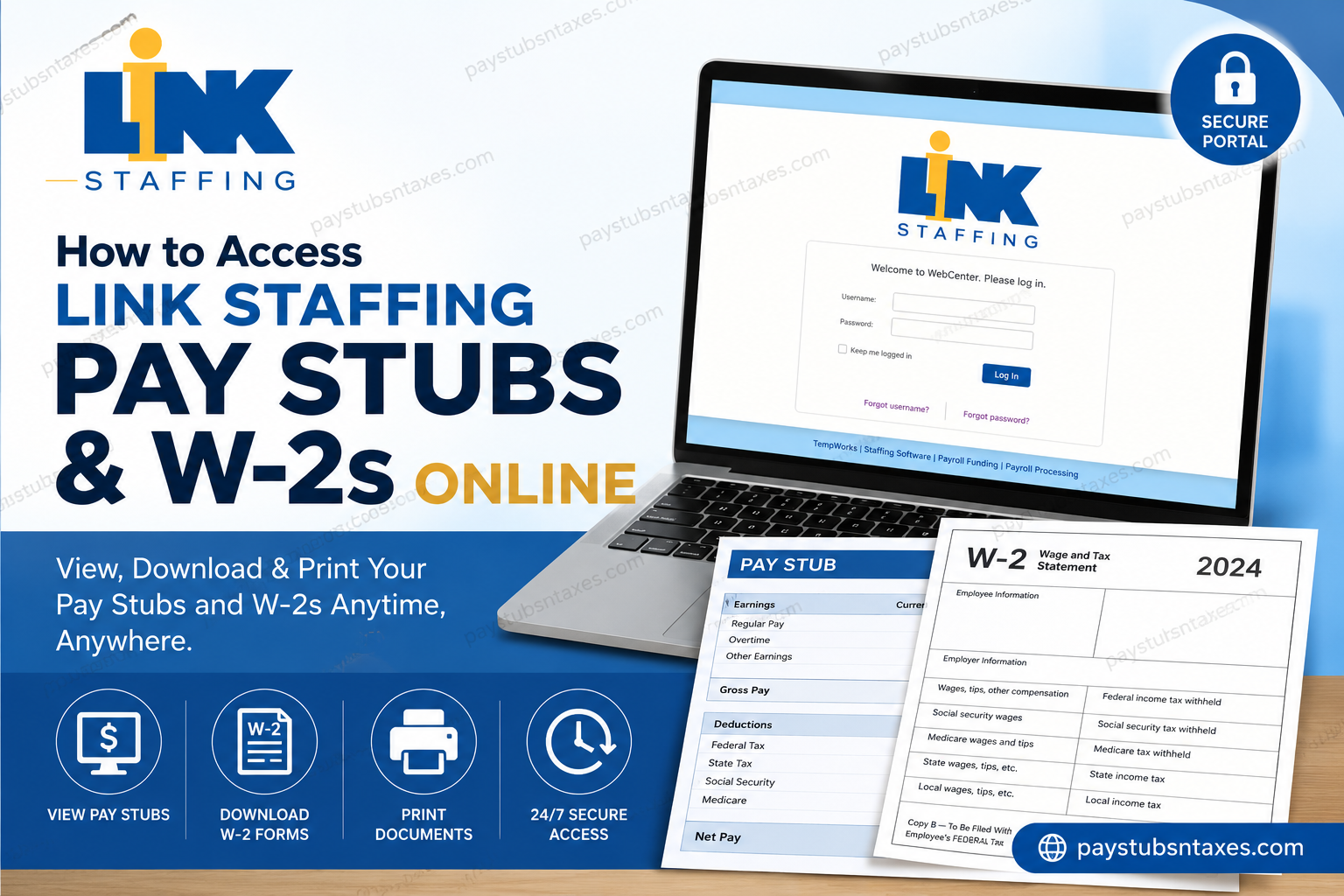
LINK Staffing employees can securely view their payroll records and retrieve W-2 tax forms through the company’s online WebCenter employee portal. Whether you need a recent pay stub, a detailed record of previous payments, or a copy of a W-2 that was lost or never received, WebCenter is generally the quickest and most convenient place to start. The portal provides more than payroll access. Depending on the features available for your account, you may also be able to review assignment information, enter and submit working hours, manage documents, and search for employment opportunities—all from one central location.
About LINK Staffing
LINK Staffing has been connecting employers with dependable workers in Texas since 1980. Headquartered in Houston, the company is a WBENC-certified, women-owned staffing firm serving businesses and job seekers throughout Houston, Dallas–Fort Worth, Austin, and other Texas markets.
With more than four decades of staffing and recruiting experience, LINK Staffing works across industries such as manufacturing, logistics, warehousing, distribution, healthcare, office and administrative support, professional placement, and energy and utilities.
Its approach goes beyond merely filling vacancies. By emphasizing workplace safety, skills alignment, cultural fit, employee preparation, and long-term relationships, LINK Staffing aims to create arrangements in which both employers and field employees can thrive.
For employees, one of the most useful resources is the LINK Staffing WebCenter, where essential employment information can be accessed without having to chase down paper records.
LINK Staffing WebCenter Login
To access your LINK Staffing employment and payroll records, visit the official WebCenter login page: Log in to the LINK Staffing WebCenter.
Enter the username and password issued to you as a LINK Staffing employee, and then select Log In.
Because WebCenter contains sensitive employment, payroll, and tax information, always confirm that you are using the correct website before entering your credentials. Avoid signing in on a public or shared device whenever possible, and remember to log out when you have finished.
What Can Employees Access Through WebCenter?
Once you have signed in, WebCenter may allow you to:
- View current and previous assignment information
- Review your payroll and payment history
- View paycheck details
- Download or print pay stubs
- Access and download W-2 tax forms
- Enter and submit working hours
- Review employment documents
- Search and apply for available jobs
The precise options displayed may vary according to your employee record and the services enabled for your account.
How to View and Print LINK Staffing Pay Stubs
Your pay stubs are available in the Pay History section of WebCenter. This area displays your payroll history and allows you to examine the details associated with individual payments.
Step 1: Sign In to WebCenter
Open the LINK Staffing WebCenter login page, enter your username and password, and select Log In.
Step 2: Open Pay History
After signing in, navigate to the Pay History section. You should see a list of the paychecks associated with your employee record.
Step 3: Find the Paycheck You Need
If your account contains numerous payroll records, use the Search By field to narrow the results and locate a particular paycheck.
Step 4: Review the Paycheck Details
Select or highlight the relevant paycheck. Its corresponding details should appear alongside the payroll list.
Take a moment to confirm that you have chosen the correct pay period before downloading or printing the document.
Step 5: Print or Save the Pay Stub
Select View Printable Version to open a printer-friendly copy of the paycheck stub.
From the print window, you can either:
- Print a paper copy; or
- Choose your device’s Save as PDF option to retain an electronic copy.
Saving pay stubs in a secure, well-organized folder can make life considerably easier when you need proof of income for an apartment application, loan, benefits review, or other financial purpose.
How to Access a LINK Staffing W-2 Online
Employees can access available W-2 forms through the Manage W-2s section of WebCenter. The exact process depends on whether you have already chosen electronic delivery.
Step 1: Log In
Visit the LINK Staffing WebCenter and sign in with your employee username and password.
Step 2: Select Manage W-2s
From your WebCenter home page or Your To Do List, select Manage W-2s.
Step 3: Check Your Electronic Delivery Status
If you have already opted to receive W-2 forms electronically, the available tax years should be displayed. Select the year you require, and the W-2 should download automatically as a PDF.
Check your browser’s downloads folder if the document does not immediately appear on the screen.
Step 4: Opt In to Electronic W-2 Delivery if Necessary
If you have not yet selected electronic delivery:
- Choose Change W-2 options.
- Select Click here to receive your W-2’s electronically.
- Return to the list of available W-2 forms.
- Select the required tax year to download the PDF.
Once downloaded, store the form securely. A W-2 contains confidential personal, income, and tax information, so it should not be saved on an unsecured public computer or sent through an unprotected channel.
What If You Have Forgotten Your Username or Password?
The WebCenter login screen provides Forgot username? and Forgot password? options. Use the appropriate link and follow the prompts to recover your account information.
If you have never accessed WebCenter or your pay stubs before, you may need account setup information from LINK Staffing. Contact the company and ask to have the necessary access instructions emailed to you.
When requesting assistance, be prepared to verify your identity. Never send sensitive information—such as your complete Social Security number—through ordinary email unless an authorized LINK Staffing representative has provided a secure method for doing so.
What If Your W-2 Is Missing?
If you have lost your W-2 or did not receive it, first check WebCenter. Downloading the electronic form is ordinarily the fastest way to obtain another copy.
Before requesting a reprint, work through the following steps:
- Sign in to WebCenter.
- Open Manage W-2s.
- Confirm that you have opted in to electronic W-2 delivery.
- Select the appropriate tax year.
- Check your browser’s downloads folder for the PDF.
If you cannot access the portal, request help setting up or recovering your account. When online access is not possible, contact your local LINK Staffing office to ask whether the W-2 can be reprinted.
A replacement can be mailed only when LINK Staffing has the correct address on file. If you have moved, confirm or update your mailing address before requesting the reprint; otherwise, the document may once again go astray.
How to Contact LINK Staffing for Assistance
If you have difficulty accessing WebCenter, retrieving a pay stub, downloading a W-2, or requesting a replacement tax form, contact your local LINK Staffing office or use the following details:
- Human Resources email: info@linkstaffing.com
- Corporate office: 1-800-848-5465
For account-related assistance, explain whether you need login credentials, password recovery, portal activation, or a replacement W-2. Providing a clear description of the problem helps the support team cut to the chase and direct your request efficiently.
Access Your Payroll Documents When You Need Them
LINK Staffing has connected dependable workers with reputable Texas employers for more than 45 years, building its reputation on integrity, responsibility, precision, and lasting relationships. WebCenter carries that practical, employee-focused approach into payroll administration by giving field staff direct access to important employment records.
In most cases, retrieving a pay stub or W-2 online takes only a few minutes. Begin with the LINK Staffing WebCenter, use Pay History for paycheck records, and open Manage W-2s for tax forms. If the portal presents a stumbling block, LINK Staffing’s local offices and Human Resources team are available to help you regain access or request a replacement.
Frequently Asked Questions About LINK Staffing Pay Stubs and W-2s
1. Where can I access my LINK Staffing pay stubs?
Log in to the LINK Staffing WebCenter and open Pay History. This section displays your payroll history and allows you to view the details of individual paychecks.
2. How do I print a LINK Staffing pay stub?
Open Pay History, select the paycheck you need, and click View Printable Version. When the printable pay stub opens, use your device’s print menu to produce a paper copy.
3. Can I save my LINK Staffing pay stub as a PDF?
Yes. After choosing View Printable Version, open the print menu and select Save as PDF if your device or browser provides that option. Store the file securely because it contains confidential payroll information.
4. Where can I find my LINK Staffing W-2 online?
Sign in to WebCenter and select Manage W-2s from Your To Do List. If electronic delivery is active, choose the relevant tax year, and the W-2 should download automatically as a PDF.
5. How do I opt in to electronic W-2 delivery?
Open Manage W-2s, select Change W-2 options, and click Click here to receive your W-2’s electronically. You can then return to the W-2 list and select the year you wish to download.
6. Why is my LINK Staffing W-2 not downloading?
Confirm that you have opted in to electronic delivery, and then select the required tax year again. Check your browser’s downloads folder and look for blocked downloads or pop-up notifications. If the problem persists, contact LINK Staffing.
7. What should I do if I have forgotten my WebCenter username?
Select Forgot username? on the WebCenter login page and follow the account-recovery instructions. If you cannot recover it, contact LINK Staffing and request assistance with your employee portal access.
8. How do I reset my LINK Staffing WebCenter password?
Select Forgot password? on the login page and complete the recovery process. If the reset does not work or your contact information is outdated, ask LINK Staffing for help restoring access.
9. What if I have never used the LINK Staffing employee portal?
Contact LINK Staffing and request the information needed to set up your WebCenter access. The appropriate account or activation details can be emailed to you after your identity has been verified.
10. What should I do if I lost or never received my W-2?
Check Manage W-2s in WebCenter first, as downloading an electronic copy is usually the quickest solution. If you cannot access the portal, contact LINK Staffing for login assistance or ask your local office whether a replacement can be printed.
11. Can LINK Staffing reprint my W-2?
LINK Staffing may be able to reprint your W-2 if you cannot obtain it through WebCenter. Contact your local office and ensure that the correct mailing address is recorded in your employee file.
12. How do I change the address used for a replacement W-2?
Contact your local LINK Staffing office to confirm or update your address before requesting a mailed replacement. Do not assume that updating information elsewhere will automatically change the address in your LINK Staffing employee record.
13. What other records can I access through WebCenter?
Depending on the features enabled for your account, WebCenter may allow you to review assignments, submit hours, view payroll history, manage employment documents, and search or apply for available positions.
14. Is it safe to access my W-2 or pay stubs online?
WebCenter provides password-protected access to your records. Use the official LINK Staffing login page, avoid public or shared devices, keep your credentials private, and log out after viewing payroll or tax documents.
15. Who should I contact for help with LINK Staffing pay stubs or W-2s?
Contact your local LINK Staffing office, email Human Resources at info@linkstaffing.com, or call the corporate office at 1-800-848-5465. Explain whether you need login assistance, portal activation, a pay stub, or a replacement W-2.
