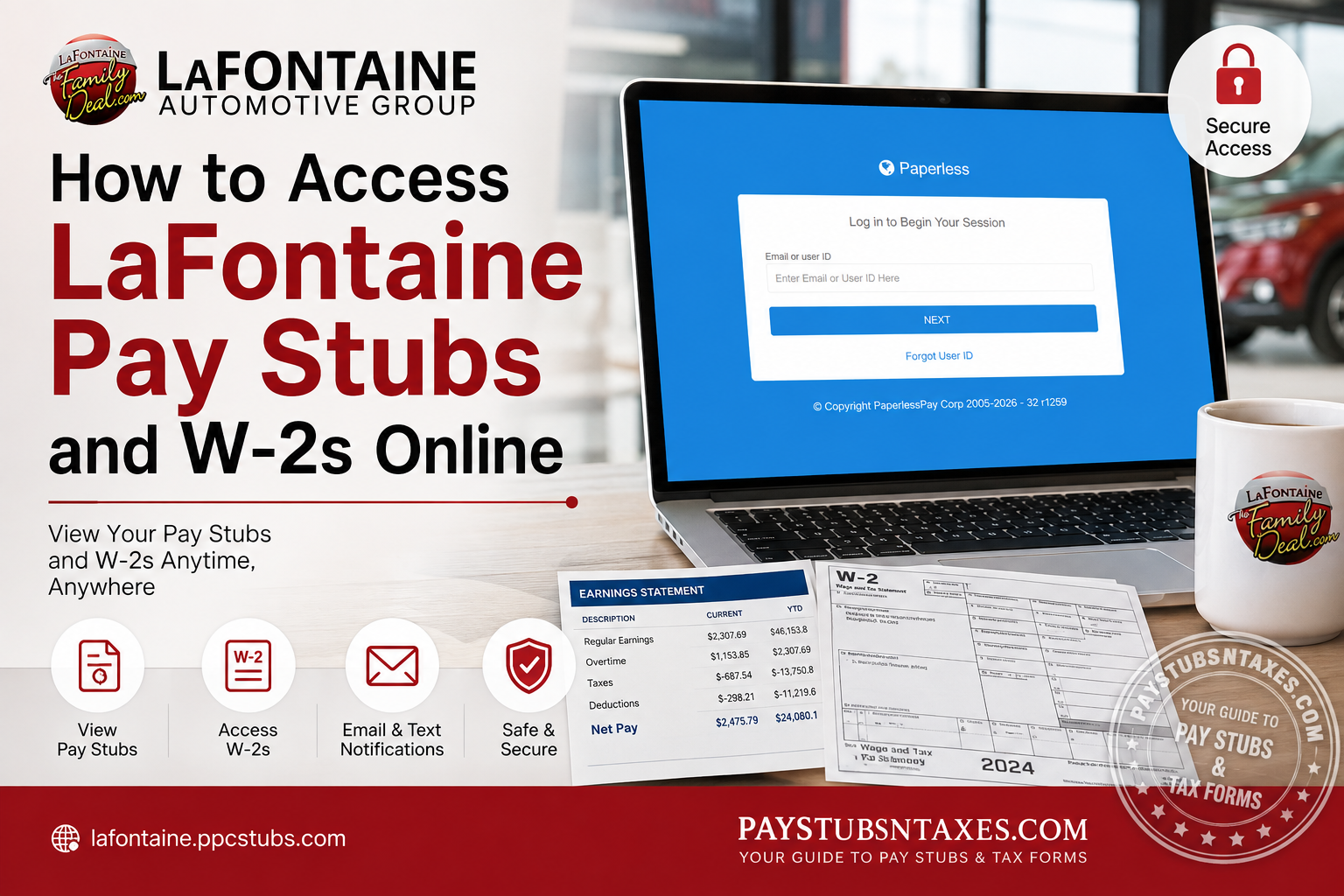
LaFontaine Automotive Group employees can access their payroll information online through the PaperlessPay Corporation portal. Whether you need to review a recent pay stub, update your electronic delivery preferences, or retrieve a W-2 during tax season, the secure online system places essential payroll records within easy reach. The portal is accessible from an internet-connected computer, smartphone, or tablet. Once your account has been established, you can review available documents without waiting for a printed copy or contacting Payroll every time you need employment-income information.
About LaFontaine Automotive Group
Founded in 1980 by Michael Sr. and Maureen LaFontaine, LaFontaine Automotive Group has grown into a nationally recognized automotive organization. The family-owned Group encompasses 54 retail franchises, nine full-service collision centers, and 34 retail locations across Michigan, while providing employment to more than 2,500 people.
In 2022, LaFontaine ranked as Michigan’s largest dealer group and the 25th-largest dealer group in the United States among approximately 16,000 dealers. Its continuing mission is to personalize the automotive experience by forging lifelong relationships that connect families and strengthen communities.
That community-minded philosophy extends beyond the showroom. LaFontaine actively supports nonprofit organizations, educational institutions, charities, employees, customers, and communities throughout southeast Michigan.
What Is the LaFontaine PaperlessPay Portal?
The LaFontaine PaperlessPay portal is an online payroll service through which employees can view pay information and manage the delivery of payroll documents. Employees may use either the PaperlessPay Corporation mobile application or its web-based portal.
The official LaFontaine employee payroll website is:
https://lafontaine.ppcstubs.com
For security, type the address directly into your browser or use the link above. Before entering any credentials, confirm that the address bar displays lafontaine.ppcstubs.com and that the connection is protected by HTTPS.
How to Log In to the LaFontaine PaperlessPay Portal
Follow these steps to access your LaFontaine pay stubs online:
- Open a current web browser on an internet-connected computer or mobile device.
- Visit lafontaine.ppcstubs.com.
- On the login screen, enter your email address or user ID.
- Select Next.
- Enter the requested password and any additional verification information associated with your account.
- After signing in, open the area containing your payroll records or pay-stub listing.
- Select the pay period you wish to review.
Your available pay stubs should appear in the system. Depending on the portal’s current options and your employer’s settings, you may be able to view, download, or print a copy for your records.
Treat downloaded payroll documents with care because they may contain confidential information, including earnings, deductions, taxes, and identifying details.
How to Complete Your PaperlessPay User Setup
After gaining access to your account, visit the user setup or profile area to confirm how you would like to receive direct-deposit and payroll information.
You may be asked to complete the following actions:
- Enter a valid email address.
- Choose either a personal or work email address.
- Confirm the email address if a verification message is sent.
- Add or verify a mobile telephone number.
- Establish a personal password or other security credentials.
- Review the available email and text-message notification settings.
- Check that the information you entered is accurate before completing setup.
If you use a work email address, remember that your access could change if you transfer, take leave, or end your employment. A secure personal email address may therefore be more practical for long-term access, provided its password is strong and the account is protected with multifactor authentication.
Never share your PaperlessPay password, verification code, or other login credentials with colleagues or anyone claiming that they need them to assist you.
Choosing Email or Text Notifications
PaperlessPay allows employees to determine how payroll information is delivered or announced. You may choose to receive a pay-stub notification or related information by email.
The portal may also provide as many as six text-message options concerning payroll details. Before enabling these services, review your mobile plan carefully. Standard messaging charges may apply in the same manner as they do for other text messages, particularly if your plan does not include unlimited texting.
Email delivery is convenient, but convenience should never come at the expense of privacy. Open payroll messages only on a trusted device and avoid viewing or downloading a pay stub while connected to unsecured public Wi-Fi.
If you are using a shared computer, sign out completely when you have finished, close the browser, and remove any downloaded files. Human Resources may have computers available if you need secure workplace access.
How to Access Your LaFontaine Pay Stub
Follow these steps to retrieve your payroll statement online.
Step 1: Visit the LaFontaine PaperlessPay Portal
Open a secure web browser on a computer, tablet, or compatible mobile device and navigate to:
lafontaine.ppcstubs.com
Make sure the address has been entered correctly before submitting any personal information. Payroll accounts contain sensitive financial data, so it is prudent to avoid unofficial links or unfamiliar third-party websites.
Step 2: Enter Your Email Address or User ID
On the login page, locate the field labelled:
Email or user ID
Enter the email address associated with your PaperlessPay account or your established User ID.
Then click NEXT.
Step 3: Complete the Login Process
Proceed with the password and authentication information requested by the system.
PaperlessPay uses several layers of account verification during the setup and login process. Depending on your account status, this may include a password, a personal PIN, security questions, or verification codes.
Step 4: Navigate to Your Payroll Information
After successfully signing in, locate your available payroll records.
PaperlessPay documentation identifies the Stub Listing area as the section where employees can view their pay stubs.
Select the relevant pay period to review your earnings statement.
Step 5: Review Your Pay Stub
Your electronic pay stub may contain information such as:
- Gross earnings
- Regular and overtime earnings, where applicable
- Federal, state, and local tax withholding
- Benefit deductions
- Other payroll deductions
- Direct-deposit information
- Net pay
- Year-to-date earnings and deductions
Review the information carefully, particularly if there has been a change in hours, compensation, tax withholding, benefits, or direct-deposit arrangements.
How to Access a LaFontaine W-2 Online
During tax season, eligible employees can use their established payroll credentials to access an electronic W-2. The W-2 area may be presented as eW2 or as a tax-document section within the payroll system.
To retrieve your LaFontaine W-2 online:
- Go to lafontaine.ppcstubs.com.
- Enter the same established user ID or email address used for your payroll account.
- Use your existing eStubView or PaperlessPay password when prompted.
- Navigate to the eW2, W-2, or tax-document area.
- Review and accept the electronic-delivery consent terms if you have not already done so.
- Select the appropriate tax year.
- Open the W-2 and download or print a copy for your records.
Electronic consent is an important part of the process. Merely having an online payroll account may not automatically enroll you in electronic W-2 delivery; you may need to provide consent within the eW2 area before the document becomes available online.
After downloading a W-2, store it securely. The form contains highly sensitive personal, wage, and tax information that could be exploited if it fell into the wrong hands.
What to Do If You Forget Your User ID
The LaFontaine PaperlessPay login page includes a Forgot User ID option. Select this link and follow the identity-verification instructions displayed on the screen.
If you have previously registered an email address, the recovery process may use it to help identify or restore your account. Check your spam or junk folder if an expected recovery message does not arrive, and verify that you entered the correct email address.
If self-service recovery is unsuccessful, contact Payroll or Human Resources rather than repeatedly guessing your credentials and risking an account lockout.
How to Contact LaFontaine for Payroll Assistance
If you cannot access the portal, retrieve a pay stub, locate a W-2, or correct your account information, contact LaFontaine Payroll or Human Resources.
The main headquarters and general Human Resources support telephone number is: (248) 887-4747
Before calling, have your employee information and a concise description of the problem ready. However, do not send passwords, verification codes, Social Security numbers, or complete banking details through unsecured email or text messages.
Final Takeaway
The LaFontaine PaperlessPay portal offers a straightforward and secure way to manage essential payroll records. By registering reliable contact information, choosing suitable notification preferences, safeguarding your credentials, and completing electronic W-2 consent, you can keep your pay and tax documents close at hand throughout the year. To begin, visit lafontaine.ppcstubs.com. If you encounter a roadblock, LaFontaine Payroll or Human Resources can help you get back on track.
Frequently Asked Questions About LaFontaine Pay Stubs and W-2s
1. Where can employees access LaFontaine pay stubs?
Employees can access LaFontaine pay stubs through the PaperlessPay portal at https://lafontaine.ppcstubs.com/. The website is available from an internet-connected computer, smartphone, or tablet.
2. How do I log in to the LaFontaine PaperlessPay portal?
Visit the official portal, enter your registered email address or user ID, and select Next. Then provide your password and any additional verification information requested by the system.
3. Can I access LaFontaine pay stubs from my phone?
Yes. Employees can use a compatible mobile browser or the PaperlessPay Corporation application. For greater security, use a trusted device and avoid signing in through unsecured public Wi-Fi.
4. Where are my pay stubs located after I log in?
After signing in, open the pay-stub listing or payroll-document section. Select the relevant payment date or pay period to view the corresponding statement.
5. Can I download or print my LaFontaine pay stub?
If the portal provides download or print controls, you can save or print an available pay stub. Store downloaded statements securely because they contain confidential employment and financial information.
6. How do I receive LaFontaine payroll information by email?
Open the user setup, profile, or notification area and enter a valid personal or work email address. Select the available email-delivery preferences and complete any required verification process.
7. Can LaFontaine payroll notifications be sent by text message?
Yes. PaperlessPay may offer up to six text-message notification options concerning pay-stub information. Standard carrier charges may apply, particularly if your mobile plan does not include unlimited messaging.
8. How do I access my LaFontaine W-2 online?
Sign in at lafontaine.ppcstubs.com and navigate to the eW2, W-2, or tax-document area. Provide electronic-delivery consent if requested, choose the correct tax year, and open the available form.
9. Can I use my pay-stub password to access my W-2?
Employees can generally use their established eStubView or PaperlessPay password to access the electronic W-2 area. Additional identity verification or electronic-delivery consent may also be required.
10. Why is my LaFontaine W-2 not showing online?
The form may not yet have been released, you may be viewing the wrong tax year, or electronic-delivery consent may be incomplete. Verify these details before contacting Payroll for assistance.
11. What should I do if I forget my LaFontaine PaperlessPay user ID?
Select Forgot User ID on the login page and follow the displayed recovery instructions. Check your spam or junk folder if the system sends a recovery email that does not arrive in your inbox.
12. What should I do if my password does not work?
Check for typing errors, unintended spaces, and incorrect capitalization. Make sure your browser is not inserting an outdated saved password. If you remain locked out, contact Payroll or Human Resources.
13. Why is my latest pay stub missing?
A new pay stub may not appear until payroll processing has been completed. If the expected statement remains unavailable after the normal payment date, ask Payroll to verify its status.
14. Is the LaFontaine PaperlessPay portal secure?
The portal uses an HTTPS-protected web address, but employees must also take sensible precautions. Confirm the domain before logging in, keep credentials private, use a trusted device, and sign out completely after every session.
15. Who should I contact for LaFontaine payroll assistance?
For help with pay stubs, W-2s, account access, or payroll information, contact LaFontaine Payroll or Human Resources. General Human Resources support is available through the main headquarters at (248) 887-4747.
