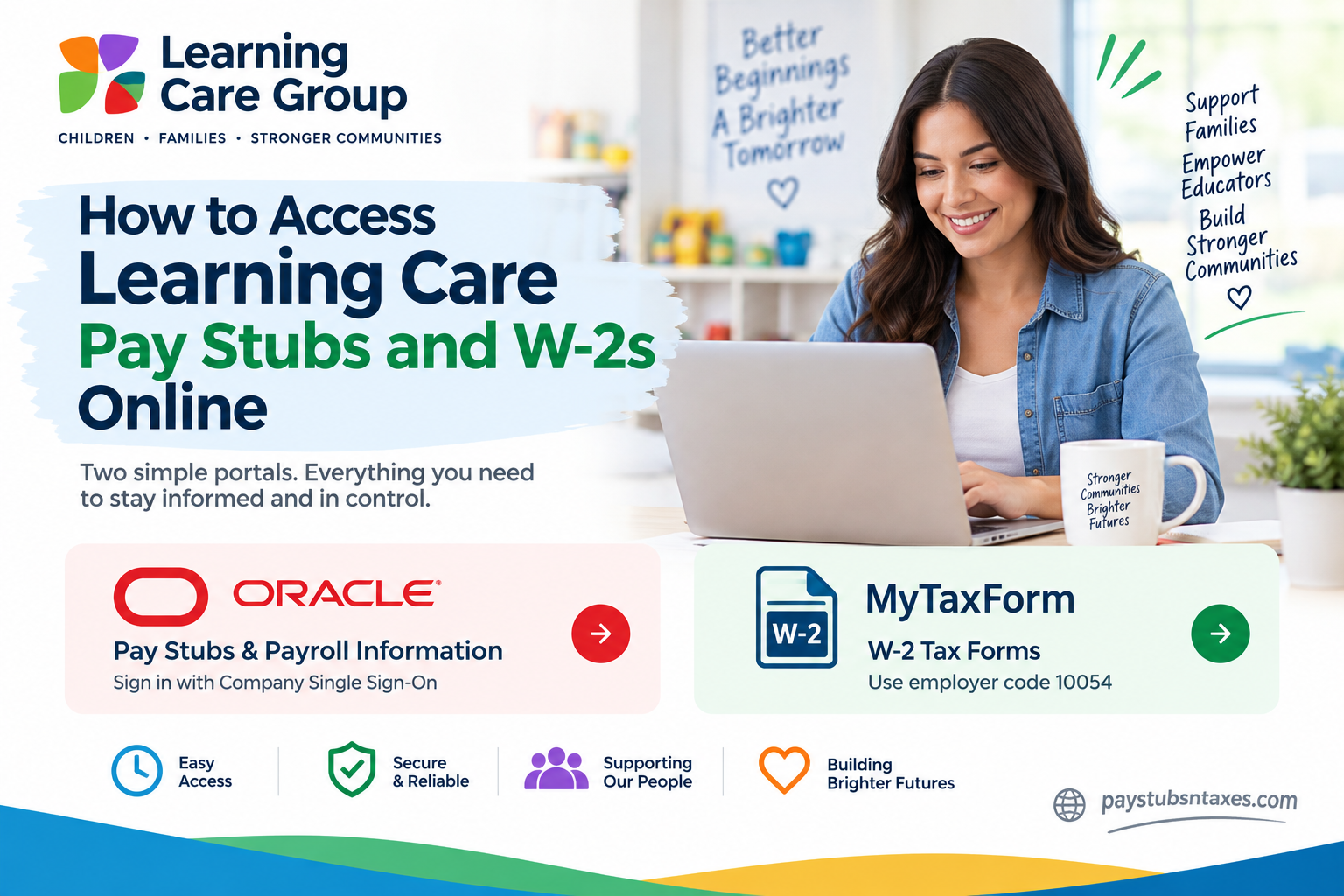
Learning Care Group employees can access pay stubs through the Oracle employee portal or Oracle HCM Cloud mobile app, while year-end W-2 statements are available through the Tax Form Management website. Although the two systems serve different purposes, both provide a secure and convenient way to retrieve essential payroll documents without waiting for paper copies. This guide explains how to view, download, save, or print your Learning Care Group pay stubs and W-2 forms online.
About Learning Care Group
Headquartered in Novi, Michigan, Learning Care Group is a leading provider of child care and early childhood education in North America. For more than five decades, the organization has partnered with families to provide safe, caring, and engaging learning environments for children from infancy through school age.
Learning Care Group operates an extensive community of schools under well-known brands such as:
- La Petite Academy
- Childtime
- Tutor Time
- The Children’s Courtyard
- Montessori Unlimited
- Everbrook Academy
- AppleTree & Gilden Woods
- Creative Kids Learning Center
- U-GRO
- The Young School
- Pathways Learning Academy
Learning Care Group employees use Oracle for payroll-related services, including online access to current and previous payslips.
How to Access Learning Care Pay Stubs Online
Current employees can view their Learning Care Group pay stubs from any computer with a reliable internet connection.
Step 1: Open the Oracle portal
Visit the Learning Care Group Oracle portal:
https://ejql.fa.us6.oraclecloud.com/hcmUI/CandidateExperience
To protect your payroll information, use a trusted device and a secure internet connection. Avoid signing in through public computers or unsecured Wi-Fi networks whenever possible.
Step 2: Select “I am an employee”
On the Oracle landing page, open the menu on the right and select I am an employee. This option directs current employees to the appropriate company sign-in page.
The username and password created during the initial job-application process are not normally used for current-employee access.
Step 3: Choose Company Single Sign-On
On the Oracle login page, select Company Single Sign-On. Complete the Microsoft or company authentication process using your Learning Care Group credentials.
If your organization requires multifactor authentication, follow the verification prompt sent to your registered telephone, email address, or authentication app.
Step 4: Open the Pay section
After signing in, select: Me > Pay > My Payslips
The payslip summary page presents your available payroll records and may also display graphical summaries of earnings and deductions.
Step 5: Select a payslip
Choose the pay period you wish to review. The selected payslip may include separate sections for:
- Earnings
- Taxes
- Deductions
- Net Pay Distribution
- Payslip Preview
The Payslip Preview tab displays the complete payslip document, making it easier to review gross wages, withholding amounts, deductions, and net pay in one place.
Step 6: Compare payroll information
When you select Earnings or Deductions, Oracle may display the chosen payslip alongside the two preceding payslips. This comparison can help you identify changes in working hours, benefit deductions, taxes, bonuses, or other payroll adjustments.
Step 7: Download or print the payslip
Select the Export or download button to save a copy of the chosen payslip. Once downloaded, the document can be printed or stored in a secure folder for personal recordkeeping, income verification, loan applications, or other administrative purposes.
How to Access Learning Care Pay Stubs on a Mobile Device
Employees who prefer to manage payroll information on the go may use the Oracle HCM Cloud mobile app on a compatible smartphone or tablet.
Step 1: Install the mobile app
Find and install the Oracle HCM Cloud mobile application from the app store available for your device.
Confirm that the application is published by Oracle before installing it. This simple precaution helps you avoid unofficial or fraudulent applications.
Step 2: Accept the agreement
Open the app and review the End User License Agreement. Select the acceptance option to continue.
Step 3: Enter the Learning Care Group HCM address
On the Getting Started page, enter the following application URL:
https://ejql.fa.us6.oraclecloud.com
Enter the address carefully; even a minor typing error can prevent the app from connecting to the correct Learning Care Group environment.
Select Let’s get started to proceed.
Step 4: Sign in securely
Use the company sign-on option and complete the required authentication. Once access has been granted, navigate to:
Me > Pay > My Payslips
Select the required payslip to review its earnings, deductions, net-pay distribution, or full preview. If an export option is available, use it to download the document to your device.
Menu names and screen layouts may vary slightly according to the device, operating system, or current version of the Oracle application.
How to Access Learning Care Group W-2 Forms Online
Learning Care Group W-2 statements are accessed through Tax Form Management rather than the Oracle payslip portal.
Step 1: Visit Tax Form Management
Go to: https://mytaxform.com/
Make certain that the browser displays the correct website address before entering personal information.
Step 2: Enter the employer code
Enter the Learning Care Group employer code: 10054
Continue to the Learning Care Group employment-services login page.
Step 3: Enter your employee user ID
When prompted for a user ID, enter an uppercase E followed immediately by your six-digit employee ID number.
For example: E123456
Do not insert spaces between the letter and the employee number.
Depending on your account status, you may be asked to complete identity verification, enter a one-time passcode, register an account, or use personalized credentials established during an earlier visit.
Step 4: Locate the required W-2
After signing in, your most recent tax forms should appear on the home page. Select the checkbox beside the W-2 you wish to access.
If older forms are not displayed immediately, look for an option such as Tax Forms, Documents, or History.
Step 5: Choose how to receive the W-2
Tax Form Management may offer several delivery options:
- Select View to open the W-2 electronically.
- Select Download to save the document directly.
- Open the form and choose Print to produce a paper copy.
- Select Postal Mail to request delivery by mail.
- Select Fax if that delivery option is available and appropriate.
Store downloaded W-2 forms securely because they contain sensitive information, including wages, tax withholding, and personally identifiable details.
How to Receive W-2 Forms Electronically
If online delivery has not already been activated, Tax Form Management may ask you to provide consent before an electronic W-2 becomes available.
Under Online Delivery Consent, select the relevant tax form and choose Receive Forms Online. Read the electronic-delivery disclosure, acknowledge the terms, and select Accept & Continue. Confirm the displayed email and mailing addresses before submitting the request.
If consent was provided previously, the setting may be available under My Account rather than on the home page.
Security Tips for Pay Stubs and W-2 Forms
Payroll and tax documents are a gold mine for identity thieves, so careful handling is indispensable.
- Use only the official Oracle and Tax Form Management addresses.
- Never send your password or one-time security code by email.
- Avoid downloading payroll documents on a shared or public computer.
- Sign out completely when you have finished.
- Store downloaded files in a secure, password-protected location.
- Verify the recipient before sending a pay stub or W-2 by email or fax.
- Do not disclose your full employee ID on public websites or social media.
- Review each document for unfamiliar deductions or incorrect personal information.
Learning Care Group Payroll and W-2 Support
If you have questions about Learning Care Group W-2 forms or require assistance accessing payroll information, contact the Pay and Benefits team:
Telephone: (877) 767-5241
Email: payandbenefits@learningcaregroup.com
When requesting assistance, explain the problem clearly, but do not include your password, complete Social Security number, or authentication code in an email.
Final Thoughts
Accessing Learning Care Group pay stubs and W-2 statements online is straightforward once you know which system to use. Oracle houses employee payslips, whereas Tax Form Management provides year-end tax forms. By using the correct portal, selecting Company Single Sign-On, and keeping employer code 10054 close at hand, employees can retrieve their payroll records with minimal fuss.
Because login procedures and interface labels may change over time, follow the current on-screen instructions and contact Learning Care Group’s Pay and Benefits team whenever an account, authentication, or document issue cannot be resolved.
Learning Care Pay Stubs and W-2 FAQs
1. How do I access my Learning Care Group pay stubs online?
Visit the Learning Care Group Oracle portal, select I am an employee, and choose Company Single Sign-On. After completing the company authentication process, navigate to Me > Pay > My Payslips and select the pay period you wish to view.
2. What is the Learning Care Group Oracle portal URL?
The Learning Care Group Oracle employee portal is:
Current employees should choose I am an employee and use Company Single Sign-On, rather than entering credentials created during the initial job-application process.
3. Where can I find My Payslips in Oracle?
Once you have signed in to Oracle, select Me, open Pay, and choose My Payslips. The page displays available pay periods and may provide separate views for earnings, deductions, net-pay distribution, and a complete payslip preview.
4. Can I download my Learning Care Group pay stub?
Yes. Open My Payslips in Oracle, select the required pay period, and use the Export or Download button. The downloaded payslip can be saved securely, printed, or submitted as proof of income when applying for housing, credit, or other financial services.
5. How do I view my Learning Care pay stub on a mobile phone?
Install the Oracle HCM Cloud mobile app, accept the license agreement, and enter https://ejql.fa.us6.oraclecloud.com as the HCM application URL. After signing in through the company authentication system, navigate to Me > Pay > My Payslips and select the required document.
6. What URL should I enter in the Oracle HCM mobile app?
Enter the following Learning Care Group HCM application URL: https://ejql.fa.us6.oraclecloud.com
Type the address exactly as shown, without spaces or additional characters. An incorrect or organization-specific Oracle address will prevent the app from connecting to the correct Learning Care Group environment.
7. How do I access my Learning Care Group W-2 online?
Go to MyTaxForm.com, enter Learning Care Group employer code 10054, and continue to the employment-services login page. Enter an uppercase E followed by your six-digit employee ID, complete any identity verification, and select the W-2 displayed on the home page.
8. What is the Learning Care Group employer code for W-2 forms?
The Learning Care Group employer code for Tax Form Management is 10054. Enter this code at MyTaxForm.com to reach the appropriate employer login page. Check the code carefully before submitting personal information, as other employers use different identification numbers.
9. What is my Learning Care Group W-2 user ID?
Your initial Tax Form Management user ID is generally an uppercase E followed immediately by your six-digit employee ID. For example, an employee whose ID is 123456 would enter E123456. Do not add a space between the letter and the number.
10. How can I download or print my Learning Care Group W-2?
Sign in to Tax Form Management and select the checkbox beside the required W-2. Choose View to open the form or Download to save it directly. After opening the document, use the available print option to produce a paper copy.
11. Can I receive my Learning Care Group W-2 by mail or fax?
Tax Form Management may allow employees to request a W-2 through Postal Mail or Fax. Sign in, select the required form, and choose the preferred delivery method. Follow the on-screen instructions and verify the mailing address or fax number before submitting the request.
12. Why is my Learning Care Group W-2 not showing online?
A W-2 may be unavailable because it has not yet been released, the wrong employer code was entered, identity verification remains incomplete, or electronic-delivery consent is required. Confirm employer code 10054, review your account settings, and contact payroll support if the form remains unavailable.
13. How do I reset my MyTaxForm user ID or password?
Select Forgot User ID? or the corresponding password-recovery option on the Tax Form Management login page. Complete the requested identity checks and, if prompted, enter the one-time passcode sent to your registered email address or telephone number before creating new credentials.
14. Can former Learning Care Group employees access W-2 forms online?
Former employees may still be able to retrieve W-2 statements through MyTaxForm.com using employer code 10054. Access to the active-employee Oracle portal may end after separation. If online recovery fails, contact Learning Care Group’s Pay and Benefits team for assistance.
15. Who do I contact for Learning Care Group payroll or W-2 support?
For assistance with Learning Care Group pay records or W-2 statements, call (877) 767-5241 or email payandbenefits@learningcaregroup.com. Explain the issue clearly, but never include your password, complete Social Security number, or one-time authentication code in an email.
