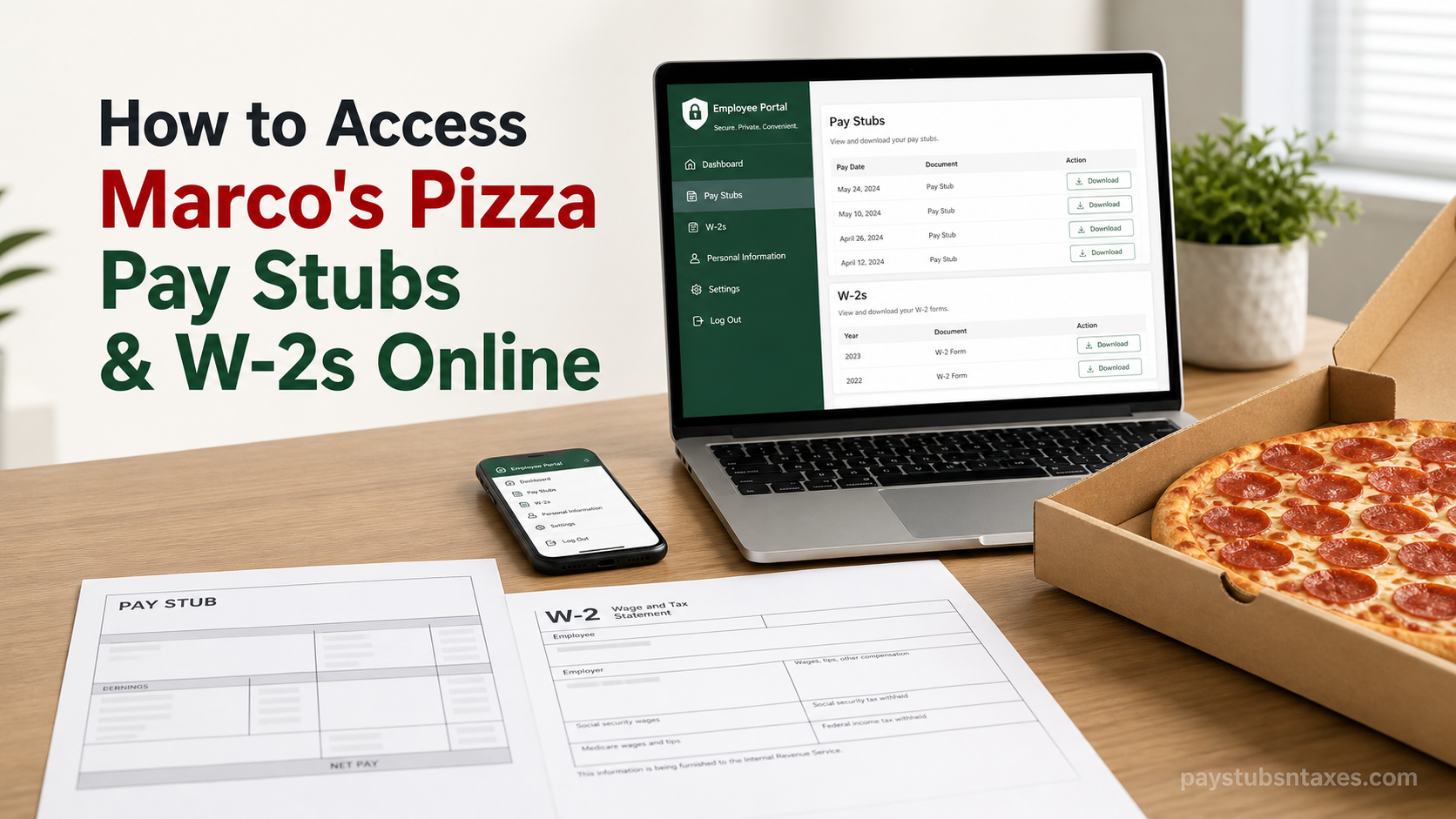
Marco’s Pizza employees can ordinarily view, download, and print their pay stubs and W-2 forms through an online payroll or human capital management platform. However, because Marco’s Pizza operates through independently owned franchises, there is no single payroll website used by every location. Your account may be administered through MyPay by AllianceHCM, Heartland Payroll, Paychex Flex, ADP, Netchex, or another provider selected by your franchise owner. Therefore, before attempting to sign in, confirm the correct platform with your store manager, franchise owner, human resources representative, or payroll administrator.
Understanding Marco’s Pizza Payroll
Marco’s Pizza, operated by Marco’s Franchising, LLC, is an American restaurant and interstate franchise headquartered in Toledo, Ohio. Italian immigrant Pasquale “Pat” Giammarco founded the company on February 18, 1978, opening its first location on Starr Avenue in Oregon, Ohio. By June 2026, the chain had expanded to more than 1,300 locations across the United States—including Puerto Rico—as well as the Bahamas, India, and Mexico.
Although employees work under the same nationally recognized brand, individual franchise businesses generally manage their own hiring, payroll, benefits, and employment records. Consequently, the login credentials or payroll portal used at one Marco’s Pizza location may not work at another.
Many locations follow a biweekly payroll schedule, under which employees are paid once every two weeks for a 14-day pay period. This arrangement usually produces 26 paychecks per year, although certain months may contain three paydays. Actual pay dates, payroll cutoffs, and payment frequency may vary according to franchise policy and applicable state law.
How to Identify Your Marco’s Pizza Payroll Provider
Before looking for your pay records, determine which payroll system your employer uses. You can usually find the provider’s name in one of the following places:
- Your onboarding or new-hire email
- A previous pay stub or direct-deposit notification
- Your employee handbook or workplace noticeboard
- A payroll, benefits, or account-activation email
- A mobile application installed during onboarding
- Information supplied by your manager or payroll department
Do not create accounts on several payroll websites in the hope of finding the correct one. Your employer must first register you with its chosen provider, and you may need a company code, client code, employee ID, activation link, or temporary password to complete enrollment.
Accessing Pay Stubs and W-2s Through MyPay by AllianceHCM
MyPay allows participating employees to review payroll and tax information from a phone, tablet, laptop, or desktop computer.
Signing in to MyPay
- Visit www.hralliance.net/ee or open the Alliance MyPay mobile application.
- Enter the username and password associated with your employee account.
- If you cannot remember your credentials, select Forgot Username or Forgot Password on the login screen.
- Check the email address recorded by your employer for recovery instructions or a temporary password.
- If the message does not appear, inspect your spam or junk folder before requesting another email.
Once signed in, use the payroll or personal-information area to locate your paycheck history, direct-deposit records, and available W-2 forms. Select the relevant check date or tax year, open the document, and use your device’s download or print option to retain a copy.
The MyPay app is available free of charge through the Apple App Store and Google Play. Depending on the services activated by your franchise, the platform may also allow you to update personal details, manage direct-deposit instructions, review benefits, submit requests, and read company notices.
If the login-recovery process fails, contact your franchise’s HR or payroll administrator. AllianceHCM generally cannot disclose or modify an employee’s information without authorization from the employer.
Accessing Pay Stubs and W-2s Through Heartland Payroll
Employees whose franchise uses Heartland Payroll may receive a welcome email containing an account-activation link and an eight-character client code. Preserve this code carefully because it may be required every time you sign in.
Activating a Heartland Employee Account
- Open the welcome email sent after your employer establishes your self-service access.
- Select the activation link or copy it into your browser.
- Enter the requested authorization code, which may be the last four digits of your Social Security number.
- Create a qualifying password. The setup instructions may require at least eight characters, including a letter, a number, and a special character.
- Choose two security questions and record the answers securely. The answers may be case-sensitive.
- Complete the activation process.
The activation link is intended for initial setup. After activating your account, go to www.heartlandcheckview.com and sign in with your registered email address, password, and employer-provided client code.
Viewing a Heartland Pay Stub
- Sign in to Heartland Employee Self-Service.
- Open Check History.
- Select the required check date from the list.
- Review the pay-stub preview displayed below the check history.
- Choose View/Print Pay Stub.
- Download the document or print it for your records.
Viewing a Heartland W-2
- Open W-2/1099 History.
- Select the appropriate tax year.
- Click View PDF.
- Save or print the document.
Heartland may lock an account after five unsuccessful login attempts. If you are locked out, cannot reset your password, or never received the activation email, contact your employer’s payroll department. Heartland’s payroll specialists may not be able to assist employees directly.
When navigating the portal, avoid using the browser’s forward and back buttons, as doing so may sign you out as a security precaution.
Accessing Pay Stubs and W-2s Through Paychex Flex
If your Marco’s Pizza franchise uses Paychex, you can typically retrieve payroll documents through Paychex Flex.
Viewing a Paychex Pay Stub
- Visit www.paychexflex.com.
- Enter your Paychex Flex username and password.
- Look for the most recent pay stub on the dashboard.
- To review earlier statements, open Documents.
- Select Check Stubs from the category or side menu.
- Mark the Include checkbox beside each document you need.
- Choose View to open a PDF or Download to save it.
When several documents are downloaded together, the system may package them in a ZIP file. You will need to open or extract that file before viewing the individual statements.
Viewing a Paychex W-2
- Sign in and open Documents.
- Select the W-2 category.
- Choose the required tax year.
- Mark the relevant document.
- Select View or Download.
The number of historical documents available depends on the services purchased by your employer. If a pay stub or W-2 is missing, ask your payroll administrator whether electronic document access has been enabled for your account.
Use the Forgot Username or Password option if you cannot sign in. Questions about earnings, deductions, taxes, hours, or personal information should be directed to your employer rather than the software provider.
Accessing Records Through ADP, Netchex, or Another Platform
Some Marco’s Pizza franchisees use ADP, Netchex, or another payroll service. Although screen labels differ, the overall process is broadly similar:
- Open the official website or mobile application specified by your employer.
- Register using the employer code, employee ID, registration code, or invitation link you received.
- Complete identity verification and create a secure password.
- Sign in and locate a section labelled Pay, Pay Statements, Earnings, Payroll, Documents, or Pay History.
- Select the relevant payday and download or print the statement.
- For tax documents, open Tax Statements, Tax Forms, W-2, or Year-End Documents.
- Choose the correct tax year and save the PDF securely.
Never rely on an unofficial link from a search result or unsolicited message. Use the address supplied by your employer or the payroll provider’s verified application.
How to Read a Marco’s Pizza Pay Stub
A pay stub is more than a receipt for your wages; it is a concise record of how your paycheck was calculated. Review the following details whenever a new statement becomes available:
- Your name, address, employee number, and employer information
- The pay-period beginning and ending dates
- The official payday
- Regular, overtime, holiday, training, or other recorded hours
- Hourly rates or salary information
- Gross earnings before deductions
- Federal, state, and local tax withholdings
- Social Security and Medicare deductions
- Insurance, retirement, garnishment, or other deductions
- Year-to-date earnings and deductions
- Net pay after all deductions
- Direct-deposit account information, usually shown only in masked form
If the hours, rate, tip reporting, deductions, or personal information appear incorrect, notify your manager or payroll department promptly. Payroll providers display the information submitted by the employer; they generally cannot amend wages or deductions without the employer’s authorization.
When Are Marco’s Pizza W-2 Forms Available?
A W-2 summarizes taxable wages and taxes withheld during a calendar year. Electronic copies usually become available around the same period in which employers distribute year-end tax statements, but the precise posting date depends on the franchise and its payroll provider.
Current employees should watch their payroll portal, email inbox, and workplace announcements during January. Former employees should keep their mailing address and personal email address up to date and ask the former employer whether online access will remain active after separation.
If you cannot find a W-2:
- Confirm that you selected the correct tax year.
- Check the tax-document section rather than the ordinary pay-stub history.
- Verify whether electronic delivery requires separate consent.
- Review your email and spam folder for a notification.
- Contact the franchise’s payroll administrator or owner.
- Confirm that your mailing address is correct if a paper form was issued.
Final Takeaway
Accessing Marco’s Pizza pay stubs and W-2s online is generally straightforward once you have identified the payroll platform used by your franchise. Confirm the provider, activate your employee account, navigate to the pay or tax-document section, and download the appropriate PDF. If the process reaches a stumbling block, your franchise owner, manager, HR representative, or payroll administrator should be your first port of call. They can confirm the correct portal, update your registered contact information, resend an activation invitation, unlock your account, and investigate missing or inaccurate payroll records.
Frequently Asked Questions About Marco’s Pizza Pay Stubs and W-2s
1. How do I access my Marco’s Pizza pay stubs online?
Confirm which payroll platform your franchise uses, sign in to its official employee portal, and open Pay, Pay Statements, Check History, or Documents. Select the appropriate paycheck date, then view, download, or print the pay stub.
2. Where can I find my Marco’s Pizza W-2 online?
Sign in to your employer’s payroll portal and look for W-2, Tax Forms, Tax Statements, or Year-End Documents. Choose the correct tax year and download the available PDF. The exact menu name depends on the payroll provider.
3. What payroll system does Marco’s Pizza use?
Marco’s Pizza does not use one universal payroll platform for every employee. Independently operated franchises may use MyPay by AllianceHCM, Heartland Payroll, Paychex Flex, ADP, Netchex, or another provider chosen by the franchise owner.
4. How can I identify my Marco’s Pizza payroll provider?
Check your onboarding email, direct-deposit notice, previous pay stub, employee handbook, or payroll application. If the provider is still unclear, ask your store manager, franchise owner, human resources representative, or payroll administrator.
5. How do I access Marco’s Pizza pay stubs through Paychex Flex?
Visit www.paychexflex.com, sign in, and open Documents. Select Check Stubs, mark the statement you need, and choose View or Download. Your most recent pay stub may also appear directly on the account dashboard.
6. How do I download a W-2 from Paychex Flex?
Sign in to Paychex Flex, open Documents, and select the W-2 category. Choose the appropriate tax year, mark the required document, and click View or Download. Availability depends on the services enabled by your employer.
7. How do I access Marco’s Pizza payroll records through MyPay?
Visit www.hralliance.net/ee or open the Alliance MyPay application. Sign in with your employee credentials, navigate to your payroll or personal-information area, and select the relevant paycheck or W-2. You can then save or print the document.
8. How do I access pay stubs through Heartland Payroll?
Go to www.heartlandcheckview.com and enter your registered email address, password, and employer-issued client code. Open Check History, choose a check date, and select View/Print Pay Stub to download or print the statement.
9. How do I obtain a W-2 from Heartland Payroll?
Sign in to Heartland Employee Self-Service and open W-2/1099 History. Select the correct tax year, click View PDF, and download or print the document. Contact your employer’s payroll department if the form is missing.
10. How often do Marco’s Pizza employees get paid?
Many Marco’s Pizza franchises use a biweekly payroll schedule, meaning employees are generally paid every other week for a 14-day pay period. This usually results in 26 paychecks per year, although schedules may vary by franchise and state requirements.
11. What should I do if I forget my payroll password?
Select Forgot Password on the official payroll login page and follow the identity-verification instructions. Check your spam or junk folder for the recovery email. If automated recovery fails, contact your franchise’s payroll or HR administrator.
12. Why is my latest Marco’s Pizza pay stub missing?
The statement may not appear until payroll processing has been completed. Confirm the expected payday and selected pay period. If the document remains unavailable, ask your manager or payroll administrator to check your employee account and payroll status.
13. Can former Marco’s Pizza employees access their W-2s online?
Former employees may retain temporary access, depending on the franchise and payroll provider. Try your existing credentials first. If the account has been disabled, contact the franchise that employed you and confirm your current email and mailing address.
14. Who should I contact about an incorrect Marco’s Pizza paycheck?
Report incorrect hours, pay rates, tips, taxes, deductions, or personal information to your store manager, franchise owner, HR representative, or payroll administrator. The payroll software provider ordinarily cannot change payroll information without authorization from the employer.
15. How can I get a replacement Marco’s Pizza W-2?
Check the tax-document section of your payroll portal and download another copy. If online access is unavailable, request a replacement from the franchise or legal employer listed on your previous pay stub. Confirm your identity and current mailing address when making the request.
