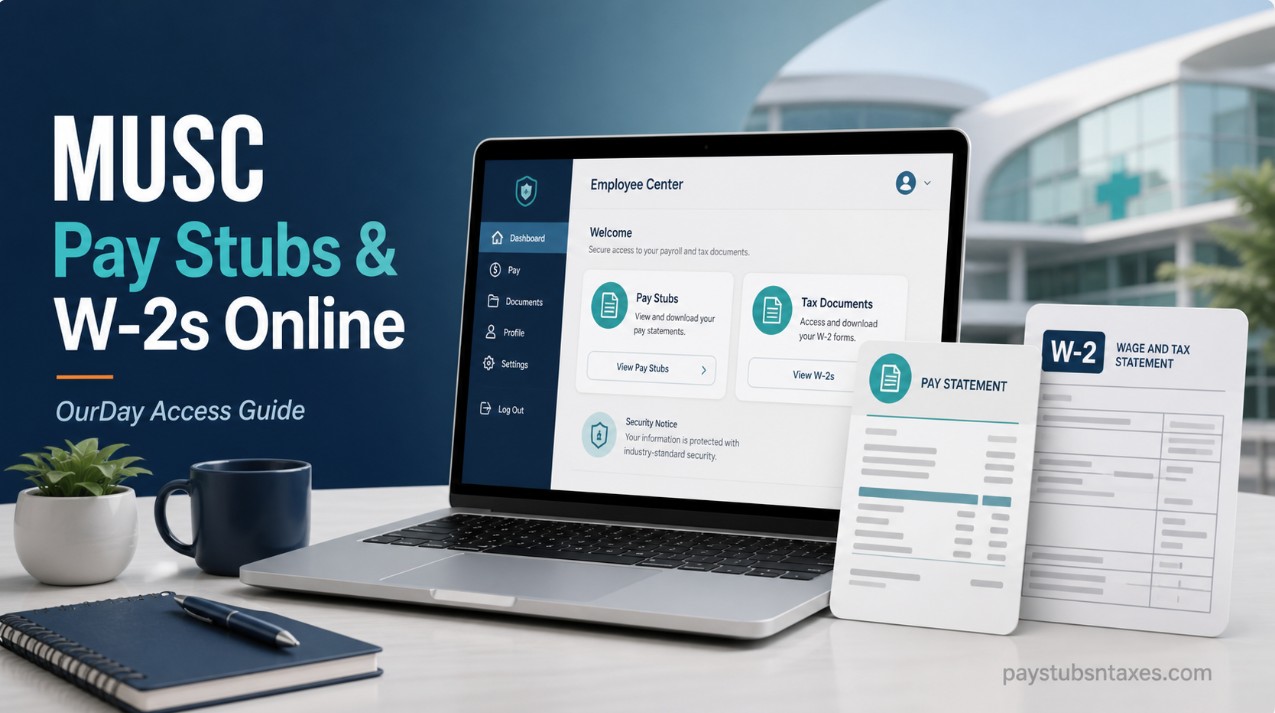
MUSC employees can access pay statements, tax documents, benefits information, and other employment records through OurDay, the Medical University of South Carolina’s Workday platform. Whether you need to verify your net pay, review deductions, print an earlier payslip, or download a W-2 for tax preparation, OurDay keeps these essential records within one secure system. This guide explains how active employees can view and print MUSC pay stubs and W-2 forms online, which login option to select, and what former employees should do after their MUSC access has ended.
What Is MUSC OurDay?
OurDay is MUSC’s Workday-based platform for human resources, payroll, finance, and other administrative services. For active employees, it serves as a central hub where they can review employment information, manage aspects of their careers, explore internal opportunities, access benefits-related resources, view pay statements, and retrieve available tax documents.
Because payroll records contain confidential personal and financial information, employees should access OurDay only through an official MUSC page and from a trusted device.
MUSC OurDay Login
To access the platform, visit:
OurDay: https://musc.edu/ourday
Direct Workday portal: https://wd1.myworkday.com/musc/login.htmld
The sign-in page presents two login options:
NetID Login
Choose NetID Login if you have an active MUSC-issued NetID. This is the standard option for most current employees accessing OurDay with their institutional credentials.
Non-NetID Login
Choose Non-NetID Login if you do not have an MUSC-issued NetID but have received a separate Workday username and password. This option may apply to certain external or extended-enterprise users.
Selecting the appropriate sign-in route is important. If one option does not recognize your credentials, pause before making repeated attempts and confirm that you are using the login method assigned to your account.
How to Access MUSC Pay Stubs Online
MUSC pay stubs—also called payslips or pay statements—are available through the Pay area in OurDay.
Follow these steps:
- Sign in to MUSC OurDay using the appropriate NetID or Non-NetID option.
- From the OurDay home page, open the Menu or select View All Apps.
- Choose the Pay application.
- Look under the available viewing options and select Payslips.
- Locate the pay period you want to review.
- Select View to open the payslip.
- If you require a paper or electronic copy, choose Print or the available download option.
Depending on the version of Workday displayed on your device, the labels or placement of individual buttons may vary slightly. Nevertheless, the essential route remains straightforward: open Pay, select Payslips, and choose the relevant pay period.
What Information Appears on a MUSC Pay Stub?
A pay statement ordinarily provides considerably more detail than the amount deposited into your bank account. When reviewing an MUSC payslip, you may see information such as:
- Pay-period beginning and ending dates
- Payment or check date
- Gross earnings
- Current and year-to-date totals
- Federal and state taxes
- Pre-tax deductions
- Post-tax deductions
- Net pay
- Taxable wages
- Withholding information
- Direct-deposit or other payment details
- Applicable hours, leave, shift pay, holiday pay, or additional earnings
Reviewing these details periodically is a prudent habit. A pay stub can help you confirm that your compensation, tax withholding, benefits deductions, and direct-deposit allocations have been processed correctly. If something appears amiss, addressing it promptly is far easier than trying to untangle several months of payroll history at a later date.
How to Access an MUSC W-2 Online
Active employees can retrieve available W-2 forms from the tax-document section of OurDay.
To view or print an MUSC W-2:
- Log in to OurDay.
- Open the Pay application or worklet from the dashboard.
- Select My Tax Documents.
- Find the applicable tax year.
- Select View/Print beside the W-2 you need.
- Open the generated document and save or print it as required.
Workday may take a few moments to prepare the document. If nothing appears immediately, check whether your browser has blocked a pop-up or placed the downloaded file in its default Downloads folder.
MUSC employees should also receive a paper W-2, regardless of the tax-document delivery preference selected in Workday. Keeping your home address current is therefore essential, particularly as the end of the calendar year approaches.
When Are W-2 Forms Available?
Employers generally issue W-2 forms after the close of the tax year in accordance with federal distribution deadlines. Once MUSC has released the form, it should appear under My Tax Documents for employees who retain active OurDay access.
If the expected document is not visible, confirm that you selected the correct tax year. You should also allow time for payroll to finalize and publish the form before contacting support.
Can Former MUSC Employees Access W-2s Online?
Former MUSC employees should not assume that they will continue to have electronic access to OurDay. Once separation paperwork has been processed and approved, MUSC email, network, and OurDay access may be disabled.
For a former employee, the following year’s W-2 and Form 1095-C are mailed to the last address on file. Former employees do not have electronic access through OurDay to print their W-2 after their institutional access has been deactivated.
Before leaving MUSC, it is sensible to:
- Download any pay statements you may need for your records.
- Confirm that your personal email address is current.
- Verify your home address in OurDay.
- Save relevant payroll and benefits contact information.
- Complete any required benefits exit procedures.
If your mailing address changes after you leave, contact MUSC Human Resources at university-hr@musc.edu. For questions specifically concerning a W-2, call the Payroll Department at 843-792-2191.
Questions about Form 1095-C should be directed to the Benefits Office at 843-792-2071.
How to Save or Print Payroll Documents Securely
After opening a payslip or W-2, use the document viewer’s print or download option to retain a copy. Save the file only on a private, password-protected device or within an appropriately secured storage service.
Payroll and tax documents contain sensitive information that can be exploited if it falls into the wrong hands. Consequently, employees should avoid downloading these files on public computers, sending them through unsecured email, or leaving printed copies unattended.
When using a shared device, sign out of OurDay completely, close the browser, and remove any downloaded copies before walking away.
Troubleshooting MUSC OurDay Login Problems
If you cannot sign in, begin with a few simple checks:
- Confirm that you selected the correct NetID or Non-NetID login option.
- Re-enter your username carefully and verify that Caps Lock is off.
- Use a current version of a supported web browser.
- Try opening OurDay in a private browsing window.
- Clear outdated browser cookies if the login page repeatedly reloads.
- Confirm that your MUSC account is still active.
- Check whether OurDay is undergoing scheduled maintenance.
For assistance with passwords, authentication, or access to OurDay, contact MUSC Information Solutions support services at 843-792-9700.
For questions involving pay stubs, payroll records, or W-2 forms, contact the MUSC Payroll Department at 843-792-2191. Address changes and related Human Resources inquiries may be sent to university-hr@musc.edu.
Final Thoughts
OurDay places MUSC payroll and tax information within easy reach, provided that employees know where to look. For active employees, the route is simple: sign in, open Pay, and select either Payslips or My Tax Documents. A few minutes spent downloading important records and verifying personal details can prevent a great deal of inconvenience when tax season arrives or employment circumstances change. Former employees, however, must take a different path. Because OurDay access ends after separation is processed, the W-2 is mailed to the last address on file. Keeping that address up to date—and retaining the appropriate Payroll and Human Resources contact details—is the surest way to ensure that an important tax document does not slip through the cracks.
MUSC Pay Stubs and W-2s: Frequently Asked Questions
1. What is the MUSC employee portal for pay stubs?
MUSC employees use OurDay, the organization’s Workday platform, to access pay stubs, tax documents, and other employment information. The official access page is musc.edu/ourday.
2. How do I access my MUSC pay stub online?
Sign in to OurDay, open the Pay application, and select Payslips. Find the relevant pay period and choose View to open the statement or Print to produce a copy.
3. How do I obtain my MUSC W-2 online?
Log in to OurDay and navigate to Pay > My Tax Documents. Locate the W-2 for the required tax year, then select View/Print to open, download, or print it.
4. Is OurDay the same as Workday at MUSC?
Yes. OurDay is MUSC’s Workday-based administrative platform for payroll, human resources, finance, and other employee services.
5. Which MUSC OurDay login option should I choose?
Choose NetID Login if you have an active MUSC-issued NetID. Choose Non-NetID Login if you do not have an MUSC NetID and were given a separate Workday username and password.
6. What information appears on an MUSC pay stub?
An MUSC pay stub may display gross earnings, taxes, pre-tax and post-tax deductions, net pay, year-to-date totals, taxable wages, withholding details, payment information, and the dates covered by the pay period.
7. Can I print a MUSC pay stub from OurDay?
Yes. Open Pay > Payslips, locate the desired pay period, and select the available Print option. You may also save the statement electronically on a secure personal device.
8. Why can’t I find my latest MUSC pay stub?
The latest statement may not appear until payroll processing has been completed. Confirm that you selected the correct pay period and check again after the payment date. Contact Payroll if the statement remains unavailable.
9. When will my MUSC W-2 become available?
W-2 forms are ordinarily made available after the relevant tax year has ended and payroll has completed year-end processing. Employees should check My Tax Documents in OurDay during tax season.
10. Will MUSC mail me a paper W-2?
Yes. Employees receive a paper W-2 regardless of the tax-document delivery preference selected in Workday. Keeping your mailing address current is therefore essential.
11. Can former MUSC employees access W-2s through OurDay?
Former employees should not rely on continued OurDay access. Once separation paperwork has been processed, MUSC may disable the employee’s email, network, and OurDay credentials.
12. How do former MUSC employees receive their W-2s?
A former employee’s W-2 is mailed to the last address held in MUSC’s records. Former employees whose OurDay access has ended cannot use the platform to print the form electronically.
13. How do I change my address for an MUSC W-2?
Active employees should review and update their personal information in OurDay when permitted. Former employees who need to report an address change should contact MUSC Human Resources at university-hr@musc.edu.
14. Who should I call about an incorrect or missing MUSC W-2?
For questions about a missing, incorrect, or replacement W-2, contact the MUSC Payroll Department at 843-792-2191.
15. Who can help if I cannot sign in to OurDay?
For password, authentication, NetID, or OurDay access problems, call MUSC Information Solutions support services at 843-792-9700. Payroll-related questions should be directed to 843-792-2191.
