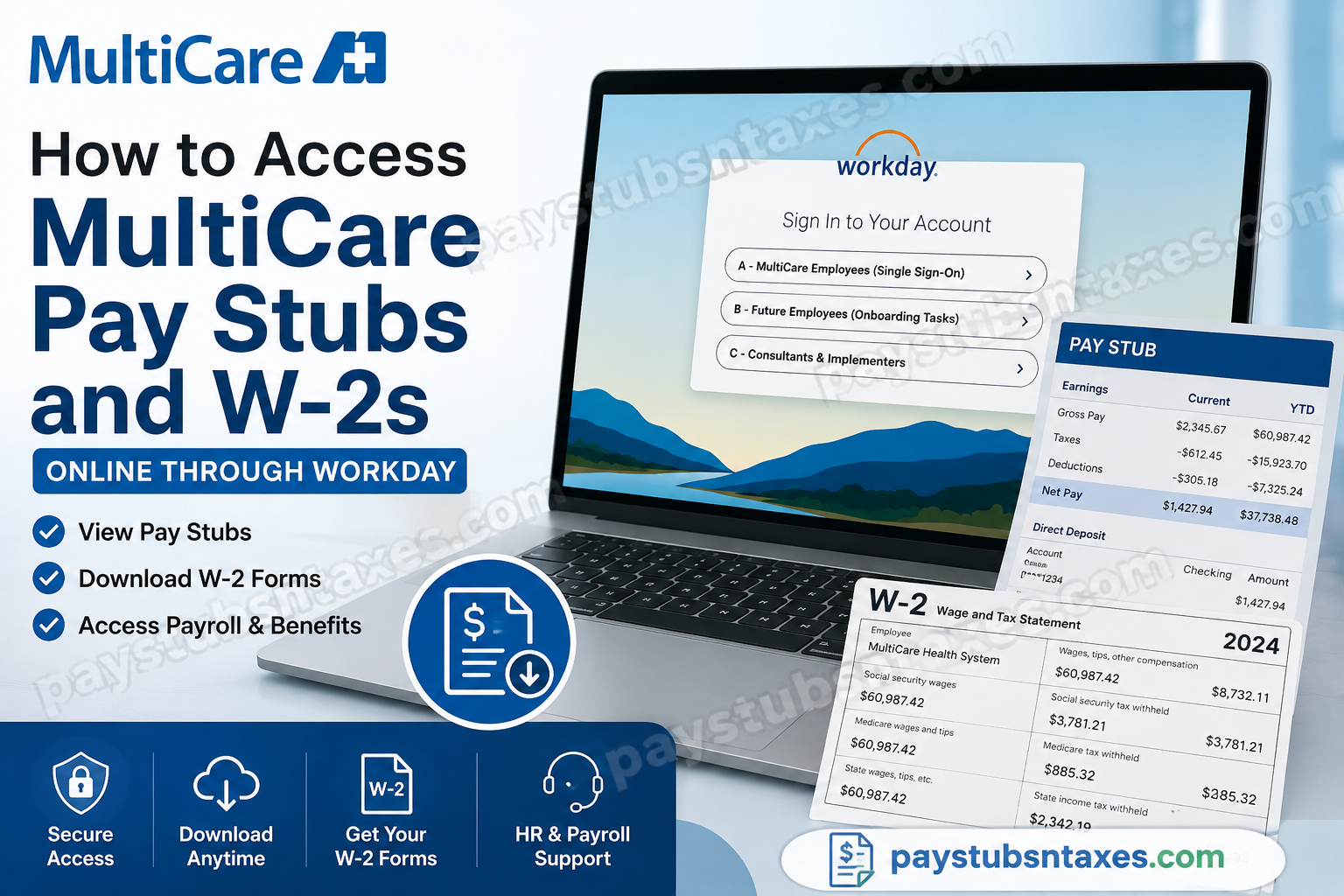
Managing your payroll and tax records should never be an arduous task, particularly when your employer provides a secure, centralized Human Capital Management (HCM) platform. For MultiCare employees, Workday serves as the official self-service portal where team members can access essential employment information, including pay stubs, W-2 tax forms, benefits, career development tools, and personal employment records. Whether you are a current employee signing in through Single Sign-On (SSO), a newly hired team member completing onboarding, or a consultant working with MultiCare, this comprehensive guide explains exactly how to access your payroll documents quickly and securely.
About MultiCare
MultiCare is one of the Pacific Northwest’s largest nonprofit healthcare systems, with a history dating back to 1882. Today, the organization operates more than 300 primary, urgent, pediatric, and specialty care locations, along with 13 hospitals across Washington, Idaho, and Oregon. Supported by more than 20,000 employees, providers, and volunteers, MultiCare remains committed to delivering compassionate, community-focused healthcare while continually investing in innovation, excellence, and workforce development.
What is MultiCare Workday?
Workday is MultiCare’s official Human Capital Management (HCM) platform. It allows employees to manage virtually every aspect of their employment from one secure location.
Within Workday, employees can:
- View and download pay stubs
- Access annual W-2 tax forms
- Review payroll history
- Update personal information
- Manage employee benefits
- View compensation details
- Track career development
- Apply for internal job opportunities
- Submit employee referrals
- Access onboarding tasks (for new hires)
Instead of contacting Human Resources for routine payroll requests, employees can retrieve most documents instantly through Workday.
MultiCare Workday Login Portal
Official Workday Portal:
https://www.myworkday.com/wday/authgwy/multicare/login.html
When you open the login page, you will see three different sign-in options.
A – MultiCare Employees (Single Sign-On)
This option is intended for active employees who already possess MultiCare network credentials.
Use this option if you:
- Are currently employed by MultiCare
- Have MultiCare SSO credentials
- Need to access payroll, benefits, schedules, or tax documents
B – Future Employees (Onboarding)
This option is designed for individuals who have accepted an employment offer and are completing onboarding requirements before their first day.
Typical onboarding activities include:
- Completing hiring documents
- Uploading identification
- Reviewing employment paperwork
- Finishing required training
C – Consultants & Implementers
This login is reserved for:
- External consultants
- Contractors
- Workday implementation specialists
- Authorized third-party users
Only users with appropriate authorization should select this option.
How to Access MultiCare Pay Stubs
Once logged into Workday:
Step 1: Sign in using your MultiCare credentials.
Step 2: From the Workday home page, locate the Pay application (sometimes called the Pay worklet).
Step 3: Open the Pay section.
Step 4: Select Payslips.
Step 5: Choose the desired pay period.
Step 6: You may:
- View your payslip
- Download a PDF copy
- Print the document for your records
Workday also provides detailed payroll information for each pay period, including gross pay, net pay, taxes withheld, deductions, payment information, and year-to-date totals.
How to Access Your MultiCare W-2 Online
Retrieving your W-2 is equally straightforward.
Step 1: Log into Workday.
Step 2: Open the Pay worklet.
Step 3: Select My Tax Documents.
Step 4: Locate the available W-2 for the desired tax year.
Step 5: Click View/Print to open or download your W-2.
What Information Appears on Your Pay Stub?
Your electronic payslip generally includes:
- Employee information
- Pay period dates
- Pay date
- Gross earnings
- Net pay
- Federal tax withholding
- State tax withholding
- Social Security deductions
- Medicare deductions
- Retirement contributions
- Health insurance deductions
- Paid leave balances
- Direct deposit details
- Year-to-date earnings
- Year-to-date taxes
These details enable employees to verify earnings, monitor deductions, and maintain accurate financial records.
Benefits of Using Workday
Using Workday offers numerous advantages, including:
- Secure online access anytime
- Immediate payroll history
- Digital tax document storage
- Faster access than requesting paper copies
- Mobile-friendly experience
- Self-service profile management
- Career development resources
- Internal job applications
- Benefit enrollment and updates
Forgot Your Password?
If you’re unable to access Workday:
- Use your organization’s password recovery process if available.
- Contact the MultiCare Human Potential (HP) team for login assistance.
- If your account has been locked, your IT support team may also be able to assist.
Former Employees
Former employees who no longer have access to MultiCare’s Workday account should contact Human Potential or Payroll to request payroll records or tax documents.
Availability of electronic access may depend on your employment status and separation date.
Payroll and Human Resources Contact Information
For Human Resources assistance:
Human Potential (HP)
Phone: 253-403-6947
Hours:
Monday–Friday
8:00 AM – 6:00 PM
For payroll questions, including W-2s and pay stubs:
Payroll Department
Phone: 253-459-8081
Security Tips
To keep your payroll information secure:
- Never share your login credentials.
- Enable Multi-Factor Authentication if available.
- Log out after every session.
- Avoid using public Wi-Fi when accessing payroll records.
- Update your password regularly.
- Download payroll documents only to trusted devices.
Conclusion
MultiCare’s Workday platform streamlines payroll management by giving employees secure, round-the-clock access to pay stubs, W-2 tax forms, benefits information, and career resources. Whether you need to verify your latest earnings, download tax documents for filing season, or update employment information, Workday provides a centralized, efficient, and user-friendly solution. If you experience any issues accessing your account or require historical payroll records, MultiCare’s Human Potential and Payroll teams are available to provide timely assistance, ensuring you can obtain the information you need with minimal delay.
Frequently Asked Questions
1. How do I access my MultiCare pay stubs online?
Log in to the official MultiCare Workday portal using your Single Sign-On (SSO) credentials. Open the Pay worklet and select Payslips to view, download, or print your current and previous pay stubs.
2. Where can I download my MultiCare W-2 form?
After signing into Workday, navigate to Pay > My Tax Documents, select the applicable tax year, and click View/Print to download your W-2.
3. What is the official MultiCare Workday login?
The official employee login portal is:
https://www.myworkday.com/wday/authgwy/multicare/login.html
4. Which login option should current employees choose?
Current employees should select Option A – MultiCare Employees (Single Sign-On) to access payroll, benefits, tax documents, and HR services.
5. What is Option B on the MultiCare Workday login page?
Option B – Future Employees (Onboarding Tasks) is for new hires completing pre-employment paperwork, onboarding forms, and required training before their first day.
6. What is Option C used for?
Option C – Consultants & Implementers is intended for authorized consultants, contractors, and Workday implementation personnel.
7. Can I view previous pay stubs in Workday?
Yes. Workday stores payroll history, allowing employees to access and print pay stubs from previous pay periods.
8. Can I print my MultiCare pay stub?
Yes. Every payslip includes a Print or Download PDF option for saving or printing your payroll record.
9. What information appears on a MultiCare pay stub?
A typical pay stub includes gross earnings, net pay, taxes withheld, deductions, direct deposit details, employer contributions, and year-to-date totals.
10. Can I access Workday from home?
Yes. Employees can securely access Workday from any internet-connected device using their authorized MultiCare login credentials.
11. What should I do if I forget my Workday password?
Use the available password recovery process or contact the MultiCare Human Potential (HP) team for login assistance.
12. Can former employees obtain their W-2 or pay stubs?
Yes. Former employees should contact MultiCare Human Potential or the Payroll Department if they no longer have Workday access.
13. Who should I contact for payroll or W-2 questions?
For payroll, W-2, or pay stub assistance, contact the MultiCare Payroll Department at 253-459-8081.
14. How do I contact MultiCare Human Resources?
Current and former employees can reach the Human Potential (HP) team by calling 253-403-6947, Monday through Friday, from 8:00 AM to 6:00 PM.
15. Is Workday the official payroll system for MultiCare?
Yes. Workday is MultiCare’s official Human Capital Management (HCM) platform for accessing pay stubs, W-2s, benefits, personal information, career resources, and other employee self-service functions.
