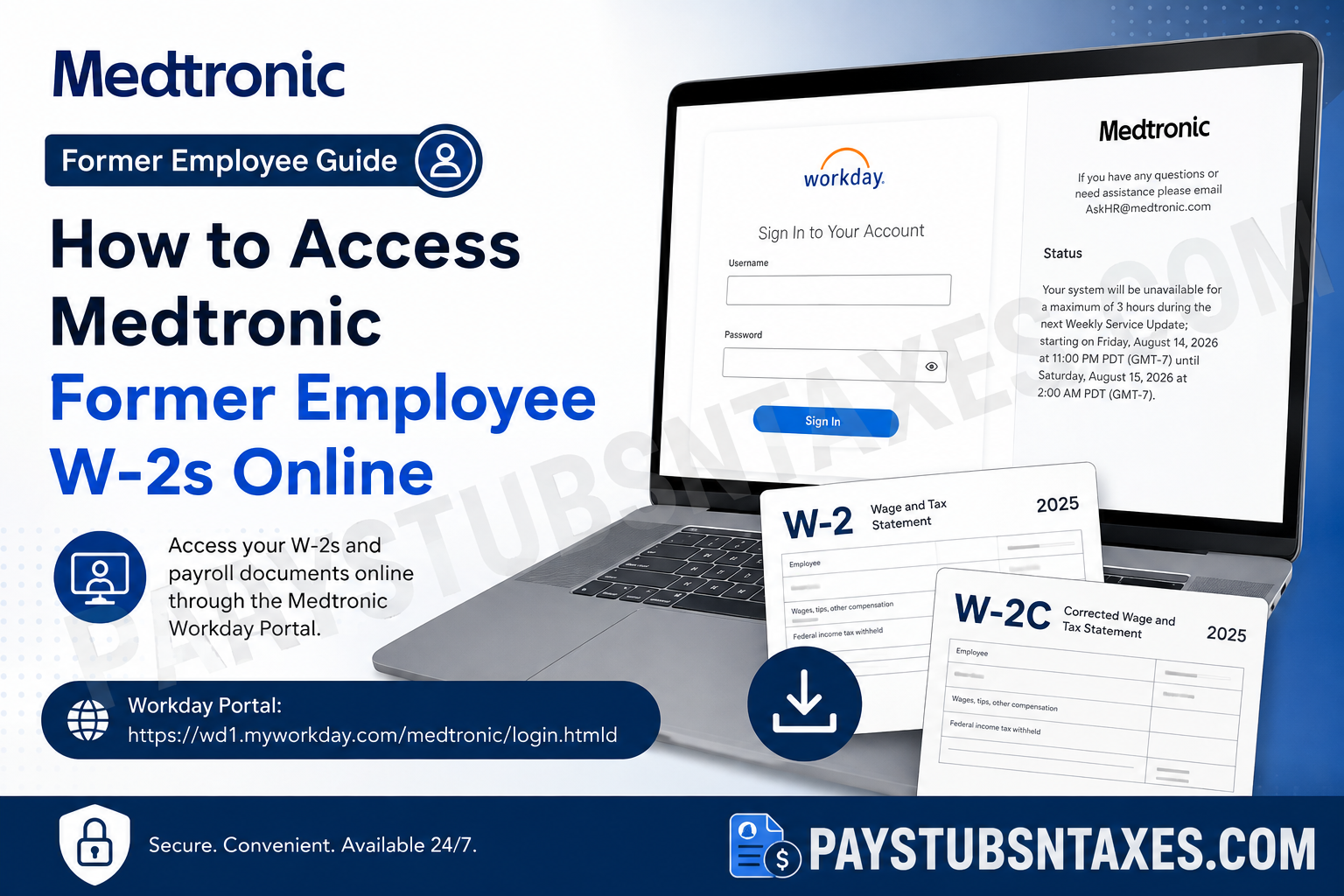
Former Medtronic employees can generally retrieve available payroll and tax documents—including Form W-2 and, when applicable, Form W-2C—online through the Medtronic Workday portal. Although active employees may enter Workday through Medtronic’s single sign-on system, that route may no longer work after employment ends. Former employees therefore need to use the direct Workday sign-in process established for post-employment access. This guide explains how to sign in, locate your tax documents, download or print the appropriate forms, and obtain assistance if you encounter a stumbling block along the way.
Medtronic Workday Portal for Former Employees
Use the following address to reach the Medtronic Workday sign-in page:
Medtronic Workday portal:
https://wd1.myworkday.com/medtronic/login.htmld?redirect=n
The correct page should display the Workday logo, username and password fields, and a Sign In button. It may also show Medtronic announcements, planned maintenance notices, or contact information.
For security reasons, use the official link directly rather than relying on an unfamiliar search result or a link supplied by an unverified third party.
Why Former Employees Sign In Differently
While employed by Medtronic, you may have accessed Workday through the company’s single sign-on service. Once your employment ends, however, access through that system may be withdrawn. This does not necessarily mean your eligible payroll and tax documents have disappeared; it means the doorway through which you enter Workday may have changed.
Former employees ordinarily receive instructions by email explaining how to use direct Workday access. Those instructions may contain account details, activation information, or password-setting directions. Search the personal email account associated with your Medtronic employment, including its spam, junk, promotions, and archived folders.
Useful search terms include:
- Medtronic
- Workday
- former employee
- payroll
- tax documents
- W-2
- account activation
If you cannot find the message or no longer have access to the registered email address, contact Medtronic AskHR at AskHR@medtronic.com.
How to Access Your Medtronic Former Employee W-2 Online
Step 1: Open the Medtronic Workday portal
Visit the official Medtronic Workday login page using a private and trusted device. Avoid signing in from a public computer or an unsecured Wi-Fi network, particularly because tax documents contain sensitive personal and financial information.
Step 2: Enter your former-employee Workday credentials
Enter the username and password associated with your direct Workday account, then select Sign In.
Do not assume that your former Medtronic network password will continue to work. The credentials used for post-employment access may differ from those used with the company’s single sign-on system. Follow the direct-access instructions sent to you after your departure.
Step 3: Open the Pay section
After reaching the Workday home page, find and select the Pay application or icon. Depending on the version of Workday displayed on your device, this option may appear among the applications on the main dashboard or within the Workday menu.
Step 4: Expand the available options
Within the Pay area, locate the View section. If My Tax Documents is not immediately visible, select More to expand the list.
Workday menus can vary slightly according to screen size and system updates, so the wording or placement may look different on a phone, tablet, or desktop computer. Nevertheless, the destination you need is normally labelled My Tax Documents.
Step 5: Select My Tax Documents
Choose My Tax Documents to display the tax forms currently available in your account. Depending on your employment history and whether a correction was issued, the list may include:
- Form W-2, the annual Wage and Tax Statement
- Form W-2C, a Corrected Wage and Tax Statement
- Documents from more than one tax year
Check the year and form type carefully before downloading anything. A document from the wrong year will not satisfy a request for the tax period you are trying to complete or amend.
Step 6: View, download, or print your W-2
Find the required tax form and select View/Print. Workday may prepare the document before opening it, so allow a moment for the request to finish.
Once the form appears, save a copy to a secure location or print it for your records. If the document does not open, check whether your browser has blocked a pop-up or download.
Step 7: Review any available W-2C forms
A W-2C is issued when information on an original W-2 requires correction. If your account contains both a W-2 and a W-2C, download or print every applicable form that has a View/Print option.
Do not discard the original W-2 merely because a W-2C is present. The corrected form may revise only particular entries rather than replace every item on the original statement. Keep the documents together and use them in accordance with your tax-filing requirements.
Step 8: Sign out securely
When you have finished, sign out of Workday completely. Closing the browser tab alone may leave the session active, so use Workday’s Sign Out or Log Out option before closing the browser.
This final step is easy to overlook, yet it is indispensable—especially when the account contains Social Security information, earnings, tax withholding, and other confidential data.
What to Do If You Cannot Log In
If your Medtronic Workday login is not working, begin with a few straightforward checks:
- Confirm that you are using the direct Medtronic Workday portal rather than an old employee single sign-on link.
- Re-enter your username carefully and ensure that Caps Lock is turned off.
- Use any password-recovery option shown on the login page, if available.
- Search your personal email for the former-employee Workday access instructions.
- Try a current browser or a private browsing window.
- Allow pop-ups and downloads from the official Workday domain if your tax document will not open.
- Check the portal for a maintenance notice and return after the stated service window.
If the problem persists, email AskHR@medtronic.com. Explain that you are a former Medtronic employee seeking access to your Workday payroll or tax documents. To help the support team understand the issue, include your full name, former work location or business unit, approximate employment dates, and a concise description of the error.
Do not send your Social Security number, password, or complete tax form by ordinary email unless an authorized Medtronic representative gives you a secure method and specifically requests the information.
When Is a Medtronic W-2 Available?
W-2 forms are prepared annually, and their appearance in Workday depends on the applicable payroll and tax-document schedule. If the required form is not listed, first verify that you selected the correct tax year and that you are viewing My Tax Documents, rather than ordinary payslips.
A missing form does not always indicate an account problem; it may not yet have been released, it may have been delivered through another approved method, or your account may require assistance. AskHR can clarify the appropriate next step for your circumstances.
Final Thoughts
Retrieving a Medtronic former employee W-2 online is usually a straightforward undertaking once you use the correct entrance to Workday. Sign in with your direct former-employee credentials, proceed to Pay, open My Tax Documents, and select View/Print for each relevant form. If your former single sign-on credentials no longer work—or the necessary instructions have fallen through the cracks—contact AskHR@medtronic.com for assistance. By downloading every applicable W-2 and W-2C, safeguarding the files, and signing out when finished, you can obtain the records you need without compromising the sensitive information they contain.
Frequently Asked Questions About Medtronic Former Employee W-2s
1. How do former Medtronic employees access their W-2s online?
Former employees can sign in through the direct Medtronic Workday portal. Once inside Workday, select Pay, expand the View options if necessary, choose My Tax Documents, and select View/Print beside the required W-2.
2. What is the Medtronic Workday portal link for former employees?
The direct Medtronic Workday login page is: https://wd1.myworkday.com/medtronic/login.htmld?redirect=n
Use this address carefully, as unofficial websites may imitate legitimate employee-service pages.
3. Can former Medtronic employees still access Workday?
Former employees may retain direct Workday access for eligible payroll and tax documents. However, the company single sign-on route used during active employment may be revoked after termination, making separate former-employee credentials necessary.
4. Why does my old Medtronic username or password no longer work?
Your previous credentials may have been connected to Medtronic’s single sign-on system, which can become unavailable after employment ends. Consult the direct Workday access instructions sent to your personal email or contact AskHR@medtronic.com.
5. Where is the W-2 located in Medtronic Workday?
From the Workday dashboard, open Pay. In the View section, select More if the complete menu is hidden, then choose My Tax Documents. Your available W-2 and W-2C forms should appear there.
6. How do I download or print my Medtronic W-2?
Find the appropriate tax year under My Tax Documents and select View/Print. When the form opens, use the browser or PDF controls to save it securely or print a paper copy.
7. What should I do if View/Print does not open my W-2?
Allow pop-ups and downloads from the official Workday domain, then try again. If the problem persists, use an updated browser, open a private browsing window, clear outdated site data, or try another trusted device.
8. How do I reset my Medtronic Workday password?
Use any password-recovery option displayed on the Workday sign-in page and follow the instructions sent to your registered email address. If self-service recovery is unavailable or unsuccessful, contact AskHR@medtronic.com.
9. What if I did not receive former-employee Workday instructions?
Search the personal email account associated with your Medtronic employment. Check the spam, junk, promotions, and archived folders for messages containing “Medtronic,” “Workday,” “former employee,” or “tax documents.” If you still cannot find the instructions, email AskHR.
10. Can I access an old Medtronic W-2 through Workday?
Workday may retain W-2 forms from multiple tax years. Check My Tax Documents and select the year you need. If an older form is unavailable, contact AskHR to determine whether another retrieval method can be provided.
11. What is a W-2C, and should I download it?
A W-2C is a corrected wage and tax statement issued when information on an original W-2 requires amendment. If a W-2C appears in Workday, download or print it along with the original W-2 and retain both documents.
12. Why is my Medtronic W-2 not showing in Workday?
The form may not yet have been released, you may be viewing the wrong tax year, or your account may not display the document correctly. Confirm that you opened My Tax Documents and selected the appropriate year before contacting AskHR.
13. Can I access my Medtronic W-2 from a mobile phone?
Workday may be accessible through a mobile browser, although menu placement can differ on smaller screens. If My Tax Documents or View/Print is difficult to find, use a desktop or laptop browser for a clearer experience.
14. Who should former Medtronic employees contact about missing W-2s?
Former employees who cannot access Workday or locate a W-2 should email AskHR@medtronic.com. Include your full name, former work location or business unit, approximate employment dates, and a brief description of the problem—but never include your password or complete Social Security number in an ordinary email.
15. How can I protect my information when downloading a W-2?
Use a private device and a trusted internet connection, verify that you are on the official Workday domain, and save the form in a secure location. Once finished, use Workday’s Sign Out option rather than merely closing the browser window.
