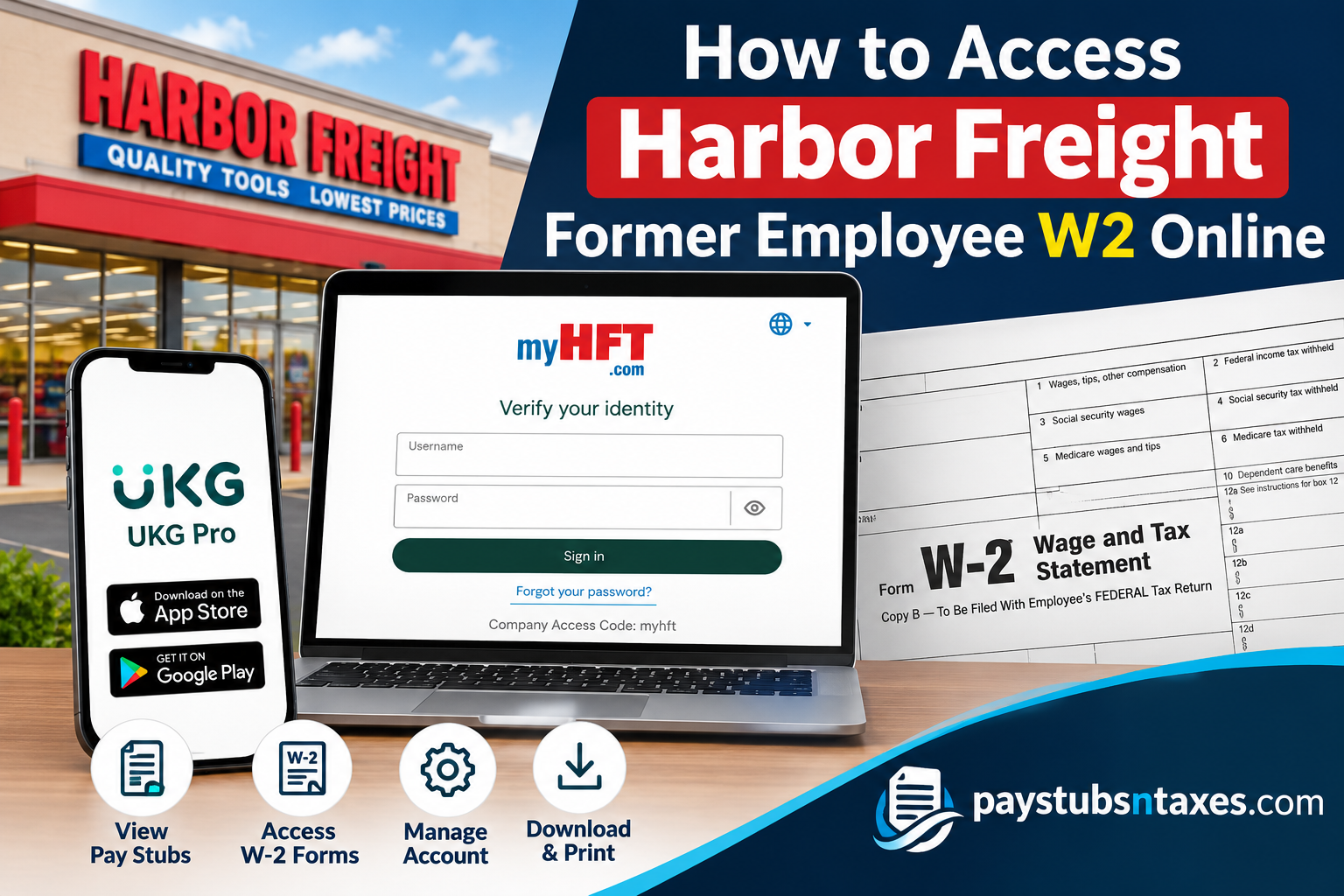
Leaving a job should not mean losing access to essential payroll records. If you previously worked at Harbor Freight Tools, the MyHFT self-service portal provides a starting point for retrieving your W-2 forms and past pay statements, provided your former employee account remains accessible. To access your Harbor Freight former employee W-2 online, visit MyHFT.com, sign in with your username and password, and open the W-2 section under “Myself” or “Pay.” Select the appropriate tax year, then view, download, or print your available statement. If your account is inaccessible, contact Harbor Freight Payroll for assistance. This guide explains how to navigate the portal, manage electronic consent, and resolve common access problems.
About Harbor Freight Tools
Harbor Freight Tools is one of America’s leading privately held tool and equipment retailers, headquartered in Calabasas, California. Established in 1977 by Eric Smidt and his father, Allan Smidt, the business began as a modest mail-order operation in North Hollywood before developing into a nationwide retail powerhouse.
Today, Harbor Freight operates more than 1,600 stores across 48 states, employs over 30,000 associates, and serves millions of customers throughout the United States. Its extensive product portfolio includes automotive equipment, generators, welding supplies, power tools, hand tools, storage solutions, and workshop accessories.
Behind this expansive retail operation lies a substantial workforce whose payroll, employment, and tax-related information must be managed efficiently.
To streamline administrative processes and provide associates with convenient access to employment records, Harbor Freight uses its MyHFT employee portal, which incorporates UKG Pro payroll and human resources technology.
For former employees, this platform can be particularly valuable during tax season, when retrieving previously issued wage statements becomes a priority.
What Is the MyHFT Portal?
MyHFT is Harbor Freight’s employee self-service portal, associated with the UltiPro platform, now known as UKG Pro. Harbor Freight also identifies MyHFT as an associate resource on its official careers website.
Depending on your account permissions and employment status, the portal may allow you to access payroll documents, review personal information, and use other employment-related services.
For former employees, the most relevant features are access to historical pay statements and available year-end tax documents. However, leaving the company may change which functions remain accessible.
How to Access Your Harbor Freight Former Employee W-2 Through MyHFT
Using a desktop or laptop browser is a practical way to retrieve and save your tax statement.
Step 1: Visit MyHFT.com
Open your browser and enter https://myhft.com in the address bar.
Have your existing MyHFT credentials ready before proceeding.
Step 2: Enter Your Login Credentials
Type your username and password into the appropriate fields, then select Login.
If you previously changed your password, use that updated password. A temporary password supplied during onboarding should not be treated as a permanent login credential.
Step 3: Locate the W-2 Section
After signing in, look for a W-2 icon on the home page or navigate through the available menus.
Depending on the portal layout, the route may appear as:
- Myself → W-2
- Myself → Pay → Forms → W-2
Menu labels can vary, so check the payroll or tax document area if the options appear differently.
Step 4: Choose the Correct Tax Year
Select the year corresponding to the wages you need to report.
The tax year identifies the year in which you earned the wages, rather than the year in which you download the form. For example, if you need a statement covering wages earned in 2026, select the 2026 W-2 when it becomes available.
Step 5: Download or Print Your W-2
Open the available statement and use the portal’s download or print controls.
Save a copy in a secure location so that you can retrieve it when needed without relying entirely on continued portal access. Before using the form, review your name, address, and identifying information, and contact Payroll if anything appears incorrect.
How to Access MyHFT Through the UKG Pro App
The UKG Pro mobile app offers another way to access supported self-service features. Availability for former employees depends on the permissions attached to their accounts.
To attempt mobile access:
- Open the Apple App Store or Google Play Store.
- Search for UKG Pro and select the official application.
- Install and launch the app.
- When prompted for the company access code, enter myhft.
- Sign in using your MyHFT credentials.
- Look for the available payroll or W-2 options.
If the app does not display your tax documents, try signing in through the MyHFT website. An unavailable mobile feature does not necessarily mean the document is missing from your account.
Use the app store’s current compatibility information when checking whether your device is supported.
What If You Have Never Activated Your MyHFT Account?
If you never completed your account setup, you may need your original onboarding credentials or assistance from Payroll.
The initial username format described for MyHFT combines:
First initial of your first name + first initial of your last name + employee number + last four digits of your Social Security number.
Your employee number may appear on an earlier pay statement. However, because onboarding credentials and password requirements can change, confirm the correct setup process if your initial credentials no longer work.
During activation, the system may require you to create a new password and answer security questions. Follow the requirements displayed on the screen, and retain your recovery information securely.
For former employees, contacting Payroll is the appropriate next step if an unactivated account cannot be accessed.
How to Provide Electronic Consent for W-2 Access
The portal may offer an electronic consent option for receiving W-2 statements digitally.
To review or provide consent:
- Sign in to MyHFT.
- Open Myself, then Pay.
- Select Forms and W-2, where available.
- Choose Electronic Consent.
- Read the disclosure and select the acknowledgement box.
- Click Save.
- Check for confirmation that your preference has been recorded.
If you previously provided consent, review the existing status before submitting it again.
Electronic consent records your delivery preference; it does not make an unreleased W-2 immediately available. Contact Payroll if you need clarification about document availability or delivery arrangements for your account.
How to Contact Harbor Freight About a Former Employee W-2
For payroll document assistance, use payroll@harborfreight.com.
A clear subject line, such as “Former Employee W-2 Access Request – [Tax Year],” can help explain the purpose of your message.
Provide your full name, former work location, requested tax year, and a brief description of the issue. Ask how to complete any necessary identity verification securely.
Harbor Freight also lists 1-800-444-3353 as its general customer support number. This is a customer service contact, so Payroll should be your first point of contact for employee tax records
Final Thoughts
Obtaining your Harbor Freight former employee W-2 online need not become an unnecessarily complicated undertaking. For associates who retain authorized access, the MyHFT employee self-service portal offers a convenient starting point for retrieving annual wage statements and maintaining essential payroll records.
The process begins at myhft.com, where former employees can attempt to sign in, locate the W-2 section, select the appropriate tax year, and download their available documents.
The UKG Pro mobile application may provide additional flexibility, although former employee permissions should always be confirmed before relying on mobile access.
If login credentials have expired, the account has been disabled, or the required tax statement is unavailable, Harbor Freight’s payroll department remains the appropriate point of contact.
Ultimately, keeping your payroll records organized, maintaining accurate contact information, and addressing access difficulties well before the tax-filing deadline can make the transition from employment to former employee status considerably smoother.
Frequently Asked Questions
1. How do former Harbor Freight employees access W-2 forms online?
Sign in to MyHFT.com with your existing credentials, open the W-2 section, and select the required tax year. Access depends on your former employee account remaining available.
2. What is the Harbor Freight former employee W-2 website?
MyHFT.com is the portal used to access available Harbor Freight payroll and W-2 documents.
3. Can I use my existing MyHFT login after leaving Harbor Freight?
Try your existing username and password. If your account is disabled or your credentials no longer work, contact Payroll for assistance with former employee access.
4. Where can I find my W-2 after logging in?
Look for a W-2 icon or navigate to Myself → W-2. Depending on the layout, you may need to select Myself → Pay → W-2.
5. How do I download or print my Harbor Freight W-2?
Open the W-2 for the required tax year, then select the available download or print option. Save the document securely for future use.
6. Can I access previous years’ Harbor Freight W-2 forms?
Select an earlier tax year from the available W-2 list. If the year you need is missing, contact Payroll to request assistance obtaining that statement.
7. Can former employees access W-2 forms through the UKG Pro app?
You may be able to access them if your former employee account supports mobile access. If the W-2 option is unavailable in the app, use the MyHFT website.
8. What is Harbor Freight’s UKG Pro company access code?
The company access code provided for Harbor Freight is myhft. Enter it when prompted, then sign in with your MyHFT credentials.
9. What should I do if I forget my MyHFT password?
Use the password recovery option on the login page, if available. If you cannot complete the recovery process, contact Payroll for help restoring access.
10. What should I do if my MyHFT account is locked or disabled?
Contact payroll@harborfreight.com and explain that you are a former employee requesting W-2 access. Include the tax year and a brief description of the login problem.
11. How do I provide electronic consent for my W-2?
Open the W-2 section, select Electronic Consent, review the disclosure, check the acknowledgement box, and save your selection. Confirm that the portal records your consent.
12. Do I need to provide electronic consent again every year?
Check your existing consent status in the portal. If your consent remains active, another submission may not be necessary; follow any instructions displayed for your account.
13. Why is my Harbor Freight W-2 missing from MyHFT?
The statement may not yet be released, the wrong tax year may be selected, or your account may have limited access. Check the available years and contact Payroll if the document remains missing.
14. Will Harbor Freight mail my W-2 after I leave?
Confirm your delivery method with Payroll, particularly if you have not consented to electronic delivery. Keep your mailing address current so that any mailed documents reach you.
15. Who should I contact about an incorrect or unavailable Harbor Freight W-2?
Email payroll@harborfreight.com with your full name, former work location, relevant tax year, and a description of the problem. Ask how to complete any required identity verification securely.
