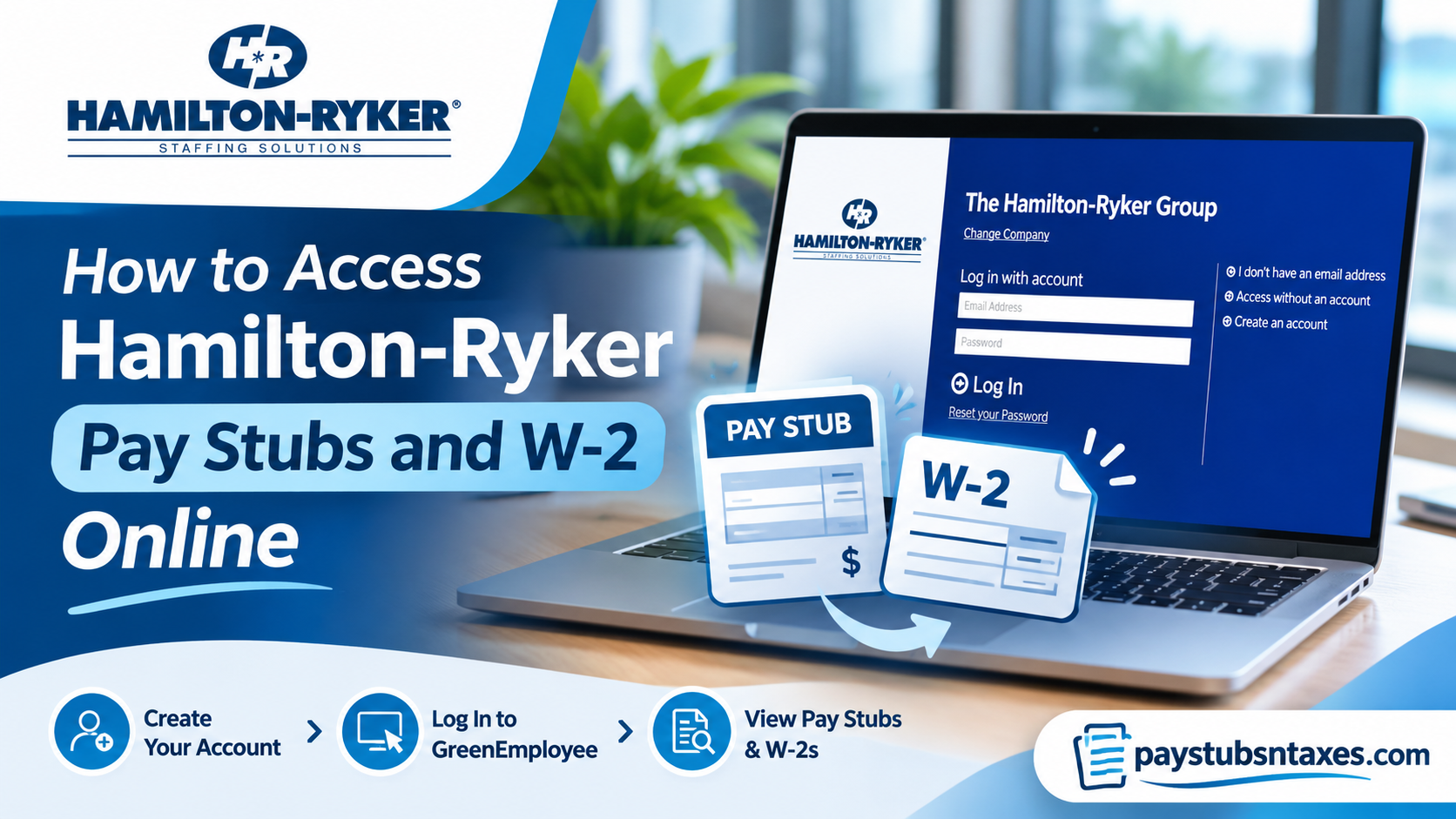
Hamilton-Ryker employees can access their pay stubs and W-2 forms online through the Greenshades Green Employee portal. Sign in with your registered email address and password, then select Pay History to view current or previous pay statements. When your W-2 becomes available, look for a notification on the portal homepage. If you’re signing in for the first time, select Create an account and use the email address you gave your Hamilton-Ryker account manager. Through this platform, eligible employees can conveniently retrieve their Hamilton-Ryker pay stubs, direct deposit statements, and annual W-2 tax forms without having to request printed copies from their local staffing office.
However, navigating a payroll platform for the first time can occasionally feel daunting, particularly when account registration, identity verification, and electronic tax document preferences are involved. This comprehensive guide explains how to access Hamilton-Ryker pay stubs and W-2 forms online, create a GreenEmployee account, review historical payroll information, configure notifications, and resolve common login problems.
How to Sign In to the Hamilton-Ryker Greenshades Portal
The Hamilton-Ryker payroll login page is headed The Hamilton-Ryker Group. If you already have a Green Employee account, enter your registered email address and password, then select Log In. If you’ve forgotten your password, choose Reset your Password and follow the prompts.
The sign-in page also displays I don’t have an email address and Access without an account. If either option applies to you, select it and follow the instructions on screen. If you’re unsure which email address Hamilton-Ryker has on file, your account manager can help you confirm it before you start the registration process.
How to Create a Green Employee Account
First-time users must verify their identity before they can open their payroll records. Have access to the email address you provided to Hamilton-Ryker and keep your employee ID handy if you plan to use it for verification.
- Open the Hamilton-Ryker Greenshades login page and select Create an account.
- Enter the email address you gave your Hamilton-Ryker account manager. Create a password that meets the requirements displayed on the screen.
- Check your inbox for a message from Green Employee and select Continue Account Setup. If the email doesn’t arrive, check your spam or junk folder and confirm that you entered your address correctly.
- Enter your employee ID or Social Security number in the first field. In the second field, enter your date of birth or last name, then select Continue.
- Choose one of the verification methods displayed. Depending on the options available to you, Green Employee may send a code by text message, phone call, or email.
- Enter the verification code and select Continue. Once setup is complete, sign in using the email address and password you created.
If the portal cannot verify your information or offers only a phone number or email address you can no longer access, contact your Hamilton-Ryker account manager for help.
How to View Hamilton-Ryker Pay Stubs and Direct Deposit Statements
Hamilton-Ryker offers weekly pay by direct deposit to a checking or savings account or through a pay card. In Green Employee, your payroll document may appear as a check stub or a direct deposit statement, depending on how you receive your pay.
View your latest pay stub
On the Green Employee homepage, find the Most Recent Paystub widget. It summarizes gross pay, taxes, deductions, and net pay for your latest pay date and for the year-to-date. Select View to open the full statement.
The summary is handy when you want to check your take-home pay at a glance. If a deposit looks lower than expected, open the full statement and review the earnings, taxes, and deductions before contacting payroll. Having the pay date and the line item in question on hand makes it easier to explain the discrepancy.
Find an older pay stub
- Select Pay History from the navigation bar. The most recent statement usually opens by default.
- Open the drop-down menu above the displayed document.
- Locate the statement by its pay date and amount, then select the corresponding row.
- Scroll within the document frame or use the link beneath it to open the statement in a separate window. From there, you can use your browser’s print controls if you need a copy.
Turn on new pay stub notifications
To receive an alert when a pay statement is posted, open Account Settings in the upper-right corner of the portal and select Notifications. You can also reach the notification settings through the links above your pay stub.
For email alerts, select the personal or work email address you want to use. For text alerts, enable the text option and enter the requested mobile number and carrier information.
How to Access Your Hamilton-Ryker W-2 Online
Sign in to Green Employee and check the homepage for a W-2 availability notification. Once the form is posted, follow the notification to open your W-2 and confirm that it shows the tax year you need. Review the name and mailing address on the form, and contact Hamilton-Ryker if any information on an issued W-2 needs correcting.
To choose electronic delivery, open Edit Account or Account Settings and go to Notifications. Select Change your W-2 distribution preference and follow the prompts to update your selection. If you’ve moved, confirm with your local branch or payroll team that the address on your employee record is current, especially if you expect a paper copy.
What to Do if You Can’t Access a Pay Stub or W-2
Your local Hamilton-Ryker branch or account manager is the first point of contact for registration problems, failed verification, or missing payroll documents. If you need further assistance, call Hamilton-Ryker Human Resources and Payroll at 731-587-3161. Have your employee ID and the relevant pay date or tax year ready so the team can locate the record. Share sensitive information only through the company’s approved verification process.
If you’re working on a temporary assignment as a Hamilton-Ryker associate, direct payroll and W-2 questions to Hamilton-Ryker. If Hamilton-Ryker placed you in a permanent role and the hiring company issued your paychecks, contact that company’s payroll team for the corresponding statements. Former Hamilton-Ryker associates who can no longer sign in can ask their local branch or payroll team how to obtain copies.
Conclusion
Accessing Hamilton-Ryker pay stubs and W-2 forms online is considerably more convenient through the company’s dedicated Greenshades GreenEmployee portal. By visiting the Hamilton-Ryker employee login page, registering an account, and completing the required identity verification procedures, eligible employees can review their current earnings, retrieve historical pay statements, examine direct deposit records, and access available annual tax documents.
The platform also offers useful account management features, including payroll notifications, password recovery, and electronic W-2 distribution preferences. For employees who experience registration problems, lose access to their accounts, or require documents after leaving the company, Hamilton-Ryker’s local staffing offices and payroll representatives remain important sources of assistance. Ultimately, keeping your contact details accurate, reviewing payroll records regularly, and securely retaining essential documents will help ensure that your financial and tax information remains readily accessible whenever you need it.
Frequently Asked Questions
1. Where do Hamilton-Ryker employees log in to view their pay stubs?
Use the Hamilton-Ryker Greenshades login page, headed The Hamilton-Ryker Group. Enter your registered email address and password, then select Log In.
2. How do I create a Hamilton-Ryker Green Employee account?
Select Create an account and enter the email address you gave your Hamilton-Ryker account manager. Create a password, open the Green Employee email, and select Continue Account Setup to begin identity verification.
3. What information do I need to verify my Green Employee account?
Enter your employee ID or Social Security number in the first field and your date of birth or last name in the second. Then select one of the available delivery methods and enter the verification code you receive.
4. What if I don’t receive the account setup email or verification code?
Check your spam or junk folder for the setup email and confirm that you entered the email address Hamilton-Ryker has on file. If the verification code still doesn’t arrive, try another method displayed on screen or contact your account manager.
5. How do I reset my Hamilton-Ryker Greenshades password?
Select Reset your Password on the login page and follow the prompts. If you no longer have access to the email address associated with your account, contact your Hamilton-Ryker account manager.
6. Can I use the Hamilton-Ryker payroll portal without an account?
The login page lists Access without an account and I don’t have an email address. Select the option that applies to you and follow the on-screen instructions.
7. How do I view my latest Hamilton-Ryker pay stub?
On the Green Employee homepage, find the Most Recent Paystub widget and select View. The widget summarizes your gross pay, taxes, deductions, and net pay, while View opens the complete statement.
8. How do I find an older Hamilton-Ryker pay stub?
Open Pay History and use the drop-down menu above the displayed statement. Find the payment by its pay date and amount, then select the corresponding entry.
9. Can I print a Hamilton-Ryker pay stub from Green Employee?
Yes. Open the statement in Pay History, then use the link beneath the document frame to open it in a separate window. From there, use your browser’s print controls.
10. How do I get notified when a new Hamilton-Ryker pay stub is posted?
Go to Account Settings → Notifications and enable email or text alerts for new pay documents. Follow the prompts to confirm where you want the alerts sent.
11. Where can I find my Hamilton-Ryker W-2 online?
Sign in to Green Employee and look for the W-2 availability notification on the homepage. Open the form from the notification and confirm that it covers the tax year you need.
12. How do I opt in to electronic W-2 delivery?
Open Edit Account or Account Settings, then go to Notifications. Select Change your W-2 distribution preference and follow the prompts to choose electronic delivery.
13. What should I do if my mailing address has changed?
Contact your local Hamilton-Ryker branch or payroll team to confirm that your employee record shows your current address. If your W-2 has already been issued, ask payroll how to update the record and obtain the form.
14. How can former Hamilton-Ryker employees get a W-2 or an old pay stub?
If you can still sign in, check Pay History for pay stubs and the homepage for your W-2 notification. If you’ve lost access, contact your former branch or Hamilton-Ryker Human Resources and Payroll at 731-587-3161. Have the relevant pay date or tax year ready.
15. Who issues my W-2 if Hamilton-Ryker placed me in a permanent job?
Check the employer name on your pay stub. If the hiring company paid you directly, contact its payroll team for the W-2 covering those wages. If Hamilton-Ryker paid you during a temporary assignment, contact Hamilton-Ryker for the W-2 covering that assignment.
