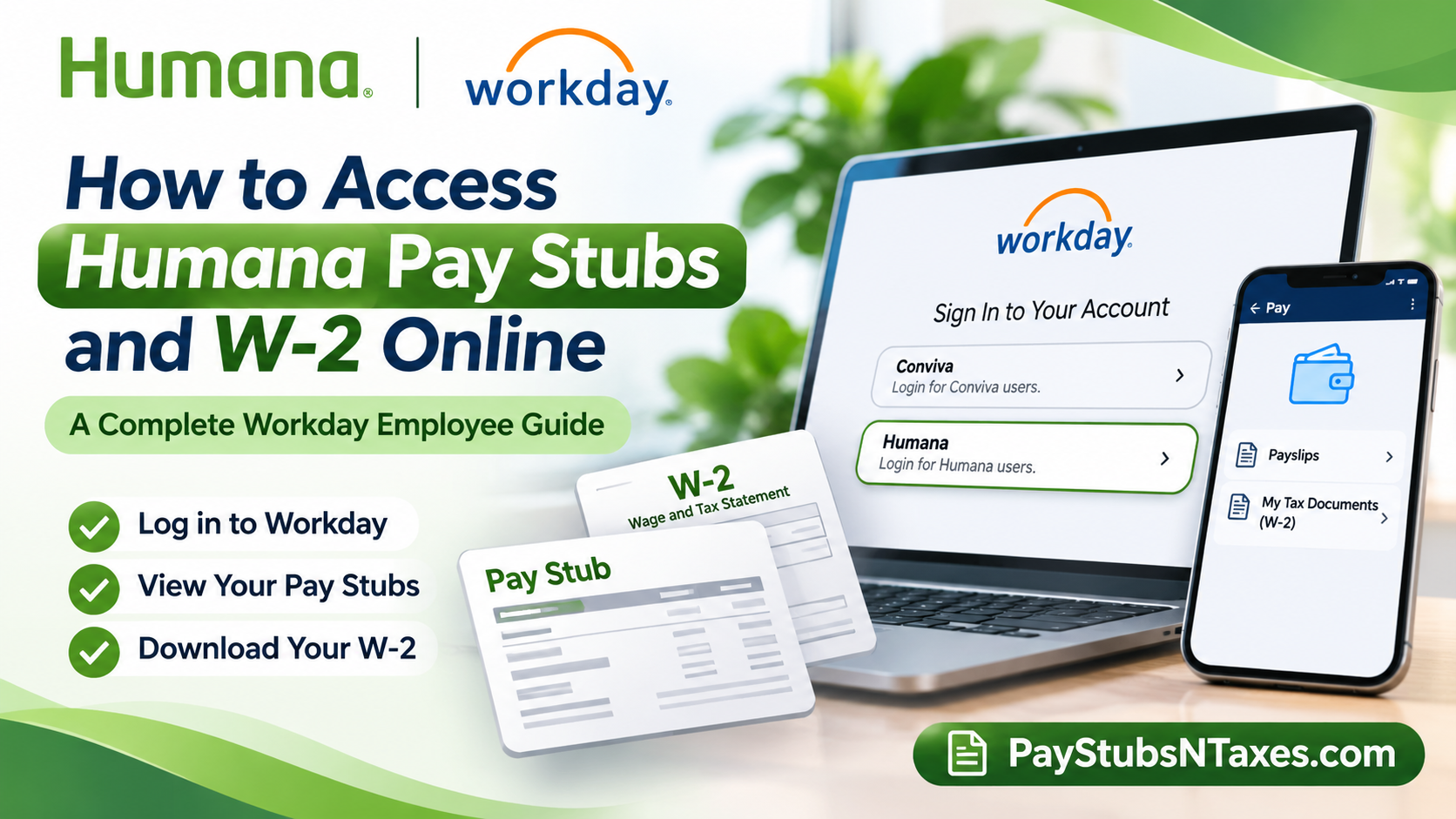
Humana and Conviva use Workday for employee payroll records. Whether you’re checking a recent deposit, gathering proof of income, or looking for a year-end tax statement, start by choosing the right document. A payslip shows the earnings, deductions, and taxes for a particular pay period. A W-2 reports annual wages and tax withholdings. Workday keeps these records in separate menus, so knowing which one you need can save you a few clicks.
To access your Humana pay stubs online, sign in to Humana Workday, select Humana, and authenticate through Microsoft single sign-on (SSO). Open Pay → Payslips to view or print a pay stub. To download a Humana W-2, go to Pay → My Tax Documents, find the correct tax year, and select View/Print. Conviva employees should choose Conviva on the sign-in page. If you’ve left the company and can no longer sign in, call HR4U at 1-888-431-4748 for help obtaining your W-2.
This comprehensive guide explains how to access Humana pay stubs and W-2 forms online, including detailed instructions for desktop and mobile users, essential login information, former employee considerations, and practical solutions to common payroll-related difficulties.
How to sign in to Humana Workday
- Open the Humana Workday login page in your browser.
- Choose Humana if you’re a Humana employee or Conviva if you’re a Conviva employee.
- If you selected Humana, enter your work email address on the Microsoft sign-in page and select Next.
- Complete the sign-in prompts to reach your Workday home page.
If Microsoft won’t let you sign in, check that you selected the correct employer and entered your work email address. The Humana sign-in screen also has a Can’t access your account? link. If Workday displays a maintenance notice, check the time shown on the sign-in page and try again after the service window closes.
How to view and download Humana pay stubs on a computer
- Sign in to Workday and open the Pay app. If it isn’t on your home page, look for it under Menu.
- Under View, select Payslips.
- On the My Payslips screen, locate the statement by pay date.
- Select View next to the payslip you need.
- Choose the print option to generate a PDF. Open the file to save or print it.
If you’re reconciling a direct deposit, match the pay date first, then compare the amount deposited with the net pay shown on your statement. The difference between gross pay and take-home pay is easier to trace when you review employee taxes, pre-tax deductions, and post-tax deductions separately. Humana and Conviva offer direct deposit and a payroll card as electronic payment options. In Workday Mobile, Payment Information is where you can review your direct deposit details.
How to set up the Workday mobile app for Humana
- Install Workday from the Apple App Store or Google Play.
- Open the app and tap Log In.
- Enter humana as the organization ID and tap the arrow to continue.
- Follow the sign-in prompts and complete authentication using your work credentials.
The organization ID is humana. You’ll enter your work email address separately when prompted to sign in.
How to get a Humana payslip PDF on your phone
- Open Pay from the Workday Mobile home screen. Tap View All if you need to find it.
- Select a payslip from Pay History. If you’re looking at the latest payment summary, tap View Pay Details to see the breakdown.
- Tap Get PDF and allow Workday to generate the file.
- Select Open PDF when it’s ready. Use your device’s PDF controls to save or print a copy.
The Pay screen also provides a quick look at figures such as gross pay, take-home pay, year-to-date take-home pay, and the next payday. Open the individual payslip when you need a record for a specific pay period.
How to download your Humana W-2 in Workday
On a computer
- Sign in to Workday and open Pay.
- Under View, select My Tax Documents.
- Find the W-2 for the tax year you need.
- In the Employee Copy column, select View/Print.
- If Workday says your request is being processed, wait for the file or select Notify Me Later. If you choose the latter, open the Notifications bell and follow the link when it appears.
- Open the PDF, confirm the tax year, and save or print a copy.
In the Workday mobile app
- Open Pay Hub and select My Tax Documents.
- Find the correct W-2 and tap View/Print.
- After Workday confirms that the request was submitted, return to the home screen and tap the Notifications bell.
- Open the notification for your W-2 and download or print the PDF.
How former Humana and Conviva employees can get a W-2
Workday access after separation may be limited. If you can still sign in when your W-2 becomes available, go to My Tax Documents and save a copy while you have access. If you’ve moved since leaving the company, confirm your mailing address with HR4U. Humana and Conviva use the home address on file in Workday to mail year-end tax statements to former employees.
If you can’t sign in, haven’t received your mailed W-2, or need a replacement, call HR4U at 1-888-431-4748. Have the tax year and your current mailing address handy so you can explain which document you need and verify where it should be sent. If you need an older pay stub or tax form from before the transition to Workday, ask HR4U how to retrieve records for that period.
What to do if your payslip or W-2 won’t open
Start by checking that you’re in the correct menu and looking at the right pay date or tax year. If the document is listed but View/Print doesn’t open a file immediately, check Workday Notifications for a download link. If the PDF opens but doesn’t print, save it to your device and print from your PDF viewer. If the W-2 is still missing or you can’t view or print it, contact HR4U at 1-888-431-4748.
How to Contact Humana HR4U for Payroll and W-2 Assistance
When self-service troubleshooting proves unsuccessful, the most reliable next step is to contact Humana’s designated employee support team.
Humana HR4U Contact Information
Phone: 1-888-431-4748
Assistance Includes:
- Problems accessing available W-2 statements.
- Questions regarding missing tax documents.
- Guidance for former employees seeking payroll records.
- Assistance with payroll-related documentation.
- Direction to the appropriate department for account access or payroll concerns.
When contacting support, have your relevant employment details available, such as your employee identification information, employment dates, and the tax year or pay period associated with your request.
For security reasons, disclose sensitive personal information only through an authenticated, authorized support process.
If you cannot reach the appropriate representative immediately, request guidance on the official procedure for submitting a payroll documentation inquiry.
Conclusion
The transition from Paylocity to Workday has provided Humana Inc. and Conviva associates with a centralized digital environment for managing their payroll records and year-end tax documentation.
Whether you need to examine your latest earnings statement, download a historical pay stub, review direct deposit information, or retrieve a W-2 for tax preparation, the Humana Workday employee portal offers a practical self-service solution.
Current Humana employees can access the platform through their designated Workday login page, select the Humana organizational option, and authenticate using Microsoft Single Sign-On. Once signed in, the Pay application provides access to payslips and available tax documents.
Employees who prefer mobile access can use the Workday application with the organization ID humana, making it possible to review and download payroll statements directly from a compatible smartphone or tablet.
Former employees, however, should remain mindful that Workday access may be time-limited following separation. Downloading important records before leaving the organization, maintaining an accurate mailing address, and contacting HR4U when necessary can help prevent avoidable delays.
Ultimately, understanding how to navigate Humana Workday ensures that essential payroll information remains accessible, organized, and ready whenever financial verification or tax obligations arise.
Humana Pay Stubs and W-2 FAQs
1. What is the Humana Workday login page?
Go to the Humana Workday login page, select Humana, and follow the Microsoft single sign-on prompts using your work email address.
2. Which Workday sign-in option should Conviva employees choose?
Select Conviva on the Workday sign-in page and follow the prompts for your work account.
3. What is Humana’s Workday organization ID?
Enter humana as the organization ID in the Workday mobile app. Tap the arrow to continue, then sign in with your work credentials.
4. How do I download a Humana pay stub on a computer?
In Workday, open Pay → Payslips, find the statement by pay date, and click View. Use the print option to open a PDF you can save or print.
5. How do I download a Humana pay stub on my phone?
Open Pay in the Workday mobile app and choose a statement from Pay History. Tap Get PDF, then Open PDF when the file is ready. If Pay is missing from the home screen, tap View All.
6. Where can I check my Humana pay deductions and direct deposit details?
Open a payslip in Workday to review employee taxes and pre-tax or post-tax deductions. In the mobile app, select Payment Information to review your direct deposit details.
7. How do I download my Humana W-2 on a computer?
Go to Pay → My Tax Documents in Workday. Find the W-2 for the year you need, then click View/Print under Employee Copy to open and save the PDF.
8. How do I get my Humana W-2 in the Workday mobile app?
Open Pay Hub → My Tax Documents, select the W-2 for the correct year, and tap View/Print. When the file is ready, open it from the Notifications bell on the Workday home screen.
9. What does “Your request is being processed” mean in Workday?
Workday is preparing your W-2 PDF. You can wait for it to open or select Notify Me Later, then look for the download link under Notifications.
10. Can former Humana or Conviva employees still access Workday?
Access may be limited after separation. If your account still works when your W-2 becomes available, save it from My Tax Documents. If you can’t sign in, call HR4U at 1-888-431-4748 for help obtaining a copy.
11. Does Humana mail W-2 forms to former employees?
Humana and Conviva mail year-end tax statements to former employees at the home address on file in Workday. If you moved after leaving, call HR4U to confirm your current mailing address.
12. How do I request a replacement Humana W-2?
Call HR4U at 1-888-431-4748. Have the tax year and your current mailing address handy so HR4U can identify the form and confirm where it should be sent.
13. How do I get a pay stub or W-2 from before the move to Workday?
Contact HR4U and specify the pay period or tax year. They can direct you to the process for requesting records from before the transition.
14. What should I do if I can’t sign in to Humana Workday?
Confirm that you selected Humana and entered your work email address. If Microsoft still blocks access, use Can’t access your account? on the sign-in screen. If you’re a former employee who needs a W-2, call HR4U.
15. Who should I contact if my Humana W-2 is missing or won’t print?
Check that you selected the correct tax year and look for a PDF link under Notifications. If the form is still missing or you can’t open or print it, call HR4U at 1-888-431-4748.
