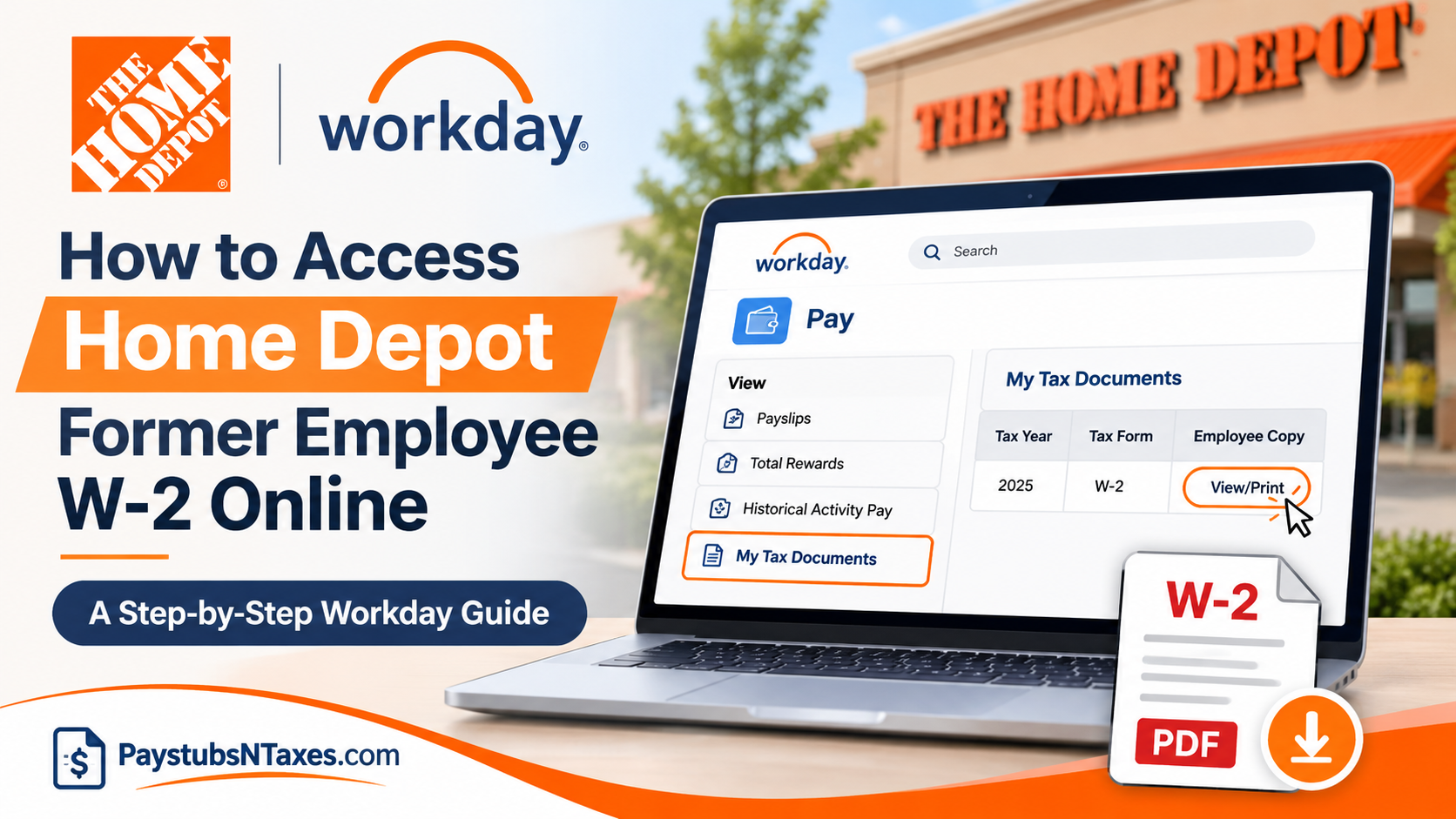
Leaving a job does not necessarily mean losing access to the payroll and tax documents associated with your employment. Whether you recently resigned from The Home Depot, completed a seasonal assignment, or separated from the company several months ago, obtaining your Home Depot former employee W-2 online is essential for filing an accurate federal income tax return, verifying your earnings, and maintaining comprehensive employment records.
The Home Depot provides eligible former associates with a dedicated Workday login that allows them to retrieve important payroll information without relying on their previous company credentials. Although standard employee access is generally revoked following termination, the separate Workday portal offers an alternative route to obtaining available year-end tax statements.
This comprehensive guide explains how to access your Home Depot W-2 as a former employee, navigate the Workday payroll system, recover forgotten login credentials, download historical payslips, and request assistance if your tax documents are unavailable.
Home Depot Workday Login for Former Employees
Home Depot maintains a dedicated Workday sign-in page for former associates and employees on leave. Unlike the standard employee portal, which may depend on company authentication systems, the non-SSO portal allows eligible separated employees to sign in using independently managed login credentials.
Home Depot Former Employee Workday Login:
https://wd5.myworkday.com/homedepot/login.htmld?redirect=n
Username: Your Home Depot User ID, formerly known as LDAP.
Password: Your existing non-SSO Workday password or the temporary password issued to you by email.
HR Support: 1-866-myTHDHR (1-866-698-4347)
HR Email: myTHDHR@homedepot.com
The non-SSO portal serves as an important gateway for associates whose employment has ended and whose standard SSO privileges have consequently been withdrawn.
Nevertheless, eligibility and the duration of access may vary. Former employees should not assume that their Workday accounts will remain available indefinitely.
Step-by-Step Guide: How to Access Home Depot Former Employee W-2 Through Workday
Retrieving your Home Depot W-2 through Workday is relatively straightforward, provided your former associate account remains active and the relevant tax statement has been released.
Step 1: Visit the Home Depot Non-SSO Workday Portal
Open your preferred web browser, such as Google Chrome, Microsoft Edge, Mozilla Firefox, or Safari.
Navigate to the dedicated Home Depot Workday login page:
https://wd5.myworkday.com/homedepot/login.htmld?redirect=n
You will be directed to a Workday authentication screen displaying the following fields:
- Username
- Password
- Sign In
- Forgot Your Password?
This login page is intended for eligible former associates and employees on leave who require access outside the company’s standard SSO environment.
For security purposes, ensure that the browser displays the correct Workday domain before entering your credentials.
Step 2: Enter Your Home Depot User ID
In the Username field, enter your assigned Home Depot User ID.
Home Depot previously referred to this identifier as LDAP, meaning employees who remember their former LDAP credentials may already possess the information required to sign in.
If you cannot remember your username, use the username recovery option available on the Workday sign-in page.
Follow the displayed instructions to retrieve your account information.
If the automated recovery process is unsuccessful, contact the Home Depot HR Service Center for additional assistance.
Step 3: Enter Your Workday Password
After providing your username, enter the password associated with your non-SSO Workday account.
If this is your first time accessing the portal following separation, Home Depot may have sent you a temporary password by email.
Locate that message and enter the temporary password exactly as provided.
Important: Temporary passwords may contain uppercase letters, lowercase letters, numbers, and special characters. Because passwords are case-sensitive, even a minor typing error can prevent successful authentication.
Copying and pasting the temporary password may help prevent unnecessary login failures.
The Workday login instructions indicate that an account may become locked after three unsuccessful sign-in attempts. Consequently, employees who are uncertain about their credentials should use the password recovery process rather than repeatedly guessing.
Step 4: Sign In to Your Workday Account
Once you have entered the correct username and password, click Sign In.
Following successful authentication, Workday will display your account homepage.
Depending on your post-employment access permissions, the available applications and features may differ from those displayed during active employment.
Nevertheless, the payroll section should provide access to any tax documents and earnings statements that remain available to your account.
Step 5: Open the Pay Application
From the Workday homepage, locate the Pay application or worklet.
Select Pay to access the payroll-related functions associated with your former employment.
The Pay section may contain several options, including:
- Payslips
- My Tax Documents
- Payment information
- Other available payroll records
The precise arrangement of these features may vary according to Workday’s configuration and your account permissions.
Step 6: Select My Tax Documents
Within the Pay application, locate the View section.
Click My Tax Documents.
This page contains the annual tax statements available through your Home Depot Workday account.
Depending on the documents released and retained within the system, you may see information such as:
| Document Information | Description |
| Tax Year | The calendar year associated with your W-2 |
| Company Name | The employer associated with the tax statement |
| Tax Form | The type of tax document, such as Form W-2 |
| Issued Date | The date the document became available |
| Employee Copy | The option to view or print your tax statement |
Select the W-2 corresponding to the tax year you need.
For example, if you are preparing your 2025 federal income tax return in 2026, locate the statement labeled 2025.
Step 7: Click View/Print to Generate Your W-2
After identifying the appropriate tax statement, navigate to the Employee Copy column.
Click View/Print.
Workday will begin generating your electronic W-2 document.
In some circumstances, the platform may display a notification stating:
“Your request is being processed.”
This message indicates that Workday is preparing the document for viewing or downloading.
You can remain on the page until the document is ready or select Notify Me Later if that option appears.
When you choose Notify Me Later, Workday typically places a notification containing the document link in your account’s notification area.
Step 8: Download and Save Your W-2
Once Workday has generated the tax statement, select the available document link.
Your W-2 should open as a downloadable PDF file.
Save the document to a secure location on your computer or mobile device.
For convenient identification, consider using a descriptive filename such as:
Home_Depot_W2_2025.pdf
Before closing the document, verify that it contains the correct:
- Employee name and identifying information.
- Employer information.
- Tax year.
- Federal taxable wages.
- Federal income tax withholding.
- Social Security and Medicare wages and taxes.
- Applicable state and local tax information.
If you discover an apparent discrepancy, contact the Home Depot payroll or HR support team before relying on the document for tax preparation.
You can subsequently print the downloaded W-2, retain it for your personal records, or provide it to your tax preparer through a secure channel.
How to Download Home Depot Former Employee Pay Stubs from Workday
Although Form W-2 is generally the principal document required for annual income tax reporting, former Home Depot employees may also need their historical payslips to verify employment income, confirm deductions, or resolve payroll discrepancies.
Within Workday, paycheck statements are commonly referred to as payslips.
If your account retains access to historical payroll records, you may be able to download them through the same non-SSO portal.
Steps to View and Print Previous Payslips
Step 1: Log in to your Home Depot non-SSO Workday account.
Step 2: From the homepage, select the Pay application.
Step 3: Under the View section, choose Payslips.
Step 4: Open the My Payslips page.
Step 5: Review the available payment dates and identify the payslip you need.
Step 6: Click View beside the selected statement.
Step 7: Examine the displayed payroll information, including gross earnings, applicable deductions, tax withholding, and net pay.
Step 8: Select Print Payslip Image, or the corresponding print option, to generate a downloadable PDF.
Save the document securely for future reference.
The availability of older payslips depends on the records maintained within the system and the permissions associated with your former employee account.
Can You Access Home Depot Workday Through the Mobile App After Termination?
Former Home Depot employees should use the dedicated web-based non-SSO Workday portal rather than attempting to retrieve payroll documents through the Workday mobile application.
Following separation, access through the company’s standard employee authentication environment is generally discontinued.
As a result, the Workday mobile application may no longer authenticate a former employee using their previous corporate credentials.
The browser-based non-SSO portal is the designated alternative for eligible former associates.
You can access this website through a compatible browser on a desktop computer, laptop, tablet, or smartphone.
For downloading and printing tax documents, a desktop or laptop browser may offer a more convenient experience, particularly when managing PDF files.
How to Contact Home Depot HR About a Missing W-2
When automated account recovery proves unsuccessful, contacting the HR Service Center is generally the most practical next step.
Former employees can request assistance with:
- Retrieving missing W-2 statements.
- Recovering Workday account access.
- Resolving forgotten usernames or passwords.
- Correcting outdated contact information.
- Obtaining previously issued payroll documents.
- Investigating errors in available tax statements.
- Clarifying the availability of post-termination payroll records.
Home Depot HR Phone Number: 1-866-698-4347
Home Depot HR Email Address: myTHDHR@homedepot.com
When contacting HR, clearly identify yourself as a former associate and specify the tax year for which you need documentation.
For example, you could request assistance obtaining your 2025 W-2 because your former employee Workday account is no longer accessible.
Providing a concise explanation of the problem, along with appropriate identifying information, can help the support team determine the next steps.
Conclusion
Obtaining your Home Depot former employee W-2 online does not have to become an administrative obstacle simply because your employment has ended. Through its dedicated non-SSO Workday portal, Home Depot provides eligible former associates with a practical means of accessing available year-end tax statements and historical payroll records, even after their standard company login privileges have been withdrawn.
By visiting the former employee Workday website, signing in with your User ID, and navigating to Pay > My Tax Documents > View/Print, you can retrieve your available W-2 in PDF format for tax filing and personal recordkeeping.
Nevertheless, because post-termination access may be limited, downloading your tax documents promptly is a sensible precaution. If your account is inaccessible, your W-2 is missing, or your mailing address requires correction, the Home Depot HR Service Center remains the appropriate point of contact.
Ultimately, maintaining secure copies of your W-2 statements, monitoring your tax document availability, and keeping your contact details current will help ensure a smoother transition from employment to post-employment financial administration.
Home Depot Former Employee W-2 FAQs
1. What username do former Home Depot associates use for Workday?
Use your Home Depot User ID, formerly called your LDAP ID. If you’ve forgotten it, use the username retrieval link on the former-associate sign-in page.
2. What password do I use the first time I sign in after leaving Home Depot?
Use the temporary password sent to you by email. Copy it exactly as provided and check for extra spaces before signing in.
3. How do I reset my Home Depot Workday password?
Select Forgot Your Password? on the sign-in page and follow the prompts. You can also use this option if you never received your temporary password.
4. What if the Workday password reset email never arrives?
Use the email update link on the former-associate sign-in page. If you still can’t complete the reset, call the HR Service Center at 1-866-698-4347.
5. What should I do if my Home Depot Workday account is locked?
Workday locks the account after three unsuccessful sign-in attempts. Contact the Home Depot HR Service Center for help regaining access or requesting a copy of your W-2.
6. Can I get my Home Depot W-2 through the Workday mobile app after leaving?
Former associates should open the Workday portal for former associates in a web browser to retrieve their W-2 and other payroll documents.
7. Can I print my Home Depot W-2 or save it as a PDF?
Yes. Under Pay → My Tax Documents, select View/Print in the Employee Copy column. Once Workday generates the form, you can save the PDF or print it.
8. Why does Workday say my W-2 request is being processed?
Workday is generating your copy. You can wait for it to open or select Notify Me Later and retrieve the download link from Notifications when it’s ready.
9. How long can former Home Depot employees access Workday?
Former-associate access is available for a limited period. Download your W-2 as soon as it appears so you have a copy if access expires.
10. What if my Home Depot W-2 is missing from Workday?
Check that you’re looking for the correct tax year under My Tax Documents. If the form still doesn’t appear, ask the HR Service Center how to obtain a copy for that year.
11. Can I request an older Home Depot W-2?
Yes. Look for the year you need under My Tax Documents. If it’s unavailable online, contact the HR Service Center and specify the tax year when requesting a copy.
12. Does Home Depot mail W-2s to former employees?
Yes. The Home Depot mails year-end tax statements to the mailing address it has on file for former associates.
13. How do I update my mailing address after leaving Home Depot?
Call 1-866-698-4347 and ask the HR Service Center to update your mailing address. If your W-2 has already been sent, ask whether a copy can be mailed to your current address.
14. Can former Home Depot employees download old pay stubs?
Yes, while they have Workday access. Go to Pay → Payslips, select View beside the relevant pay date, and use the print option to generate a PDF.
15. Who should I contact for help getting my Home Depot W-2?
Call the Home Depot HR Service Center at 1-866-myTHDHR (1-866-698-4347) or email myTHDHR@homedepot.com. Specify the tax year and whether you need login help or a copy of the form.
