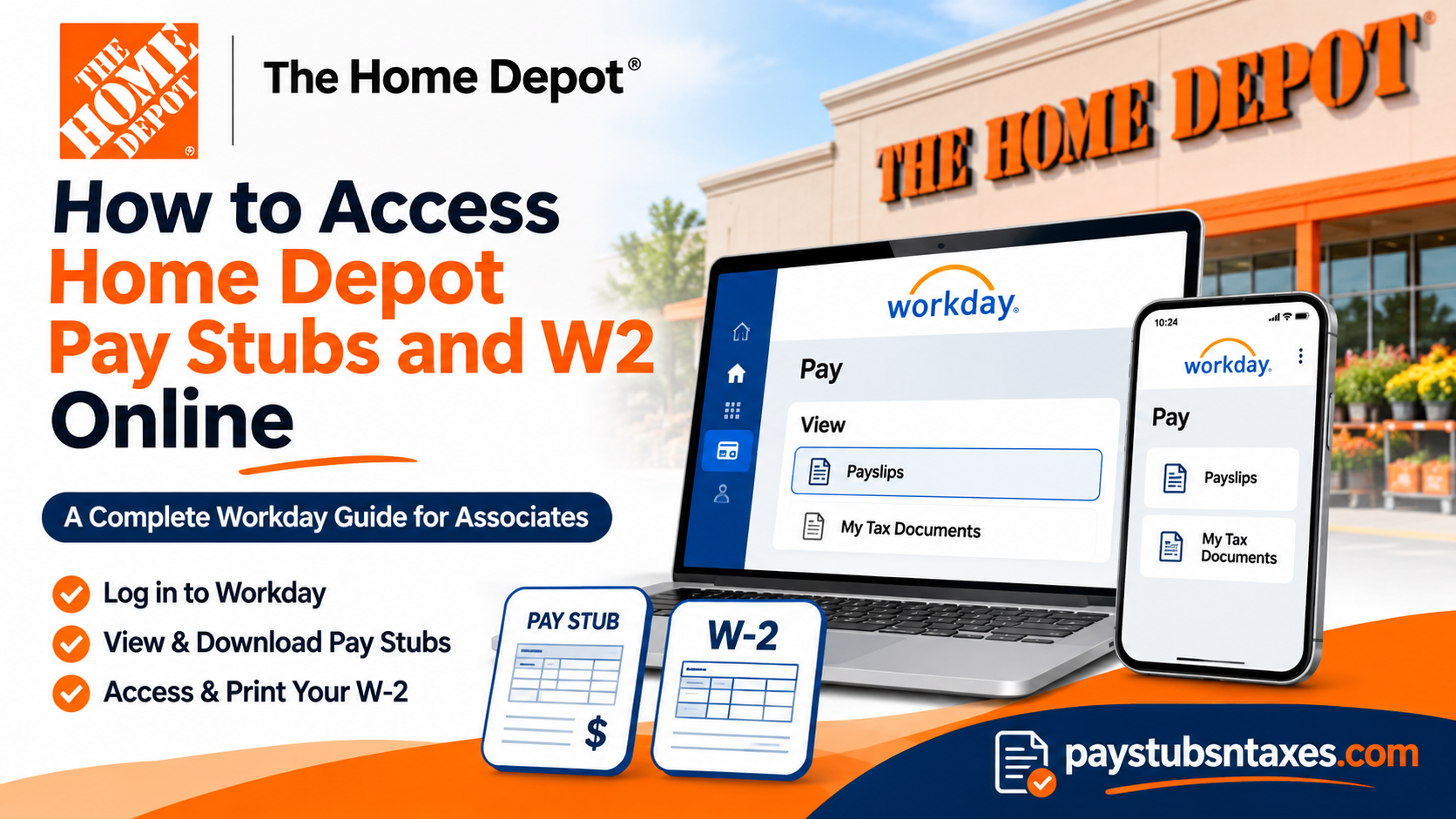
Managing employment-related financial documents should be straightforward, particularly when it comes to accessing essential records such as pay stubs and annual tax statements. For associates working at The Home Depot, the Workday human capital management platform provides a centralized digital environment through which authorized employees can review their earnings, examine payroll deductions, retrieve payslips, and access Form W-2 for tax-reporting purposes.
Whether you are a current Home Depot associate seeking your most recent paycheck information, an employee preparing to file an annual income tax return, or a former associate attempting to recover historical payroll records, understanding the appropriate access procedures can save considerable time and prevent unnecessary complications.
This comprehensive guide explains how to access Home Depot pay stubs and W-2 forms online through Workday, including desktop and mobile login instructions, PDF downloading procedures, password recovery, electronic payment options, and troubleshooting recommendations.
How to Sign In to Home Depot Workday
Open the Home Depot Workday sign-in page. If you’re a current associate, use Home Depot’s single sign-on (SSO) and enter your THD User ID, formerly called your LDAP ID, along with your password. Complete any authentication prompts to reach the Workday home page.
If you received a temporary password by email, enter it exactly as provided. When copying and pasting it, check that you haven’t included an extra space. If you didn’t receive a temporary password or can’t remember your password, select Forgot Password on the sign-in screen and follow the prompts.
How to View and Download Home Depot Pay Stubs
Workday calls pay stubs payslips. Each statement corresponds to a specific pay period and lets you review the earnings, taxes, and deductions behind your take-home pay.
On a computer
- Sign in to Workday and select Pay on the home page.
- Under View, select Payslips.
- On the My Payslips screen, find the pay date you need and click View.
- Use the print option on the payslip screen to generate a PDF. Open the file to review it, save a copy, or print it.
In the Workday mobile app
- Install Workday from the Apple App Store or Google Play. Open the app and tap Log In.
- If prompted for an organization ID, enter homedepot, tap the arrow to continue, and sign in with your Home Depot credentials.
- On the home screen, tap Pay. If it’s out of sight, tap View All to find it.
- Select View Pay Details to see employee taxes and pre-tax and post-tax deductions. To check your direct deposit details, select Payment Information.
- With the payslip you need displayed, tap Get PDF, then Open PDF. You can review the statement on your phone or print it from the PDF viewer.
The Pay screen also gives you a quick look at your gross pay, take-home pay, next payday, and year-to-date take-home pay. If a paycheck differs from what you expected, the breakdown under View Pay Details is a good place to start.
How to Get Your Home Depot W-2 Online
On a computer
- Sign in to Workday and open Pay.
- Under View, select My Tax Documents.
- Find the W-2 for the tax year you need. Under Employee Copy, click View/Print.
- If Workday says your request is being processed, wait for the PDF or select Notify Me Later.
- If you chose Notify Me Later, open the Notifications bell in Workday and follow the link to download the form.
In the Workday mobile app
- Open Workday and go to Pay Hub → My Tax Documents.
- Find the correct tax year and tap View/Print beside the W-2.
- After Workday confirms that your request was submitted, return to the home screen and tap the Notifications bell.
- Open the notification containing the PDF, then save or print the form.
How to Contact Home Depot Payroll and HR Support
When login recovery, payroll document downloads, or basic troubleshooting fail to resolve an issue, contacting the company’s HR support team is generally the most effective next step.
Home Depot associates can use the following HR Service Center contact information:
Home Depot HR Service Center
Phone: 1-866-myTHDHR (1-866-698-4347)
Email: myTHDHR@homedepot.com
The HR Service Center can be contacted for assistance with matters such as Workday access problems, missing pay statements, W-2 retrieval difficulties, and questions about available payroll documentation.
Before requesting assistance, it is helpful to have your employee identification information, relevant employment dates, and a clear description of the problem available.
For privacy and security reasons, avoid sending your full Social Security number, password, or complete banking details through an ordinary email.
Conclusion
Accessing Home Depot pay stubs and W-2 forms online has become more convenient through the company’s Workday employee management environment. By signing in with their authorized credentials, eligible associates can navigate to the Pay application, review historical earnings, download payslips, examine deductions, and retrieve available annual tax statements.
For employees who prefer managing their records on the move, the Workday mobile application offers an alternative route to essential payroll information, including the ability to generate and save PDF copies of pay statements and W-2 documents.
Although account permissions and authentication procedures may differ between current and former associates, employees who encounter difficulties can seek assistance through the Home Depot HR Service Center.
By familiarizing yourself with the Workday interface, safeguarding your login credentials, and maintaining organized copies of your employment records, you can manage your payroll documentation with greater confidence and considerably less administrative effort.
Home Depot Pay Stub and W-2 FAQs
1. Where do Home Depot associates sign in to Workday?
Go to the Home Depot Workday sign-in page. Current associates sign in through Home Depot’s single sign-on using their THD User ID and password.
2. Is my Home Depot User ID the same as my LDAP ID?
Yes. Your THD User ID is the username formerly called your LDAP ID. Enter it in the User ID field on the THD Account Sign On screen.
3. How do I sign in to Home Depot Workday for the first time?
If you received a temporary password by email, enter it exactly as provided and follow the sign-in prompts. If you didn’t receive one, select Forgot Password to start the reset process.
4. How do I reset my Home Depot Workday password?
Select Forgot Password on the THD Account Sign On screen and follow the prompts. If you can’t complete the reset, contact the Home Depot HR Service Center for help.
5. What is the Home Depot Workday organization ID?
Enter homedepot if the Workday mobile app asks for an organization ID. Continue to the sign-in screen and enter your Home Depot credentials.
6. Where can I find an older Home Depot pay stub?
In Workday on a computer, open Pay → Payslips. On the My Payslips screen, find the pay date you need and select View. Contact HR if the statement you need is missing.
7. How do I download a Home Depot pay stub as a PDF?
Open the payslip in Workday and use the print option to generate a PDF. In the mobile app, tap Get PDF, then Open PDF to view the statement and save or print a copy.
8. Where can I see taxes and deductions on my Home Depot paycheck?
In the Workday mobile app, open Pay → View Pay Details. You can review employee taxes, pre-tax deductions, and post-tax deductions to see how they affect your take-home pay.
9. How do I check my Home Depot direct deposit information?
In the Workday mobile app, go to Pay → Payment Information to review your direct deposit details.
10. How do I print my Home Depot W-2 from a computer?
Open Pay → My Tax Documents in Workday. Find the correct tax year and click View/Print under Employee Copy. Once the PDF is ready, open it and print a copy.
11. Can I download my Home Depot W-2 on my phone?
Yes. In the Workday app, go to Pay Hub → My Tax Documents and tap View/Print beside the W-2 you need. After submitting the request, open the Notifications bell to retrieve the PDF.
12. What happens if I select “Notify Me Later” for my W-2?
Workday sends a link to your Notifications when the PDF is ready. Open the bell icon and select the notification to download your W-2.
13. How can former Home Depot associates get their pay stubs or W-2 forms?
Start at myTHDHR Self Service and select the sign-in option for former associates and associates on leave. If the link fails or the record you need is unavailable, contact the HR Service Center.
14. How do I update my W-2 mailing address after leaving Home Depot?
Call the Home Depot HR Service Center at 1-866-698-4347 and ask to update your mailing address. If you’re waiting for a W-2, tell HR which tax year you need.
15. Who should I contact if I can’t view or print my Home Depot pay stub or W-2?
Call 1-866-myTHDHR (1-866-698-4347) or email myTHDHR@homedepot.com. Specify the pay date for a payslip or the tax year for a W-2 so HR can identify the record.
