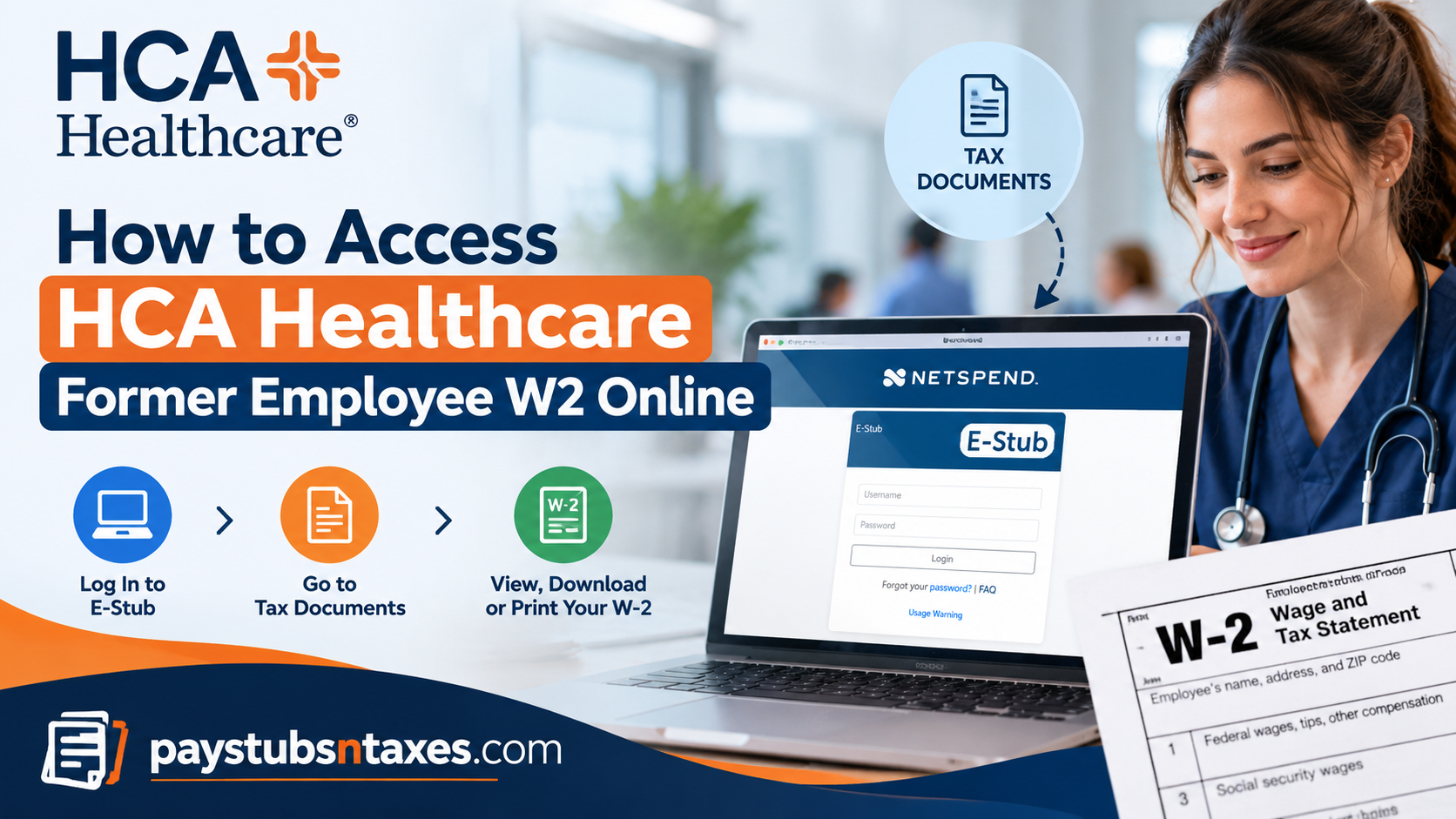
Leaving HCA Healthcare does not mean losing access to the payroll documents you need for tax season. If your employment records are maintained through the Parallon eStub system, you can retrieve available W-2 forms online, review your tax document history, and save or print copies for your records. Whether you recently left a permanent position, completed a HealthTrust assignment, or finished working per diem shifts, knowing where to find your documents can take the stress out of getting organised.
To access your HCA Healthcare former employee W-2 online, visit www.onlinewagestatements.com/parallon2, enter your HCA 3-4 ID, and follow the password recovery instructions if necessary. Once signed in, select Tax Documents and choose the W-2 beside the appropriate tax year and company.
Can Former HCA Healthcare Employees Access Their W-2 Online?
Yes. Eligible former HCA Healthcare employees, including former HealthTrust Workforce Solutions personnel, can access available W-2 forms through the E-Stub online payroll portal at www.onlinewagestatements.com/parallon2. To sign in, use your HCA 3-4 ID, select the password recovery option if necessary, complete the required identity verification, and create a new password. Once authenticated, navigate to Tax Documents to retrieve your available W-2 statements.
The precise procedure may vary depending on your previous employing entity, facility, account status, and electronic tax-document preferences.
Although employment termination typically restricts access to certain internal corporate systems, E-Stub provides a separate avenue through which eligible former workers may continue managing their employment-related financial records.
Consequently, leaving HCA Healthcare does not automatically mean that your historical wage statements and tax documents become inaccessible.
Who Can Use eStub After Leaving HCA Healthcare?
Former employees whose payroll records are available through Parallon eStub can use the portal to access their available wage statements and tax documents. HealthTrust also provides an eStub access process for former employees, including instructions for resetting their credentials after separation.
Because access arrangements can vary by employing company or payroll group, contact HCAhrAnswers if the portal does not recognise your account or does not display the documents you need.
Step 1: Open the Parallon eStub Website
Visit the following address in your browser:
HCA Healthcare Former Employee eStub Login
The sign-in page contains fields for your username and password, along with a “Forgot your password?” link.
Before entering your credentials, check that you have opened the correct website. Since payroll records contain sensitive personal information, using a trusted device and a secure internet connection is a sensible first step.
Step 2: Enter Your HCA 3-4 ID
Enter your HCA 3-4 ID in the username field. This is your employee identification credential; the term “3-4 ID” does not mean that you should enter only three or four digits.
If you cannot remember this ID, contact HCAhrAnswers for assistance rather than repeatedly guessing your username.
Step 3: Reset Your Password If Necessary
If you no longer know your password, select “Forgot your password?” and follow the instructions displayed.
For the former employee reset process described by HealthTrust:
- Enter your 3-4 ID as your username.
- Select the password recovery option.
- When prompted for the old password, enter your Social Security number without dashes.
- Create a new password when instructed.
- Return to the login page and sign in with your updated credentials.
Use your Social Security number only within the appropriate field on the verified portal when the recovery process requests it. If the prompts differ or the reset fails, ask HCAhrAnswers to confirm the correct process for your account.
Step 4: Select “Tax Documents”
After signing in, look for Tax Documents in the left-hand navigation menu.
For employees who elected electronic W-2 delivery, this option becomes available once the relevant forms have been posted. Open it to review the tax documents available in your account.
If the menu is missing, or the year you need does not appear, contact payroll support to establish whether the form is available electronically.
Step 5: Choose the Correct Tax Year and Company
Within your W-2 history, locate the tax year and company associated with the document you need. Select “W2” beside that entry to open the statement.
You may also see “W2 C”, which identifies a corrected W-2. This document type appears only if a corrected form has been issued for an applicable year.
If several entries are listed, review the year and company carefully so that you download the intended document.
Step 6: Save or Print Your W-2
Once your statement opens, use the available document or browser controls to save or print a copy.
Before storing it, check that the document shows the expected tax year and personal details. If something appears incorrect, contact payroll support to request a review.
Keep downloaded copies in a secure location, particularly if other people have access to your computer.
Will Former Employees Receive a Paper W-2?
HCA states that former employees receive a paper W-2 for the year their employment ended, regardless of their previous delivery preference. If you belonged to another HCA Healthcare payroll group, confirm your mailing arrangements with HCAhrAnswers.
Keeping your mailing address current can help prevent unnecessary delays. If you moved after leaving employment, ask support how to update your former employee record.
What to Do If You Cannot Access Your W-2
An unsuccessful login does not necessarily mean your documents are unavailable. Work through these checks before seeking assistance:
- Username not recognised: Confirm that you entered your HCA 3-4 ID correctly.
- Password rejected: Use the password recovery link and follow the displayed prompts.
- Tax Documents missing: Ask payroll support whether electronic access applies to your account.
- Required year unavailable: Request help locating that specific year’s W-2.
- Incorrect information: Contact payroll support to request a review and, where appropriate, a correction.
When requesting help, explain your former employing facility or company, the tax year required, and the error you encountered. Do not include your password in an email or support message.
Contact HCAhrAnswers for W-2 Assistance
Current and former HCA Healthcare employees can contact HCAhrAnswers at (844) 472-6797 for questions concerning employment records, payroll, W-2 forms, or benefits.
You can also visit HCAGHR.com for HR access. If your former employee credentials no longer work there, use the telephone support option to obtain guidance.
Log Out When You Finish
After viewing, downloading, or printing your W-2, select Log Out and close your browser. On a shared device, avoid saving your password and remove any downloaded copies once you have transferred them securely.
Accessing your HCA Healthcare former employee W-2 online is straightforward when your records are available through eStub: open the Parallon portal, sign in, select Tax Documents, and choose the appropriate year and company. If account recovery or document availability becomes a stumbling block, HCAhrAnswers can help you determine the next step.
Conclusion
Retrieving an HCA Healthcare former employee W-2 online need not become an unnecessarily complicated undertaking, even when your employment ended several months or years ago.
For eligible former employees, the E-Stub portal at www.onlinewagestatements.com/parallon2 provides a convenient means of accessing available electronic tax statements and historical payroll documentation.
By entering your HCA 3-4 ID, completing the designated password recovery procedure, and navigating to the Tax Documents section, you can locate and review the W-2 forms associated with your former employment account.
Nevertheless, because login eligibility, electronic delivery preferences, and document availability may vary, it is prudent to maintain secure copies of your financial records rather than relying exclusively on continued portal access.
Should technical difficulties arise or a required statement remain unavailable, HCAhrAnswers at (844) 472-6797 serves as an important point of contact for former HCA Healthcare employees seeking payroll or W-2 assistance.
Ultimately, a little preparation goes a long way: keeping your employment information organized, safeguarding your login credentials, and obtaining the necessary tax documents promptly can make the transition from employment to tax filing substantially more manageable.
Frequently Asked Questions
1. Can I access my HCA Healthcare W-2 after leaving the company?
Yes. Former employees whose payroll records are maintained in Parallon eStub can access available W-2 forms after separation. If your account is unavailable, contact HCAhrAnswers for assistance.
2. What is the HCA former employee W-2 login website?
The Parallon eStub portal is www.onlinewagestatements.com/parallon2. Eligible former employees can sign in there to view available payroll and tax documents.
3. What username should I use to access HCA eStub?
Use your HCA 3-4 ID as your username. This refers to your employee identification credential, rather than a three- or four-digit number.
4. How do I reset my HCA eStub password?
Enter your 3-4 ID and select “Forgot your password?” Follow the recovery prompts, create a new password when instructed, and return to the login page to sign in.
5. Do I need my Social Security number to reset my password?
The HealthTrust former employee reset process instructs users to enter their Social Security number without dashes when prompted for the old password. Follow the verified portal’s instructions; contact support if the prompts differ.
6. Where can I find my W-2 after logging in?
Select Tax Documents in the left-hand navigation menu. Locate the appropriate tax year and company, then click W2 to open your statement.
7. Can I view previous years’ HCA W-2 forms?
You can view previous years’ forms that remain available in your eStub tax document history. Contact HCAhrAnswers if the year you need is missing.
8. What does “W2 C” mean in eStub?
W2 C identifies a corrected W-2. This option appears only when a corrected form has been issued for an applicable tax year.
9. Why is the Tax Documents option missing?
The option may not appear if electronic W-2 access does not apply to your account or the relevant forms have not been posted. Contact payroll support to confirm availability.
10. Can I download or print my HCA former employee W-2?
Yes. Open the available W-2 and use the document viewer or browser controls to save or print it. Store your copy securely because it contains sensitive personal information.
11. Will I receive a paper W-2 after leaving HCA Healthcare?
HealthTrust’s former employee process provides a paper W-2 for the year employment ended, regardless of the previous delivery preference. Former employees in other HCA payroll groups should confirm their mailing arrangements with HCAhrAnswers.
12. What should I do if I have forgotten my HCA 3-4 ID?
Contact HCAhrAnswers at (844) 472-6797 for help identifying your account and determining the appropriate access process.
13. What if my W-2 is missing or contains incorrect information?
Contact HCAhrAnswers and specify the tax year, former employing company or facility, and the missing or incorrect information. Payroll support can review the issue and advise on obtaining the appropriate document.
14. Who should former HCA employees contact for W-2 assistance?
Call HCAhrAnswers at (844) 472-6797 for assistance with W-2 forms, payroll, or employment records. You can also visit HCAGHR.com for HR access.
15. How do I protect my information after viewing my W-2?
Select Log Out and close your browser when finished. Avoid saving credentials on shared devices, and keep downloaded or printed W-2 forms in a secure location.
