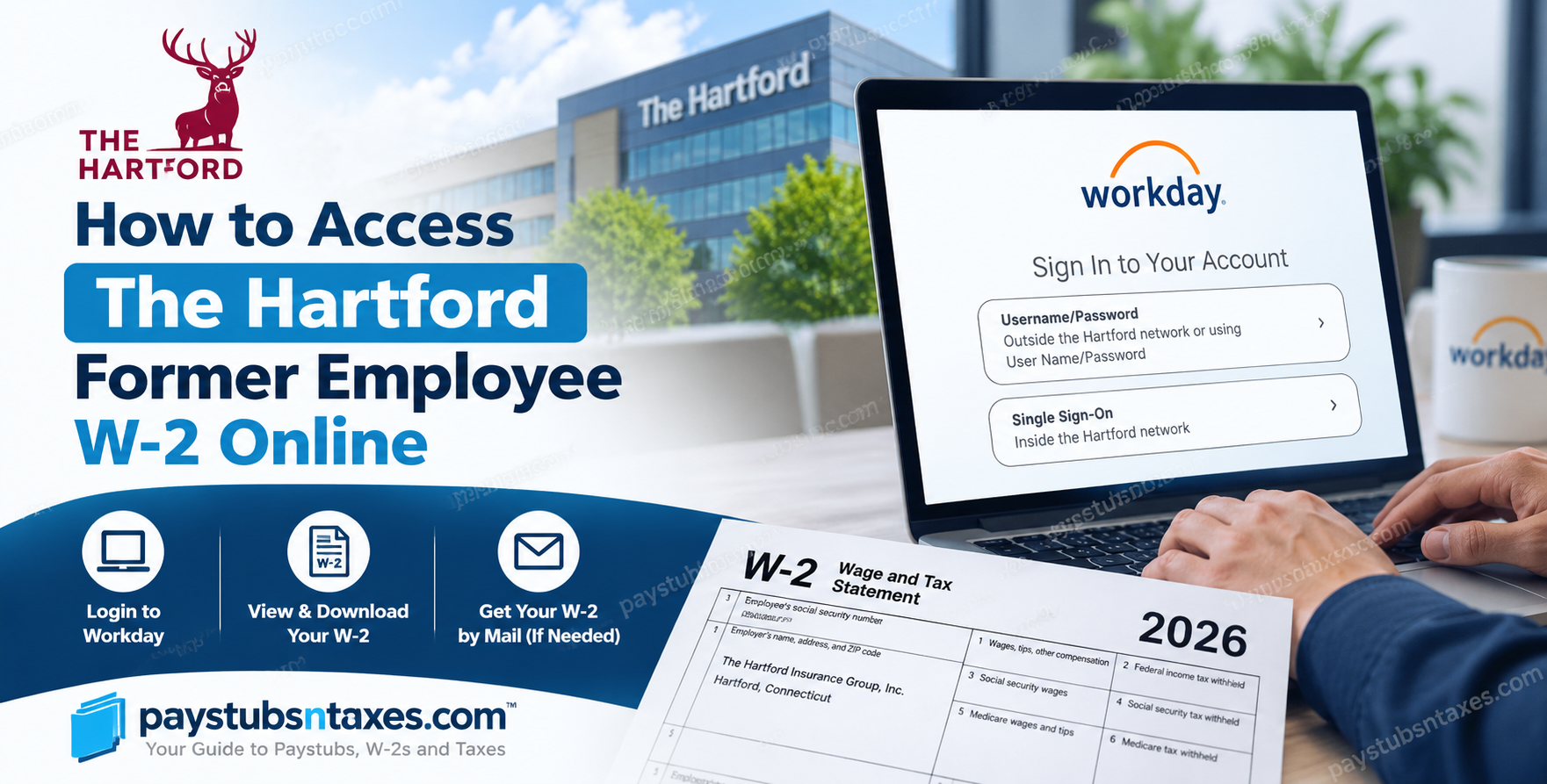
Leaving a company should not mean losing track of essential payroll records. For former employees of The Hartford Insurance Group, Inc., Workday provides a way to retrieve available W-2 forms while post-employment access remains active. However, because company single sign-on access may be revoked after termination, signing in requires a different approach. This guide explains how to access your Hartford former employee W-2 online, download or print your tax documents, and obtain assistance if you can no longer sign in.
How Do Former Hartford Employees Access Their W-2 Online?
Former Hartford employees with active Workday access can visit The Hartford Workday login page, select Username/Password, and sign in using their Workday credentials. Once logged in, search for My Tax Documents, locate the appropriate tax year, and select View/Print to download or print the W-2.
If your Workday access has expired, contact The Hartford’s HR Service Center at 877-472-8967 for assistance with obtaining your tax documents.
Understanding Workday Access After Leaving The Hartford
The Hartford uses Workday to provide access to payroll information and employment-related records. Although former employees may retain access for a limited period, the login method available during employment may no longer work after separation.
In particular, single sign-on (SSO) relies on company network credentials, which may be deactivated when employment ends. Consequently, former employees should use the Username/Password option, where available, rather than attempting to sign in with their former network ID.
Your Workday username and password may differ from your company network credentials. Since post-employment access does not necessarily remain available indefinitely, downloading important records while you can still sign in will help prevent unnecessary difficulties later.
Access Your Hartford W-2 Through a Web Browser
Using a desktop or laptop browser offers a convenient way to view, save, and print your tax documents.
- Open The Hartford Workday portal.
- Select the Username/Password login option.
- Enter your Workday username and password, rather than your former company network ID.
- Complete any authentication steps displayed.
- Once signed in, proceed to the Workday home page.
If you cannot remember your credentials, use the account-recovery options displayed on the login page. Where password recovery depends on a personal email address, an outdated or missing address may prevent you from completing the process. In that situation, contact the HR Service Center for help.
Access Workday Through the Mobile App
Former employees whose accounts remain active may also be able to sign in through the Workday mobile app. Availability depends on the access enabled for their accounts.
To get started:
- Download the Workday app from your device’s app store.
- Open the app and tap the blue Log In button.
- Enter thehartford as the organization ID.
- Tap the blue arrow to continue to the login screen.
- Choose Username/Password, where available.
- Enter your Workday credentials and complete authentication.
- Continue to the Workday mobile home screen.
If the app does not display the necessary tax-document options or cannot complete the sign-in process, try accessing Workday through a web browser.
How to View, Download, and Print Your Hartford W-2
Once you have successfully signed in, follow these steps to retrieve your available W-2 forms:
1. Find “My Tax Documents”
From the Workday home page, enter My Tax Documents in the search bar and select the matching report.
2. Select the Correct Tax Year
The report displays your tax-form printing elections and the current or previous tax documents available to your account.
Find the required tax year, then select View/Print in the Employee Copy column.
3. Allow Workday to Prepare the Document
A message may appear indicating that your request is being processed. You can remain on the page or select Notify Me Later to receive a notification when the document is ready.
4. Download or Print Your W-2
When the document opens, use the available controls to:
- Zoom in or out.
- Rotate the document.
- Download a copy.
- Print it using a connected printer.
- Save it as a PDF through the print menu, where supported.
Store your downloaded W-2 securely, since it contains sensitive personal and financial information.
Electronic W-2 Delivery and Printing Elections
Workday includes a printing-election setting that allows eligible users to select how they receive their W-2 forms.
If this option remains available to your account:
- Sign in to Workday.
- Open the Pay worklet.
- Under View, select My Tax Documents.
- Find Printing Election and click Edit.
- Select your preferred delivery method.
- Click OK, followed by Done.
Review the tax year and delivery options shown on your screen before confirming your selection. A printing election should not be treated as confirmation that former-employee mailing arrangements have changed; contact HR if you need clarification.
When Are Hartford W-2 Forms Available?
W-2 forms are generally made available during January following the end of the tax year. For example, a 2026 W-2 reports wages and withholding for 2026 and is issued the following year.
Once a form has been released and appears in your Workday account, you can view, save, or print it while your access remains active.
If you are checking before the annual release, the absence of a form does not necessarily indicate an account problem. Make sure you are looking for a completed tax year rather than expecting a current-year W-2 before it has been issued.
Will The Hartford Mail a W-2 to Former Employees?
The Hartford’s former-employee process includes mailing W-2 forms to individuals who are no longer employed by the company. Therefore, losing Workday access does not mean you have lost the ability to receive your tax statement.
Keeping your home or designated mailing address current is essential. If you have moved since leaving the company, contact HR to confirm how to update your records and verify where your W-2 will be sent.
Allow time for postal delivery after issuance. If your form does not arrive, request assistance with obtaining a replacement.
What to Do If You Cannot Access Workday
A failed login can have several causes, including deactivated SSO credentials, an incorrect Workday password, an outdated recovery email address, or expired former-employee access.
To resolve the issue:
- Check your login method. Select Username/Password instead of company SSO.
- Verify your credentials. Use your Workday username rather than assuming your former network ID will work.
- Try account recovery. Follow the password-reset instructions available on the login screen.
- Check your personal email. Look for recovery messages, including in your spam or junk folder.
- Contact HR when recovery fails. An inaccessible email address or expired account may require assistance.
Repeatedly attempting the same unsuccessful login is unlikely to resolve an access restriction. If the recovery process reaches a dead end, contacting HR is the most practical next step.
Contact The Hartford for W-2 Assistance
Former employees can contact The Hartford’s HR Service Center at 877-472-8967 for assistance with W-2 questions, Workday access difficulties, or the appropriate process for requesting payroll records.
Explain whether you need help signing in, locating a specific tax year, updating your mailing address, or obtaining a replacement form. Have the information needed to verify your identity available, but never disclose your Workday password.
With the correct login method and current contact details, retrieving your Hartford W-2 should be straightforward. Download your available documents promptly, and contact HR if your online access is no longer active.
Final Thoughts
Accessing a W-2 after leaving The Hartford Insurance Group does not have to become an unnecessarily complicated undertaking. Former employees who retain authorized Workday access can attempt to sign in through The Hartford Workday portal, select Username/Password rather than corporate Single Sign-On, and navigate to My Tax Documents to retrieve available tax statements. For those whose accounts have been disabled, postal delivery provides an alternative route to obtaining the annual Form W-2.
If login problems, outdated contact details, or missing tax documents stand in the way, contacting The Hartford HR Service Center at 1-877-472-8967 is the most practical next step.
Ultimately, keeping your personal information current, understanding your post-employment access privileges, and knowing when annual tax statements are issued will help ensure a smoother, less stressful tax-filing experience.
Frequently Asked Questions
1. Can former Hartford employees access W-2 forms online?
Yes. Former employees can retrieve available W-2 forms through Workday while their post-employment accounts remain active. If access has expired, contact HR for assistance.
2. What is The Hartford’s Workday login URL?
The Hartford’s Workday portal is https://wd5.myworkday.com/thehartford/login.htmld. Former employees should select the Username/Password option when signing in.
3. Can I use my former Hartford network ID to log in?
Former company network credentials may stop working after termination. Use your Workday username and password through the Username/Password login option.
4. Why does Hartford SSO stop working after termination?
Company single sign-on depends on active network access, which may be revoked after employment ends. Separate Workday credentials may still provide access while your former-employee account remains enabled.
5. Where can I find my W-2 after signing in?
Enter My Tax Documents in the Workday search bar and open the matching report. Find the required tax year and select View/Print in the Employee Copy column.
6. How do I download my Hartford W-2 as a PDF?
Open your W-2 using View/Print, then select the download option in the document viewer. Alternatively, use Print and choose Save as PDF, if supported by your device.
7. Can I print a Hartford W-2 from a previous year?
Yes, if that year’s form remains available in your Workday account. Open My Tax Documents, locate the year, and select View/Print.
8. Can former employees use the Workday mobile app?
Former employees may be able to use the app while their accounts remain active and mobile access is enabled. Enter thehartford as the organization ID and choose Username/Password, where available.
9. What should I do if my W-2 does not open immediately?
Workday may need time to prepare the document. Stay on the page or choose Notify Me Later to receive a notification when it is ready.
10. How long does Hartford Workday access remain active after termination?
Post-employment access is available for a limited period, but a specific duration is not established here. Contact HR to confirm your account status and download available records promptly.
11. What if I forget my Hartford Workday password?
Use the password-recovery option displayed on the login page. If you cannot complete the reset, contact HR for help restoring access or obtaining your W-2.
12. What if my password-reset email address is outdated?
Contact HR to request assistance with your account-recovery details. An outdated or inaccessible personal email address may prevent you from receiving password-reset instructions.
13. Will The Hartford mail my W-2 after I leave?
The Hartford’s former-employee process includes mailing W-2 forms to individuals who are no longer employed. Confirm that your home or designated mailing address is current to avoid delivery problems.
14. How do I change my electronic W-2 delivery preference?
If the setting is available, open Pay → My Tax Documents → Printing Election → Edit. Select your preferred delivery method, then click OK and Done. Ask HR whether the election applies to your former-employee status.
15. Who should I contact if I cannot access or locate my W-2?
Contact The Hartford’s HR Service Center at 877-472-8967 for assistance with W-2 availability, Workday login problems, mailing-address questions, or replacement-copy requests.
