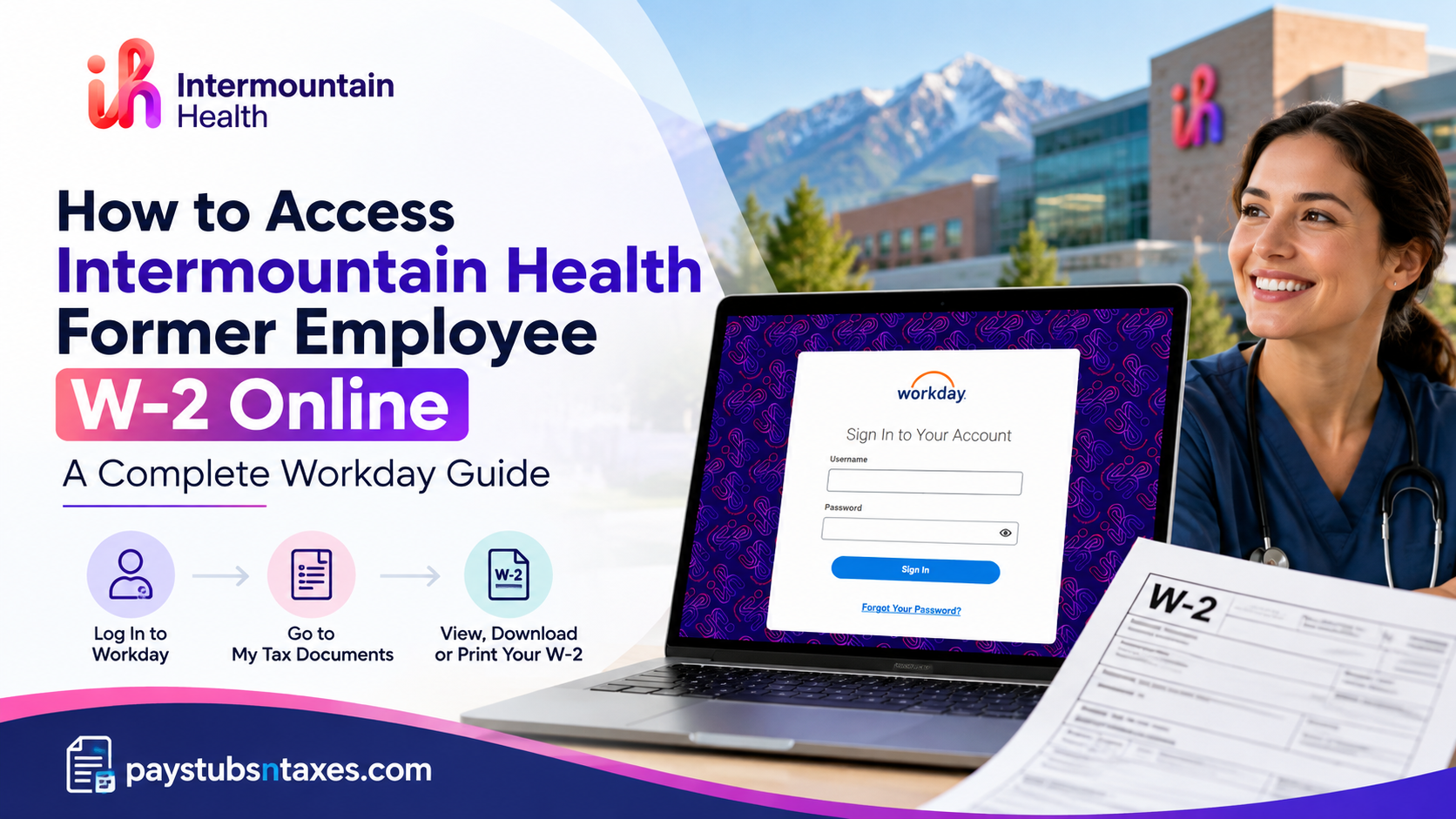
Former employees of Intermountain Health can access their year-end W-2 tax statements online through the Workday Non-SSO Employee Self-Service Portal, provided their post-employment account remains active. During the offboarding process, eligible former employees receive separate Workday login credentials at their personal email addresses, enabling them to retrieve essential payroll and tax documents without relying on their former corporate credentials.
Whether you need your W-2 form to file federal income taxes, verify previous employment income, or maintain accurate financial records, Workday provides a convenient and secure way to access your tax information. This comprehensive guide explains how to log in to the Intermountain Health former employee Workday portal, download and print your W-2 statement, update your paperless delivery preferences, and obtain assistance when encountering login difficulties.
About Intermountain Health
Intermountain Health, formerly known as Intermountain Healthcare, is one of the largest nonprofit healthcare systems in the Intermountain West, with headquarters in Salt Lake City, Utah. The organization operates an extensive network of hospitals, medical clinics, specialty care facilities, and healthcare services throughout Utah, Idaho, Nevada, Colorado, Montana, and Wyoming.
Following its merger with Colorado-based SCL Health in 2022, Intermountain Health significantly expanded its geographical reach and clinical capabilities, strengthening its position as a leading integrated healthcare provider.
Today, the organization operates approximately 34 hospitals and 400 clinics, supported by a substantial workforce of healthcare professionals, administrative personnel, and other dedicated caregivers. Its broader healthcare network also includes Select Health, a health insurance division serving more than one million members.
Guided by its mission of “Helping people live the healthiest lives possible,” Intermountain Health remains committed to clinical excellence, affordable healthcare, innovative treatment solutions, and healthier communities.
Beyond providing exceptional patient care, Intermountain Health recognizes the importance of accessible employee services. Its Workday human resources and payroll management platform enables eligible current and former employees to manage employment-related information, including pay statements and annual tax documents.
What You Need Before Signing In
Before accessing your Intermountain Health former employee W-2, have the following ready:
- Your non-SSO Workday username.
- Your Workday password.
- Access to the personal email account you provided during offboarding.
- A private computer and, if needed, a printer.
Non-SSO means that you sign in directly with a Workday username and password rather than through the employee single sign-on system. Your former workplace login should therefore not be assumed to work for this portal.
Login credentials are provided through your personal email during the offboarding process. If you cannot find that message, check your spam and junk folders before requesting assistance.
Post-employment Workday access is time-limited. Download your available payroll and tax documents promptly, and contact HR if you need confirmation of your account’s access period.
How to Log In to Intermountain Health Former Employee Workday
Step 1: Open the Non-SSO Workday Portal
Visit the Intermountain Health non-SSO Workday login page.
Use a private computer, preferably your home computer, whenever you intend to download or print documents containing personal and financial information.
Step 2: Enter Your Workday Credentials
Enter the username and password supplied for your former employee account, then sign in.
Use the credentials provided during offboarding. If your account is locked, your password is rejected, or you never received login instructions, contact support for assistance.
Step 3: Open the Pay Application
From the Workday landing page, select the Pay application, sometimes referred to as the Pay worklet.
This area provides access to available payroll information and year-end tax documents.
How to View, Download, and Print Your W-2
Once you have signed in, follow these steps:
- Open the Pay application.
- Under the View heading, select My Tax Documents.
- Locate the W-2 for the tax year you need.
- In the Employee Copy column, click View/Print.
- Allow Workday to generate the document.
- Open the resulting file and download or print a copy.
Make sure you select the correct tax year, particularly if multiple documents appear in your account. Save the downloaded file in a secure location where you can find it when needed.
What Does “Your Request Is Being Processed” Mean?
Workday may display a message stating “Your request is being processed” while generating your W-2. This message does not necessarily indicate a problem; the document may simply require additional processing time.
You can remain on the page until the document is ready or select Notify Me Later. If you choose the latter, check the Workday notification icon for a link to the generated document, then open it to download your copy.
How to Change Your Paperless W-2 Preferences
If the printing-election option remains available in your former employee account, you can manage how you receive your year-end tax documents.
To update your preference:
- Sign in to Workday.
- Select Pay.
- Under View, open My Tax Documents.
- Locate Printing Election, typically near the top-right corner.
- Click Edit.
- On the Change Year-End Tax Documents Printing Elections page, find New Election.
- Select your preferred delivery option.
- Click OK to save the change.
The available options include:
- Receive electronic copy of my Year-End Tax Documents: Choose electronic delivery for your year-end tax documents.
- Receive both electronic and paper copies of my Year-End Tax Documents: Choose electronic access alongside a paper copy.
Review your selection carefully before saving. If you change your preference close to document issuance, ask Payroll whether the change will apply to the W-2 you are expecting.
Can Former Employees Receive a Paper W-2?
Workday’s printing elections include an option to receive both electronic and paper copies. However, if you cannot access your account or are unsure which election is on file, confirm your delivery arrangements directly with Payroll.
Keep your mailing address current, especially if you have moved since leaving Intermountain Health. If you are expecting a mailed copy, ask Payroll to confirm the address on record and the process for requesting a replacement.
How to Get Help With Former Employee Workday Access
For assistance with your former employee account or a missing W-2, use the HR or Payroll contact information included in your offboarding correspondence.
For account assistance, you can also call 1-800-442-4566. Explain that you are a former caregiver seeking access to a W-2 through non-SSO Workday so that your request can be directed appropriately.
Have your former employee ID, employment location, and requested tax year available. Never provide your Workday password to another person.
Conclusion
Accessing an Intermountain Health former employee W-2 online is a straightforward process when you have valid Workday Non-SSO credentials and an active post-employment account.
By visiting the designated Intermountain Health Workday login portal, signing in with your former employee credentials, and navigating to Pay > My Tax Documents, you can locate, generate, download, and print your annual W-2 statement without unnecessary administrative complications.
Workday also allows eligible users to manage year-end tax document printing elections, offering greater flexibility in how important financial records are received and maintained.
Nevertheless, because former employee access is available for only a limited period, retrieving your records promptly is essential. If your account has expired, your login credentials are missing, or your W-2 is unavailable, contact Intermountain Health’s payroll or HR support team for further guidance.
With the appropriate credentials and a clear understanding of Workday’s self-service features, former Intermountain Health employees can obtain the tax documentation they need while maintaining the security and accessibility of their financial records.
Frequently Asked Questions
1. Can former Intermountain Health employees access W-2 forms online?
Yes. Former employees can retrieve available W-2 forms through the non-SSO Workday portal while their post-employment account access remains active.
2. What is the Intermountain Health former employee Workday login URL?
The non-SSO Workday login URL is https://wd108.myworkday.com/imh/login.htmld?redirect=n. Use the credentials issued for your former employee account.
3. How do I receive my former employee Workday credentials?
Your non-SSO Workday username and password are sent to your personal email during offboarding. Check your inbox, spam, and junk folders for the login instructions.
4. Can I use my previous employee single sign-on to access my W-2?
Use the non-SSO credentials provided during offboarding. Former employee access uses a direct Workday login rather than relying on your previous employee single sign-on.
5. Where can I find my W-2 after signing in to Workday?
Open Pay, then select My Tax Documents under the View heading. Locate the appropriate tax year and select View/Print under Employee Copy.
6. How do I download or print my Intermountain Health W-2?
Select View/Print beside the required W-2, wait for Workday to generate the document, and open it. Then use the document viewer’s download or print option.
7. What does “Your request is being processed” mean?
This message means Workday is generating your document. Wait for processing to finish, or select Notify Me Later and retrieve the document through your Workday notifications.
8. Where does my W-2 appear if I select “Notify Me Later”?
Workday sends a link to the generated document through the notification icon. Open the notification and follow the link to view, download, or print your W-2.
9. How long does former employee Workday access remain active?
Former employee access remains available for a limited period. Confirm your specific access period with HR and download available documents promptly.
10. What should I do if I never received my Workday login email?
Check the personal email account supplied during offboarding, including spam and junk folders. If you cannot find the message, contact HR to verify your email address and request login assistance.
11. What should I do if my Workday password does not work?
Confirm that you are using the non-SSO portal and your former employee credentials. Follow any recovery options displayed on the login page or contact support for assistance.
12. How do I choose electronic delivery for my W-2?
Go to Pay → My Tax Documents → Printing Election → Edit. Under New Election, select Receive electronic copy of my Year-End Tax Documents, then click OK to save.
13. Can I choose both electronic and paper W-2 copies?
Yes, if the printing-election option is available in your account. Select Receive both electronic and paper copies of my Year-End Tax Documents and click OK. Confirm that your mailing address is current.
14. How can I obtain my W-2 if my Workday access has expired?
Contact Intermountain Health HR or Payroll to request an alternative way to obtain your W-2. Provide the tax year you need and follow their identity-verification instructions.
15. What should I do if my W-2 is missing or contains an error?
Contact Payroll to report the missing form or explain the incorrect information. Specify the tax year and ask how to obtain a replacement or corrected document.
