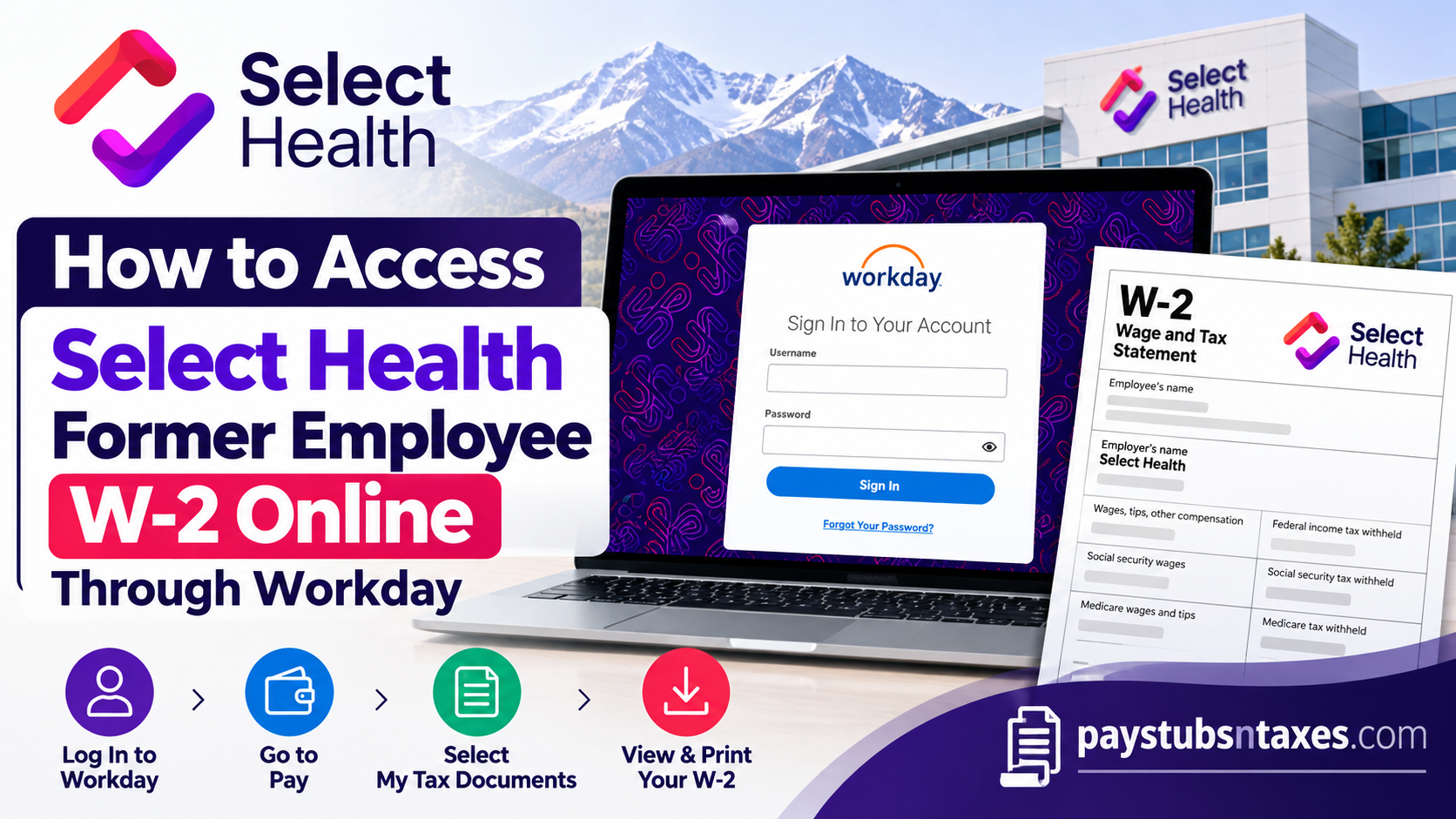
Former Select Health employees can access their W-2 tax forms through the Non-SSO Workday portal using the login credentials sent to their personal email during offboarding. After signing in, open Pay, select My Tax Documents, locate the relevant tax year, and click View/Print to download your W-2. Because former employee access remains available for a limited period, downloading your tax documents while your account is active can save time when tax season rolls around.
How Do Former Select Health Employees Access Their W-2 Statements?
Former Select Health employees can access their available W-2 tax statements through the Intermountain Health Workday Non-SSO portal at https://wd108.myworkday.com/imh/login.htmld?redirect=n. Using the Workday credentials provided during offboarding, eligible former employees can sign in, open the Pay application, select My Tax Documents, and download or print their W-2 forms.
Unlike active employees, who generally access Workday through the organization’s Single Sign-On (SSO) authentication system, former employees may need to use separate Non-SSO credentials to retrieve their payroll and tax records.
Workday access after termination is available for a limited period, making it advisable to download important documents as soon as they become accessible.
Understanding Workday Access for Former Select Health Employees
Workday is a comprehensive, cloud-based human capital management platform that integrates payroll, employee benefits, tax documentation, and other employment-related information into one secure digital environment.
Select Health employees use Workday to manage various administrative tasks, including reviewing compensation details, accessing payroll records, and retrieving year-end tax statements.
However, the authentication process generally changes when an employee leaves the organization.
Current Employees vs. Former Employees: What’s the Difference?
Current Select Health Employees: Active employees ordinarily access Workday using their organizational Single Sign-On credentials. This allows them to authenticate through Intermountain Health’s established employee login system.
Former Select Health Employees: Individuals whose employment has ended may receive separate Non-SSO Workday credentials, allowing them to access certain employment-related records without relying on an active corporate account.
During the offboarding process, former employees are expected to receive their Non-SSO Workday login information at the personal email address registered with the organization.
These credentials are particularly important because corporate usernames, passwords, and SSO privileges may be deactivated following an employee’s departure.
Important: Former employee access is not necessarily permanent. Depending on the organization’s account retention policies, access may expire after a designated period. Therefore, downloading available tax documents promptly is strongly recommended.
How to Log In to Select Health Workday as a Former Employee
Before getting started, check your personal email inbox for the Workday login information issued during offboarding. If you cannot find the message, check your spam or junk folder.
Follow these steps to access your account:
- Visit the Select Health Non-SSO Workday portal.
- Enter your Workday username.
- Enter your password.
- Complete the sign-in process to reach your Workday landing page.
Use the credentials provided for your former employee account. If you did not receive them or can no longer sign in, contact the appropriate support team listed below.
How to View and Download Your Select Health W-2
Once you have signed in, retrieving your W-2 takes only a few steps:
- Select the Pay application, also called the Pay worklet, on the Workday landing page.
- Under the View heading, click My Tax Documents.
- Locate the W-2 for the tax year you need.
- In the Employee Copy column on the right, select View/Print.
- Wait for Workday to generate the document.
- Open the available document and download or print a copy.
If Workday displays “Your request is being processed,” you can wait for the document or choose Notify Me Later.
Selecting Notify Me Later sends a link to your Workday notifications. Open the notification and follow the hyperlink to retrieve the generated document.
For convenience, save the file with a clear name, such as Select-Health-W2-2025.pdf, so that you can locate it easily when preparing your tax return.
How to Change Your W-2 Paperless Delivery Preferences
Workday also allows you to manage how you receive your year-end tax documents. While your account remains accessible, you can review and update your printing election.
To change your preference:
- Open the Pay application.
- Under View, select My Tax Documents.
- Find Printing Election near the top-right corner of the page.
- Click Edit.
- On the Change Year-End Tax Documents Printing Elections page, locate New Election.
- Select your preferred delivery option:
- Receive electronic copy of my Year-End Tax Documents
- Receive both electronic and paper copies of my Year-End Tax Documents
- Click OK to save your changes.
Review the selection carefully before saving, particularly if you would like to continue receiving a paper copy alongside electronic access.
Does Select Health Mail W-2 Forms to Former Employees?
In addition to electronic access through Workday, Select Health may distribute paper W-2 statements to former employees using the mailing addresses maintained in its employment records.
This provides an alternative for individuals who no longer have access to Workday or prefer receiving physical tax documentation.
Nevertheless, paper delivery arrangements may depend on the employee’s previously selected tax document preferences and the organization’s applicable payroll policies.
If you expect to receive your W-2 by postal mail, ensure that your mailing address is accurate and up to date.
Employees who have moved after leaving Select Health should contact the appropriate payroll or HR department to determine how to update their mailing information.
An outdated address could delay the delivery of important tax documents.
Remember: A W-2 that has not arrived by mail may already be available electronically through Workday. Checking your former employee account, if it remains accessible, may help you obtain the document sooner.
Select Health Workday, Payroll, and HR Support
For assistance with Workday access, payroll records, or W-2 questions, use the following contact information:
| Support option | Contact details |
| epicvalidation@imail.org | |
| Canyons Region | 1-800-442-4566 |
| Peaks Region | 1-303-866-8282 |
| Desert Region | 1-702-253-2680 |
When requesting help, explain that you are a former Select Health employee and identify the tax year involved. Do not include your Workday password in an email.
Conclusion
Accessing your Select Health former employee W-2 online does not have to be a complicated or time-consuming undertaking. Through the Intermountain Health Workday Non-SSO portal, eligible former employees can securely retrieve their available year-end tax statements, download electronic copies, and print the documents needed for income tax preparation.
The essential steps involve signing in with the Non-SSO credentials supplied during offboarding, opening the Pay application, navigating to My Tax Documents, and selecting View/Print for the relevant W-2.
Because former employee Workday access may remain active only for a limited period, it is prudent to retrieve and securely preserve your employment tax documents before your account becomes inaccessible.
If you experience login difficulties, cannot locate your tax statement, or need a replacement copy after your Workday access has expired, reach out to the appropriate Select Health or Intermountain Health payroll support team.
Ultimately, taking a proactive approach to retrieving your W-2 will help ensure a smoother tax-filing experience while keeping your essential employment and financial records readily available.
Frequently Asked Questions
1. Can former Select Health employees access W-2 forms online?
Yes. Former Select Health employees can retrieve available W-2 forms through the Non-SSO Workday portal while their former employee accounts remain active.
2. What is the Select Health former employee Workday login URL?
The Non-SSO Workday login URL is https://wd108.myworkday.com/imh/login.htmld?redirect=n. Sign in using your former employee Workday username and password.
3. Where do I get my former employee Workday credentials?
Your Non-SSO Workday credentials are sent to your personal email address during offboarding. Check your inbox, spam, and junk folders for the message.
4. How long can I access Workday after leaving Select Health?
Former employee Workday access remains available for a limited period. Contact support to confirm your account’s expiration date, and download available tax documents promptly.
5. Where is my W-2 located in Workday?
After signing in, open Pay and select My Tax Documents under the View heading. Locate the required tax year to access your W-2.
6. How do I download or print my Select Health W-2?
In My Tax Documents, find the relevant W-2 and click View/Print under Employee Copy. Once the document is generated, open it and download or print a copy.
7. What does “Your request is being processed” mean?
This message means Workday is generating your document. You can wait for it to finish or select Notify Me Later to retrieve it through a notification when ready.
8. Where can I find my W-2 after selecting “Notify Me Later”?
Open your Workday notifications and look for the document notification. Follow its hyperlink to access and download your generated W-2.
9. How do I choose electronic W-2 delivery?
Go to Pay → My Tax Documents → Printing Election → Edit. Under New Election, select Receive electronic copy of my Year-End Tax Documents, then click OK.
10. Can I receive both electronic and paper W-2 copies?
Yes. In your printing elections, select Receive both electronic and paper copies of my Year-End Tax Documents. Click OK to save your preference.
11. Does Select Health mail W-2 forms to former employees?
Select Health also provides former employees with W-2 forms by postal mail. Review your delivery election and contact payroll or HR to confirm your mailing address and delivery arrangements.
12. What should I do if I never received my Workday login details?
Search your personal email, including spam and junk folders, for your offboarding credentials. If you cannot find them, contact support for assistance obtaining access.
13. How can I obtain my W-2 if my Workday access has expired?
Contact payroll or HR support to confirm your access status and request an alternative way to obtain your W-2. Also confirm that your mailing address is current.
14. What should I do if my W-2 is missing from Workday?
Check that you are looking for the correct tax year under My Tax Documents. If the form is unavailable, contact payroll support to confirm its status and retrieval options.
15. Who can help with Select Health former employee W-2 questions?
Email epicvalidation@imail.org or call your regional support number: Canyons: 1-800-442-4566, Peaks: 1-303-866-8282, or Desert: 1-702-253-2680. Explain that you are a former Select Health employee and specify the tax year you need.
