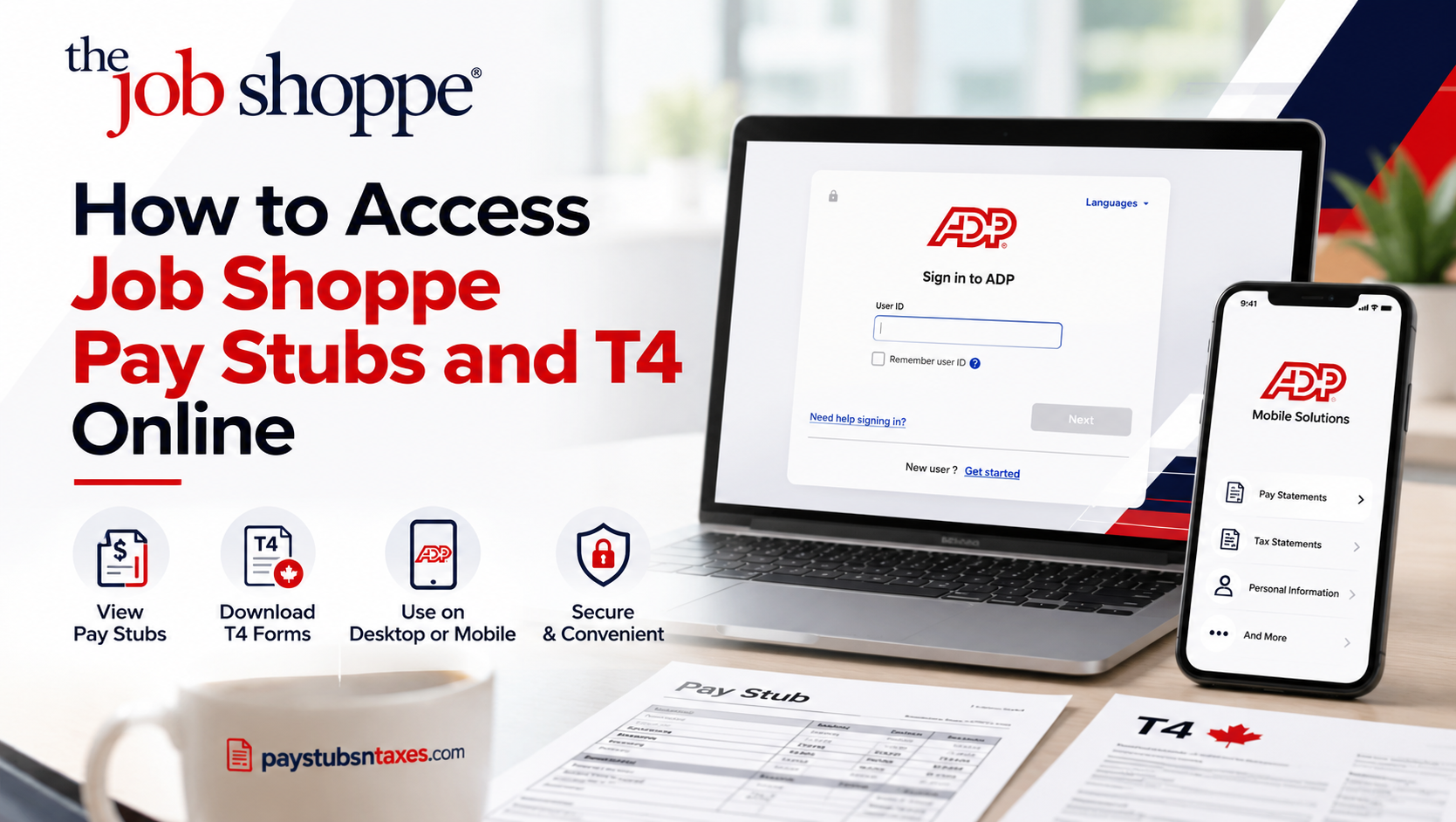
Managing your payroll information should be straightforward, secure, and convenient, regardless of whether you are reviewing your weekly earnings, verifying payroll deductions, or retrieving tax documents for the previous year. Fortunately, The Job Shoppe provides employees with digital access to their pay stubs and T4 tax statements through the ADP employee self-service portal, eliminating the need to request physical copies from the payroll department.
Whether you are a newly hired associate attempting to register for the first time or an existing employee looking to download historical payroll records, ADP offers a centralized platform through which you can conveniently manage your employment-related financial information.
This comprehensive guide explains how to access The Job Shoppe pay stubs and T4 forms online, register for ADP, sign in to your account, retrieve previous pay statements, and resolve common payroll access issues.
Understanding The Job Shoppe Payroll System
The Job Shoppe processes payroll weekly, with payments made every Friday through direct deposit. Paper cheques are not issued as a standard practice; however, an emergency cheque may be approved at a cost to the associate. If you need this arrangement, contact your recruiter to discuss your circumstances.
Pay stubs are available through ADP, which also allows associates to access annual tax statements and update their personal information. The Job Shoppe’s payroll information confirms that Canadian T4 slips are available through the portal by the end of February for the previous year.
A T4 slip and a W-2 form are different documents: Canadian employees generally receive a T4, while U.S. employees generally receive a W-2. Select the document that corresponds to your employment and payroll jurisdiction.
What You Need Before Signing In
Before accessing your Job Shoppe payroll records, have the following ready:
- Your ADP user ID and password, if you have already registered.
- The registration email sent after your assignment began.
- Access to the email address or mobile number associated with your account.
- A private computer or personal mobile device.
- The pay date or tax year you want to retrieve.
New associates should check their inbox, including their spam or junk folder, for registration instructions from ADP or The Job Shoppe’s accounting department. Completing registration early can help you avoid a last-minute scramble when you need a payroll document.
How to Register for ADP as a First-Time User
If you have never used The Job Shoppe’s ADP services, complete registration before attempting to sign in.
- Visit https://my.adp.com.
- Select New User? Get Started, Create Account, or the equivalent registration option displayed.
- Choose Find Me, if available.
- Enter the information requested to locate your employee record.
- Complete the identity-verification steps shown on screen.
- Add or confirm your contact information.
- Complete any required security settings.
- Record your user ID and create a password that meets the requirements displayed.
- Finish any remaining activation steps.
The Find Me option may help you register if you cannot locate your original invitation email. If ADP cannot find your record, or requests a registration code you do not have, contact The Job Shoppe’s HR or accounting team. ADP registration methods vary by service, and some require a code supplied by the employer.
Keep your credentials secure and follow the password requirements shown during registration, as these may differ from older instructions.
How to Sign In to The Job Shoppe ADP Portal
Once your account is active, accessing your payroll information takes only a few steps:
- Open the ADP login portal.
- Enter your user ID.
- Enter your password.
- Select Sign In.
- Complete any additional security verification requested.
Use the credentials you created during ADP registration. If you already have an account associated with The Job Shoppe, use that account rather than starting another registration.
How to View Job Shoppe Pay Stubs Online
After signing in, follow these steps to locate your weekly pay statement:
- Open Myself in the navigation menu.
- Select Pay.
- Choose Pay Statements.
- Find the statement for the pay date you need.
- Select View, the statement link, or the option beside the cheque image to open the detailed pay stub.
If your account offers View as Table, select it to display statements in a list. You can then click the relevant date in the Pay Date column.
The wording and layout may vary between ADP interfaces. If your screen looks different, look for Pay, Pay Statements, or a similar payroll section.
What to Check on Your Pay Stub
Review your statement regularly, paying particular attention to:
- The pay period and payment date.
- Hours and pay rates, where shown.
- Gross earnings.
- Taxes and other deductions.
- Net pay.
- Year-to-date totals.
If an amount appears incorrect, contact your recruiter or payroll team with the relevant pay date and a clear description of the issue. Raising a question promptly gives the team the information needed to investigate.
How to Download or Print Your Pay Stubs
Once you have opened the required statement:
- Select the available Download or Print option.
- Save the document to a secure folder on your personal device.
- If you need a paper copy, print it using a private computer and trusted printer.
- Check that the saved or printed document is complete and readable.
A consistent filename, such as Job-Shoppe-Pay-Stub-2026-10-09, makes statements easier to find later. Keeping your records organised can save time when you need proof of income or want to review previous payments.
How to Access Your Job Shoppe T4 Online
Your T4 slip reports employment remuneration for a calendar year. It is an annual tax document, whereas a pay stub records an individual payroll payment.
To find your T4 in ADP:
- Sign in at https://my.adp.com.
- Open Myself.
- Select Pay.
- Choose Tax Statements or Tax Forms, depending on your account layout.
- Use the tax-year selector to choose the year you need.
- Locate the T4 document.
- Select View Statement or the equivalent viewing option.
- Complete any identity verification requested.
- Download or print the document.
The most recent tax year may appear first. If you need an earlier T4, change the year selection before opening the statement.
When Are Job Shoppe T4 Slips Available?
The Job Shoppe states that T4 slips are available through ADP by the end of February for the previous calendar year. For example, the T4 covering your 2026 employment remuneration should be checked during the 2027 tax-slip season.
If your T4 is missing after the expected release period, contact HR to confirm its status. Avoid selecting a W-2 as a substitute: the two forms relate to different tax jurisdictions.
Accessing W-2 Forms, Where Applicable
Associates paid through U.S. payroll may need a W-2 rather than a Canadian T4. The supplied payroll instructions place W-2 forms under Tax Forms or Tax Statements, with availability by January 31 of the following year.
For employees receiving a 2026 W-2, complete the electronic-consent process requested within ADP. This instruction concerns W-2 delivery and should not be assumed to apply to Canadian T4 slips.
To retrieve a W-2, select the relevant tax year, open the document, complete any verification requested, and download or print your copy. If you are unsure which form you should receive, ask HR before proceeding.
How to Access Payroll Documents Through the ADP Mobile App
The ADP Mobile Solutions app provides another way to check payroll information from your phone. Available features depend on the services enabled by your employer.
To use the app:
- Download ADP Mobile Solutions from your device’s official app store.
- Open the app and sign in with your ADP credentials.
- Complete any security verification.
- Open the Pay section to view available pay statements.
- Look for Tax Statements or Tax Forms to check annual tax documents, if enabled.
- Select the relevant statement or tax year.
If your T4 or a download option is unavailable in the app, use the ADP website on a private computer.
Contact The Job Shoppe for Payroll Support
For questions about pay stubs, T4 slips, registration, or missing documents, contact:
The Job Shoppe Human Resources Department
Phone: 519-968-3636
Email: hr@thejobshoppe.com
Address: 12021 Tecumseh Rd. E., Tecumseh, ON N8N 1M1
Include the relevant pay date or tax year and briefly explain the problem. Never send your ADP password or verification codes by email.
Conclusion
Accessing The Job Shoppe pay stubs and T4 forms online is a straightforward process when employees have successfully registered for the ADP employee self-service portal.
Through ADP, associates can review their weekly earnings, examine payroll deductions, download historical pay statements, and obtain annual tax documentation without depending on traditional paper-based payroll administration.
New employees should begin by registering at https://my.adp.com, using their onboarding instructions or the Find Me verification option where available. Existing employees can simply sign in, navigate to the Pay section, and select the statements they need.
Because The Job Shoppe processes payroll every Friday and makes eligible annual T4 statements available by the end of February, associates can plan their financial recordkeeping and tax preparation accordingly.
Ultimately, maintaining access to ADP and retaining secure copies of important payroll documents will help employees manage their finances more effectively, avoid unnecessary administrative delays, and ensure that essential employment records remain readily available whenever they are needed.
Frequently Asked Questions
How do I access The Job Shoppe pay stubs online?
Sign in to my.adp.com, then select Myself → Pay → Pay Statements. Choose the required pay date and open the statement to view your earnings and deductions.
Where can I find my Job Shoppe T4 slip?
Your T4 is available in the Tax Statements or Tax Forms section of your ADP account. Select the relevant tax year, locate your T4, and click View Statement.
How do first-time users register for ADP?
Visit my.adp.com, select New User? Get Started or Create Account, and follow the registration prompts. Verify your identity, confirm your contact information, and create your login credentials.
What should I do if I cannot find my ADP registration email?
Check your spam or junk folder, then try the Find Me option during registration, if available. If ADP cannot locate your employee record, contact The Job Shoppe’s HR or accounting team.
What information do I need to log in to ADP?
You need your registered ADP user ID and password. You may also need access to your registered email address or mobile number to complete security verification.
When does The Job Shoppe pay its associates?
The Job Shoppe processes payroll weekly and pays associates every Friday through direct deposit. Paper cheques are not part of its standard payment process.
Can I download and print my Job Shoppe pay stubs?
Yes. Open the required statement in ADP and select the available Download or Print option. Use a private computer and trusted printer because payroll documents contain personal information.
When will my Job Shoppe T4 be available?
The Job Shoppe makes T4 slips available through ADP by the end of February for the previous calendar year. Check the correct tax year when searching for your document.
Are T4 slips and W-2 forms the same?
No. A T4 slip reports Canadian employment remuneration, while a W-2 form reports U.S. wages and tax withholding. Access the form applicable to your employment and payroll jurisdiction.
Can I access Job Shoppe payroll documents on my phone?
Yes. Sign in to the ADP Mobile Solutions app with your ADP credentials to view available payroll documents. If your T4 or a download option is unavailable, use the ADP website.
How do I reset a forgotten ADP password or recover my user ID?
Select the appropriate Forgot Password or Forgot User ID option on the ADP login screen. Complete the verification prompts, then follow the instructions to recover access.
Why is my pay stub or T4 missing from ADP?
The statement may not have been released, or you may have selected the wrong pay date or tax year. Check your selections first, then contact HR if the document remains unavailable.
What should I do if my tax statement will not open?
Check whether your browser has blocked an ADP pop-up window. Allow pop-ups for the ADP site, select View Statement again, and complete any identity verification requested.
Can I update my personal information through ADP?
Yes. You can update personal information using the options enabled in your ADP account. Keep your contact details current, and ask HR for assistance with fields you cannot edit.
15. Who should I contact for Job Shoppe pay stub or T4 assistance?
Contact The Job Shoppe Human Resources Department at 519-968-3636 or hr@thejobshoppe.com. Include the relevant pay date or tax year and describe the issue without sharing your password or verification codes.
