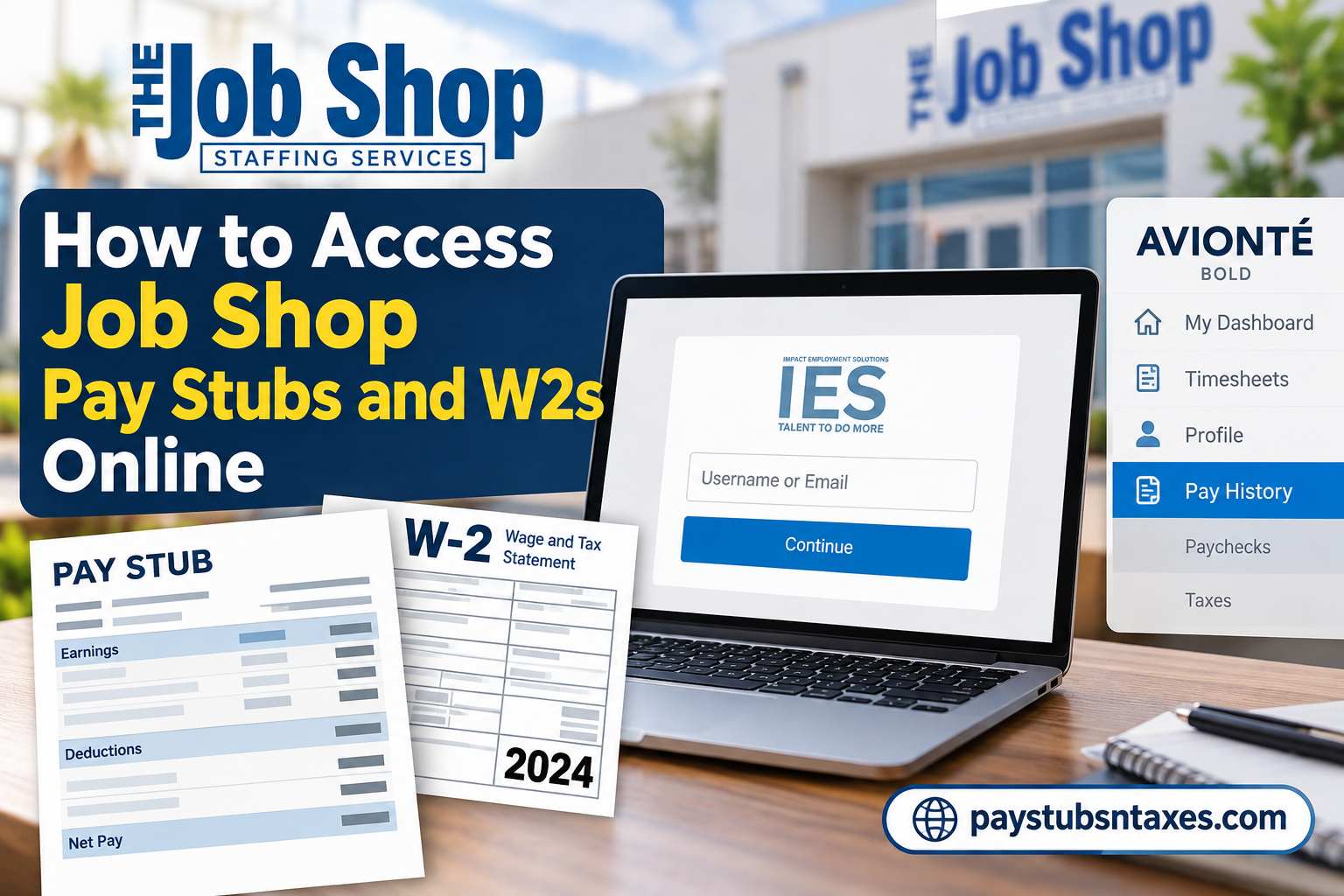
Employees of The Job Shop Staffing Services can conveniently access their pay stubs, W-2 tax forms, payment history, and other essential employment records through the Avionté BOLD Satellite employee portal. This secure, web-based self-service platform provides a centralized location for managing payroll information, reviewing earnings, accessing tax documents, and monitoring employment-related activities without requiring repeated assistance from the payroll department.
Whether you need to download a recent paycheck stub, retrieve a previous year’s W-2 form, verify your earnings, or review payroll deductions, the Satellite portal makes these tasks considerably more straightforward. By signing in with your registered username or email address and password, you can access your available employment and payroll records from a compatible computer or mobile device.
To access your Job Shop pay stubs and W2s online, visit the official Job Shop Employee Login Portal, enter your username or registered email address, click Continue, and provide your password. Once logged in, navigate to Pay History and select Paychecks to view your pay stubs or Taxes to access your available W-2 forms.
This comprehensive guide explains how to log into the Job Shop employee portal, view and download your paycheck statements, retrieve annual tax documents, reset your password, and resolve common payroll access issues.
About The Job Shop Staffing Services
Founded in 1986, The Job Shop is an independent, privately owned staffing agency that connects individuals of varying skill levels with employment opportunities. From entry-level assignments to skilled and professional positions, the agency helps job seekers find temporary and full-time work while assisting employers with their recruitment needs.
Its staffing specialisms include light industrial work, skilled trades, logistics, manufacturing, clerical positions, and general labour. By combining regional expertise with a personalised approach, The Job Shop provides flexible workforce solutions designed to meet employers’ changing requirements and candidates’ career aspirations.
For employees managing their payroll records, the Satellite portal offers a centralised way to access important employment information.
What Is the Job Shop Satellite Employee Portal?
Satellite is an employee self-service portal within the Avionté BOLD platform. It allows workers to access payroll documents and manage various aspects of their employment through a single account.
Depending on the features available to your account, the portal may include:
- myDashboard: An overview of assignments, messages, and employment information.
- Timesheets: Access to timecards and time submission features.
- Profile: Personal and contact information.
- Pay History: Payment records and paycheck details.
- Taxes: Available W-2 statements and tax documents.
Although your immediate priority may be downloading a paycheck stub, becoming familiar with these sections can make routine employment administration considerably easier.
How to Log Into the Job Shop Employee Portal
Accessing your Job Shop payroll account is relatively straightforward, provided you have the correct login credentials.
The employee login page operates through the Avionté BOLD Satellite platform and may display the IES (Impact Employment Solutions) branding.
Follow these instructions to access your employee account.
Step 1: Visit the Official Job Shop Employee Login Page
Open a secure web browser, such as Google Chrome, Microsoft Edge, Mozilla Firefox, or Safari.
Enter the following URL into your browser’s address bar:
Job Shop Employee Login:
https://iescorp.myavionte.com/satellite/login?buildId=x0padNkTPJw&appId=BOLD
Alternatively, visit the official Job Shop website at: https://www.thejobshop.cc/
From the website’s navigation menu, select Employee Login to access the designated Satellite portal.
Using the company’s official employee login link helps ensure that you reach the appropriate payroll system rather than an unrelated staffing agency’s Avionté account.
Step 2: Enter Your Username or Email Address
Once the login page loads, you should see an employee sign-in screen displaying the IES logo.
Beneath the logo, locate the field labeled: Username or Email
Enter the username or email address associated with your Job Shop employee account.
Make sure that the information matches the credentials provided or registered during your employment onboarding process.
After entering your details, click the blue Continue button.
Step 3: Enter Your Account Password
Following the initial identification step, the portal will prompt you to complete the authentication process.
Enter the password associated with your employee account.
Carefully check your credentials before proceeding, paying particular attention to capitalization, numbers, and special characters.
Once the required information has been entered, follow the on-screen instructions to sign in.
If your credentials are correct and your account is active, the system should direct you to your employee dashboard.
Step 4: Access Your Employee Dashboard
After successfully signing in, you will arrive at the Satellite employee dashboard.
Depending on your account configuration, the dashboard may display several navigation options, including:
- My Dashboard
- Timesheets
- Profile
- Pay History
Your dashboard may also contain employment assignments, notifications, outstanding tasks, and other resources relevant to your employment with The Job Shop.
To review your payroll information, locate the Pay History section, which provides access to paycheck records and tax documents.
What If You Do Not Have Your Login Details?
If you have not received your username, contact your Job Shop representative for assistance. If a representative previously emailed you about portal access, you can reply to that email to request your username.
If you have forgotten your username or password, use the relevant recovery option on the login screen and follow the instructions provided. Should you remain unable to access your account, ask your representative to help resolve the issue.
How to View Job Shop Pay Stubs Online
Your paycheck records are available through the Pay History section.
To access your Job Shop pay stubs:
- Sign in to the Satellite employee portal.
- Select Pay History from the menu.
- Choose Paychecks.
- Open the paycheck record you want to review.
The payment history provides information about payments processed by The Job Shop, including a breakdown of taxes, adjustments, and any applicable accruals.
When reviewing a pay stub, check the payment details carefully, particularly if you are comparing your earnings with a submitted timecard. If something appears incorrect or requires clarification, contact your Job Shop representative with the relevant paycheck information.
Downloading or Printing Pay Stubs
After opening the required paycheck record, use any available download or print option to save or print your pay stub.
For printed copies, use a private computer, such as your home computer, where you can handle personal payroll information securely. Keep downloaded documents in a protected folder and sign out when you have finished.
How to Access Job Shop W2s Online
Your W-2 statement contains annual wage and tax information that you may need when preparing your tax return. To find an available form:
- Log in to your Satellite account.
- Open Pay History.
- Navigate to Taxes.
- Locate the W-2 statement you need.
- Click the The Job Shop Staffing Services entry to preview the document.
- Select the download icon to save a copy.
If multiple statements are available, make sure you select the correct tax year before downloading or printing the form.
What If Your W-2 Is Missing?
If you cannot locate the required W-2, or if you have questions about the information it contains, contact a Job Shop Staffing Services representative at (606) 864-9675.
Explain which tax year you need and whether the problem concerns portal access, a missing document, or a detail on the statement. Providing this information at the outset can help your representative address the issue more efficiently.
Can You Access Job Shop Payroll Information on a Mobile Device?
Employees can also access payroll information through the Satellite mobile app. Use your employee account credentials to sign in, then locate the relevant payroll or tax section.
Because the mobile layout may differ from the browser portal, menu placement can vary. If you need help identifying or accessing the correct app, contact your Job Shop representative. For printing documents, using the browser portal on a private computer may be more convenient.
How to Contact The Job Shop Staffing Services for Payroll Assistance
If you cannot retrieve your paycheck statements, access your W-2 forms, or resolve a login issue independently, The Job Shop Staffing Services can provide additional guidance.
Employees may contact the company’s London, Kentucky, office using the following information.
The Job Shop Staffing Services
Office Address: 85 South Laurel Road, London, KY 40744
Phone: (606) 864-9675
Official Website: https://www.thejobshop.cc/
Employee Login: https://iescorp.myavionte.com/satellite/login?buildId=x0padNkTPJw&appId=BOLD
When contacting the company, briefly explain the nature of your request and identify the payroll document or login assistance you require.
For example, if you need a replacement W-2, specify the relevant tax year. If you are experiencing login difficulties, explain whether you have forgotten your username, cannot reset your password, or are receiving an account error.
Providing these details from the outset can help the appropriate representative address your concern more effectively.
Conclusion
Accessing Job Shop pay stubs and W2s online is straightforward once you know where to look. Sign in to the Satellite portal, use Pay History → Paychecks for paycheck records, and navigate to Pay History → Taxes for W-2 statements. Keeping copies of these documents organised makes it easier to verify your earnings, provide proof of income, and prepare for tax season.
Frequently Asked Questions
1. Where can I access my Job Shop pay stubs online?
You can access your pay stubs through the Satellite employee portal. After signing in, select Pay History, then Paychecks, and open the paycheck record you need.
2. How do I get my Job Shop W2 online?
Log in to Satellite, navigate to Pay History → Taxes, and locate your W-2. Click the The Job Shop Staffing Services entry to preview it or use the download icon to save a copy.
3. What is the Job Shop employee portal login link?
The Job Shop Satellite portal is available at iescorp.myavionte.com/satellite/login. Enter your employee account credentials to access your records.
4. What login details do I need to access Satellite?
You need your username or account email address and password. Use the credentials associated with your Job Shop employee account.
5. What should I do if I have not received my username?
Contact your Job Shop representative to request your username. If you received an email about portal access, you can reply to that email for assistance.
6. How do I recover a forgotten Job Shop portal password?
Use the password recovery option on the Satellite login screen and follow the instructions. If you still cannot access your account, contact your Job Shop representative.
7. Can I recover my username from the login page?
Yes. Use the username recovery option on the login screen and follow the prompts. Your Job Shop representative can also assist if recovery is unsuccessful.
8. What information can I see in Job Shop Pay History?
The Pay History section displays payments processed by The Job Shop, including paycheck details and a breakdown of taxes, adjustments, and any applicable accruals.
9. Can I download my Job Shop pay stubs?
Open Pay History → Paychecks, select the required paycheck, and use any available download option to save your pay stub.
10. How do I print my Job Shop pay stubs?
Sign in on a private computer, open the required paycheck record, and use the available print option. If you download the document first, open the saved copy and print it.
11. How do I download my Job Shop W-2 statement?
Navigate to Pay History → Taxes, locate the appropriate W-2, and select the download icon. Check the tax year before saving your copy.
12. What should I do if my Job Shop W-2 is missing?
Contact a Job Shop Staffing Services representative at (606) 864-9675. Specify the tax year you need and explain whether the document is missing or you cannot access it.
13. Can I access Job Shop payroll documents on my phone?
Yes. Employees can access payroll information through the Satellite mobile app. Sign in with your employee credentials and locate the payroll or tax section; the mobile layout may differ from the browser portal.
14. What should I do if my Job Shop pay stub appears incorrect?
Contact your Job Shop representative and identify the paycheck in question. Explain the discrepancy so they can review the relevant payment details.
15. What else can I access through the Satellite employee portal?
Depending on your account’s available features, Satellite provides access to assignment information, messages, employment history, timesheets, personal profile details, and important documents.
