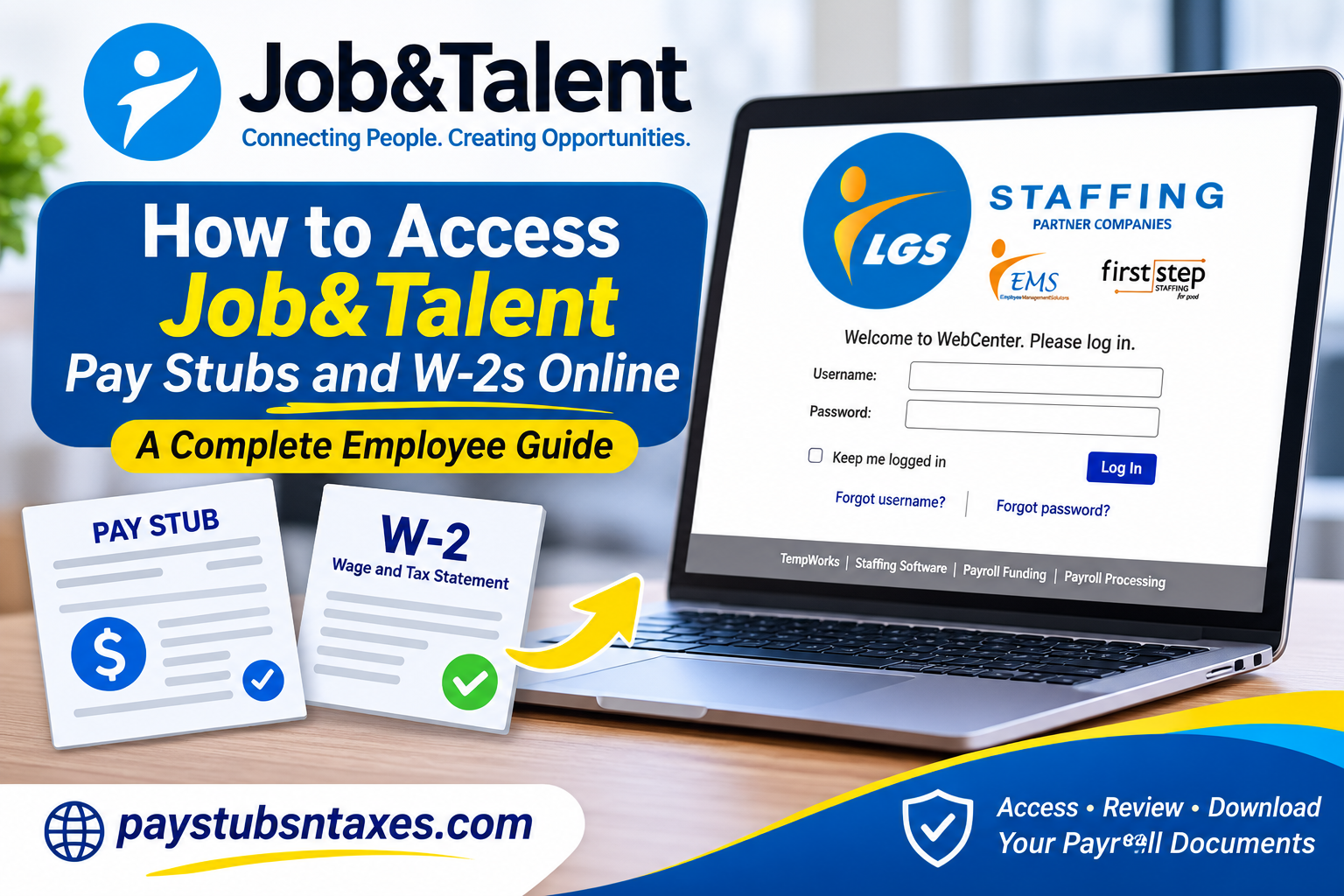
Job&Talent employees can access pay stubs, payment history, tax information, and eligible year-end W-2 statements online through the WebCenter employee portal. Workers with an active contract may also be able to view payslips directly in the Job&Talent app. These self-service options place essential employment records at your fingertips, sparing you the inconvenience of waiting for paper copies or contacting support whenever you need proof of income. Whether you are preparing a tax return, checking payroll deductions, applying for a loan, or simply keeping your financial records in order, the following instructions will help you find and download the documents you need.
About Job&Talent
Job&Talent is a global, AI-native workforce management platform specializing in connecting businesses with frontline workers while providing technology-driven solutions that streamline the entire employment lifecycle.
Headquartered in Madrid, Spain, the company operates across 10 countries throughout Europe, the United States, and Latin America. Its workforce management platform supports various employment-related functions, including recruitment, workforce planning, attendance monitoring, performance management, and operational cost optimization.
Through its technology-enabled staffing services, Job&Talent helps prominent international organizations, including DHL, GXO, Unilever, and UPS, recruit and manage their frontline workforces.
Beyond connecting individuals with employment opportunities, Job&Talent emphasizes improving the employee experience by providing accessible digital tools for managing work assignments, employment documentation, and payment information.
For eligible U.S. workers, one particularly valuable resource is WebCenter, a payroll and employee self-service platform powered by TempWorks.
What Is the Job&Talent WebCenter?
WebCenter is an online employee portal that gives Job&Talent workers centralized access to important employment and payroll information. Depending on your account and assignment, the portal may allow you to:
- Review current and previous assignments
- Submit timecards for payment
- Check your employment history
- View processed payments
- Examine taxes, adjustments, and accruals
- Download printable pay stubs
- Access available W-2 and W-2c forms
The WebCenter home page also provides a quick overview of your current positions with Job&Talent, together with payroll information, messages, and links to other useful areas of the portal.
How to Log In to the Job&Talent WebCenter Employee Portal
Before accessing your electronic pay statements or year-end tax documents, you must successfully sign in to your designated WebCenter account.
For workers assigned to the LGS Staffing WebCenter system, the following procedure applies.
Step 1: Visit the WebCenter Login Page
Open your preferred internet browser, such as Google Chrome, Microsoft Edge, Mozilla Firefox, or Safari.
Navigate to the following employee login address:
Job&Talent WebCenter Login: https://webcenter.ontempworks.com/lgs/Account/LogIn
Once the page loads, you should see the WebCenter login interface featuring the LGS Staffing branding and its associated partner companies.
The login page displays the message: “Welcome to WebCenter. Please log in.”
Beneath this message, you will find fields for entering your username and password.
Step 2: Enter Your WebCenter Username
Locate the Username field and enter the username assigned to you during the employee onboarding process.
Your username is typically supplied through your staffing representative or account activation communication.
If you have never received your login credentials, contact your Job&Talent staffing representative or the payroll administrator responsible for your assignment.
Step 3: Enter Your Password
Type your password into the corresponding Password field.
Make sure you enter the correct characters, paying particular attention to capitalization and any special characters.
Because passwords are generally case-sensitive, even a minor typing error may prevent you from accessing your account.
Step 4: Click the Log In Button
After entering your credentials, select the blue Log In button.
If your username and password are valid, WebCenter will redirect you to your employee dashboard.
Step 5: Explore Your Employee Dashboard
Upon successfully signing in, you will be presented with your WebCenter home screen.
Depending on your account configuration, this dashboard may display:
- Current employment assignments and related information.
- Recent payroll activity and payment history.
- Timecard information and submission options.
- Important messages and company announcements.
- Employee information and tax document management tools.
- Links to additional WebCenter services.
From this dashboard, you can navigate to the relevant section to retrieve your pay stubs or W-2 statements.
Helpful Tip: Bookmark the WebCenter login page in your browser so that you can return to it whenever you need to review your employment records.
How to View and Download Job&Talent Pay Stubs
WebCenter maintains a history of payments processed by Job&Talent. Each payment record may include a breakdown of gross earnings, taxes, deductions, adjustments, accruals, and net pay.
Follow these steps to access a pay stub:
- Sign in to the Job&Talent WebCenter.
- From the home page, select Pay History in the top menu bar.
- Find the payment you want to review.
- Select the relevant Pay Date.
- Review the available paycheck details and corresponding breakdowns.
- Select View Printable Version in the check preview area.
- When the pay stub opens, use the available download or print option to save a copy as a PDF or print it.
The precise appearance of the page may vary by device or portal version, but the process follows the same broad path: open Pay History, choose a pay date, and select the printable version.
Accessing payslips through the Job&Talent app
If you are currently working with Job&Talent and have an active contract, you may also be able to download payslips through the Job&Talent mobile app.
Open the app and go to: Account > Payslips
From there, you can review available payslips, including documents associated with previous contracts when those records remain linked to your account.
If the Payslips option does not appear, check that you are signed in with the correct account and that your contract is active. Availability may depend on your employment arrangement and location, so contact a Job&Talent representative if the section remains unavailable.
How to Access Job&Talent W-2 Forms Online
A W-2 reports the wages paid to you during a calendar year and the taxes withheld from those earnings. Employers generally provide this form to eligible US employees for tax-filing purposes.
To find an available W-2 in WebCenter:
- Log in to the Job&Talent WebCenter.
- Locate and select Manage W-2s.
- Review the list of available W-2 or corrected W-2c forms.
- Select the appropriate tax year.
- If you have already consented to electronic delivery, the form should download as a PDF.
Your account may also display year-to-date payroll information, including gross pay, net pay, and tax details derived from your withholding elections. Remember that year-to-date figures are useful for reference, but they are not a substitute for the official W-2 required for tax filing.
How to Opt In to Electronic W-2 Delivery
If selecting a tax year does not allow you to download the form, you may need to consent to electronic delivery first.
To change your W-2 delivery preference:
- Open Manage W-2s in WebCenter.
- Select Change W-2 Options.
- Choose Click here to receive your W-2s electronically.
- Confirm the selection if prompted.
- Return to Manage W-2s.
- Select the desired tax year to download the W-2 as a PDF.
Read any electronic-delivery disclosure displayed on the screen before consenting. Your choice may determine whether future W-2 forms are provided electronically instead of being mailed.
Final Thoughts
Accessing Job&Talent pay stubs and W-2 forms online is generally straightforward once your WebCenter account is active. Sign in through the official portal, use Pay History for paycheck records, and open Manage W-2s for year-end tax documents. If you have an active contract, the Job&Talent app may provide an additional route through Account > Payslips.
Should a document be missing, a login fail, or a payroll figure appear inaccurate, reach out to a Job&Talent representative. A timely enquiry can prevent a minor administrative snag from becoming a larger problem—particularly when a tax deadline or income-verification request is looming.
Frequently Asked Questions
1. Where can I access my Job&Talent pay stubs?
Log in to Job&Talent WebCenter and select Pay History from the top menu. Choose the relevant pay date to review the payment and open its printable version.
2. What is the Job&Talent WebCenter login URL?
The login page is https://webcenter.ontempworks.com/lgs/Account/LogIn. For security, bookmark the official page rather than relying on links from unfamiliar emails or websites.
3. How do I download a Job&Talent pay stub?
Open Pay History, select the desired pay date, and click View Printable Version. When the pay stub opens, use the available download option to save it as a PDF.
4. How do I print my Job&Talent pay stub?
Select a payment from Pay History, open View Printable Version, and use your browser’s print function. Print sensitive payroll records only from a private, trusted computer.
5. Can I view Job&Talent payslips in the mobile app?
If you have an active contract, open the Job&Talent app and navigate to Account > Payslips. The available records may include payslips from current and previous contracts.
6. How do I access my Job&Talent W-2 online?
Sign in to WebCenter and select Manage W-2s. Choose the required tax year, and the available W-2 should download as a PDF if you have consented to electronic delivery.
7. How do I opt in to electronic W-2 delivery?
Under Manage W-2s, select Change W-2 Options, followed by Click here to receive your W-2s electronically. You can then return to the W-2 page and select the year you wish to download.
8. What should I do if I forget my WebCenter username?
Select Forgot username? on the WebCenter login page and follow the recovery instructions. If you cannot retrieve it, contact a Job&Talent representative for assistance.
9. What should I do if I forget my WebCenter password?
Click Forgot password? on the login screen and complete the password-reset process. Make sure you can access the email address associated with your employee account.
10. Why can’t I see my W-2 in WebCenter?
Your W-2 may not yet have been issued, or electronic delivery may not be enabled. Check Change W-2 Options first; if the form remains unavailable, contact a Job&Talent representative.
11. Why can’t I see the Pay History tab?
Confirm that you are using the correct employee account and that a payment has been processed. Newly issued payroll records may take time to appear, so contact Job&Talent if the tab or payment remains missing.
12. Can I access pay stubs from a previous Job&Talent contract?
Previous pay records may remain available when the former contract is linked to your existing account. Check both Pay History in WebCenter and Account > Payslips in the Job&Talent app.
13. What information appears on a Job&Talent pay stub?
A pay stub may display gross earnings, taxes, deductions, adjustments, accruals, and net pay. Review each section carefully and report any apparent discrepancy promptly.
14. What is the difference between a W-2 and a W-2c?
A W-2 reports annual wages and tax withholdings, whereas a W-2c corrects information reported on an earlier W-2. Available forms may appear together under Manage W-2s.
15. Who should I contact if my pay stub or W-2 is missing or incorrect?
Contact a Job&Talent representative for assistance. Mention the relevant pay date or tax year, but do not send confidential information through an unsecured communication channel.
