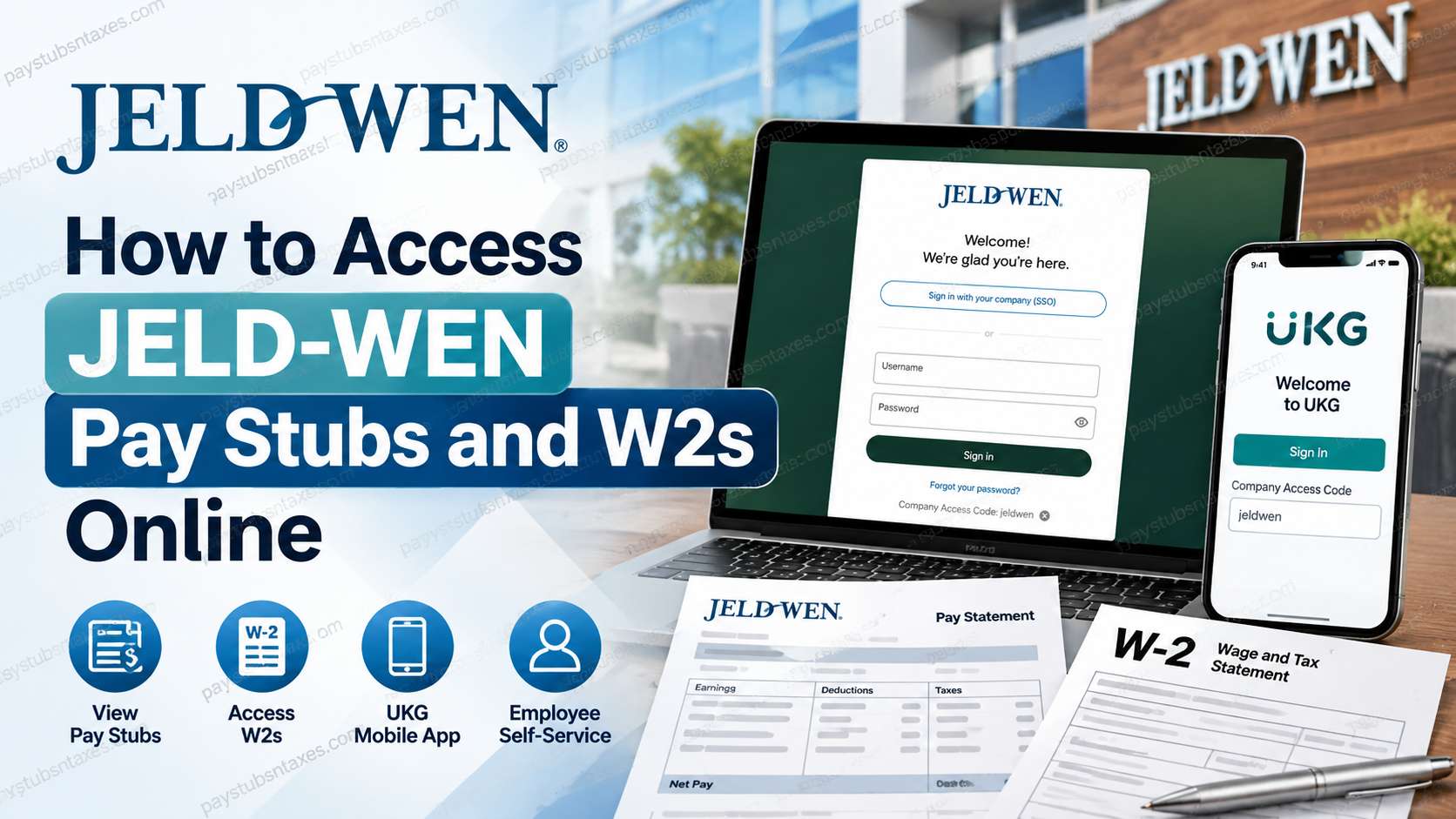
JELD-WEN employees can access pay stubs, annual W-2 statements, tax withholding information, direct-deposit details, benefits, and other payroll records through the UKG Employee Self-Service portal. Whether you prefer to use a computer or a mobile device, the system provides convenient, on-demand access to essential employment information. This guide explains how to sign in to the JELD-WEN UKG portal, view current and historical pay statements, download or print W-2 forms, and obtain assistance if you encounter a problem.
About JELD-WEN
Headquartered in Charlotte, North Carolina, JELD-WEN is a leading global designer, manufacturer, and distributor of high-performance interior and exterior doors, windows, and related building products. The company serves both the new-construction market and the repair and remodeling sector.
Since 1960, JELD-WEN has focused on manufacturing reliable products that help create safe, functional, and sustainable environments. Its family of brands includes JELD-WEN® worldwide, LaCantina™ and VPI™ in North America, and Swedoor® and DANA® in Europe.
What Is the JELD-WEN UKG Employee Portal?
UKG is JELD-WEN’s web-based platform for payroll, benefits, and human-resources services. Far more than a repository for payslips, it acts as a central hub through which employees can review and, where permitted, update personal and employment information.
Depending on the features available to you, the portal may allow you to manage:
- Current and historical pay statements
- W-2 forms and tax-withholding information
- Direct-deposit instructions
- Benefits and payroll deductions
- Home address and telephone number
- Personal email address
- Emergency and beneficiary contacts
- Other employee records
Make a habit of reviewing your UKG account periodically. Keeping an eye on your pay, deductions, benefits, tax elections, and contact details can help you catch inaccuracies before a minor oversight becomes a larger headache.
How to Log In to the JELD-WEN UKG Portal
To access UKG from a computer, visit:
JELD-WEN UKG login: https://jeldwen.ukg.net
On the sign-in page, you may log in using your username and password or select “Sign in with your company (SSO)” if single sign-on is available to you.
Newly hired employees should receive their initial login credentials from the payroll office. When signing in for the first time, you may be prompted to change the temporary password and complete additional identity-verification or security steps.
Because payroll documents contain sensitive personal information, use a private, trusted device whenever possible—particularly if you intend to download or print a pay statement or tax document. Avoid saving payroll records on a shared or public computer.
How to Access JELD-WEN Pay Stubs Online
UKG allows employees to review both their latest paycheck information and previously issued pay statements.
View Your Current Pay Statement
- Sign in at https://jeldwen.ukg.net.
- Open the three-line Menu in the upper-left corner.
- Navigate to My Pay. In some UKG layouts, the route may appear as My Info > My Pay.
- Select Current Pay Statement or Pay History, depending on the options displayed.
- Choose the relevant pay statement to open its detailed preview.
The pay statement generally includes gross earnings, taxes, benefit deductions, other withholdings, direct-deposit information, and net pay.
View Previous Pay Stubs
To find an older statement:
- Open Menu.
- Select My Pay or My Info > My Pay.
- Choose Pay History.
- Select the Historical tab if it is displayed.
- Enter the appropriate dates in the From and To fields.
- Open the pay statement associated with the required pay period.
Pay stubs processed through the applicable UKG payroll system should appear in the available history.
How to Download or Print a JELD-WEN Pay Stub
Once the selected pay statement appears:
- Open the Pay Statement link or statement preview.
- Select Download PDF to save an electronic copy.
- Follow the browser’s instructions and choose a secure folder on your device.
- To obtain a paper copy, select Print from the preview window.
- Choose your printer and confirm the print settings.
If your browser does not show a dedicated download option, select the printer icon and choose Save as PDF from the list of printer destinations.
After downloading the document, confirm that it opens correctly and contains the intended pay period. Store it in a secure, password-protected location, as a pay stub may contain confidential payroll and identification information.
How to Access JELD-WEN W-2 Forms Online
Employees can retrieve available W-2 statements through the UKG portal without waiting for a paper copy to arrive by mail.
To view a W-2:
- Log in to the JELD-WEN UKG portal.
- Select the W-2 icon on the home page, if available.
- Alternatively, open Menu and navigate to My Pay > Forms > W-2. Some layouts may display My Info > My Pay > Forms > W-2.
- Review the list of available tax years.
- Select the year you wish to view.
- Open the W-2 form.
If the screen displays “No data to display,” a W-2 may not yet have been issued for that year, or it may not be available under the account currently in use.
How to Download a JELD-WEN W-2 as a PDF
After opening the required W-2:
- Select the Print or printer icon at the top of the page.
- Wait for the print-preview window to open.
- Select Print in the preview window.
- Under the printer or destination options, choose Save as PDF.
- Select a secure location and save the file.
Use a clear filename that identifies the tax year without exposing unnecessary personal information—for example, JELD-WEN-W2-2026.pdf.
How to Print a JELD-WEN W-2
To produce a paper copy:
- Open the appropriate W-2 in UKG.
- Select the printer icon.
- Choose Print from the preview window.
- Select your printer from the available destinations.
- Check the page orientation, paper size, and number of copies.
- Select Print.
Retrieve the document immediately and keep it somewhere secure. Tax forms should never be left unattended near a shared printer.
Electronic Consent for the 2026 W-2
JELD-WEN employees must provide electronic consent within UKG to receive their 2026 W-2 electronically. Completing this step ensures that the statement can be accessed online once it becomes available and helps preserve ongoing access to W-2 forms prepared through UKG.
After signing in, check the W-2, tax-forms, or electronic-delivery area for the consent option. Read the disclosure carefully, submit your election, and verify that the system records it successfully.
Do not leave this until the eleventh hour. Completing the consent process early can help prevent avoidable delays during tax season.
Accessing UKG from a Mobile Device
Employees may also use the UKG mobile app to view payroll information.
When configuring the app, use the following company access code:
Company Access Code: jeldwen
Once signed in:
- Tap the three-line menu in the upper-left corner.
- Select My Pay or My Info > My Pay.
- Choose Pay History to view pay statements.
- For tax documents, select Forms > W-2.
- Choose the available statement or tax year you need.
The precise wording and arrangement of menu items may differ according to the app version, device, and features enabled for your account. Nevertheless, the payroll options should generally be located within the My Pay section.
Do not confuse the payroll application with JW Connect. JW Connect is an employee communications platform for company news and organizational updates, whereas UKG is the system used for payroll, W-2s, benefits, and Employee Self-Service functions.
JELD-WEN Payroll and Benefits Support
For questions concerning a paycheck stub, W-2 statement, or health benefits, contact the JELD-WEN Service Desk:
Service Desk: 844-866-3007
HR portal: https://hr.jeldwen.com
When requesting assistance, have your employee information and the relevant pay date or tax year at hand. However, do not send passwords, authentication codes, or complete Social Security numbers by ordinary email.
Final Thoughts
The JELD-WEN UKG portal places payroll records, W-2 statements, benefits information, and essential employee details within easy reach. By checking the portal regularly, maintaining accurate personal information, and completing the required electronic consent for the 2026 W-2, employees can keep their payroll affairs in good order and retrieve important records whenever the need arises.
Frequently Asked Questions
1. Where can JELD-WEN employees access their pay stubs?
Employees can view their pay stubs through the JELD-WEN UKG portal at https://jeldwen.ukg.net. After signing in, open Menu > My Pay > Pay History.
2. How do I access my JELD-WEN W-2 online?
Log in to UKG and select the W-2 icon on the home page. Alternatively, navigate to My Pay > Forms > W-2, and then select the required tax year.
3. What is the official JELD-WEN UKG login URL?
The official JELD-WEN UKG employee login page is https://jeldwen.ukg.net.
4. What is the JELD-WEN company access code for the UKG mobile app?
The JELD-WEN company access code is jeldwen. Enter it when configuring the UKG mobile app for employee access.
5. How can I view an older JELD-WEN pay stub?
Open Pay History and select the Historical option. Enter the appropriate dates in the From and To fields to find an earlier pay statement.
6. How do I download a JELD-WEN pay stub?
Select the required statement from Pay History, open the pay-statement preview, and choose Download PDF. Follow your browser’s prompts to save the document securely.
7. How can I print my JELD-WEN pay statement?
Open the statement preview and select Print. Choose your printer, review the print settings, and confirm the request.
8. How do I save my JELD-WEN W-2 as a PDF?
Open the W-2, select the printer icon, and click Print. Under the printer or destination options, choose Save as PDF, select a secure folder, and save the file.
9. Can I access JELD-WEN payroll records from my phone?
Yes. Employees can use the UKG mobile app to view available pay statements and W-2 forms. Use jeldwen as the company access code.
10. Can I sign in to JELD-WEN UKG using SSO?
Yes, if single sign-on is enabled for your account. Select Sign in with your company (SSO) on the JELD-WEN UKG login page.
11. What should a newly hired JELD-WEN employee use to log in?
New employees should receive their initial UKG login credentials from the payroll office. UKG may require them to change the temporary password during their first sign-in.
12. Why is my W-2 not appearing in UKG?
The W-2 may not yet have been issued, or electronic delivery may not be active. Confirm your electronic-consent status and contact the Service Desk if the form should already be available.
13. Do JELD-WEN employees need electronic consent for the 2026 W-2?
Yes. Employees must provide electronic consent within UKG to receive their 2026 W-2 electronically and access it online once it becomes available.
14. What information can employees manage through JELD-WEN UKG?
Depending on account permissions, employees may review or update payroll records, tax information, direct deposit, benefits, deductions, contact details, and emergency or beneficiary information.
15. Who should I contact about a JELD-WEN pay stub or W-2 problem?
Contact the JELD-WEN Service Desk at 844-866-3007 or visit https://hr.jeldwen.com for assistance with pay statements, W-2 forms, or health-benefit questions.
