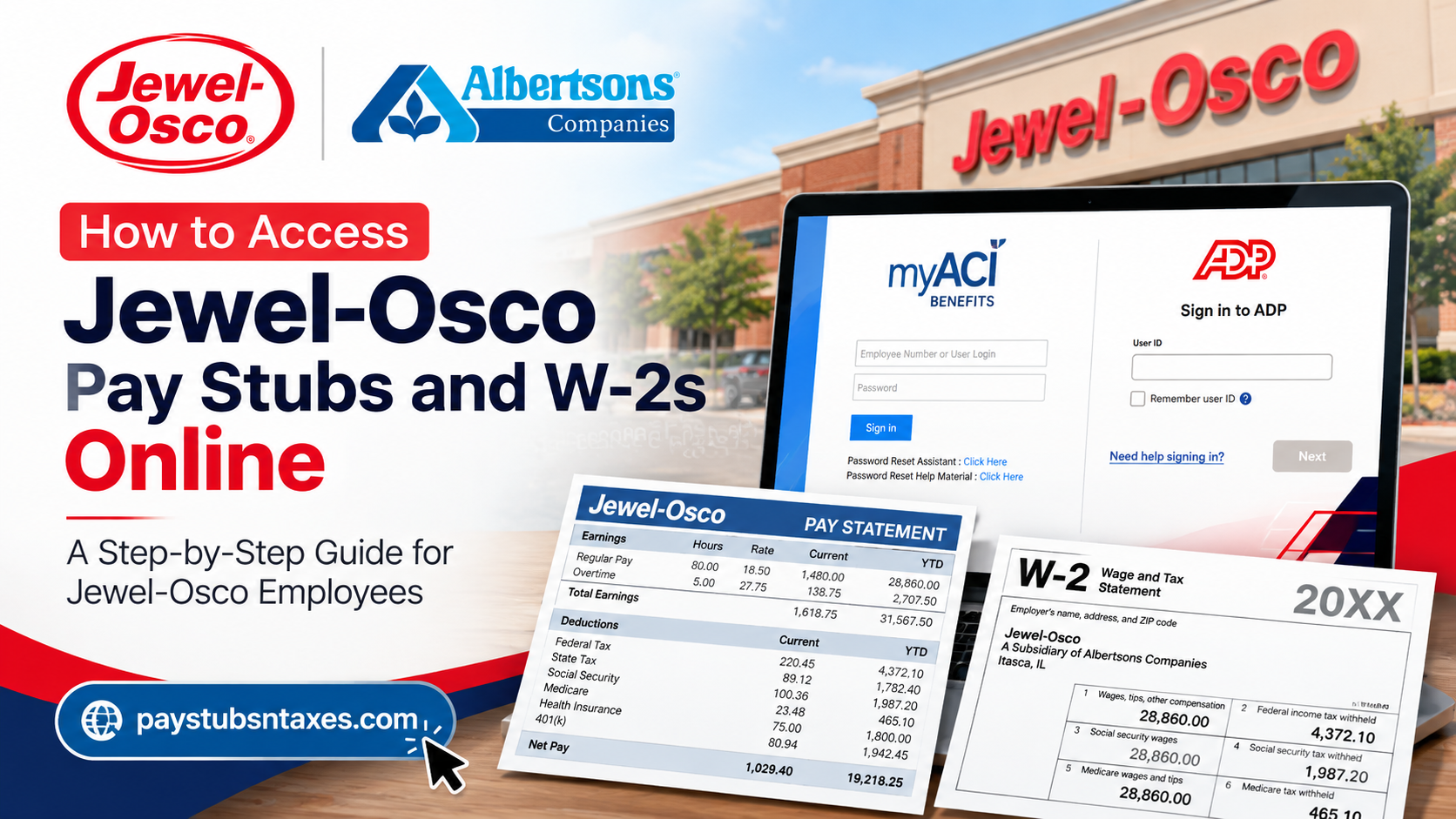
For generations, Jewel-Osco has been a familiar presence across the Chicagoland area and neighboring communities. What began in 1899 as a door-to-door coffee delivery service ultimately developed into a major regional supermarket chain and, today, operates as part of Albertsons Companies. Current Jewel-Osco associates can manage much of their employment information online. Pay stubs are generally available through myACI, Albertsons Companies’ human resources platform, while W-2 tax statements are accessed through ADP. Although the two systems serve different purposes, both allow employees to view, download, and print important payroll records from a private computer or compatible mobile device. This guide explains how to access Jewel-Osco pay stubs and W-2 forms online, register as a first-time user, and obtain assistance when login problems arise.
Jewel-Osco Employee Payroll Portals at a Glance
Jewel-Osco associates use two principal online services for payroll documents:
- myACI: Used to access pay statements, personal and employment information, compensation details, benefits, absence balances, training resources, and other HR services.
- ADP: Used to access W-2 forms and other available tax statements.
For the sake of privacy, employees who need to download or print payroll documents should use a trusted personal device whenever possible. Pay statements and tax forms contain confidential financial and identifying information, so public or shared computers are best avoided.
How to Access Jewel-Osco Pay Stubs Through myACI
Active Jewel-Osco employees can view their pay statements through the myACI employee portal.
Step 1: Visit the myACI Login Page
Open a secure web browser and go to:
If you are using a company or store computer, open a new InPrivate or private browsing window before signing in.
Step 2: Enter Your Employee Credentials
The username you enter depends on your role:
- Retail associates: Enter your Employee ID.
- Corporate, pharmacy, backstage, and supply-chain associates: Enter your LDAP username.
Enter your password and select Sign In. If the portal directs you through the Albertsons organizational sign-in page, follow the on-screen prompts to complete authentication.
When accessing myACI from outside the company network, you may also need to complete multi-factor authentication (MFA). The second verification step may involve a numeric code delivered by text message, a phone call, or the Microsoft Authenticator app.
Step 3: Open the MyHR Section
After signing in successfully, you should arrive at the Me page. From there:
- Select the MyHR tab.
- Locate the payroll-related tiles or menu options.
- Select My Pay Statements.
Step 4: Choose the Required Pay Date
Your available pay statements should appear by pay date. Select the statement you wish to review.
Open the PDF version if you would like to:
- Review your earnings and deductions;
- Save a digital copy;
- Download the statement; or
- Print it for your personal records.
Always sign out when you have finished, particularly if you are using a device that other people can access.
How to Log In to myACI for the First Time
Newly hired Jewel-Osco associates may need to activate their accounts and replace their temporary passwords before gaining full access to myACI.
Step 1: Open myACI
Visit https://myaci.albertsons.com/. On a store computer, use a new InPrivate browser window.
Step 2: Select Company Single Sign-On
On the Oracle Application Cloud sign-in screen, select Company Single Sign-On.
Step 3: Enter Your Organizational Username
Depending on your position, enter the appropriate username:
- Corporate, pharmacy, backstage, and supply-chain associates generally use their LDAP credentials.
- Retail associates generally use their Employee ID.
During the first-time organizational sign-in process, the system may require the username in an email-style format, such as your LDAP or Employee ID followed by @safeway.com. Follow the format displayed on the sign-in screen.
Step 4: Enter Your Temporary Password
New associates who have not received a separate password may be assigned a temporary password assembled from:
- The first letter of the first name in uppercase;
- The first letter of the last name in uppercase;
- The two-digit birth month;
- The two-digit day of birth;
- The first three digits of the Social Security number; and
- The @ symbol.
For example, an employee named Robert H., born on June 1, whose Social Security number begins with 222, would use: RH0601222@.
This example is illustrative only. Never disclose your password, date of birth, Social Security number, MFA code, or other authentication details to anyone.
Step 5: Create a New Password
An Expired Password notification may appear after the initial login. Select OK, create a new password, confirm it, and choose Change.
Use a strong, unique password that you do not use for personal email, banking, or other websites.
Step 6: Set Up Security Questions
Complete the security-question form and select Save. These questions may be used to verify your identity if you need to reset your password later.
Step 7: Sign In Again
Repeat the login process using your newly created password. Once authentication is complete, myACI should open normally.
How to Access a Jewel-Osco W-2 Through ADP
Jewel-Osco W-2 statements are available through ADP rather than the myACI pay-statement area. To begin, visit: https://my.adp.com/
Employees who already have an ADP account can sign in with their existing User ID and password. First-time users must complete the registration process before viewing their tax documents.
ADP Self-Registration for First-Time Users
If you have never used ADP for Jewel-Osco or Albertsons Companies payroll records, follow these steps:
- Go to https://my.adp.com/.
- Select New User? Get Started.
- Choose I Have a Registration Code.
- Enter the Jewel-Osco registration code: Safeway-reg1.
- Follow the prompts to verify your identity.
- Enter your contact information.
- Create the requested security information.
- Make a note of the system-generated User ID.
- Create your ADP password.
Your ADP password must contain between 8 and 20 characters, including at least one letter and one number. For stronger protection, use a longer password containing a mixture of uppercase and lowercase letters, numbers, and permitted symbols.
Complete the process only through the official ADP website. If a page requests unexpected information or appears suspicious, close it and return to my.adp.com by entering the address directly into your browser.
How to View and Download a Jewel-Osco W-2
After signing in to ADP:
- Open the Myself tab.
- Locate the Pay option in the menu.
- Select Pay & Tax Statements.
- Choose Tax Statements.
- Use the year selector to locate the required tax year.
- Select the appropriate document.
- Click View Statement.
- Complete any identity-verification prompt that appears.
Once your identity has been verified, the W-2 should open in the same window or in a separate pop-up. You can then download the document as a PDF or print a copy for your records.
If nothing happens after you select View Statement, check whether your browser has blocked a pop-up. Allow pop-ups for the official ADP website, then try again.
Accessing a W-2 From the ADP Mobile App
Employees who prefer to use a smartphone or tablet can retrieve tax statements through the ADP Mobile Solutions app.
- Open the official ADP mobile application.
- Sign in with your ADP User ID and password.
- Select Pay from the main dashboard. Alternatively, open the menu, select Myself, and then choose Pay.
- Scroll to Tax Statements.
- Select the required year.
- Choose View Statement.
- Complete the identity-verification prompt.
- Download or print the document using the options available on your device.
The most recent tax year normally appears first. Other available tax documents may also be displayed within the Tax Statements section.
Important Jewel-Osco Payroll Contact Information
| Service | Contact Details |
| Company | Jewel-Osco |
| Parent Company | Albertsons Companies |
| Employee Self-Service Portal | https://myaci.albertsons.com |
| W-2 Access Portal | https://my.adp.com |
| ADP Registration Code | Safeway-reg1 |
| Pay Stub Access | myACI — MyHR — My Pay Statements |
| W-2 Access | ADP — Pay & Tax Statements |
| Employee Service Desk | 877-286-3200 |
| Official Jewel-Osco Website | https://www.jewelosco.com |
Final Thoughts
Accessing Jewel-Osco payroll documents is straightforward once you know which system holds each record: use myACI for pay stubs and ADP for W-2 tax statements. Keep your login credentials secure, complete MFA when required, and download sensitive documents only on a trusted device. If the process reaches a stumbling block, the Jewel-Osco Service Desk can be contacted at 877-286-3200 for assistance with account access, pay statements, and W-2-related questions.
Frequently Asked Questions
1. How do I access my Jewel-Osco pay stubs online?
Visit myaci.albertsons.com and sign in with your employee credentials. Open the MyHR tab, select My Pay Statements, and choose the pay date you want to review.
2. Where can I find my Jewel-Osco W-2?
Jewel-Osco W-2 forms are available through ADP. Sign in at my.adp.com, then go to Myself > Pay > Pay & Tax Statements > Tax Statements.
3. What is the Jewel-Osco ADP registration code?
The Jewel-Osco ADP registration code is Safeway-reg1. First-time users can enter this code after selecting New User? Get Started and I Have a Registration Code.
4. What is myACI?
myACI is Albertsons Companies’ online human resources platform. Jewel-Osco employees can use it to access pay statements, compensation information, benefits, absence balances, training resources, and other employment services.
5. What is the official Jewel-Osco myACI login website?
The official myACI login website is https://myaci.albertsons.com/. Employees should enter the address directly into their browser and avoid unofficial login pages.
6. Which username should I use to sign in to myACI?
Retail associates generally use their Employee ID. Corporate, pharmacy, backstage, and supply-chain associates generally use their LDAP username.
7. How do new Jewel-Osco employees log in to myACI?
New employees should visit myACI, select Company Single Sign-On, and enter their organizational username and temporary password. They may then be asked to create a new password, set up security questions, and sign in again.
8. Does myACI require multi-factor authentication?
Yes. Employees accessing myACI from outside the company network may be required to complete multi-factor authentication through a text message, phone call, or the Microsoft Authenticator app.
9. How do I download a Jewel-Osco pay stub?
Open My Pay Statements in myACI, select the required pay date, and open the PDF version. You can then download the statement or print it for your records.
10. How do I download my Jewel-Osco W-2 from ADP?
Sign in to ADP and open Tax Statements under the Pay & Tax Statements section. Select the appropriate year, choose View Statement, complete identity verification, and download the W-2 PDF.
11. Can I access my Jewel-Osco W-2 on a mobile phone?
Yes. Sign in through the official ADP mobile app, select Pay, scroll to Tax Statements, choose the required year, and select View Statement.
12. Why does my W-2 not open in ADP?
Your browser may be blocking the statement’s pop-up window. Allow pop-ups for the official ADP website, reload the page, and select View Statement again.
13. Can I print my Jewel-Osco pay stub or W-2 at home?
Yes. You can download and print pay stubs from myACI and W-2 statements from ADP. For security, use a trusted personal computer rather than a public or shared device.
14. What should I do if I forget my myACI or ADP password?
Use the password-reset option displayed on the relevant sign-in page. Avoid repeatedly entering an incorrect password, as several unsuccessful attempts may temporarily lock your account.
15. Who should I contact about a missing pay stub, W-2, or login problem?
Contact the Jewel-Osco Service Desk at 877-286-3200 for assistance with myACI access, temporary passwords, pay statements, or W-2-related questions.
