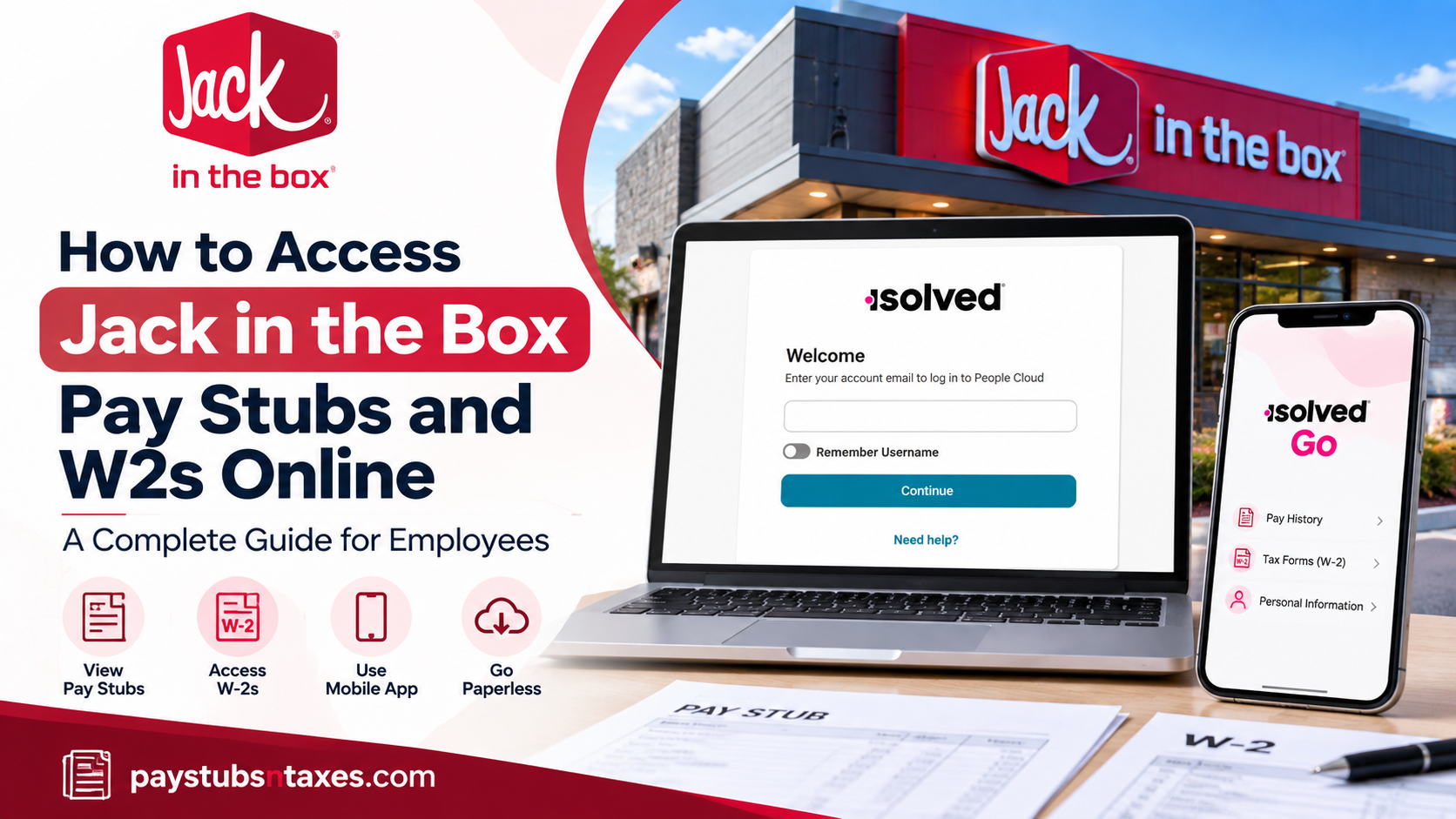
Jack in the Box employees can access their pay stubs, payroll history, W-2s, and other tax documents online through the iSolved Employee Self Service portal. Eligible employees may also use the iSolved Go mobile app, making it considerably easier to retrieve payroll information without being tied to a desktop computer. Once an employee account has been activated, iSolved provides a central location for reviewing earnings, deductions, taxes, hours worked, net pay, and previous paycheck records. Employees who consent to electronic tax-form delivery can also receive their W-2 online rather than waiting for a paper copy to arrive by mail.
About Jack in the Box
Jack in the Box, Inc. is an American fast-food restaurant chain founded in 1951 by Robert O. Peterson in San Diego, California, where the company is headquartered. As of 2025, the chain had approximately 2,712 locations, serving numerous markets across the United States as well as locations in Mexico and Guam.
Since its beginnings, Jack in the Box has distinguished itself through its drive-through-focused business model and varied menu, which includes hamburgers, chicken, sandwiches, salads, breakfast items, desserts, tacos, and other quick-service offerings.
For employees, payroll records that once required paperwork or assistance from a manager can now be accessed more conveniently through the iSolved employee platform.
Jack in the Box iSolved Login
Visit the official employee login page:
Jack in the Box iSolved Portal
Enter the email address associated with your employee account and select Continue. Then follow the on-screen instructions to enter your password and complete any identity-verification requirements.
Use a private, trusted device whenever possible. Avoid signing in from a public computer or unsecured Wi-Fi network, particularly when opening documents containing Social Security numbers, earnings, tax withholdings, or bank information.
How to Set Up a New iSolved Account
New employees generally receive an account-activation email containing a personalized registration link. Do not begin with the ordinary login page if your account has not yet been activated; instead, open the link in your invitation email.
Complete the registration process as follows:
- Open the account-activation link sent to your email address.
- Confirm that your username and client code have been entered automatically.
- Enter your authorization PIN, which is generally the last four digits of your Social Security number.
- Create and confirm your password.
- Select a security question and enter the answer twice.
- Add your mobile phone number if prompted. This enables text-message verification when you sign in from an unfamiliar device or internet address.
- Review and accept the applicable terms and conditions.
- Choose whether to receive tax forms electronically or by mail.
- Submit the registration form and follow any remaining verification prompts.
Never send your authorization PIN, password, complete Social Security number, or tax documents through ordinary email or text message.
iSolved Password Requirements
Your new password must contain at least 12 characters and include:
- One lowercase letter
- One uppercase letter
- One number
- One special character
Spaces may be permitted, making a memorable passphrase a practical alternative to a short, complicated password.
Under the current account instructions, passwords do not routinely expire. However, a new password cannot duplicate any of your previous 10 passwords. Because security settings can change, always follow the requirements displayed on the registration or password-reset screen.
How to View Jack in the Box Pay Stubs Online
After successfully signing in to iSolved, retrieving a pay statement is straightforward.
Step 1: Sign in to iSolved
Visit the Jack in the Box iSolved login page and sign in using the email address associated with your employee account and your password.
For iSolved Employee Self Service accounts, the employee email address commonly serves as the username.
Step 2: Open Employee Self Service
After authentication, enter the Employee Self Service area.
The available options normally appear in the navigation menu.
Step 3: Select Pay History
Click or tap Pay History.
Your Pay History contains the paycheck records available through iSolved. Depending on the payroll setup, the history may display information including:
Gross Pay, Total Hours, Net Pay, Check or Voucher Number, Check Amount, Description, and Payroll Run Number.
Step 4: Select the Paycheck You Need
Choose the appropriate year and paycheck date.
Opening an individual payroll record allows you to examine additional information such as earnings, deductions, taxes, leave accruals, and direct-deposit details where available.
Step 5: Download or Print Your Pay Stub
Select View/Print Pay Stub.
The pay stub should open or generate as a PDF, which can then be saved to your device or printed for your records.
This feature can be particularly useful when a pay statement is required for an apartment application, mortgage, loan, employment verification, immigration documentation, or personal financial recordkeeping.
How to Access Jack in the Box W-2 Forms
To retrieve a W-2 or another available tax document:
- Sign in to the iSolved Employee Self Service portal.
- Open the tax-form section, commonly labeled W-2/ACA/1099 History.
- Select the required tax year.
- Locate the appropriate document.
- Click View PDF.
- Download the form to a secure device or print a copy for your records.
Depending on the configuration of your employee account, the same section may contain Forms W-2, 1095-C or other ACA documents, and certain 1099 forms. Menu names and available documents may differ among company-operated and franchised restaurants.
How to Go Paperless for W-2 and 1095-C Forms
Employees may be able to choose electronic delivery through the account or user-preferences menu.
Look for an option such as Electronic Delivery–Tax Forms, review the disclosure carefully, and record your choice:
- Accepting electronic delivery means you consent to receive eligible tax documents through iSolved.
- Declining electronic delivery means eligible forms will generally be sent to the mailing address held in the payroll system.
Federal rules require an employee’s consent before an employer furnishes a W-2 exclusively through an electronic system. Employees who do not consent must be provided with a paper form. Electronic W-2s are subject to the same delivery deadline as paper forms, generally January 31 of the following year.
Keep your mailing address, email address, and telephone number up to date. An obsolete address can send an important tax document down the wrong path, while an inaccessible email account may prevent you from receiving payroll notifications.
Accessing Payroll Information Through iSolved Go
Employees with the appropriate self-service permissions may also use the iSolved Go mobile application.
To sign in:
- Open the iSolved Go app.
- Enter the email address used for your employee account.
- Enter your iSolved password.
- Select Login.
- Complete any verification request that appears.
The app may offer a Remember Me option. Use this feature only on a personally controlled phone protected by a PIN, password, fingerprint, or facial recognition. Saving payroll credentials on a shared device is a shortcut best left untaken.
Available mobile features depend on the permissions assigned to your account. If a tax form or pay statement does not appear in the app, try signing in through the full web portal.
What to Do if You Cannot Log In
If iSolved does not accept your credentials, first confirm that you are using the email address associated with your employee record. Check for typing errors and make sure Caps Lock is not affecting your password.
If you have forgotten your password, select Need help? or the available password-recovery option on the login page. Follow the prompts to verify your identity and create a new password.
Avoid repeatedly guessing your password, as several unsuccessful attempts may temporarily lock the account. If self-service recovery does not work, contact your store manager, payroll administrator, or HR representative.
For additional assistance, contact the HR service line at (858) 571-2121, extension 3. Be prepared to confirm your identity, but never disclose your complete Social Security number or password unless you are using an authorized, secure verification process.
Final Thoughts
Accessing Jack in the Box pay stubs and W-2s online is relatively uncomplicated once your iSolved Employee Self Service account has been activated. The Pay History section keeps previous paycheck information within easy reach, while the W-2/ACA/1099 area provides access to available year-end tax documents. Employees who prefer to dispense with paper altogether can opt for electronic tax-form delivery, while the iSolved Go app offers an additional route to payroll information from a mobile device. The key is to keep your email address, mobile number, mailing address, and login credentials current. Doing so can spare you a last-minute scramble when tax season arrives or when a pay stub is urgently required for financial or employment purposes.
Frequently Asked Questions
1. How do I access my Jack in the Box pay stubs online?
Sign in to the iSolved Employee Self Service portal, open Pay History, select the appropriate pay date, and click View/Print Pay Stub. Your pay stub will open as a downloadable and printable PDF.
2. What is the Jack in the Box employee login website?
Employees can visit the iSolved login portal. Enter the email address associated with your employee account and select Continue.
3. How do I find my Jack in the Box W-2 online?
Log in to iSolved and open W-2/ACA/1099 History. Select the relevant tax year, locate your W-2, and click View PDF to download or print it.
4. What is my iSolved username?
Your iSolved username is generally the email address registered in your employee record. If the system does not recognize it, contact your manager, payroll administrator, or HR representative.
5. How do I activate a new iSolved account?
Open the personalized activation link sent to your email address. Your username and client code should be pre-filled. Enter your authorization PIN, create a password, choose a security question, and complete the verification process.
6. What is the iSolved authorization PIN?
The authorization PIN is generally the last four digits of your Social Security number. Enter it only on the secure iSolved account-activation page.
7. What are the iSolved password requirements?
Your password must contain at least 12 characters, including one lowercase letter, one uppercase letter, one number, and one special character. Spaces may be permitted for memorable passphrases.
8. What information appears in iSolved Pay History?
Pay History may display gross pay, total hours, net pay, check amount, check or voucher number, payment description, payroll run number, and links to individual pay stubs.
9. Can I print my Jack in the Box pay stub?
Yes. Open the required record under Pay History and select View/Print Pay Stub. When the PDF opens, use your browser or PDF viewer to print it.
10. Can I receive my W-2 electronically?
Yes. Look for Electronic Delivery–Tax Forms in your account or user-preferences menu. Review the disclosure and accept electronic delivery if you want eligible tax forms provided through iSolved.
11. Will Jack in the Box mail my W-2?
Employees who do not consent to electronic delivery generally receive a paper W-2 at the mailing address recorded in the payroll system. Keep your address current to prevent delays or misdelivery.
12. When should I receive my W-2?
Employers generally must furnish W-2 forms by January 31 of the following year, subject to applicable weekend, holiday, and regulatory rules.
13. Can I access payroll records through the iSolved Go app?
Yes, provided your account has the necessary self-service permissions. Open iSolved Go, enter your registered email address and password, and complete any verification request.
14. What should I do if I forget my iSolved password?
Select Need help? or the available password-recovery option on the login page. Follow the identity-verification prompts to create a new password, and avoid repeated guesses that could lock your account.
15. Who should I contact for Jack in the Box payroll assistance?
Contact your store manager, payroll administrator, or HR representative. For additional assistance, call the HR service line at (858) 571-2121, extension 3. Never disclose your password or complete Social Security number through unsecured channels.
