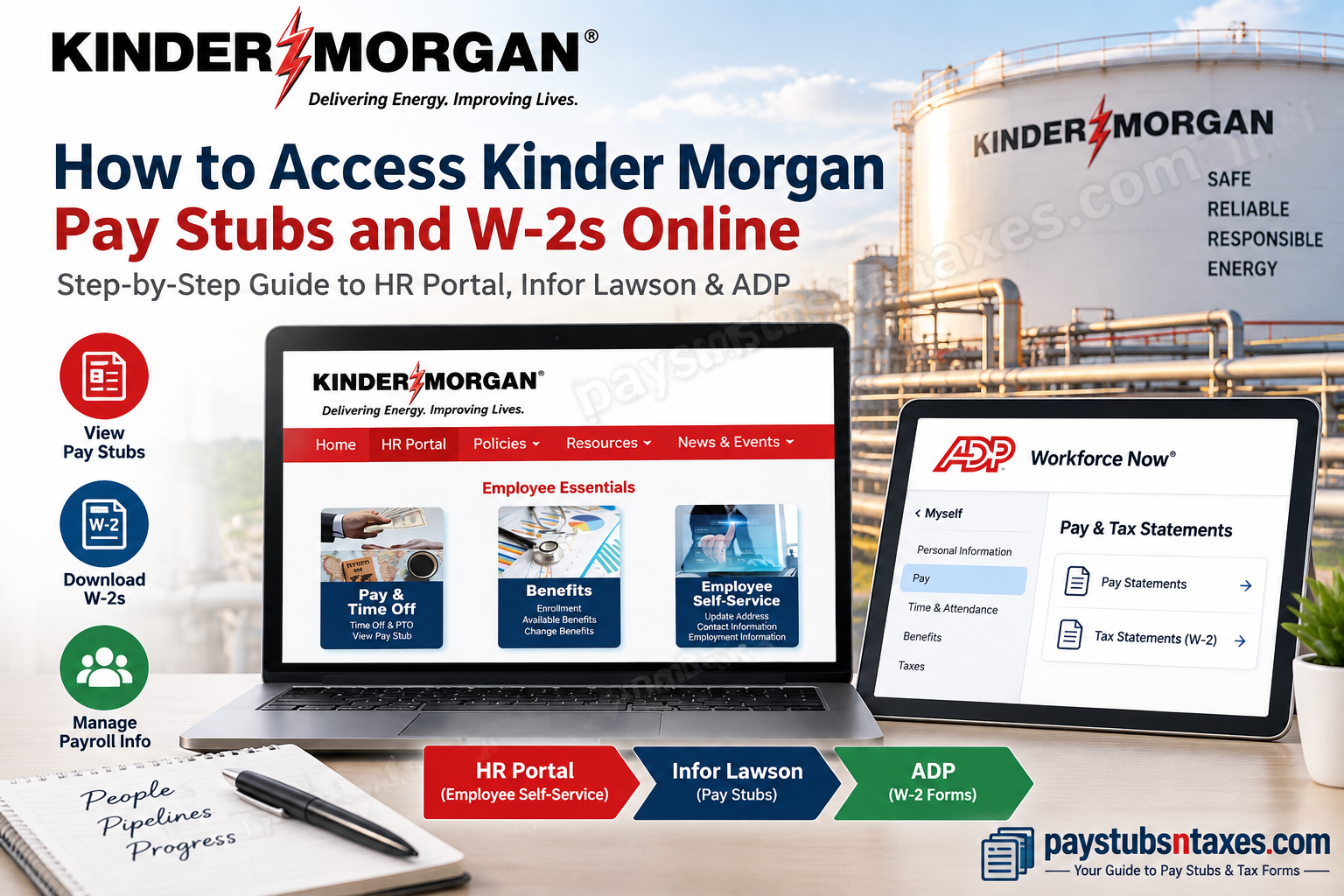
Kinder Morgan, Inc. is one of North America’s largest energy infrastructure companies, operating approximately 78,000 miles of pipelines, 136 terminals, more than 700 billion cubic feet of working natural gas storage capacity, and renewable natural gas facilities with approximately 6.9 billion cubic feet of annual gross production capacity. To support its workforce, Kinder Morgan provides employees with secure online access to essential payroll and employment records. Through the company’s HR Portal, Infor Lawson Employee Self-Service, and ADP, eligible employees can review pay information, print pay stubs, manage certain personal details, and retrieve year-end tax documents. This guide explains how to access Kinder Morgan pay stubs and W-2 forms online, troubleshoot common login problems, and obtain assistance when self-service options do not resolve the issue.
Kinder Morgan Pay Stub and W-2 Access at a Glance
| Payroll Document or Service | Where to Access It |
| Pay stubs/paychecks | HR Portal → Employee Essentials → Employee Self-Service |
| Payroll system | Infor Lawson |
| Previous paycheck details | Employee Self-Service → Pay → Pay Checks |
| Printable pay stub | Open a paycheck → Printable Pay Stub |
| W-2 forms | ADP |
| W-2 instructions | HR Portal → Employee Self-Service → Online W2 |
| Direct deposit | Employee Self-Service → Pay → Direct Deposit |
| Tax withholding | Employee Self-Service → Pay → Tax Withholding |
| Payroll assistance | Payroll@kindermorgan.com |
| Payroll fax | 713-369-8903 |
| KM Helpdesk | (877) 563-3375, Option 2 |
Kinder Morgan Employee Payroll Portals
Kinder Morgan uses separate systems for different payroll-related services:
- Kinder Morgan HR Portal: The central gateway for employee resources, including payroll, benefits, time-off information, personal details, and employment records.
- Infor Lawson Employee Self-Service: The system used to review paycheck history and open or print detailed pay stubs.
- ADP: The platform used to provide electronic W-2 forms and, where enabled, off-network access to pay statements.
Employees should ordinarily enter these services through the official Kinder Morgan HR Portal or another company-approved sign-in page. Avoid using links received through unsolicited emails or unfamiliar websites.
How to Access Kinder Morgan Pay Stubs Online
1. Open the Kinder Morgan HR Portal
Visit the official HR Portal through KMOnline or the company’s approved internal access point. If prompted, sign in using your Kinder Morgan network ID and password.
Because the portal contains confidential payroll and personal information, you may also be required to complete a multifactor authentication step.
2. Open Employee Essentials
From the HR Portal home page, locate Employee Essentials. Depending on the portal layout, payroll resources may appear under Employee Self-Service or Pay & Time Off.
Select Employee Self-Service to open the Infor Lawson environment.
3. Navigate to Pay Checks
Once Infor Lawson has opened, follow this menu path:
Bookmarks > Employee Self-Service > My Data > Pay > Pay Checks
The names or arrangement of individual menu items may vary slightly following a portal update, but the Pay Checks option should remain within the employee pay section.
4. Select a paycheck
The Pay Checks page displays a list of available paycheck dates. Use the scroll bar to locate an earlier payment if it is not immediately visible.
Select the relevant Pay Check date to review its details. The record may include gross earnings, taxes, benefit deductions, other withholdings, and net pay.
5. Print or save the pay stub
Inside the paycheck details, select Printable Pay Stub. The document should open in a separate pop-up window.
Select Print in the upper-right corner. If you would prefer to retain an electronic copy, choose your device’s Save as PDF option, where available, and save the file in a secure location.
If nothing happens after selecting Printable Pay Stub, your browser may be blocking the new window. Temporarily allow pop-ups for the authorized Kinder Morgan payroll site and try again.
Accessing Pay Information Through ADP
Some employees may also be able to view pay advice information through ADP, particularly when accessing payroll documents away from the Kinder Morgan network.
From the HR Portal, follow this general route:
Employee Essentials > Pay & Time Off > Employee Payroll Resources
Select the ADP instructions or payroll link displayed on the page. The precise options available can depend on an employee’s position, location, payroll group, and access permissions.
How to Access a Kinder Morgan W-2 Online
Kinder Morgan uses ADP to deliver electronic W-2 forms. Employees can generally reach the relevant instructions or link through the HR Portal, while returning users may also sign in directly at my.adp.com.
Option 1: Access ADP through the HR Portal
- Sign in to the Kinder Morgan HR Portal with your network credentials.
- Open Employee Essentials.
- Select Employee Self-Service.
- Choose Online W2.
In some versions of the portal, the ADP instructions may instead appear under:
Employee Essentials > Pay & Time Off > Employee Payroll Resources
Follow the displayed ADP link or instructions to continue to the tax-statement service.
Option 2: Sign in through MyADP
- Visit my.adp.com.
- Enter the user ID associated with your ADP account.
- Provide your password and complete any identity-verification request.
- Open the pay or tax-statements section.
- Select the required tax year.
- Open the W-2 document.
- Choose Download to save a copy or Print to produce a paper copy.
Menu labels may vary by account configuration. Look for an option such as Pay, Tax Statements, Pay & Tax Statements, or Annual Statements.
Registering for ADP Access
If you have not previously created an ADP account, select the registration or new-user option on the MyADP sign-in page.
When a registration code is not available, choose Find Me and follow the prompts to locate your employee record. You may need to supply personal and employment-related information so that ADP can confirm your identity.
Enter your information exactly as it appears in the payroll system. Differences involving a legal name, address, telephone number, or other identifying details may prevent ADP from locating the correct record.
Once your identity has been confirmed:
- Create your ADP user ID and password.
- Add current contact information.
- Complete the required security-verification steps.
- Sign in and open the tax-statements section.
When Are W-2 Forms Available?
Employers generally furnish W-2 forms after the end of the calendar year. Once Kinder Morgan releases the annual statements, eligible employees should be able to retrieve them through ADP.
If the expected W-2 is not visible, confirm that you have selected the correct tax year. If it remains unavailable, contact Payroll or your local HR office rather than creating a second ADP account, since duplicate registrations can muddy the waters and make account recovery more difficult.
Kinder Morgan Payroll Assistance
Employees who need help with pay stubs, W-2 forms, direct deposit, or payroll access may use the following support channels:
- Payroll email: Payroll@kindermorgan.com
- Payroll fax: 713-369-8903
- Kinder Morgan Help Desk: 877-563-3375, option 2
- Local assistance: Contact your local HR representative, payroll contact, or office administrator.
When requesting assistance, provide your name, employee number if appropriate, work location, and a concise description of the problem. Do not send passwords, complete Social Security numbers, banking credentials, or other highly sensitive information by ordinary email.
Security Tips for Payroll and Tax Documents
Pay stubs and W-2 forms contain sensitive personal and financial information, so a little caution goes a long way.
- Use only official Kinder Morgan and ADP sign-in pages.
- Never disclose your password or multifactor authentication code.
- Avoid downloading payroll documents on a public or shared computer.
- If public access is unavoidable, sign out completely and close every browser window when finished.
- Do not leave printed pay stubs or tax forms unattended.
- Store downloaded documents in a secure, password-protected location.
- Be wary of unexpected emails requesting payroll, banking, or login information.
Final Takeaway
Kinder Morgan employees can retrieve pay stubs through the HR Portal and Infor Lawson Employee Self-Service, while W-2 forms are generally available through ADP. In most cases, the process is straightforward: sign in through an approved portal, navigate to the appropriate pay or tax section, select the required document, and print or download it securely.
Once you have finished, sign out of every payroll application—particularly when using a shared device. That simple final step closes the door on unauthorized access and helps keep your financial information safely under lock and key.
Frequently Asked Questions
1. How do I access my Kinder Morgan pay stub online?
Sign in to the Kinder Morgan HR Portal with your network ID and password. Navigate to Employee Essentials > Employee Self-Service > My Data > Pay > Pay Checks, and then select the relevant paycheck date.
2. Where can I find previous Kinder Morgan pay stubs?
Open the Pay Checks page in Infor Lawson and use the scroll bar to review earlier paycheck dates. Select a date to open the corresponding pay-stub details.
3. How do I print a Kinder Morgan pay stub?
Open the required paycheck and select Printable Pay Stub. When the pay stub appears in a new window, select Print in the upper-right corner.
4. Can I save my Kinder Morgan pay stub as a PDF?
Yes. After opening the printable pay stub, select Print and choose Save as PDF from the available printer options, provided your device and browser support this feature.
5. Why is my printable pay stub not opening?
Your browser may be blocking pop-up windows. Allow pop-ups for the authorized Kinder Morgan payroll site, reload the page, and select Printable Pay Stub again.
6. Where can Kinder Morgan employees access W-2 forms?
Kinder Morgan employees can generally access W-2 forms through the Online W2 option in Employee Self-Service or by signing in to my.adp.com.
7. How do I download my Kinder Morgan W-2 from ADP?
Sign in to MyADP, open the pay or tax-statements section, select the required tax year, and open the W-2. Choose Download to save it or Print to obtain a paper copy.
8. How do I register for a MyADP account?
Visit my.adp.com and select the new-user registration option. If you do not have a registration code, choose Find Me and follow the identity-verification prompts.
9. What should I do if ADP cannot find my employee record?
Ensure that your legal name, contact information, and other identifying details match Kinder Morgan’s payroll records. Use ADP’s Find Me option or contact Payroll if the problem persists.
10. When will my Kinder Morgan W-2 become available?
W-2 forms are normally made available after the end of the calendar year. Once Kinder Morgan releases the annual statements, eligible employees should be able to retrieve them through ADP.
11. What should I do if my W-2 is missing from ADP?
Confirm that you have selected the correct tax year and employer record. If the W-2 remains unavailable, contact Kinder Morgan Payroll or your local HR office instead of creating another ADP account.
12. Can former Kinder Morgan employees access their W-2 forms online?
Former employees may be able to access their W-2 forms using their existing ADP credentials. Those who cannot sign in or locate the appropriate employer record should contact Kinder Morgan Payroll or their former HR office.
13. Why can’t I sign in to the Kinder Morgan HR Portal?
Your password may have expired, your account may be locked, or your network credentials may have been entered incorrectly. Verify your network ID and password, and contact the Kinder Morgan Help Desk if access cannot be restored.
14. Is it safe to access pay stubs or W-2 forms from a public computer?
A private device is preferable. If you must use a public or shared computer, do not save your credentials or documents, sign out of every payroll application, and close all browser windows when finished.
15. How can I contact Kinder Morgan for payroll assistance?
For payroll assistance, email Payroll@kindermorgan.com, fax 713-369-8903, or call the Kinder Morgan Help Desk at 877-563-3375 and select option 2. Employees may also contact their local HR or payroll representative.
