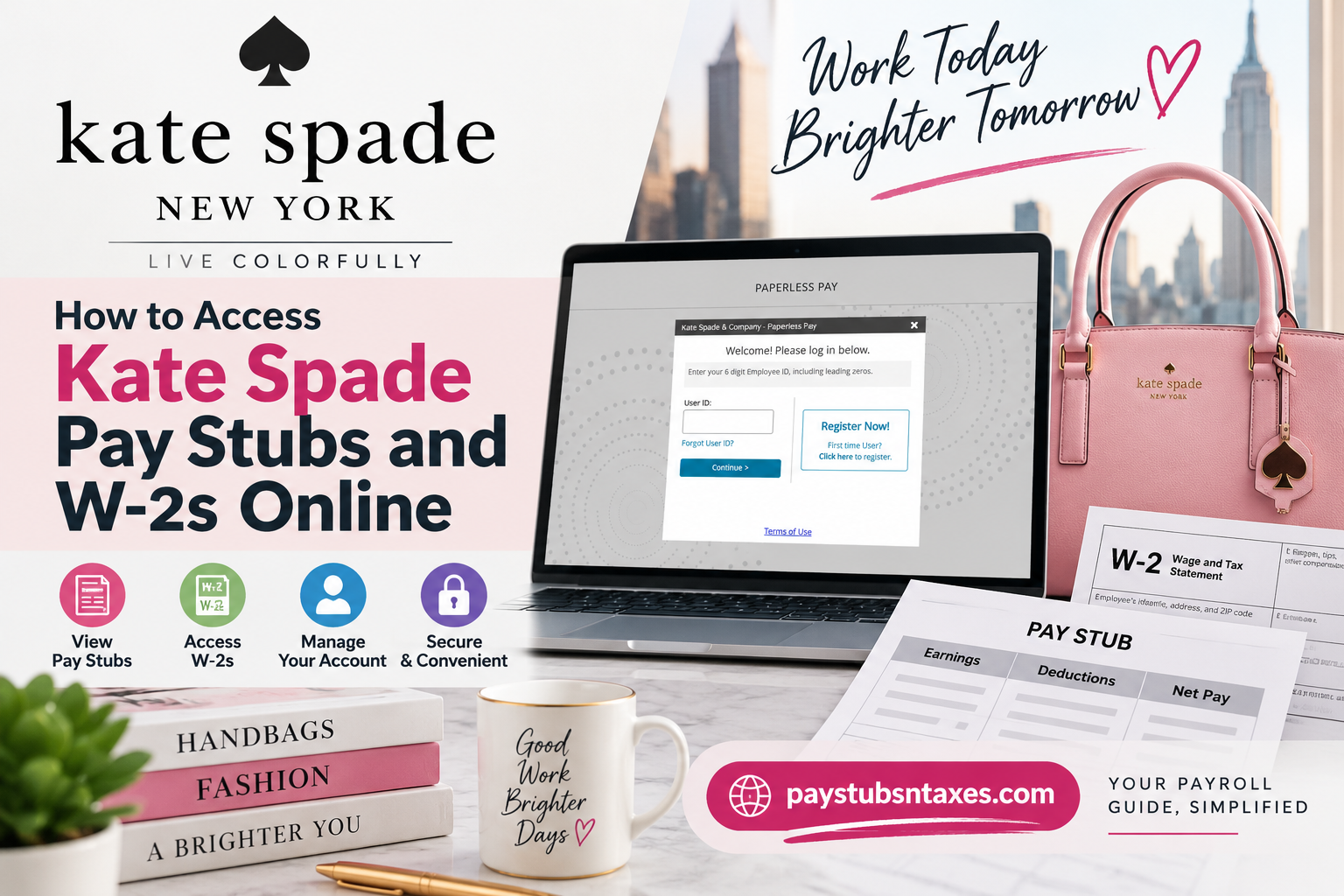
Kate Spade New York began in 1993 with six essential handbags and a refreshingly original point of view: practical design need not come at the expense of personality, polish, or color. From those early construction-paper samples created in Kate Brosnahan Spade’s apartment, the company grew into a global lifestyle brand encompassing handbags, clothing, shoes, jewelry, and home décor. For employees, however, the details that matter extend beyond fashion. Convenient access to payroll records is essential, particularly when reviewing earnings, confirming deductions, applying for credit, or preparing an annual tax return. Kate Spade employees can use the Paperless Pay portal by TALX to view and print pay stubs, manage certain personal details, and access W-2 tax forms online.
This guide explains how to log in, register as a new user, retrieve pay statements, and elect electronic W-2 delivery.
Kate Spade Paperless Pay Login Information
Before attempting to sign in, have the following information at your fingertips:
- Paperless Pay website: https://paperlesspay.talx.com/kate
- Employer code: 11326, if requested
- User ID: Your six-digit employee ID, including any leading zeros
- Password: The password established during registration
Enter the customized Kate Spade address carefully. If the general Paperless Pay website requests an employer code, enter 11326 to reach the appropriate company portal.
How to Log In to Kate Spade Paperless Pay
Returning users can access their payroll information by following these steps:
- Visit the Kate Spade Paperless Pay portal.
- Select Click Here to Login.
- When the login window appears, enter your six-digit employee ID in the User ID field. Remember to include leading zeros.
- Select Continue.
- Enter your password on the following screen and select Log In.
- Complete the required multi-factor authentication process.
- After your identity has been verified, the system will redirect you to the Paperless Pay homepage.
The multi-factor authentication step adds another layer of protection to sensitive payroll and tax information. Keep the authentication method associated with your account—such as your phone number or email address—accurate and accessible.
How to Register as a New User
First-time users must create an account before they can view Kate Spade pay stubs or W-2 forms. Although registration involves several stages, taking matters one screen at a time makes the process straightforward.
- Go to paperlesspay.talx.com or open the customized Kate Spade portal.
- If prompted, enter employer code 11326 and select Login.
- On the welcome screen, select Click Here to Login.
- Choose Register Now! when the login window appears.
- Complete all required registration fields, then select Continue.
- Enter your address information and continue to the next page.
- Provide the requested contact information and select Continue.
- Wait for the system to send you a one-time passcode.
- Enter the passcode to verify your identity.
- Create your User ID and password to complete registration.
Use contact details that you can access immediately, since the portal may rely on them to deliver a verification code or help you recover your account later. Choose a strong, unique password and never share your login credentials with colleagues or anyone claiming to provide unsolicited technical assistance.
How to View and Print Kate Spade Pay Stubs
After logging in, the Paperless Pay dashboard displays recent pay stubs and a summary of your pay information.
If the statement you need is not visible on the landing page:
- Open Menu.
- Select PayStubs.
- Choose the relevant pay period.
- Open the statement to review its details.
- Use the available print or download option to retain a copy for your records.
Before filing the document away, examine the gross pay, deductions, taxes, benefits, and net pay. If something appears out of place, raise the issue promptly with your local office or payroll contact; when money is concerned, it is better to nip a discrepancy in the bud than allow it to roll into another pay cycle.
How to Access Kate Spade W-2 Forms Online
The W-2 form reports annual wages and the taxes withheld from an employee’s pay. To find available tax documents:
- Sign in to the Kate Spade Paperless Pay portal.
- Open the Tax Form Services menu.
- Select the appropriate tax form or tax year.
- Review, download, or print the available W-2.
Save the downloaded form in a secure location, particularly if you are using a shared device. Once printing is complete, sign out of the portal and collect every page from the printer.
How to Enroll in Online W-2 Delivery
Employees who would prefer to receive future W-2 forms electronically can make that election through the portal:
- Open Tax Form Services.
- Select My Account.
- Scroll to the bottom of the page.
- Locate the W-2 section and select the checkbox in its upper-right area.
- Choose Receive Form Online.
Read any consent language presented on the screen before confirming the election. Electronic delivery can make tax documents available sooner and reduce the possibility of sensitive paperwork going astray in the mail, but employees should retain secure backup copies of all downloaded forms.
How to Recover a Forgotten User ID or Password
A forgotten credential need not bring the process to a grinding halt.
Forgotten User ID
- Open the Paperless Pay login window.
- Select Forgot User ID?
- Follow the identity-verification prompts.
- Use the recovered User ID to resume the login process.
Forgotten Password
- Enter your User ID and select Continue.
- On the password screen, choose Forgot Password?
- Follow the prompts to verify your identity and establish a new password.
Avoid repeated guesses, which could lock the account. If the recovery tools do not resolve the problem, contact the appropriate support office.
Final Thoughts
The Kate Spade Paperless Pay portal places essential payroll records within easy reach. By using the customized login page, entering the correct six-digit employee ID, and completing multi-factor authentication, employees can review pay statements, retrieve tax forms, and manage electronic W-2 delivery without wading through unnecessary paperwork.
Whether you need a recent pay stub for a financial application or a W-2 for tax preparation, keeping your account details current—and your credentials secure—will help ensure that the process remains smooth from start to finish.
Frequently Asked Questions
1. Where can Kate Spade employees access their pay stubs?
Kate Spade employees can access their pay stubs through the Paperless Pay by TALX portal at https://paperlesspay.talx.com/kate.
2. What is the Kate Spade employer code?
The Kate Spade employer code is 11326. You may need to enter it when accessing Paperless Pay through the general TALX website.
3. What is my Kate Spade Paperless Pay User ID?
Your User ID is your six-digit employee ID. Be sure to include any leading zeros; for example, employee ID 1234 should be entered as 001234.
4. How do I log in to Kate Spade Paperless Pay?
Open the Kate Spade Paperless Pay portal, select Click Here to Login, enter your six-digit employee ID, and choose Continue. Enter your password and complete multi-factor authentication to reach the homepage.
5. How do I register for Kate Spade Paperless Pay?
Select Register Now! on the login screen, complete the required personal, address, and contact information, and enter the one-time passcode sent to you. You can then create your User ID and password.
6. Where can I find my Kate Spade pay stubs after logging in?
Recent pay stubs and pay information may appear on the landing page. To see additional statements, select Menu > PayStubs and choose the required pay period.
7. Can I download or print my Kate Spade pay stubs?
Yes. Open the required pay statement and use the available download or print option. Store electronic copies securely and collect printed documents immediately.
8. How do I access my Kate Spade W-2 online?
Sign in to Paperless Pay and open Tax Form Services. Select the applicable W-2 and tax year, then review, download, or print the form.
9. How do I enroll in electronic W-2 delivery?
Go to Tax Form Services > My Account, scroll to the W-2 section, select the checkbox in its upper-right area, and choose Receive Form Online.
10. What should I do if I forget my User ID?
Select Forgot User ID? on the login screen and follow the identity-verification prompts. Avoid repeatedly guessing your credentials, as this may lock your account.
11. What should I do if I forget my password?
Enter your User ID, select Continue, and then choose Forgot Password? Follow the prompts to verify your identity and create a new password.
12. Why is my employee ID not working?
Make sure the ID contains six digits and includes every leading zero. You should also confirm that you are using the Kate Spade portal or employer code 11326.
13. Why have I not received my one-time passcode?
Check that your registered phone number or email address is correct. Wait briefly, request another code if the option is available, and check your spam or junk folder.
14. What should I do if my W-2 is unavailable?
Confirm that you selected the correct tax year and check again later if forms have only recently been issued. If the W-2 remains unavailable, contact your local office or payroll support.
15. Who can help with Kate Spade Paperless Pay problems?
Contact your local office first. You may also call the main office at 1-212-946-8400 or customer service at 1-877-793-4896 for assistance.
