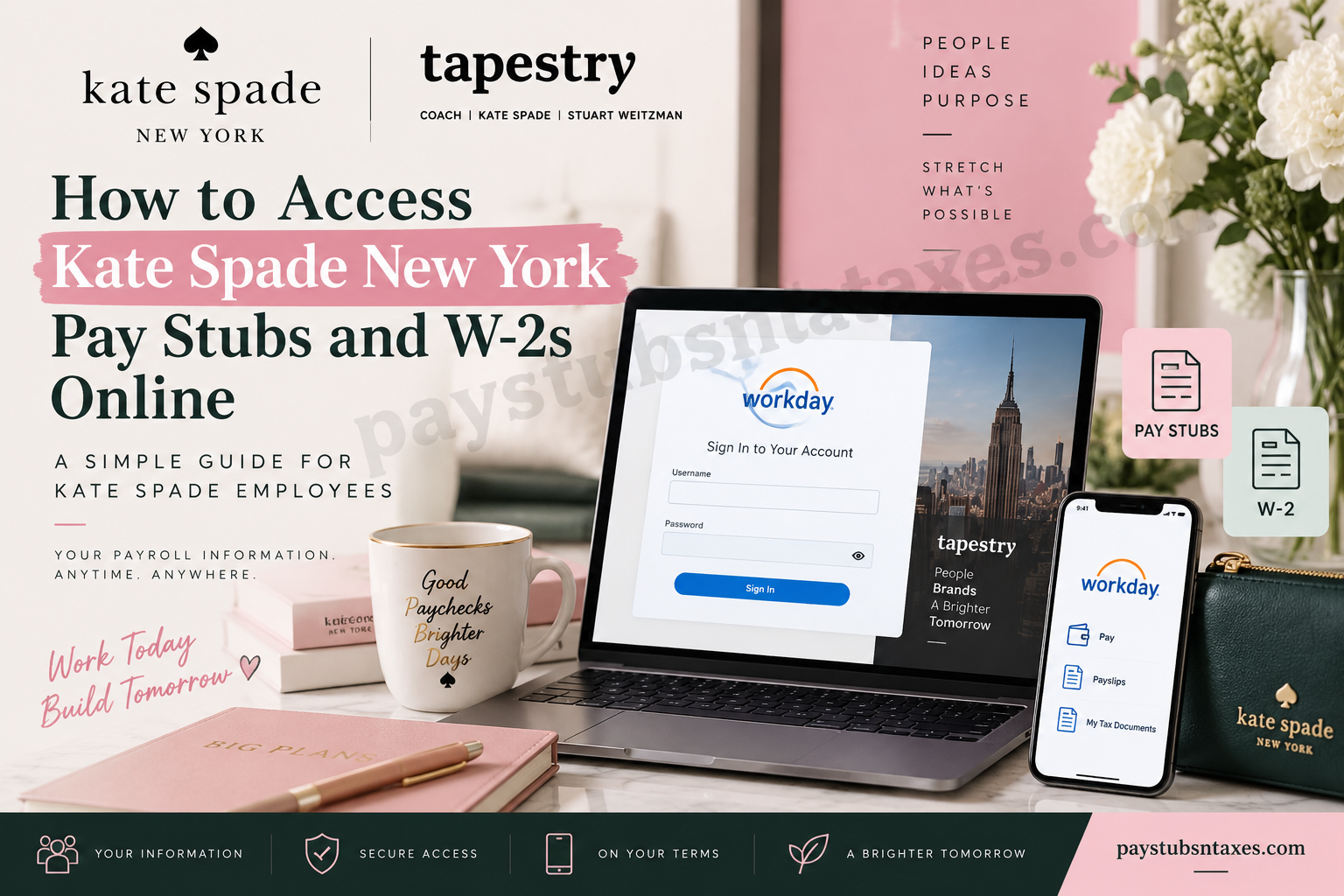
Kate Spade New York employees can securely access their pay stubs, payroll information, and W-2 tax forms through the Tapestry Workday portal. Whether you need to confirm a recent payment, download a payslip for your records, or retrieve a W-2 for tax preparation, Workday places these essential documents at your fingertips.
Founded in 1993 by Kate and Andy Spade, Elyce Arons, and Pamela Bell, Kate Spade New York became part of Tapestry, Inc.—formerly Coach, Inc.—in 2017. Today, Tapestry brings together Coach and Kate Spade New York under a shared commitment to creativity, inclusion, sustainability, and meaningful employee experiences. This guide explains how Kate Spade New York team members can sign in to Workday and view, download, or print their pay stubs and W-2 forms.
Kate Spade New York Workday Login
Employees can access the Tapestry Workday portal at:
https://wd108.myworkday.com/tapestry/login.htmld
Depending on your account configuration, the sign-in process may take you either to a standard Workday login screen or to Tapestry’s Microsoft sign-in page.
How to Sign In with Microsoft SSO
If your account has been configured for Microsoft Single Sign-On:
- Open the Tapestry Workday portal.
- Select the Microsoft SSO sign-in option if prompted.
- Enter your company email address or authorized Tapestry username.
- Select Next.
- Enter your password and complete any required identity-verification step.
- After authentication, you will be redirected to your Workday homepage.
If you are already signed in to your company Microsoft account, Workday may recognize your session and take you directly to the portal.
First-Time Workday Login for New Team Members
New Kate Spade New York employees should normally receive two separate Workday emails:
- One containing the Workday username
- Another containing a temporary password
Keeping these details in separate messages adds an extra layer of security. Once both emails have arrived, follow these steps:
- Visit the Tapestry Workday login page.
- Enter the username provided in the first email.
- Enter the temporary password from the second email.
- Select Sign In.
- Follow the on-screen instructions to create a permanent password.
- Complete any additional security or authentication requirements.
Choose a strong, unique password and never disclose it to another person. If either welcome email is missing, check your spam or junk folder before contacting your manager, local office, or HR representative.
Tapestry Workday Mobile App Login
Kate Spade New York employees can also access payroll information through the Workday mobile app.
- Download the official Workday app from the Apple App Store or Google Play Store.
- Open the app and enter the organization code tapestry.
- Continue to the appropriate sign-in page.
- Log in using your approved Tapestry credentials or Microsoft SSO.
- Complete multifactor authentication if requested.
The wording and position of individual buttons may vary slightly according to your device, operating system, and the current version of the Workday app.
How to View Kate Spade Pay Stubs Online
Workday refers to pay stubs as payslips. To view a payslip through the desktop portal:
- Sign in to Workday.
- From the Workday homepage, select View All Apps.
- Choose the Pay application.
Alternatively, open the Menu in the upper-left corner and select Pay from the application list.
- Locate the View column.
- Select Payslips.
- Find the relevant pay period.
- Select View beside the applicable payslip.
Your payslip may include the pay-period dates, payment date, gross earnings, taxes, deductions, year-to-date totals, net pay, and payment information.
How to Print a Kate Spade Pay Stub
To obtain a printed copy:
- Open Pay from the Workday homepage.
- Select Payslips.
- Find the required pay period.
- Select Print beside the applicable payslip.
- Choose your printer and confirm the print settings.
If you do not need a physical copy immediately, saving the document as a PDF is often the more practical course. It reduces paper use and gives you a secure digital record that can be printed later.
How to Download a Payslip from the Workday Mobile App
To save a Kate Spade payslip on a phone or tablet:
- Sign in to the Workday mobile app.
- Select the Pay application from the landing page. If it is not visible, select View All.
- Under Pay History, choose the payslip you want to review.
- On the Pay Details page, select Get PDF.
- Wait while Workday generates the document.
- When processing is complete, select Open PDF.
- Use your device’s share, upload, or save button.
- Choose a secure location in which to store the file.
The save icon and available storage options will differ between Apple and Android devices. Avoid saving payroll records to a shared device or an unprotected cloud folder, since payslips contain sensitive personal and financial information.
How to Access a Kate Spade W-2 in Workday
W-2 tax forms are available from the Pay area after they have been prepared and released by Payroll.
- Sign in to the Tapestry Workday portal.
- Open the Pay dashboard.
- Select My Tax Documents.
- Scroll below the printing-election section.
- Locate the W-2 for the required tax year.
- Select View/Print.
It may take a few moments for the document to load. Once the preview appears, use the navigation arrow beside the form to move through its pages.
How to Print or Download a W-2
While the W-2 preview is open:
- Select the printer icon in the upper-right corner to print the form.
- Select the download icon in the upper-right corner to save a PDF copy.
- Select the back arrow in the upper-left corner to close the preview.
If you need a version optimized for assistive technology, select Accessible Form. You can then use the printer icon to print that version.
Store every downloaded W-2 in a secure location. Because the form contains sensitive identity, wage, and tax information, it should not be emailed, uploaded, or shared unless the recipient and transmission method are trustworthy.
Kate Spade and Tapestry Support Contacts
If you cannot access Workday after following the steps above, contact your local office or manager first, particularly when the issue involves employee credentials, payroll access, or a missing tax document.
You may also use the following contact numbers:
- Tapestry main office: 1-212-946-8400
- Customer service: 1-877-793-4896
For payroll-specific matters, your local office or internal HR/payroll representative is generally the most appropriate first port of call.
Final Takeaway
The Tapestry Workday portal gives Kate Spade New York employees a convenient, centralized way to manage payroll records. Once signed in, team members can review pay information, download payslips, print W-2 forms, and retain essential employment documents without having to chase paperwork from one department to another.
For the smoothest experience, keep your login credentials secure, download records only to a protected device, and contact your local office promptly if a document is missing or your account access is not working.
Frequently Asked Questions
1. How do Kate Spade employees access their pay stubs?
Sign in to the Tapestry Workday portal, open View All Apps, select Pay, and click Payslips. Choose View beside the applicable pay period to open your pay stub.
2. What is the Kate Spade Workday login portal?
Kate Spade New York employees access Workday through Tapestry’s employee portal. Use the login address supplied by your store, manager, HR department, or official onboarding materials.
3. Can Kate Spade employees sign in with Microsoft SSO?
Yes. Employees whose accounts support Microsoft Single Sign-On can enter their authorized company email address or username, select Next, and complete the required authentication process.
4. How do first-time employees log in to Workday?
New employees should receive two Workday emails: one containing a username and another containing a temporary password. Enter both credentials and follow the prompts to create a permanent password.
5. What is the Workday organization code for Kate Spade?
The organization code for the Workday mobile app is tapestry.
6. How do I find the Pay application in Workday?
Select View All Apps on the Workday homepage and choose Pay. Alternatively, open the menu in the upper-left corner and select Pay from the application list.
7. How do I print a Kate Spade pay stub?
Open Pay, select Payslips, find the required pay period, and click Print beside the applicable payslip. Then select a printer and confirm the print settings.
8. Can I download a Kate Spade payslip on my phone?
Yes. In the Workday mobile app, open Pay, choose a payslip under Pay History, select Get PDF, and tap Open PDF when the document is ready.
9. How do I save a Workday payslip as a PDF?
Open the required payslip and use the available PDF, download, share, or save option. On a mobile device, select Get PDF, wait for the document to generate, and then choose Open PDF.
10. Where are Kate Spade W-2 forms located in Workday?
W-2 forms are stored under My Tax Documents. From the Workday homepage, open the Pay dashboard, select My Tax Documents, and locate the appropriate tax year.
11. How do I download my Kate Spade W-2?
Open Pay, select My Tax Documents, and click View/Print beside the required W-2. When the preview loads, select the download icon in the upper-right corner.
12. How do I print my W-2 from Workday?
Select View/Print beside the appropriate W-2 and wait for the preview to load. Click the printer icon in the upper-right corner and confirm your printing preferences.
13. Is an accessible version of the W-2 available?
Yes. Select Accessible Form from the W-2 area to open a version designed for assistive technology. Use the printer icon if you need a printed copy.
14. Why is my W-2 missing from Workday?
A W-2 may not appear until Payroll has released it for the applicable tax year. Confirm that you selected the correct year; if it remains unavailable, contact your local office or payroll representative.
15. Who should I contact for Kate Spade Workday assistance?
Begin with your manager, local office, or internal HR or payroll representative. You may also call Tapestry’s main office at 1-212-946-8400 or customer service at 1-877-793-4896.
