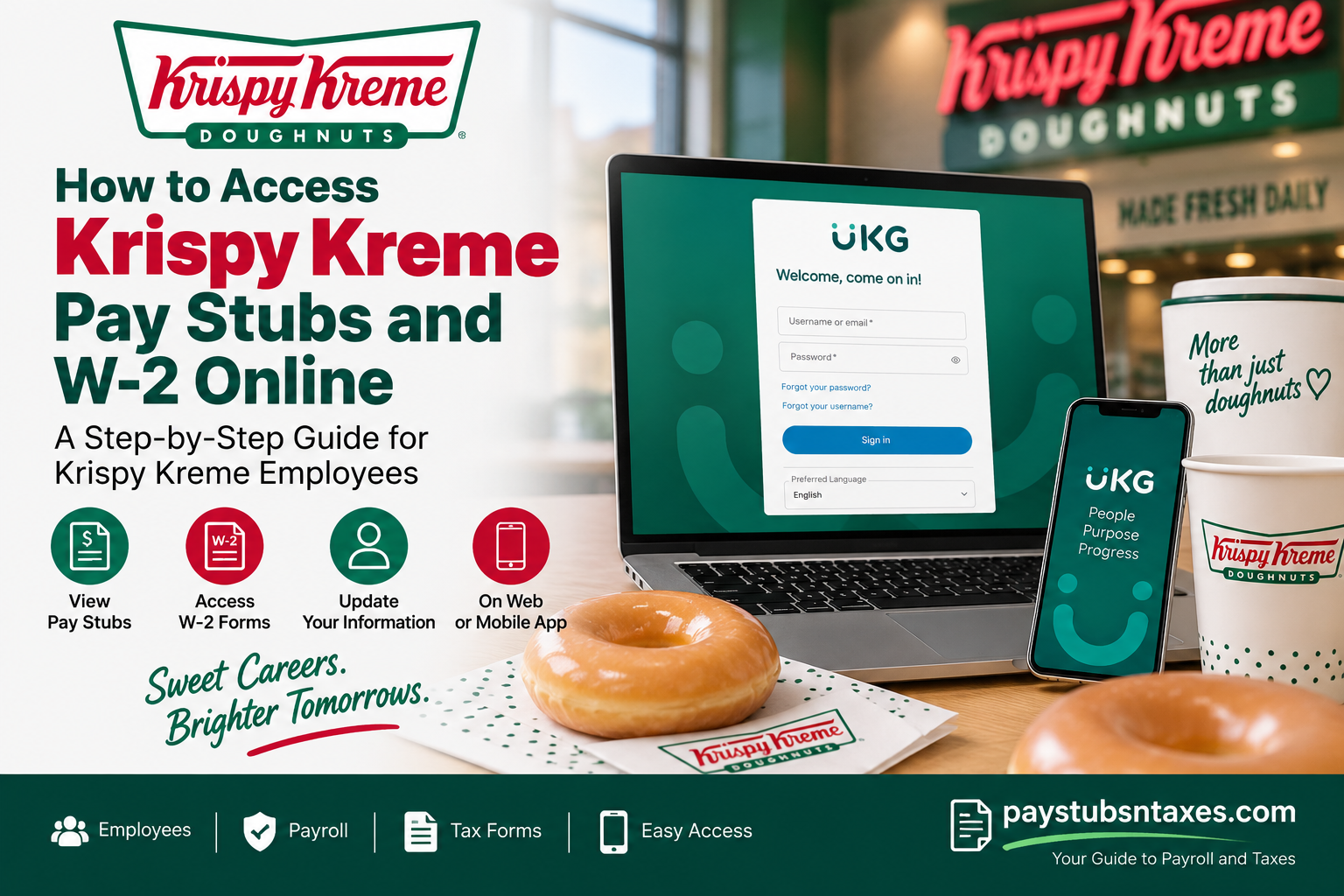
Krispy Kreme, Inc. is a well-known American multinational doughnut and coffeehouse company whose roots stretch back to 1937, when Vernon Rudolph began selling doughnuts in Winston-Salem, North Carolina. After decades of expansion, the company went private in 2016 and returned to the public market in 2021, trading on Nasdaq. For Krispy Kreme employees, keeping track of payroll records need not be a complicated affair. The company uses UKG Pro, formerly known as UltiPro, as an employee self-service payroll and HR platform. Through UKG Pro, eligible active and separated employees can access pay information, view and print pay stubs, retrieve W-2 tax forms, and review or update certain personal information.
What Is the Krispy Kreme UKG Pro Employee Portal?
UKG Pro is Krispy Kreme’s online human-resources and payroll platform. It serves as a central hub through which eligible employees can view or manage information such as:
- Current and historical pay statements
- W-2 tax forms
- Federal withholding information
- Home addresses
- Telephone numbers
- Email addresses
- Other payroll and employment records
Employees should keep their contact information up to date in UKG Pro. An incorrect address, telephone number, or email address may prevent important payroll, tax, or benefits communications from reaching the intended recipient.
How to Log In to the Krispy Kreme Employee Portal
To access your Krispy Kreme pay stubs and tax documents from a computer or mobile browser:
- Visit the official Krispy Kreme UKG Pro login page at https://krispykreme.ultipro.com/.
- Enter the username or email address provided by Human Resources.
- Enter your password.
- Select Sign In.
- Complete any additional identity-verification prompts that appear.
The portal may allow you to choose a preferred language before signing in.
If you do not know your username or have never received login credentials, contact your payroll office or local Krispy Kreme office. Employees should not attempt to create unofficial credentials or use another employee’s account.
First-Time Login and Password Requirements
When you log in to UKG Pro self-service for the first time, the system may prompt you to replace your temporary password with a new one.
Your new password must:
- Contain at least one uppercase letter
- Contain at least one lowercase letter
- Contain at least one number
- Contain at least one special character
- Contain no spaces or apostrophes
UKG Pro passwords are case-sensitive. Consequently, uppercase and lowercase letters must be entered exactly as they were used when the password was created.
You may also be asked to establish three challenge questions. Choose questions whose answers you can recall readily, but which other people are unlikely to guess. Because challenge-question answers may also be case-sensitive, record the capitalization you use and store the information securely.
How to View a Current Krispy Kreme Pay Stub
Once you have signed in, you can generally access your most recent Krispy Kreme pay statement from the UKG Pro home page.
- Look for the Current Pay Statement or Pay option on the home page.
- If it is not displayed, open the main menu.
- Select Myself.
- Choose Current Pay Statement under the payroll or pay section.
- Open the available statement to review its details.
A pay statement ordinarily includes gross earnings, taxes, deductions, year-to-date totals, and net pay. Depending on your role and pay period, it may also show hours worked, pay rates, overtime, paid leave, and direct-deposit distributions.
Take a moment to confirm that your name, address, earnings, deductions, and payment information are accurate. Your address is particularly important because it may also appear on your W-2.
How to Download or Print a Krispy Kreme Pay Stub
After opening the required statement:
- Locate the Download, Print, or printer-shaped icon.
- Choose the appropriate option.
- If prompted, select whether sensitive information—such as your Social Security number—should be displayed or concealed.
- Open the printer-friendly version or save the statement as a PDF.
- Print the document or store the downloaded copy in a secure location.
For privacy’s sake, avoid downloading payroll documents onto a shared or public computer. If using such a device is unavoidable, sign out completely and remove any downloaded copies once you have finished.
How to View Historical Pay Statements
If you require an older Krispy Kreme pay stub, navigate to the pay-history area rather than relying solely on the current-statement shortcut.
- Sign in to UKG Pro.
- Open Myself.
- Select the Pay section.
- Choose Pay History.
- Enter the relevant search criteria or pay-date range.
- Select Search.
- Choose the pay date associated with the statement you need.
- Download or print the document.
Menu labels can vary slightly depending on the version of UKG Pro and the device being used. If Pay History does not appear immediately, look under Pay, Pay Statements, or a comparable payroll heading.
How to Access a Krispy Kreme W-2 Online
Krispy Kreme employees can retrieve available W-2 forms through the same UKG Pro account used for pay statements.
- Log in to the Krispy Kreme UKG Pro portal.
- Select the W-2 icon on the home page, if available.
- Alternatively, open Myself and choose W-2 from the menu.
- Select the applicable tax year.
- Open the W-2.
- Download the form as a PDF or print a copy.
Review your name, mailing address, Social Security information, wages, and tax-withholding figures carefully. If anything appears inaccurate, contact the payroll office rather than attempting to alter the W-2 yourself.
A newly issued W-2 may not appear immediately at the beginning of the year. Employers must first complete year-end payroll processing and release the tax document. If the expected form is still unavailable after the communicated release date, seek assistance from payroll.
How to Use the UKG Pro Mobile App
Employees who prefer to access payroll information from a smartphone or tablet can use the UKG Pro mobile app.
- Open your device’s official app store.
- Search for and install the UKG Pro app.
- Launch the app.
- When prompted for a Company Access Code, enter krispykreme.
- Sign in using the username and password supplied by Human Resources.
- Open the pay area to view available pay statements and related payroll information.
The mobile interface may look somewhat different from the website, but the underlying information should be broadly similar. Depending on the available features, the pay section may be labelled Pay, Pay Overview, or Pay Statements.
For a smoother experience, install the app only from an official app store and keep both the application and your device’s operating system up to date.
What to Do If You Forget Your Password
If you cannot remember your password:
- Open the Krispy Kreme UKG Pro login page.
- Select Forgot your password?
- Follow the identity-verification instructions.
- Answer your challenge questions exactly as originally entered.
- Create a new password that satisfies the stated security requirements.
If self-service recovery does not work, contact the payroll office or your local office. Do not repeatedly guess your password, as doing so may lock the account.
If you have forgotten your username, use the Forgot your username? link when it is available. Otherwise, ask Human Resources or payroll to confirm your account information.
Access for Former Krispy Kreme Employees
Separated employees may continue to have access to UKG Pro for retrieving historical pay statements and tax forms. Use the same Krispy Kreme portal and your existing credentials.
If your credentials no longer work, contact your local office or the Benefits Center. Former employees should also verify that their personal email address and mailing address are current so that important tax documents and employment communications do not fall through the cracks.
Final Thoughts
Accessing Krispy Kreme pay stubs and W-2 forms online is relatively straightforward when your UKG Pro credentials are in working order. Visit https://krispykreme.ultipro.com/, sign in to your employee account, and use the Pay section for current or historical pay statements and the W-2 section for available year-end tax forms.
Employees who prefer mobile access can use the UKG Pro app with the company access code krispykreme. Meanwhile, former employees should try their existing credentials before contacting Krispy Kreme for assistance. By keeping your contact details current, setting up account-recovery options carefully, and retaining secure copies of important payroll documents, you can ensure that your employment and tax records remain at your fingertips when you need them most.
Frequently Asked Questions About Krispy Kreme Pay Stubs and W-2 Forms
1. How do I access my Krispy Kreme pay stub online?
Visit https://krispykreme.ultipro.com/, enter your UKG Pro credentials, and select Current Pay Statement. You may also find the statement by opening Myself and navigating to the pay section.
2. What is the Krispy Kreme employee login website?
The Krispy Kreme employee payroll portal is available at https://krispykreme.ultipro.com/. Employees should use this address rather than relying on unofficial third-party login pages.
3. What is the Krispy Kreme Company Access Code for UKG Pro?
The Krispy Kreme Company Access Code is krispykreme. Enter the code when the UKG Pro mobile app asks you to connect to your employer.
4. How do I download a Krispy Kreme pay stub?
Open the required pay statement in UKG Pro and select the Download, Print, or printer-shaped icon. You can then save the statement as a PDF or produce a paper copy.
5. How do I find an old Krispy Kreme pay stub?
Sign in and navigate to Myself > Pay > Pay History. Search for the relevant pay date, open the appropriate statement, and download or print it.
6. How do I access my Krispy Kreme W-2 online?
After signing in to UKG Pro, select the W-2 icon on the home page or navigate to Myself > W-2. Choose the required tax year and open, download, or print the form.
7. Can former Krispy Kreme employees access UKG Pro?
Separated employees may retain access to UKG Pro for historical pay statements and tax documents. If your previous credentials no longer work, contact your local office, payroll office, or the Benefits Center.
8. What should I do if I forget my UKG Pro password?
Select Forgot your password? on the login screen and complete the identity-verification process. You may need to answer the challenge questions established during your initial account setup.
9. What should I do if I forget my Krispy Kreme UKG username?
Select Forgot your username? if the option appears on the login page. If the recovery process is unsuccessful, contact Human Resources or the payroll office for assistance.
10. Why is my Krispy Kreme W-2 not showing in UKG Pro?
The W-2 may not have been released yet, you may have selected the wrong tax year, or the document may appear under a different menu heading. If it remains unavailable after the announced release date, contact payroll.
11. Can I view Krispy Kreme pay stubs on my phone?
Yes. Download the UKG Pro app from your device’s official app store, enter krispykreme as the Company Access Code, and sign in with your employee credentials.
12. What information appears on a Krispy Kreme pay statement?
A pay statement may show gross earnings, hours, pay rates, taxes, deductions, year-to-date totals, direct-deposit distributions, and net pay. The precise information displayed can vary by employee and pay period.
13. How do I update my address for payroll and W-2 delivery?
Sign in to UKG Pro and open the section containing your personal or contact information. Update your home address, telephone number, and email address as necessary. If the system does not permit an online change, contact Human Resources or payroll.
14. Who should I contact about an incorrect pay stub or W-2?
Report incorrect wages, deductions, tax withholding, personal details, or other discrepancies to your payroll office. Do not attempt to modify an official pay statement or W-2 yourself.
15. Who can help if I cannot log in to the Krispy Kreme employee portal?
Contact your local Krispy Kreme office or payroll office. You may also call the Benefits Center at 855-730-8654 for additional assistance.
