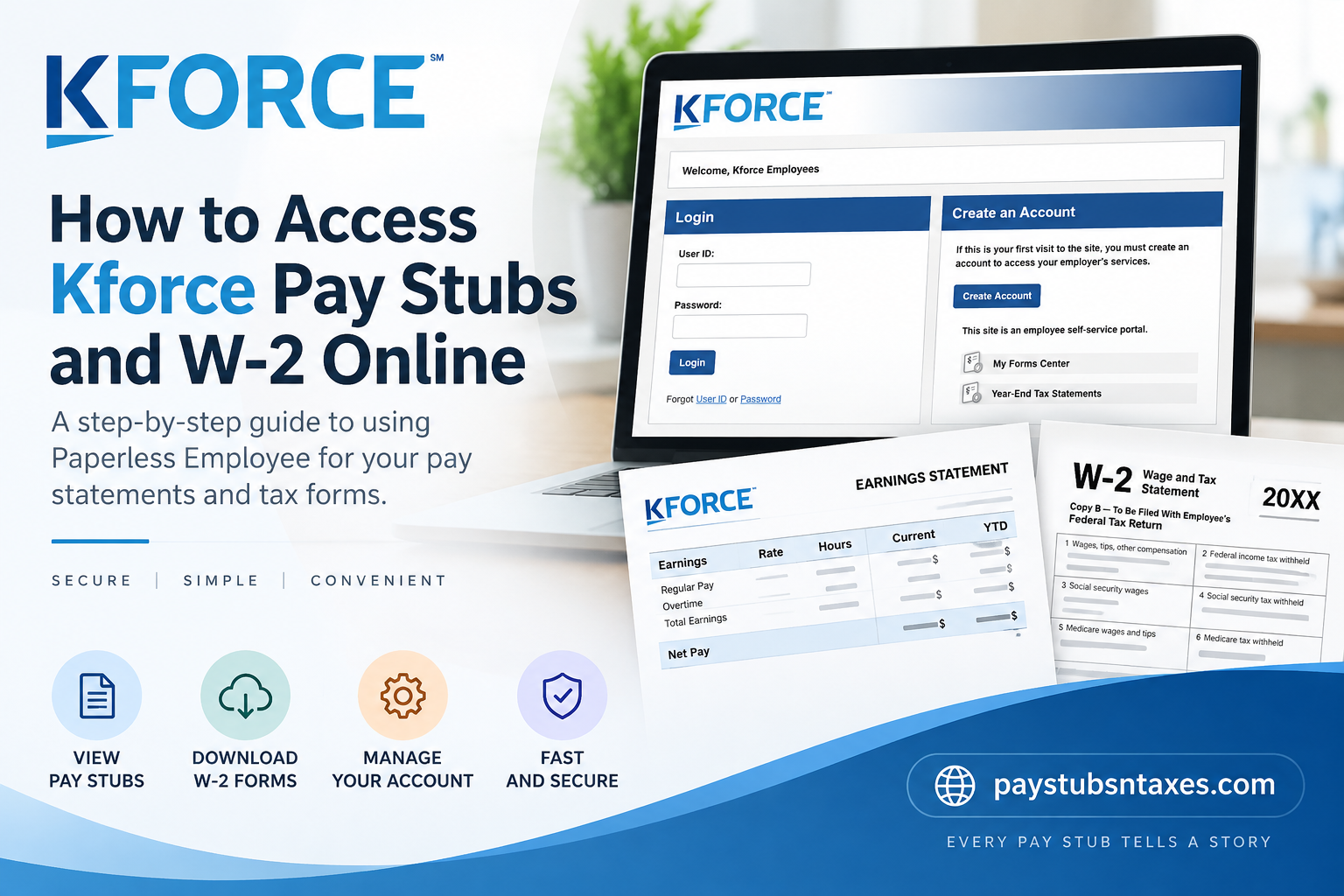
Kforce employees and contractors can access their pay statements and year-end tax documents through PaperlessEmployee.com, a secure employee self-service portal. Whether you need a recent Kforce pay stub, a current W-2, or a copy of a previous tax statement, the portal puts these essential employment records within easy reach. This guide explains how to log in, create an account, retrieve full or summarized pay statements, enroll in electronic W-2 delivery, and request assistance when online access is unavailable.
About Kforce
Kforce is a solutions firm specializing in technology, finance and accounting, and professional staffing services. Through its KNOWLEDGEforce®, the company curates teams of technical experts who deliver scalable, flexible solutions tailored to each client’s needs.
Drawing on approximately 60 years of experience, Kforce connects highly skilled professionals with Fortune 500 companies and other leading organizations. Approximately 18,000 talented experts work with Kforce clients each year, helping them pursue digital transformation and achieve meaningful business outcomes through strategic partnership and knowledge sharing.
What Is the Kforce Paperless Employee Portal?
Paperless Employee is Kforce’s online employee self-service platform. It allows eligible employees and contractors to access important payroll and tax information without waiting for paper documents to arrive by mail.
Through the Kforce Paperless Employee portal, you may be able to:
- View full Kforce pay statements
- Review pay-statement summaries
- Download and print pay stubs
- Access current W-2 forms
- Retrieve eligible prior-year tax statements
- Enroll in electronic tax-statement delivery
- Manage account and notification preferences
- Complete available tax-withholding forms
- Reset a forgotten user ID or password
The official Kforce portal is:
Visit the Kforce Paperless Employee website
For your security, verify that the address begins with https://www.paperlessemployee.com/ before entering personal information.
How to Log In to the Kforce Paperless Employee Portal
If you already have an account, accessing your records is straightforward:
- Go to PaperlessEmployee.com/Kforce.
- Find the Login section on the left-hand side of the page.
- Enter your User ID.
- Enter your Password.
- Select Login to open your account.
Once signed in, you can use the home page or the left-side navigation menu to locate pay statements, year-end tax documents, and other available services.
If your browser blocks pop-ups, you may need to allow them for PaperlessEmployee.com because downloaded statements can open in a new browser tab.
How to Create a Kforce Paperless Employee Account
First-time users must create an account before they can access Kforce pay stubs or tax documents online.
- Visit the Kforce Paperless Employee portal.
- Go to the Create an Account section on the right-hand side.
- Select Create Account.
- Enter the personal and employment information requested on the authentication screen.
- Create your user ID and password.
- Set up the required security questions.
- Add and verify your personal email address and any other available contact method.
- Choose your electronic-statement notification preferences.
- Save the information and complete the account-creation process.
Use a personal email address that you can continue to access after your Kforce assignment or employment ends. You should also store your user ID securely, as it may differ from your work email address.
How to Access Kforce Pay Stubs Online
Paperless Employee provides access to both full pay statements and pay-statement summaries. A full statement is the better choice when you need a formal document for income verification, housing, lending, tax preparation, or personal recordkeeping.
Accessing Full Pay Statements
Follow these steps to view, download, or print a complete Kforce pay statement:
- Sign in to your Kforce Paperless Employee account.
- Select Pay Statements from the left-side navigation menu. Alternatively, choose Access Pay Statements from the main area of the home page.
- On the Pay Statements screen, locate the statement you need.
- Select the checkbox for the appropriate statement in the Full Statement column.
- Repeat this step if you need several statements.
- Select View/Print Selected Pay Statements at the top or bottom of the page.
- The selected statement or statements should open as PDF files in a new browser tab.
- Use the PDF controls to view, download, save, or print the documents.
A PDF reader is required to open full statements. Most modern browsers can display PDFs directly, although a dedicated reader may be useful if you experience difficulty opening or printing the files.
Accessing Pay-Statement Summaries
A summary offers an at-a-glance view of a pay period without requiring you to open the complete document.
- Log in and select Pay Statements or Access Pay Statements.
- Find the relevant pay period on the Pay Statements screen.
- Select Show Summary beside the statement you wish to review.
- The summary should appear beneath the selected statement on the same page.
Because a summary may not contain every detail included in the official pay statement, download the full PDF whenever you need a document for formal purposes.
How to Enroll in Electronic W-2 Delivery
Choosing electronic delivery allows you to retrieve your Kforce W-2 online once it becomes available. If you enrolled while creating your account, you generally do not need to register again.
If you have not yet opted in:
- Log in to the Kforce Paperless Employee portal.
- Select Manage Electronic Tax Statement Options.
- Scroll to Electronic Statement Notification Options.
- Choose Yes when asked whether you would like to receive your tax statements electronically.
- Select your preferred notification method.
- Click Save Notification Option Settings.
- Look for an on-screen confirmation that your preferences have been saved.
Once you opt in, the electronic-delivery preference may carry over to future years. Review the setting periodically—particularly if your email address or phone number changes—to ensure that availability notices reach you.
When an online W-2 is ready, you should receive an email notification from CIC Plus. Rather than following unexpected links in an email, you can navigate directly to the official Kforce Paperless Employee portal and sign in there.
How to Access a Current Kforce W-2 Online
Once you have been notified that your tax statement is available:
- Sign in at PaperlessEmployee.com/Kforce.
- Select Year-End Tax Statements from the left-side navigation menu or choose Access Current Year-End Statements from the home page.
- Locate the required tax statement.
- Select the available Download PDF link.
- When the W-2 opens in a new browser tab, save it to your device or print a copy.
Store downloaded W-2 forms in a secure location because they contain sensitive personal, income, and tax information. Avoid saving them on a public or shared computer.
Online tax statements may remain available for free download only until October 15 of the applicable tax year. Download a secure copy as soon as it becomes available instead of leaving the task until the eleventh hour.
How to Access a Previous Kforce W-2
If prior-year statements are available through your account:
- Open Year-End Tax Statements from the navigation menu.
- Select Access Prior Year-End Statements, if that option is displayed.
- Choose the tax year and statement you require.
- Follow the on-screen instructions to review, download, or complete the order.
Availability and reissue procedures may vary according to the tax year and the options presented in your account. If the document is no longer available for immediate download, contact the Kforce office that employed you.
When Are Kforce W-2 Forms Mailed?
Kforce W-2 forms are generally mailed during the last week of January to the address held on file as of January 1.
If your address has changed since you worked for Kforce, contact the local office that employed you and provide your updated address information. Making this correction promptly is important because an outdated record can send a sensitive tax document to the wrong location.
If you elected electronic delivery, you should receive an email from CIC Plus when your W-2 becomes available online.
What to Do If You Have Not Received Your Kforce W-2
If your W-2 has not arrived by mid-February, contact the Kforce office that employed you and request guidance on obtaining a reissued copy.
You can also try the following:
- Log in to Paperless Employee and check Year-End Tax Statements.
- Confirm that you are using the correct user ID.
- Check your email inbox and spam folder for a CIC Plus notification.
- Verify whether electronic delivery is enabled.
- Make sure Kforce has your current mailing address.
- Contact your former local office if the statement remains unavailable.
For login problems or additional assistance, contact Kforce at 1-877-453-6723 or speak with your local office in person.
How to Reset a Forgotten User ID or Password
If you cannot sign in, use the recovery links beneath the login fields:
- Select User ID if you have forgotten your username.
- Select Password if you need to reset your password.
Follow the identity-verification instructions displayed on the screen. Access to your registered email address or another verified contact method may be necessary.
If self-service recovery does not work, call 1-877-453-6723 or contact the office that employed you. Never send your Social Security number, password, or complete W-2 through an unsecured email.
Final Takeaway
The Kforce Paperless Employee portal offers a convenient way to retrieve pay stubs and W-2 forms from virtually anywhere. Once your account is established, you can review pay details, download official statements, manage electronic-delivery preferences, and maintain secure copies for future use. To get started, visit https://www.paperlessemployee.com/kforce. Download important records promptly, keep your contact information current, and protect your login credentials with the same care you would give any other sensitive financial information.
Frequently Asked Questions About Kforce Pay Stubs and W-2 Forms
1. How do I access my Kforce pay stubs online?
Visit PaperlessEmployee.com/Kforce and sign in with your user ID and password. Select Pay Statements from the navigation menu or Access Pay Statements from the home page. Choose the required statement and click View/Print Selected Pay Statements to open the PDF.
2. Where can I find my Kforce W-2 online?
Log in to the Kforce Paperless Employee portal and select Year-End Tax Statements. You can also choose Access Current Year-End Statements from the home page. Locate the appropriate W-2 and click Download PDF to view, save, or print the form.
3. What is the official Kforce Paperless Employee website?
The official Kforce Paperless Employee website is https://www.paperlessemployee.com/kforce. Confirm that the address begins with https://www.paperlessemployee.com/ before entering personal information. Avoid signing in through unfamiliar links in unsolicited emails or text messages.
4. How do I create a Kforce Paperless Employee account?
Go to the Kforce Paperless Employee website and click Create Account. Complete the identity-verification process, create a user ID and password, establish your security questions, and verify your contact information. You can then select your electronic-statement notification preferences and finish setting up the account.
5. Can former Kforce employees access their pay stubs and W-2 forms?
Former employees may be able to access available pay and tax statements through their existing Paperless Employee accounts. If you cannot log in or the required statement is unavailable, contact the Kforce office that employed you or call 1-877-453-6723 for assistance.
6. How can I view a full Kforce pay statement?
Open the Pay Statements page and find the relevant pay period. Check the corresponding box in the Full Statement column, then click View/Print Selected Pay Statements. The complete statement should open as a PDF in a new browser tab.
7. How can I view a Kforce pay-statement summary?
After signing in, select Pay Statements and locate the pay period you want to review. Click Show Summary beside that statement. The summary should appear on the same screen, allowing you to inspect key payment details without downloading the complete PDF.
8. Can I download several Kforce pay stubs at once?
Yes. On the Pay Statements screen, select the checkboxes for each document you need in the Full Statement column. Click View/Print Selected Pay Statements to open the chosen statements. You can then download or print the available PDFs.
9. How do I enroll in electronic Kforce W-2 delivery?
Log in and select Manage Electronic Tax Statement Options. In the Electronic Statement Notification Options section, choose Yes for electronic delivery, select your preferred notification method, and click Save Notification Option Settings. Your election may remain active for subsequent tax years.
10. When does Kforce mail W-2 forms?
Kforce generally mails W-2 forms during the last week of January to the address it has on file as of January 1. If you have moved since working for Kforce, contact the office that employed you to update your address information.
11. When will my electronic Kforce W-2 become available?
If you elected electronic delivery, you should receive an email from CIC Plus when the W-2 is ready to view. Availability may vary, so monitor your inbox and spam folder during tax season. You may also sign in to Paperless Employee and check Year-End Tax Statements directly.
12. What should I do if my Kforce W-2 has not arrived?
If you have not received your W-2 by mid-February, first check the Year-End Tax Statements section of your Paperless Employee account. You may then request assistance or a reissued copy from the Kforce office that employed you. You can also call 1-877-453-6723.
13. How do I reset my Kforce Paperless Employee password?
On the portal’s login page, click the Password recovery link beneath the sign-in fields. Follow the identity-verification instructions and use your registered contact method to reset the password. If self-service recovery fails, contact your local Kforce office or call 1-877-453-6723.
14. Why will my Kforce pay stub or W-2 not open?
The statement may open in a new browser tab, so check whether your browser has blocked pop-ups. Allow pop-ups for PaperlessEmployee.com and try again. You also need a PDF-compatible browser or PDF reader to view, save, and print the document.
15. How long are Kforce W-2 forms available online?
Online tax statements may be available for repeated download until October 15 of the applicable tax year. After that date, you may need to follow the portal’s reissue process or contact the Kforce office that employed you. Download and securely store your W-2 as soon as possible.
