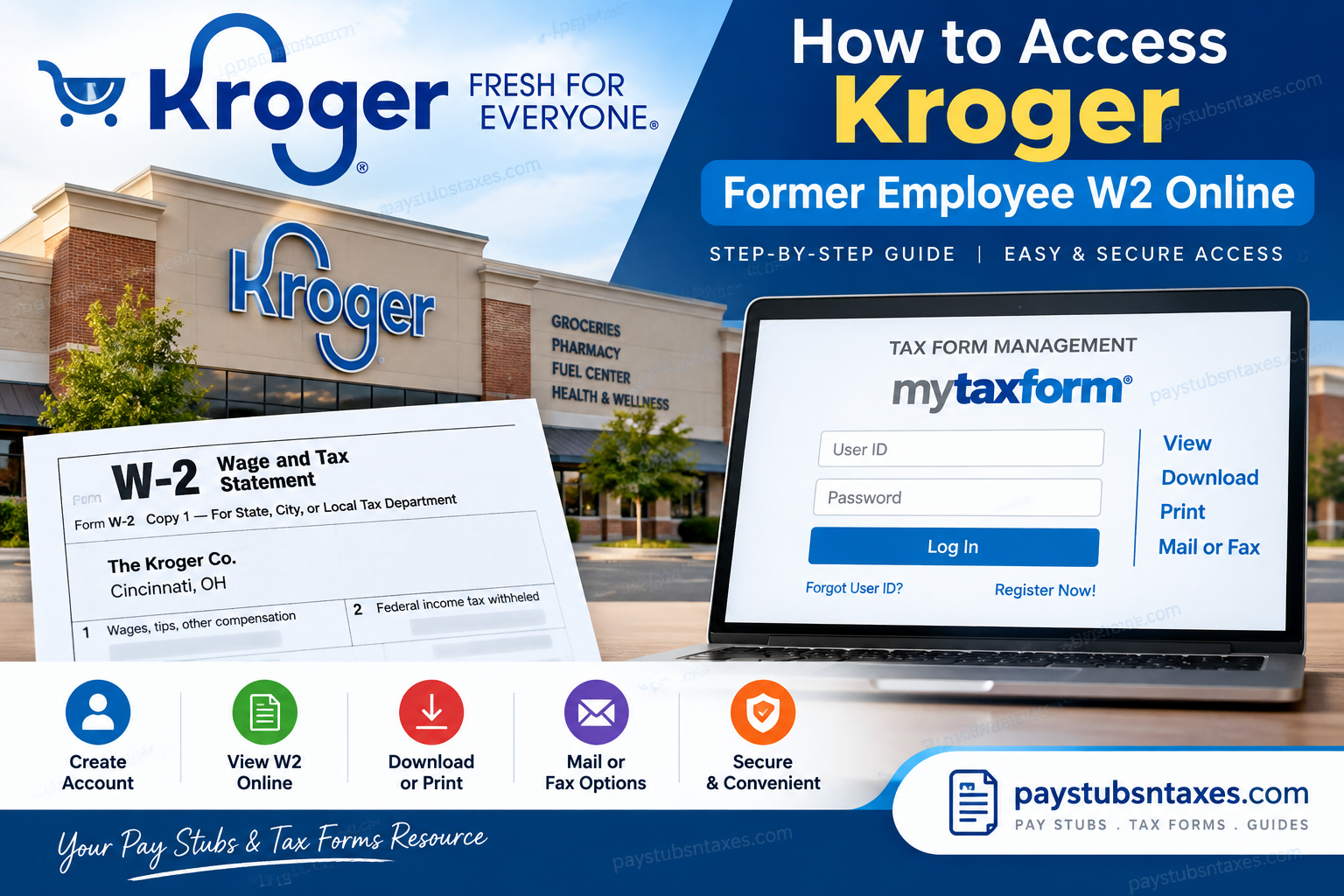
Former Kroger employees can access their year-end tax statements online through the Tax Form Management portal. Although active associates may reach their tax forms through Kroger MyInfo using Single Sign-On, that access is generally revoked after employment ends. Former employees must therefore visit the external tax portal directly. The process is relatively straightforward once you know where to begin. Whether you are signing in with an existing account or registering for the first time, this guide explains how to retrieve, download, print, or request your Kroger W-2 without running in circles.
Kroger W-2 Website and Employer Code
To access your Kroger W-2 online, visit:
Tax Form Management: https://mytaxform.com/
Kroger employer code: 10575
Keep the employer code close at hand, as the portal may ask for it before allowing you to proceed. Enter 10575, or search for the Kroger company name if an employer-name option is available.
How Former Kroger Employees Access Their W-2
Kroger employees ordinarily use different systems for different employment documents. Pay stubs are generally available through Oracle Self Service, whereas year-end tax statements are provided through Tax Form Management. Active associates may access both services through MyInfo, but former associates can no longer rely on Kroger’s employee Single Sign-On system.
If you have left Kroger, go directly to the Tax Form Management website. From there, your next step depends on whether you have used the portal before.
Returning Users: Sign In to an Existing Account
If you previously created a personalized Tax Form Management User ID, use those credentials to sign in.
- Visit MyTaxForm.com.
- Enter Kroger’s employer code, 10575, if prompted.
- Enter your personalized User ID.
- Select Continue and enter your password when requested.
- Complete any identity-verification or one-time passcode steps displayed on the screen.
- After signing in, locate the appropriate W-2 on the home page.
If your User ID has slipped your mind, select Forgot User ID rather than creating a duplicate account. The system may ask you to verify personal information and receive a one-time passcode by email or telephone before recovering or re-establishing your credentials.
First-Time Users: Register for Tax Form Management
Former Kroger employees who have never created a personal Tax Form Management account should select Register Now! on the login page. Instead of using an employer-issued User ID or default PIN, you will complete an identity-authentication process and create personalized credentials for future use.
Step 1: Begin Registration
Go to MyTaxForm.com and select Register Now!
Step 2: Identify Kroger as Your Employer
Enter Kroger’s employer code:
10575
If the portal allows you to search by employer name, select the appropriate Kroger company listing. Review the company name carefully before continuing.
Step 3: Verify Your Personal Information
Complete the requested personal-information fields. Enter each detail exactly as it appeared in Kroger’s employment and payroll records. Even a minor discrepancy—such as an outdated address, a misspelled surname, or incorrectly entered identifying information—may prevent the system from verifying your identity.
Step 4: Complete the Security Challenge
Complete the CAPTCHA or other security verification shown on the screen. If prompted, select the I’m not a robot checkbox and then choose Continue.
Step 5: Create a Personalized User ID
Choose a User ID containing at least eight characters. The portal does not impose a stated maximum length, although a memorable yet difficult-to-guess credential is the safest bet.
Select Check Status to determine whether your chosen User ID is available:
- A red X means the User ID is unavailable. Enter a different one and check again.
- A green checkmark means the User ID is available.
Store your User ID securely; it will become your login credential for future access.
Step 6: Create a Secure Password
Create a password containing between 8 and 16 characters. It must include at least:
- One uppercase letter
- One lowercase letter
- One number
Use a password that is unique to this account. Reusing a password from your email, banking account, or another employment portal leaves the door open to unnecessary security risks.
Step 7: Save Your Account
Select Save after completing the credential fields. Once the registration-confirmation page appears, choose Continue.
Step 8: Choose Whether to Remember the Device
The portal may ask whether it should remember your device. Select the option that suits your circumstances and choose Continue.
Allow the website to remember the device only when you are using a trusted, private computer or mobile device. Do not enable this feature on a public terminal, shared workplace computer, hotel business-center machine, or borrowed device.
How to View and Download a Kroger W-2
Once you have successfully signed in, your most recent available tax forms should appear on the Tax Form Management home page.
To retrieve your W-2:
- Locate the tax year you require.
- Select the checkbox beside the relevant W-2.
- Choose View to open the electronic document.
- Select Download to save a copy directly to your device.
- If you opened the document in the viewer, use the available controls to save or print it.
Before leaving the portal, check that the downloaded document is complete, legible, and associated with the correct tax year. Saving an encrypted backup in a secure location can spare you considerable inconvenience when tax-filing deadlines draw near.
How to Request a W-2 by Mail or Fax
If you cannot print the form yourself—or simply prefer a physical copy—the portal may offer alternative delivery methods.
After selecting the required tax form, choose:
- Postal Mail to request delivery by mail; or
- Fax to send the document to an eligible fax number.
Follow the on-screen instructions carefully and verify the mailing address or fax number before submitting the request. A single incorrect digit or an obsolete address can send sensitive tax information astray.
Mail delivery naturally takes longer than downloading the form, so request it well before your tax-filing deadline.
What to Do If Your Kroger W-2 Is Not Available
If the expected W-2 does not appear, first confirm that you have selected the correct employer account and tax year. You should also consider whether the form has been issued yet; year-end statements do not necessarily become available immediately after the calendar year closes.
If the document is still missing:
- Sign out and confirm that you used Kroger employer code 10575.
- Check whether you worked under another Kroger-owned banner or employing entity.
- Verify that your personal information matches Kroger’s payroll records.
- Review the portal for notices concerning document availability.
- Contact Kroger Associate Connect if the problem persists.
How to Recover a Forgotten User ID or Password
Forgetting a credential does not mean you must start from scratch. On the Tax Form Management login page, select Forgot User ID or the applicable password-recovery option.
You may be asked to:
- Confirm personal identifying information;
- Choose an email address or telephone number;
- Receive a one-time passcode;
- Enter the passcode before it expires; and
- Create or recover your personalized login credentials.
Check your spam or junk folder if an expected email does not arrive. When receiving a code by text or telephone, make sure the contact information associated with your account is still current.
Active Kroger Associates
Active Kroger associates can ordinarily access their tax forms through MyInfo:
- Sign in to MyInfo using Single Sign-On.
- Select Me.
- Choose My Tax Form.
- Follow the prompts to enter Tax Form Management.
This route is intended for active associates. Once an employee separates from Kroger, MyInfo Single Sign-On access may be revoked, at which point the former employee should use MyTaxForm.com directly.
Electronic Delivery and Mailing Addresses
If you remain employed by Kroger, ensure that your mailing address is correct in MyInfo. An outdated address could delay or misdirect a paper W-2.
The Tax Form Management portal may also offer electronic-delivery consent settings. If you have not previously consented, the option may appear on the home page. Existing users can typically review their preferences within the My Account area.
Read the electronic-delivery disclosure, confirm the appropriate email and mailing addresses, and retain any confirmation or receipt generated by the website.
Need Help Accessing Your Kroger W-2?
For assistance with pay stubs or year-end tax documents, contact Kroger Associate Connect:
Telephone: 1-877-373-3397
Before calling, have relevant details ready, such as your full name, former work location, approximate employment dates, employee identification information if available, and the tax year concerned. However, never send highly sensitive information—including passwords or complete Social Security numbers—through unsecured email or messaging services.
Final Thoughts
Losing access to an employee portal after leaving a company can make retrieving tax documents seem like an uphill battle, but former Kroger employees still have a clear route to their W-2 statements. Visit MyTaxForm.com, enter Kroger employer code 10575, and either sign in with your personalized credentials or select Register Now! to establish an account.
Once authenticated, you can view, download, save, print, or—where available—request delivery of your W-2 by mail or fax. If the process reaches an impasse, Kroger Associate Connect can be reached at 1-877-373-3397 for further assistance.
Frequently Asked Questions About Kroger Former Employee W-2 Access
1. How do I access my Kroger W-2 after leaving the company?
Visit MyTaxForm.com and enter Kroger employer code 10575. Sign in with your personalized User ID and password. If you have never used the portal, select Register Now! and complete the identity-verification process.
2. What is the Kroger employer code for MyTaxForm?
The Kroger employer code for Tax Form Management is 10575. Enter this code when the website asks you to identify your employer.
3. Can former Kroger employees still access MyInfo?
Former employees generally lose MyInfo Single Sign-On access after separation. Once that access has been revoked, they should retrieve year-end tax statements directly through MyTaxForm.com.
4. How do first-time users register for Kroger W-2 access?
Go to MyTaxForm.com, select Register Now!, and enter Kroger employer code 10575. Complete the requested personal information and security checks, choose an available User ID, create a qualifying password, and save the account.
5. What are the password requirements for MyTaxForm?
Your personalized password must contain between 8 and 16 characters, including at least one uppercase letter, one lowercase letter, and one number. For better security, avoid reusing a password associated with another account.
6. What should I do if I forget my MyTaxForm User ID?
Select Forgot User ID on the Tax Form Management login page. Follow the identity-verification instructions and, when requested, enter the one-time passcode sent to your registered telephone number or email address.
7. How do I download my Kroger W-2?
Sign in to Tax Form Management, locate the appropriate W-2, and select its checkbox. Choose Download to save the document directly, or select View and use the available controls to save a copy.
8. Can I print my Kroger W-2 online?
Yes. Open the relevant W-2 by selecting View, and then choose the print option. Before printing, verify that the document is complete, legible, and associated with the correct tax year.
9. Can I request my Kroger W-2 by postal mail?
If Postal Mail appears as a delivery option, select the required W-2 and follow the on-screen instructions. Confirm that your mailing address is correct before submitting the request, and allow sufficient time for delivery.
10. Can Tax Form Management send my Kroger W-2 by fax?
The portal may provide a Fax option for eligible documents. Select the appropriate W-2, choose Fax, and enter the requested information carefully. Double-check the fax number because W-2 statements contain sensitive personal and financial information.
11. Why is my Kroger W-2 not showing online?
The form may not have been issued yet, you may be viewing the wrong tax year, or your employment may be associated with a different Kroger-owned entity. Confirm the employer code and account details, then contact Kroger Associate Connect if the document remains unavailable.
12. Where can former Kroger employees obtain old W-2 forms?
Available prior-year W-2 statements may appear in your Tax Form Management account. Sign in, review the listed tax years, and select the required form. If an older statement is not displayed, contact Kroger Associate Connect for assistance.
13. Are Kroger pay stubs available through MyTaxForm?
No. Tax Form Management is primarily used for year-end tax statements, including W-2 forms. Kroger pay stubs are generally accessed through Oracle Self Service. Former employees who cannot reach the payroll system should contact Associate Connect.
14. What number should I call for help with a Kroger W-2?
For help accessing pay stubs or year-end tax documents, call Kroger Associate Connect at 1-877-373-3397. Having your employment details and the relevant tax year ready may help streamline the conversation.
15. How can active Kroger employees access their W-2?
Active associates can ordinarily sign in to MyInfo, select Me, and choose My Tax Form. Former employees whose Single Sign-On access has ended should instead visit MyTaxForm.com and use Kroger employer code 10575.
