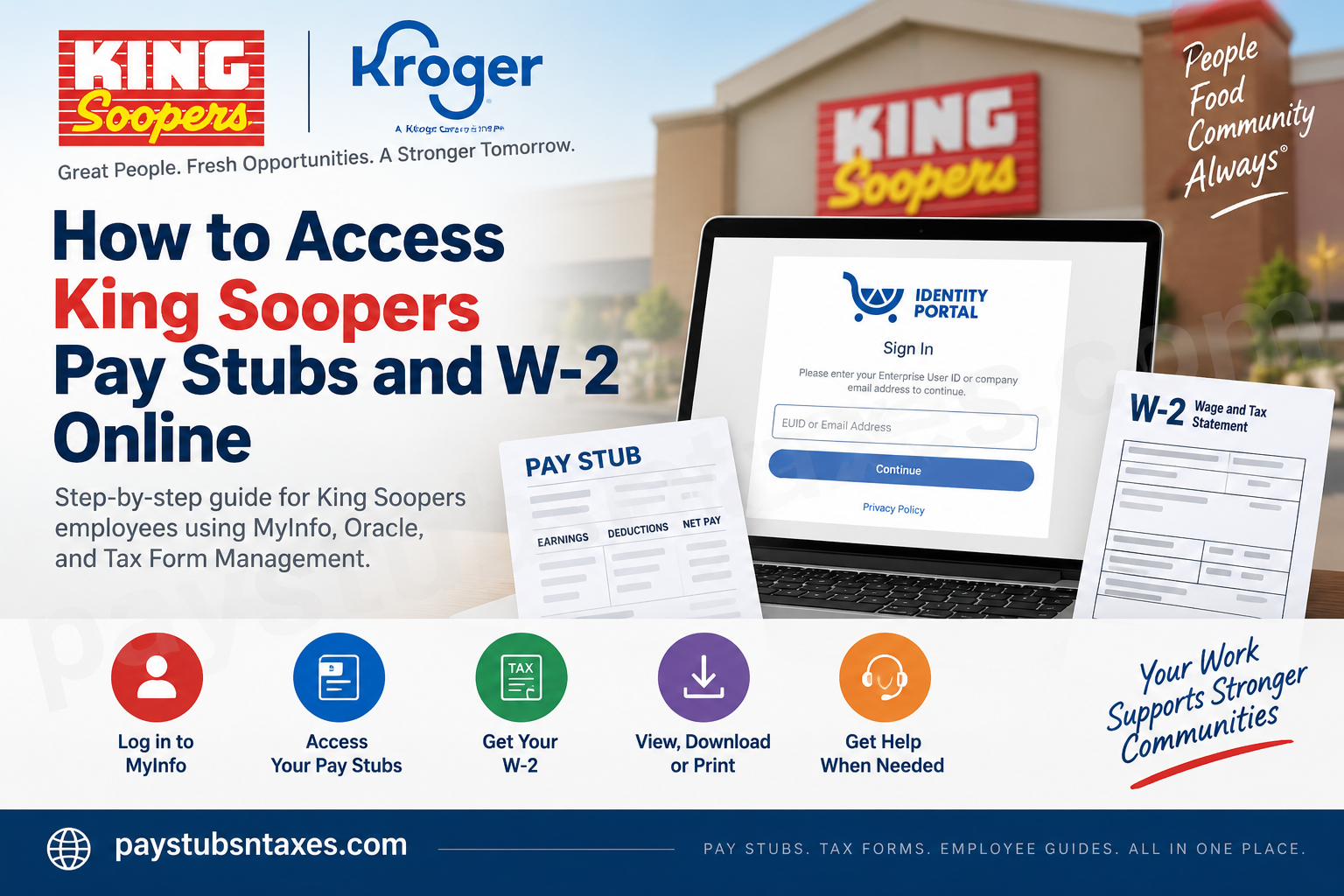
King Soopers employees can access their pay stubs and year-end W-2 forms online through Kroger’s MyInfo platform. Pay stubs are available through Oracle Cloud, while W-2 forms are provided through the Tax Form Management portal. Because both services are accessible from MyInfo, employees can manage essential payroll and tax documents from one convenient starting point. This guide explains how to sign in, view and download King Soopers pay stubs, access W-2 forms, and obtain assistance if something goes awry.
About King Soopers
King Soopers is an American supermarket chain with a strong presence along the eastern slope of the Rocky Mountains. Headquartered in Denver, Colorado, the company operates primarily along the Front Range, extending from Cheyenne, Wyoming, to Pueblo, Colorado, with additional stores in the foothills west of Denver and Colorado Springs.
Although King Soopers began as an independent grocery brand, it is now a subsidiary of The Kroger Co. As a result, King Soopers employees use Kroger’s centralized MyInfo system to access payroll and tax information.
King Soopers Employee Login: Accessing MyInfo
MyInfo serves as the gateway to both Oracle pay stubs and the Tax Form Management portal.
To sign in:
- Visit the Kroger MyInfo portal.
- Enter your Enterprise User ID (EUID) or company email address.
- Select Continue.
- Complete the authentication process through PingOne Single Sign-On (SSO).
For security reasons, access MyInfo only from a trusted device and network. Never disclose your password, authentication code, or payroll information to another person.
How to Access King Soopers Pay Stubs Online
Current King Soopers pay stubs are available through the Oracle self-service portal within MyInfo.
After signing in, follow these steps:
- Select Me from the Oracle home page.
- Choose Pay.
- Select My Payslips.
- Locate the pay period you want to review.
- Select the desired payslip to open its details.
The payslip summary presents payroll information in a clear, graphical format, making it easier to see where every dollar has gone. Depending on the available options, you can review:
- Earnings: Your wages and other forms of compensation for the selected pay period.
- Deductions: Amounts withheld from your earnings, such as taxes, benefits, or other authorized deductions.
- Net Pay Distribution: A breakdown of how your net pay was distributed, which is particularly helpful if your wages were divided among multiple direct-deposit accounts.
- Payslip Preview: A complete preview of the selected payslip document.
When you select Earnings or Deductions, the bar chart may display the chosen payslip alongside the two preceding payslips. This comparison provides an at-a-glance view of changes across recent pay periods.
How to Download a King Soopers Pay Stub
Oracle allows employees to download one or more payslips for their records.
To export payslips:
- Open Me > Pay > My Payslips.
- Mark the checkbox beside each payslip you want to download.
- Select the Export button.
- Save the downloaded file in a secure location.
You may also open an individual payslip and use the Payslip Preview tab to view or download the complete document.
Before closing the page, confirm that the file downloaded correctly and that the pay period is the one you intended to retrieve. If you are using a shared computer, remove any saved copies afterward and sign out of MyInfo.
How to Access a King Soopers W-2 Online
King Soopers W-2 forms are accessed through the Tax Form Management website rather than through the Oracle payslip page. MyInfo nevertheless acts as the doorway to the service, so the process remains reasonably straightforward.
Once you have signed in to MyInfo:
- Select Me.
- Choose My Tax Form.
- Continue to the Tax Form Management website.
- Locate your most recent tax forms on the home page.
- Mark the checkbox beside the W-2 form you want to access.
- Select the appropriate viewing or delivery option.
Available options may include:
- View: Open the W-2 electronically. Once it is displayed, you can save or print it.
- Download: Save the W-2 directly from the Tax Form Management home page.
- Postal Mail: Request that a paper copy be sent through the mail.
- Fax: Send the document to a fax number by following the instructions displayed on the portal.
If you opt for postal delivery, verify that your mailing address in MyInfo is accurate before submitting the request. Otherwise, an outdated address could throw a wrench in the works and delay delivery of an important tax document.
Printing or Saving a King Soopers W-2
To keep an electronic copy, select Download from the Tax Form Management home page or open the document through View and choose the available save option.
To print the form:
- Open the W-2 using View.
- Confirm that the employee information and tax year are correct.
- Select the print option.
- Use a private printer whenever possible.
- Collect the document immediately and store it securely.
W-2 forms contain sensitive personal, wage, and tax information. Avoid saving them on public computers, shared devices, or unsecured cloud accounts.
Troubleshooting MyInfo, Pay-Stub, or W-2 Access
If the MyInfo page does not open, Oracle does not display your payslips, or the Tax Form Management portal does not show the expected W-2, try the following:
- Confirm that you entered the correct EUID or company email address.
- Complete every PingOne SSO authentication prompt.
- Refresh the page and sign in again.
- Try a supported, up-to-date browser.
- Clear the browser’s cache and cookies if the portal repeatedly reloads or displays stale information.
- Allow pop-ups when attempting to preview, print, or download a document.
- Check that you selected the correct tax year or pay period.
- Try again later if the service appears to be temporarily unavailable.
Never send your password, one-time authentication code, Social Security number, or complete tax document through an unsecured message when requesting help.
King Soopers Payroll and Tax-Document Support
For assistance with accessing King Soopers pay stubs or year-end tax documents, contact Associate Connect at 1-877-373-3397.
When calling, be prepared to explain whether the problem concerns:
- Signing in to MyInfo;
- Completing PingOne SSO authentication;
- Finding a current or previous payslip;
- Downloading or previewing a payslip;
- Opening the Tax Form Management portal; or
- Viewing, downloading, printing, mailing, or faxing a W-2.
Providing a concise description of the issue can help the support representative get to the heart of the matter more quickly. However, do not share passwords or authentication codes.
Final Thoughts
Accessing King Soopers pay stubs and W-2 forms online is a fairly seamless process once you know where to look. MyInfo provides the central point of entry: Oracle houses employee payslips, while the Tax Form Management portal handles W-2 forms. By periodically downloading pay stubs, reviewing deductions, confirming direct-deposit distributions, and keeping personal information up to date, employees can stay on top of their payroll and tax records rather than leaving matters until the eleventh hour.
Frequently Asked Questions About King Soopers Pay Stubs and W-2 Forms
1. How do I access my King Soopers pay stub online?
Visit the Kroger MyInfo portal, sign in through PingOne SSO, and select Me > Pay > My Payslips. Choose the relevant pay period to view your payslip.
2. What is the King Soopers employee login website?
King Soopers employees can begin at https://feed.krgr.us/49lelAZ. This link provides access to Kroger MyInfo, which serves as the gateway to payroll and tax-document services.
3. How do I sign in to Kroger MyInfo?
Enter your Enterprise User ID (EUID) or company email address, select Continue, and complete the PingOne Single Sign-On authentication process.
4. Where can I find My Payslips in Oracle?
After entering Oracle through MyInfo, select Me, choose Pay, and then open My Payslips.
5. How can I download a King Soopers pay stub?
Open My Payslips, mark the checkbox beside the payslip you need, and select Export. Save the downloaded document in a secure location.
6. Can I download several King Soopers payslips at once?
Yes. Select the checkboxes beside all the desired payslips and click Export to download the selected records.
7. What information appears on an Oracle payslip?
The payslip page may display earnings, deductions, net-pay distribution, and a complete payslip preview. Net-pay distribution is especially useful when wages are divided among multiple direct-deposit accounts.
8. Can I compare my recent King Soopers pay stubs?
Yes. When you select Earnings or Deductions, the Oracle bar chart may compare the selected payslip with the two previous payslips.
9. How do I access my King Soopers W-2 online?
Sign in to MyInfo and select Me > My Tax Form. You will then be directed to the Tax Form Management portal, where your available tax forms should appear.
10. Can I download my King Soopers W-2?
Yes. Mark the checkbox beside the required W-2 and select Download. You can also choose View and save the document after it opens.
11. How do I print my King Soopers W-2?
Open the appropriate W-2 by selecting View, verify the employee information and tax year, and use the print option. For privacy, print the form using a trusted device and a secure printer.
12. Can King Soopers mail me a paper W-2?
If the option is available in Tax Form Management, select the relevant W-2 and choose Postal Mail. Check that your mailing address in MyInfo is correct before submitting the request.
13. Can I send my King Soopers W-2 by fax?
Yes. Select the tax form, choose Fax, and follow the instructions displayed in the Tax Form Management portal. Confirm the fax number carefully because W-2 forms contain sensitive information.
14. Why is my King Soopers W-2 not showing online?
The form may not yet be available, the wrong tax year may be selected, or the portal may be experiencing a temporary problem. Sign out, log in again, check the tax year, and contact Associate Connect if the document remains unavailable.
15. Who do I contact for help with King Soopers pay stubs or W-2 forms?
For assistance accessing pay stubs or year-end tax documents, contact Associate Connect at 1-877-373-3397. Never provide your password or one-time authentication code to anyone requesting it.
