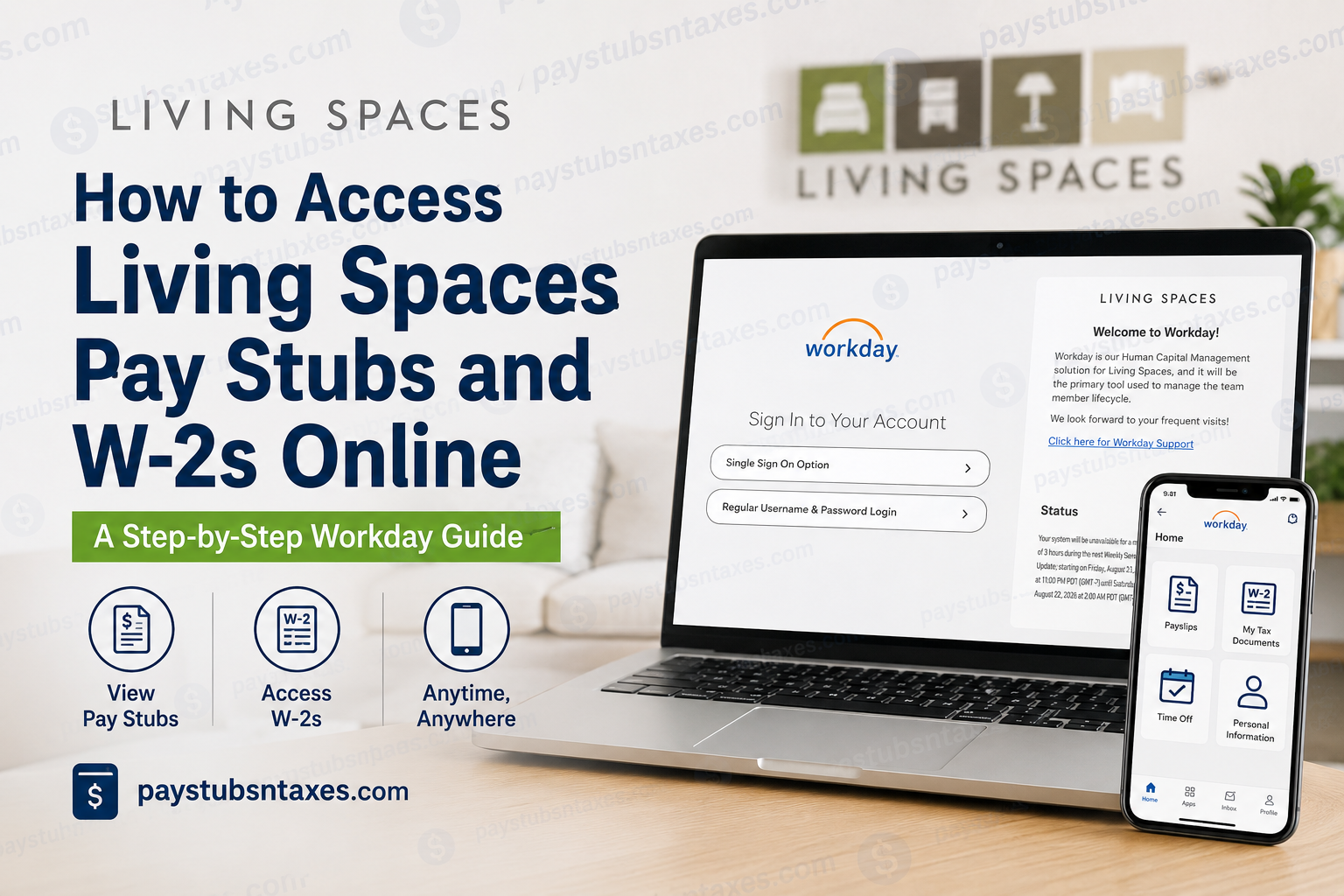
Living Spaces uses Workday as its Human Capital Management platform, giving team members a centralized and secure way to manage payroll, tax, benefits, time, absence, and other employment-related information. Whether you need to verify your latest earnings, download a pay stub, or retrieve a year-end W-2, you can generally complete the process online without waiting for a paper copy. This guide explains how to access Living Spaces pay stubs and W-2 forms through the Workday self-service portal and the Workday mobile app.
Living Spaces Workday Login Information
Current Living Spaces team members can begin by visiting the official employee Workday portal:
Living Spaces Workday portal:
https://wd5.myworkday.com/livingspaces/login.htmld
The sign-in page provides two login methods:
- Single Sign On Option
- Regular Username & Password Login
Select the method associated with your Living Spaces account. Team members who normally access company systems through single sign-on should generally choose the first option. Those who have been issued a separate Workday username and password can use the regular login option.
Because authentication arrangements may differ by role, location, or employment status, use the login method supplied during onboarding or by your HR representative. Never share your password, verification code, downloaded pay statement, or tax documents with anyone.
How to Access Living Spaces Pay Stubs in Workday
A Workday pay stub—also called a payslip or pay statement—provides a detailed breakdown of your earnings and deductions for a particular pay period. Depending on the statement, it may display gross pay, net pay, taxes, benefit deductions, payment details, and year-to-date totals.
To view a Living Spaces pay stub online:
- Open the Living Spaces Workday portal and sign in.
- Select the Menu icon from the Workday home page.
- Open the Pay application.
- Look for Payslips or a similarly named option under the viewing section.
- Find the pay period you want to review.
- Select the applicable payment date or statement.
- Choose View PDF Statement or the available PDF link.
- Open, download, or print the pay stub as required.
In some versions of Workday, pay information may also be available from your employee profile. Open your profile, select Pay, and then choose Payslips. Since Workday’s layout can vary slightly following updates, the wording or position of a menu item may differ, but the relevant records should remain within the Pay area.
Before relying on a downloaded statement, confirm that your name, pay date, pay period, gross earnings, net pay, deductions, and year-to-date figures are correct. If something appears to be amiss, contact Living Spaces HR promptly rather than allowing the issue to fall through the cracks.
How to Access Living Spaces W-2 Forms Online
Form W-2 reports an employee’s annual wages and the federal, state, Social Security, and Medicare taxes withheld from those wages. Living Spaces team members can access available W-2 forms through the My Tax Documents section in Workday.
Follow these steps:
- Sign in to the Living Spaces Workday portal.
- Select Menu in the upper-left corner of the home page.
- Open the Pay application.
- Select My Tax Documents.
- Review the table of available tax documents.
- Locate the correct tax year and W-2 form.
- Select the applicable document or its PDF option.
- Download the PDF and save or print it securely.
Make sure that you select the correct tax year before using the document to prepare your return. If more than one form appears, review the company name, tax year, and form description carefully.
What “Notify Me Later” Means
Workday may need time to generate a downloadable W-2. If a Notify Me Later message appears, select that option and allow the request to process in the background.
When the document is ready:
- Open the Bell or Notifications icon in the upper-right corner.
- Locate the completion notification.
- Open the notification and select the completed document.
- Open or double-click the PDF version to view, download, or print the W-2.
There is no need to submit the same request repeatedly while Workday is processing it. Wait for the completion notice, then retrieve the finished PDF from your notifications.
How to Use the Workday Mobile App
The Workday mobile app offers convenient access to employment information from compatible iPhone, iPad, and Android devices. Although the mobile interface may contain fewer options than the desktop portal, employees can generally use it to view pay statements, tax documents, notifications, personal information, and other self-service records.
Set Up Workday Mobile for Living Spaces
- Download the official Workday app from the Apple App Store or Google Play.
- Open the app and begin the organization setup process.
- Enter the Living Spaces organization code: livingspaces
- Continue to the Living Spaces sign-in page.
- Sign in using the authentication method connected to your employee account.
- Complete any identity-verification or multifactor-authentication steps.
- If offered, create a secure mobile PIN or enable a supported biometric login method.
A mobile PIN can make future access more convenient, but it should be difficult for another person to guess. Protect the device itself with a passcode, fingerprint, or facial recognition, particularly if you intend to store payroll or tax documents on it.
How to Find a Pay Stub in the Workday Mobile App
After signing in:
- Open the Workday menu or applications area.
- Find Pay.
- Select Payslips or the equivalent option.
- Choose the appropriate pay period.
- Open the statement to review the details.
Workday Mobile specifically includes the ability to view payslips, although the location and appearance of individual functions can vary with application updates and employer configuration.
For lengthy tax documents or when you need a clean printed copy, using Workday through a desktop browser may prove more convenient.
How to Download or Print a Living Spaces Pay Stub
After opening the desired pay statement, look for a PDF, download, print, or document-viewing option.
A typical process is:
Workday → Pay → Payslips → Select Pay Period → Open PDF → Download or Print
Store downloaded payroll documents in a secure location. Pay stubs may contain personally identifiable and financial information, so keeping them in an unsecured shared folder or public computer is asking for trouble.
How to Download or Print a Living Spaces W-2
For a W-2, follow:
Workday → Menu → Pay → My Tax Documents → Select Tax Year → W-2 → View/Print
If Workday needs time to generate the document, select Notify Me Later, wait for the completion notification, and then open the PDF from the Notifications area.
Once opened, you may save the PDF to a secure device or print a paper copy for tax preparation.
Final Takeaway
Living Spaces team members can use Workday as a one-stop shop for retrieving pay stubs and available year-end W-2 forms. For pay statements, navigate to the Pay application and open the relevant payslip or payment date. For W-2s, go to Pay > My Tax Documents, select the applicable tax year, and download the PDF. Mobile users can configure the official Workday app with the organization code livingspaces. Keeping your contact details current, reviewing each document carefully, and storing downloaded files securely will help ensure that your payroll and tax records remain accurate, accessible, and protected.
Frequently Asked Questions About Living Spaces Pay Stubs and W-2s
1. How do I access my Living Spaces pay stubs online?
Sign in to the Living Spaces Workday portal and open Menu > Pay > Payslips. Choose the applicable pay period and select View PDF Statement or the available PDF link.
2. What is the Living Spaces Workday login URL?
The Living Spaces employee Workday portal is:
https://wd5.myworkday.com/livingspaces/login.htmld
Use the authentication method assigned to your employee account.
3. Which Living Spaces Workday login option should I choose?
Choose Single Sign On Option if you normally access company systems through Living Spaces credentials. Choose Regular Username & Password Login if you received separate Workday credentials. Contact HR if you are uncertain which method applies to you.
4. What is the Living Spaces organization code for Workday Mobile?
The Living Spaces organization code is livingspaces. Enter it when the Workday mobile app asks you to identify your organization.
5. How do I view a Living Spaces pay stub on my phone?
Open the Workday app, sign in, and locate Pay, Pay Slip, or Payslips. Select a payment date and tap View PDF Statement to open the full statement.
6. Where can I find my Living Spaces W-2 in Workday?
After signing in, go to Menu > Pay > My Tax Documents. Select the correct tax year and open the applicable W-2 PDF.
7. How do I download or print my Living Spaces W-2?
Open the W-2 under My Tax Documents, select its PDF option, and use your device’s download or print command. Store printed and electronic copies securely because the form contains sensitive information.
8. What does “Notify Me Later” mean when requesting a W-2?
Notify Me Later means that Workday needs additional time to generate the document. Select the option, wait for processing to finish, and check the Bell or Notifications area for the completion notice.
9. What information appears on a Living Spaces pay stub?
A pay stub may show the pay period, payment date, gross earnings, net pay, taxes, benefit deductions, payment details, and year-to-date totals. The exact information depends on the statement and your payroll circumstances.
10. Why can’t I find my latest Living Spaces pay stub?
The statement may still be undergoing payroll processing, or you may be viewing the wrong pay period. Check Pay, Payslips, and Pay History again after processing is complete. Contact HR if the expected statement remains unavailable.
11. Why is my W-2 not showing in Workday?
Confirm that you selected the correct tax year and checked Pay > My Tax Documents. Review your notifications as well, since a requested PDF may still be processing. If the form should already be available but is missing, contact Living Spaces HR.
12. What should I do if my pay stub or W-2 contains an error?
Contact Living Spaces HR or payroll promptly. Explain the discrepancy and identify the affected pay period or tax year. Do not edit the document yourself; any necessary correction must be issued through the appropriate payroll or tax process.
13. What should I do if I cannot sign in to Living Spaces Workday?
Verify that you selected the correct login option and entered the right credentials. You can also try an approved password reset, complete any pending verification prompt, or use a current browser. Mobile users should confirm that the organization code is livingspaces.
14. Can former Living Spaces employees access their W-2s through Workday?
Access for former employees may differ from access for active team members. Try the login method provided when your employment ended. If it no longer works, contact Living Spaces HR for instructions on obtaining your tax documents.
15. How do I contact Living Spaces for Workday assistance?
Contact your HR office or call (877) 266-7300. Support is available Monday through Sunday, from 5:00 a.m. to 9:00 p.m. Pacific Time.
