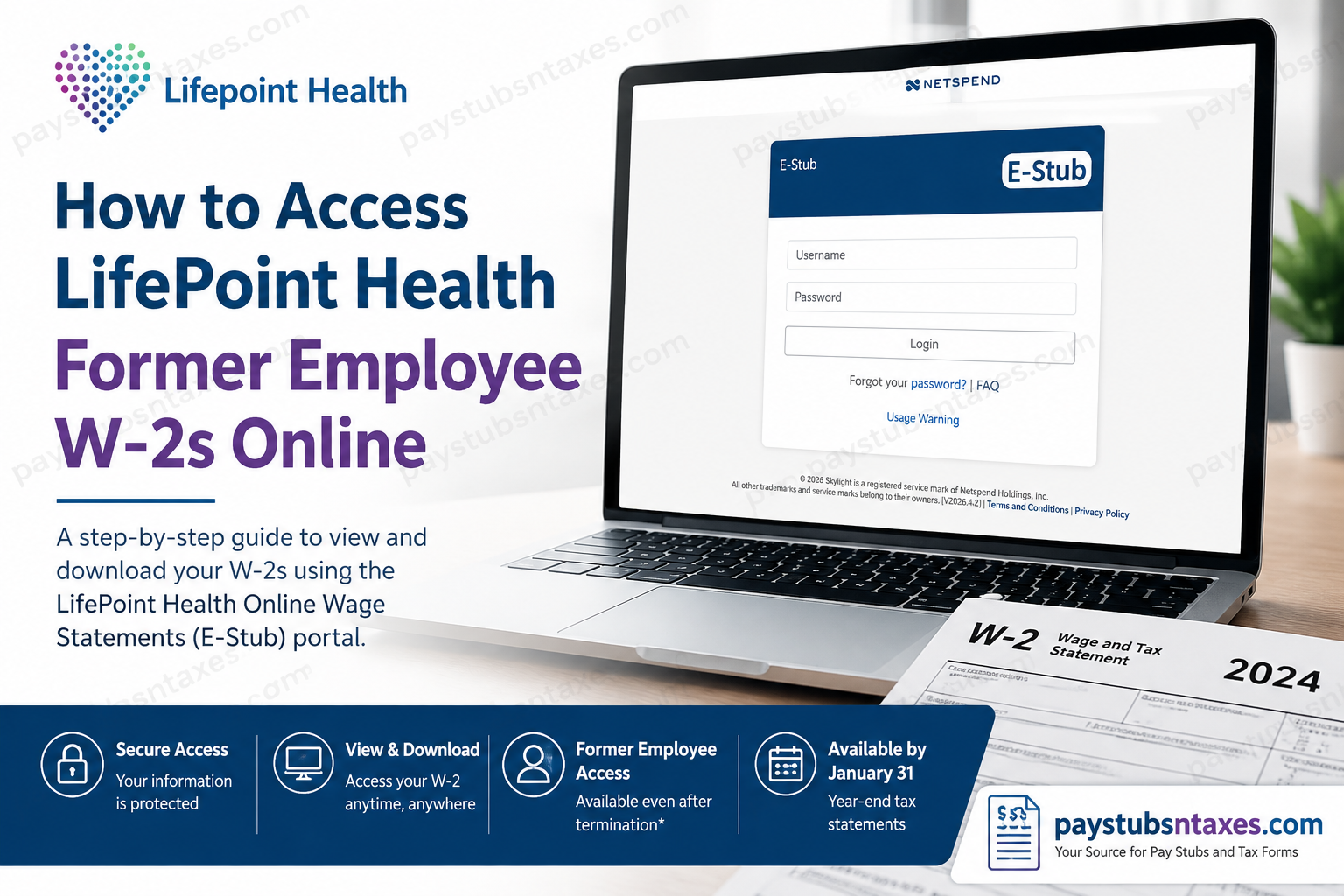
Former LifePoint Health employees who need a copy of a W-2 for tax filing, income verification, or personal records may continue to access eligible tax documents through the Online Wage Statements / E-Stub portal after leaving the company. The system is designed to preserve access to payroll information beyond an employee’s separation date, provided that the account remains active.
LifePoint Health was founded in 1999 and has developed from an initial footprint of 23 locations in nine states into a diversified healthcare delivery network spanning the healthcare continuum. Its current footprint includes 68 community hospital campuses, more than 70 rehabilitation and behavioral health hospitals, and more than 300 additional sites of service. For former employees, the key point is reassuringly simple: termination does not automatically eliminate access to E-Stub. Former employees may continue using the system as long as they log in at least once within every 365-day period.
LifePoint Health Former Employee W-2 Portal
Online Wage Statements / E-Stub:
https://www.onlinewagestatements.com/parallon2
The portal can be accessed through a computer with an internet connection. E-Stub is designed to provide secure access to payroll records and allows available documents to be viewed and printed electronically.
If you are a former employee, it is wise to use the portal periodically rather than waiting until tax season. Accounts that remain unused for an extended period can become locked, which may turn what should be a straightforward download into an unnecessary administrative headache.
Step-by-Step: Access Your LifePoint Health W-2 Online
Step 1: Open the Online Wage Statements Portal
Using a secure computer or trusted personal device, visit:
https://www.onlinewagestatements.com/parallon2
You should arrive at the E-Stub login page, where you will be asked for your username and password.
Whenever payroll or tax information is involved, avoid logging in through unsolicited email links or unfamiliar websites. Instead, enter the known portal address directly into your browser.
Step 2: Enter Your Login Credentials
Enter the username and password associated with your E-Stub account and select Login.
Former employees who established their account while still working for LifePoint Health should ordinarily continue using the same credentials after termination.
One point deserves particular attention: former employees retain access only while their account remains active. The E-Stub FAQ states that a former employee should log in at least once every 365 days. If the account becomes locked because of prolonged inactivity, assistance from the former local IT Help Desk may be required.
Step 3: Select “W2 History”
After successfully signing in, look at the navigation menu and click W2 History.
Do not be alarmed if the option is absent early in the tax season. The W2 History link is displayed only when a W-2 has been posted to the account.
LifePoint Health year-end tax statements are generally expected to become available no later than January 31, subject to normal payroll and tax-processing requirements.
Step 4: Choose the W-2 You Need
When the W2 History page opens, locate the applicable tax year.
Check the box next to the W-2 statement you want to retrieve, then select: View Selected W2 Statements.
If several years are available, make certain that you choose the correct tax year before downloading or printing the form.
Step 5: Save or Print Your W-2
Once the document opens, you may save an electronic copy to a secure location or print it for tax preparation.
Because a W-2 contains highly sensitive information—including wages, tax withholding details, your name, address, and part of your Social Security information—it should not be stored on a public or shared computer.
Can Former LifePoint Health Employees Still Use E-Stub After Termination?
Yes. The E-Stub payroll information confirms that terminated employees may continue accessing the system, provided that they log in within each 365-day period. If a former employee becomes locked out, the former facility’s local IT Help Desk may need to assist with restoring access.
This provision is particularly valuable for former employees because tax documents are often required months—or occasionally years—after an employment relationship has ended.
A sensible habit is therefore to sign in periodically and keep your email address and recovery information current whenever the portal permits you to do so.
First-Time Login or Additional Identity Verification
Depending on the status of your account, the E-Stub system may request additional identity verification during initial setup or account recovery.
The first-login process may require information such as:
- Your assigned user ID or username
- Your Social Security Number for initial authentication
- Your 9-digit Employee ID
- Your date of birth in MMDDYYYY format
- Creation of a new password
The first-login instructions show that the Employee ID must contain nine digits and that leading zeros must be entered when applicable. They also indicate that the Employee ID can be found in the upper-left corner of a previous pay statement.
The separate E-Stub FAQ likewise confirms that the Employee ID consists of nine digits and appears in the upper-left corner of a recent pay statement.
If you are already a registered former employee, however, you ordinarily should not need to repeat the complete first-time enrollment process unless the system specifically prompts you to do so.
E-W2 Electronic Delivery Election
The E-Stub system provides an electronic W-2 election through the employee profile. Users who elect electronic delivery are required to provide a valid email address, and the system can send confirmation of the election or subsequent changes.
If you previously consented to electronic W-2 delivery, your W-2 can be retrieved through the portal once it has been posted.
If you did not consent to electronic delivery, a paper W-2 may also be sent to your mailing address. Consequently, former employees should ensure that LifePoint Health has an accurate address on file, particularly after moving following termination.
What If You Forgot Your LifePoint Health E-Stub Password?
If you cannot remember your password, select Forgot Your Password? from the login screen.
The E-Stub system uses security questions established in the employee profile to verify identity. Once the correct security response is supplied, the system may reset the password so that the user can regain access.
The password-assistance process also provides a limited number of login attempts before an account is locked. Therefore, repeatedly guessing a password is rarely a good strategy.
If you are uncertain, use the password-recovery option before exhausting your login attempts.
What Happens If Your E-Stub Account Is Locked?
An E-Stub password may expire when the account has not been accessed for 365 days. Once that happens, the employee can be locked out and may need assistance resetting the account.
This is especially relevant to former employees, who may use the payroll portal only once a year.
If you encounter a locked-account message, contact your former local IT Help Desk or use the LifePoint support information below rather than opening a new account unless specifically instructed to do so.
Where Can I Find My LifePoint Health Employee ID?
Your Employee ID is a 9-digit number located in the upper-left portion of a recent or previous pay statement.
If the number begins with zero, enter the leading zero as well. For example, an ID displayed as 001234567 should be entered exactly as shown rather than shortened to 1234567.
If you no longer have a previous pay statement and cannot remember the ID, contact the appropriate LifePoint support channel for assistance.
When Will the LifePoint Health W-2 Be Available?
Year-end W-2 statements are generally made available by January 31.
Former employees who previously elected electronic delivery should check W2 History in the Online Wage Statements portal. If the W2 History option does not yet appear, it generally means that a W-2 has not yet been posted to the account.
Employees who did not choose electronic-only delivery may receive a paper copy by postal mail.
Allow sufficient time for postal delivery before requesting a replacement, particularly if your address has recently changed.
What If Your W-2 Was Mailed to an Old Address?
If you moved after leaving LifePoint Health, your mailed W-2 could be sent to the last address retained in the employer’s payroll records.
In that situation, first try the Online Wage Statements portal. If an electronic copy is available, downloading it may be considerably faster than waiting for a replacement paper form.
If you cannot access the electronic version, contact the LifePoint Benefits Service Center and request guidance on obtaining a duplicate or correcting your mailing information.
LifePoint Health W-2 and Benefits Support
For additional assistance, contact:
LifePoint Benefits Service Center
Phone: 844-348-0627
Email: lifepointbenefitsservicecenter@ajg.com
For an E-Stub account that has been locked because of inactivity or login problems, a former employee may also need to contact the former local IT Help Desk. The E-Stub FAQ specifically directs locked-out former employees to their former local IT support resource.
When requesting assistance, have identifying information available, but do not send your complete Social Security Number or other highly sensitive information through ordinary email unless an authorized representative gives you a secure method for providing it.
Conclusion
Accessing a LifePoint Health former employee W-2 online is relatively straightforward when your E-Stub account remains active. Visit the Online Wage Statements portal, sign in with your established credentials, choose W2 History, select the appropriate tax year, and open the W-2 you need.
The most important detail for former employees is easy to overlook: do not allow the account to sit unused indefinitely. E-Stub access can continue after termination, but former employees should log in at least once every 365 days to reduce the risk of being locked out.
By maintaining access, keeping your contact information current, and downloading tax records when they become available, you can sidestep much of the last-minute scrambling that so often accompanies tax season.
Frequently Asked Questions About LifePoint Health Former Employee W-2s
1. How can a former LifePoint Health employee access a W-2 online?
Visit https://www.onlinewagestatements.com/parallon2, enter your login credentials, and select W2 History. Choose the relevant tax statement and click View Selected W2 Statements.
2. What is the LifePoint Health W-2 portal?
LifePoint Health employees and eligible former employees use the Online Wage Statements E-Stub portal: https://www.onlinewagestatements.com/parallon2
Check the web address before entering personal information.
3. Can former LifePoint Health employees still access E-Stub?
Yes. Former employees generally retain access after termination, provided they sign in at least once every 365 days. An account that remains inactive for longer may become locked.
4. When will a LifePoint Health W-2 be available online?
Year-end W-2 statements should generally be furnished no later than January 31, subject to the applicable calendar and federal requirements. The W2 History link may not appear until a statement has been posted.
5. Where is the W2 History option in E-Stub?
After signing in, look for W2 History in the navigation menu on the left. If it is missing, the W-2 may not yet have been posted to your account.
6. How do I download a LifePoint Health W-2?
Open W2 History, check the box beside the required W-2, and select View Selected W2 Statements. Once the document opens, use the browser’s download or save-as-PDF function.
7. Can I print my LifePoint Health W-2 from E-Stub?
Yes. Open the W-2 through W2 History and use the browser’s print command. For privacy, avoid printing confidential tax documents on a shared or public printer.
8. Will LifePoint Health mail a paper W-2?
A paper W-2 should be mailed if you have not consented to electronic delivery. Former employees should ensure that their mailing address is current to prevent delays or misdelivery.
9. What should I do if I forgot my E-Stub password?
Select Forgot your password? on the login page. Enter the requested account information and answer the applicable security question. After the password is reset, sign in and create a new permanent password if prompted.
10. What happens if my former-employee E-Stub account is locked?
Contact the local IT Help Desk at your former facility. Accounts may be locked after repeated unsuccessful login attempts or after 365 days without a successful sign-in.
11. Where can I find my LifePoint Health Employee ID?
Your nine-digit Employee ID may appear in the upper-left corner of a previous pay statement. Enter all leading zeros when the portal requests the complete nine-digit number.
12. What information may be required for a first-time E-Stub login?
The portal may request an assigned username, a nine-digit Employee ID, a birth date in MMDDYYYY format, and a temporary password. Older first-login procedures used the employee’s Social Security number as the temporary password; follow the prompts on the current login page.
13. Why can’t I find my LifePoint Health W-2 online?
The W-2 may not have been posted yet, the W2 History link may still be hidden, or the account may be locked. Confirm that you are using the Parallon2 portal, allow pop-ups, and contact support if the expected statement remains unavailable.
14. How long are LifePoint Health payroll statements available online?
E-Stub payroll information is generally available for three years from the E-Stub start date. Because retention periods can vary, download each required W-2 and store it in a secure location.
15. Who should I contact for help with a LifePoint Health W-2?
Contact the LifePoint Benefits Service Center at 844-348-0627 or email lifepointbenefitsservicecenter@ajg.com. For a locked or inactive E-Stub account, contact the local IT Help Desk at your former LifePoint Health facility.
