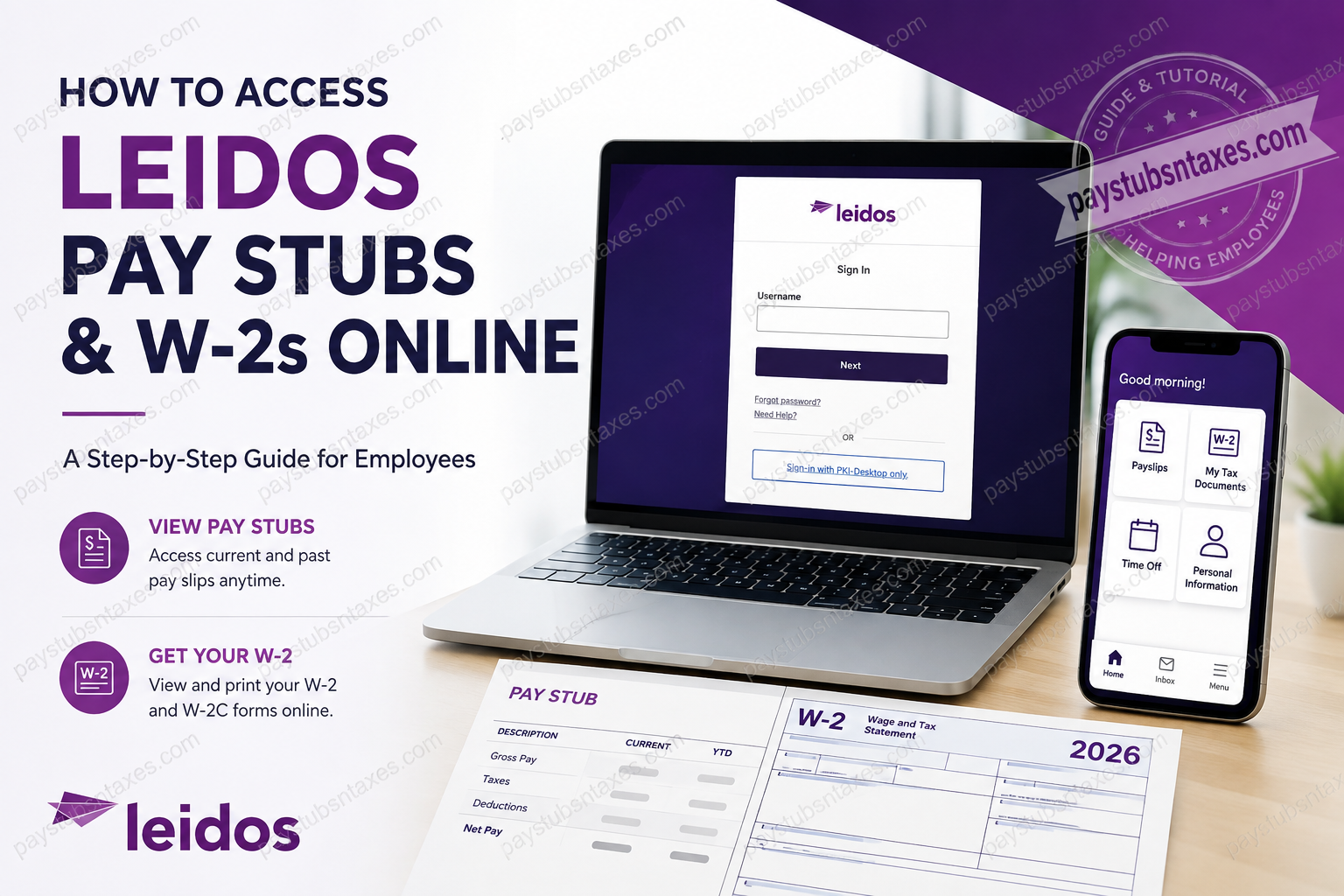
Leidos employees can access pay stubs, payroll information, and W-2 tax documents online through Workday, the company’s employee self-service platform. Whether you need to check your latest net pay, retrieve an earlier payslip, download a W-2 for tax filing, or review payroll deductions, Workday places these records within easy reach from a computer or compatible mobile device.
Leidos is an industry and technology leader that serves government and commercial customers through digital, engineering, and mission-focused innovations. The company employs approximately 50,000 people, whose work spans critical markets and technology-driven services. Headquartered in Reston, Virginia, Leidos reported approximately $17.2 billion in annual revenue for the fiscal year ended January 2, 2026. For employees, the practical advantage is straightforward: instead of waiting for payroll paperwork to arrive or chasing down copies of previous records, much of the information can be retrieved directly through Workday. The platform is accessible from an internet-connected computer as well as through the Workday mobile application. Consequently, employees are not tied to an office workstation when an important payroll document is needed; they can review their records wherever secure internet access is available.
Leidos Workday Login Information
Use the following official Workday address to access your Leidos account:
Leidos Workday portal: https://wd5.myworkday.com/leidos/d/home.htmld
You will need your authorized Leidos login credentials. If multifactor authentication is enabled, be prepared to complete the additional verification step.
For security reasons, avoid signing in through unfamiliar links received by email or text message. It is prudent to bookmark the official portal, particularly if you expect to review your payroll information regularly.
How to Access Leidos Pay Stubs Through Workday
Workday may refer to a pay stub as a payslip or pay slip. Although menu names can vary slightly after a system update, the usual process is as follows:
- Open the Leidos Workday portal and sign in.
- From the Workday home page, select View All Apps or open the main Menu.
- Select the Pay application.
- Under the available viewing options, choose Payslips.
- Locate the relevant pay period by its payment or check date.
- Select View to open the payslip.
- Choose the print or PDF option if you need to save or print a copy.
A payslip ordinarily provides considerably more detail than the amount deposited into your bank account. Depending on the payroll record, you may be able to review:
- Pay-period beginning and ending dates
- Payment or check date
- Current and year-to-date gross pay
- Federal, state, and other employee taxes
- Pre-tax and post-tax deductions
- Taxable wages and earnings
- Net pay
- Direct-deposit or payment information
- Employer-paid benefits or memorandum items
- Withholding information
Before using a payslip as proof of income, make certain that you have selected the correct pay period and that the employee name, payment date, gross earnings, and net pay are clearly visible.
How to Download or Print a Leidos Pay Stub
After opening the required payslip, look for an option such as Print, Download, View PDF Statement, or a printer icon. The wording may differ according to the device and the version of Workday in use.
If Workday generates the document as a PDF, you can save it to a secure location or send it to a connected printer. Give the file a meaningful name—such as Leidos_Paystub_2026-01-16.pdf—so that it can be found without having to hunt high and low later.
Payroll records contain sensitive personal and financial information. Therefore, do not save them permanently on a shared or public computer, and remove any downloaded copies once they are no longer required.
How to Access a Leidos W-2 Form Online
Employees who have elected electronic tax documents can generally retrieve their available W-2 forms from the Pay area of Workday.
- Sign in to the Leidos Workday portal.
- Open View All Apps or the main Menu.
- Select Pay.
- Find the View section.
- If the complete list is not visible, select More.
- Choose My Tax Documents.
- Locate the appropriate tax year and confirm that the listed form is a W-2.
- Select View/Print to open the document.
- Download the PDF or print a copy for your records.
If the document does not open immediately, Workday may still be generating the PDF. Wait briefly, check for a notification, and then try again. You should also ensure that the browser is not blocking pop-up windows or downloads from Workday.
How to Access Leidos Pay Stubs on a Mobile Device
The Workday application is available free of charge from the Apple App Store and Google Play Store. Once installed, it enables employees to carry out a range of Workday tasks while away from a desktop computer.
During the initial setup, enter:
- Your Leidos Workday username
- Your Workday password
- The Leidos organization ID: leidos
Depending on the company’s security configuration, you may also be asked to verify your identity or create a mobile PIN.
To find a pay statement in the app:
- Open the Workday app and sign in.
- Find the Pay, Payslips, or Pay Slips section.
- Select the pay history you want to review.
- Tap the corresponding payment date.
- Review the gross pay, net pay, payment distribution, and year-to-date figures.
- Select View PDF Statement if that option is available.
The mobile interface contains fewer shortcuts than the full desktop version, so some payroll or tax-document functions may be easier to locate through a web browser. If My Tax Documents or a downloading option is not visible in the app, sign in to the Leidos Workday website from a computer or mobile browser.
When Are Leidos W-2 Forms Available?
Leidos generally mails paper W-2 forms to employees’ home addresses no later than January 31 of the following year, unless the employee has elected paperless delivery.
To prevent a paper W-2 from going astray, employees should keep their home address current in Workday. It is also sensible to review paperless-delivery preferences before the annual payroll deadline rather than leaving the matter until the eleventh hour.
If your electronic W-2 is not yet displayed, allow sufficient time for annual payroll processing. If the expected availability period has passed, contact Leidos HR Services for assistance.
What to Do If Your Leidos W-2 Does Not Arrive
If you elected postal delivery but have not received your W-2:
- Confirm that your mailing address in Workday is correct.
- Check whether you previously selected electronic-only delivery.
- Look under Pay > My Tax Documents for an online copy.
- Allow for ordinary postal delays.
- Contact Leidos HR Services if the document remains unavailable.
If your address changed after the W-2 was prepared, updating Workday will not necessarily redirect a document that has already been mailed. In that situation, ask HR Services whether a replacement or electronic copy can be provided.
Leidos Employee Resources and Support
Leidos maintains employee resources intended to keep its workforce connected to internal systems and support services. The employee resource environment includes quick links to platforms such as Workday and other workplace systems, while secure remote access requires employee credentials.
Leidos also emphasizes employee career development, flexibility, engagement, and well-being through its broader employee experience initiatives.
For payroll purposes, however, the most useful contacts can be boiled down to two channels:
Technical or login problem:
Leidos IT/CIO Service Desk — 855-9-LEIDOS (855-953-4367)
Employment records or HR-related matter:
Leidos HR Services — HRRecords@leidos.com or (865) 425-5665
Knowing which door to knock on can save considerable time: technical login trouble belongs with IT, whereas questions concerning employment records or HR documentation are better directed to HR Services.
What If I Forget My Leidos Workday Password?
If you cannot sign in, first look for the Forgot password? option on the Leidos authentication page. Depending on your account configuration, you may be able to complete a password-reset or account-recovery procedure.
If that does not solve the problem—or your account needs additional assistance—contact the Leidos CIO/IT Service Desk.
Leidos IT Service Desk – United States
Phone: 855-9-LEIDOS
Numeric: 855-953-4367
The Leidos employee support information identifies the U.S. service desk number and also provides a route for employees to submit non-emergency tickets through CIO Central. Its listed U.S. operating hours are Monday through Friday, 8:00 a.m. to 7:00 p.m. Eastern Time.
Contact the Service Desk when you encounter issues such as:
- Forgotten or expired passwords
- Account setup problems
- Authentication failures
- Difficulty accessing Leidos systems remotely
- Workday sign-in problems connected to your employee account
Paper W-2 vs. Paperless W-2
Employees who elect paperless W-2 delivery can rely on electronic access when the document becomes available in Workday. Those who have not elected paperless delivery may receive a paper copy at the mailing address held in the employer’s records.
Electronic delivery has several advantages. You do not have to wait for postal transit, the document can generally be retrieved whenever needed, and there is less risk of a sensitive tax form sitting unattended in a mailbox.
Nevertheless, whether you choose paper or electronic delivery, it is wise to save a secure personal copy of each annual W-2 for your tax and employment records.
Final Thoughts
Accessing Leidos pay stubs and W-2 forms online is relatively straightforward once your Workday account is properly configured. Sign in to the Leidos Workday portal, open the Pay application, and use Payslips for payroll statements or My Tax Documents for W-2 and W-2C records. The Workday mobile application adds another layer of convenience, enabling employees to keep essential payroll information at their fingertips even when they are away from a desktop computer. If the technology throws a spanner in the works, the Leidos IT Service Desk can assist with account-access problems; if the issue concerns employment records or tax-document support, Leidos HR Services is the more appropriate port of call. Keeping your Workday credentials secure, maintaining an up-to-date mailing address, and retaining copies of important tax records will ensure that, when tax season rolls around or proof of income is suddenly required, you are not left scrambling for paperwork.
Frequently Asked Questions About Leidos Pay Stubs and W-2s
1. Where can I access my Leidos pay stubs online?
Access your Leidos pay stubs through the Leidos Workday portal. After signing in, select Pay, open Payslips, and choose the required pay period.
2. How do I download a Leidos pay stub?
Open the relevant payslip in Workday and select Print, Download, or View PDF Statement, depending on the options displayed. Save the PDF in a secure location because it contains confidential payroll information.
3. How do I print a Leidos pay stub?
Navigate to Pay > Payslips, select the appropriate payment date, and click Print or open the PDF statement and use your device’s printing controls.
4. Can I view old Leidos pay stubs in Workday?
Yes. Workday generally retains pay statements from previous pay periods. Open Payslips and select the applicable date from your available pay history.
5. What information appears on a Leidos pay stub?
A Leidos payslip may show gross pay, net pay, taxes, pre-tax and post-tax deductions, taxable wages, payment details, employer-paid benefits, and current and year-to-date totals.
6. Where can I find my Leidos W-2 in Workday?
Sign in to Workday and navigate to Pay > My Tax Documents. If that option is not immediately visible, expand the View section by selecting More.
7. How do I download my Leidos W-2?
From My Tax Documents, locate the appropriate tax year and select View/Print. Workday will open or generate a PDF that you can download and store securely.
8. When does Leidos send W-2 forms?
Leidos generally mails paper W-2 forms to the employee’s home address by January 31 of the following year, unless the employee has elected paperless delivery. Electronic availability may depend on annual payroll processing.
9. Does Leidos mail a paper W-2 if I use Workday?
A paper W-2 is generally mailed unless you have consented to paperless delivery. Review your tax-document preferences and confirm that your mailing address in Workday is current.
10. Can I access Leidos pay stubs and W-2s on my phone?
Yes. Download the Workday app from the Apple App Store or Google Play Store. During setup, enter your Leidos credentials and use leidos as the organization ID.
11. What is the Leidos organization ID for Workday?
The Leidos organization ID for the Workday mobile application is leidos. Enter it when prompted during the app’s initial setup.
12. Why can’t I see My Tax Documents in Workday?
The option may be hidden within the expanded View menu. Open Pay, click More, and look for My Tax Documents. If it remains unavailable, try the desktop portal or contact Leidos HR Services.
13. What should I do if my Leidos W-2 is missing?
Confirm the selected tax year, check My Tax Documents, verify your paperless-delivery preference, and review your mailing address. If the expected availability period has passed, email HRRecords@leidos.com or call (865) 425-5665.
14. What should I do if Workday shows a W-2C?
A W-2C is a corrected tax statement. Download and retain both the original W-2 and every related W-2C, as the documents may need to be reviewed together when preparing or amending your tax return.
15. Who can help me with Leidos Workday login problems?
For account setup, password, authentication, or technical-access problems, call the Leidos IT Service Desk at 855-9-LEIDOS (855-953-4367). For questions about payroll or employment records, contact Leidos HR Services at HRRecords@leidos.com or (865) 425-5665.
