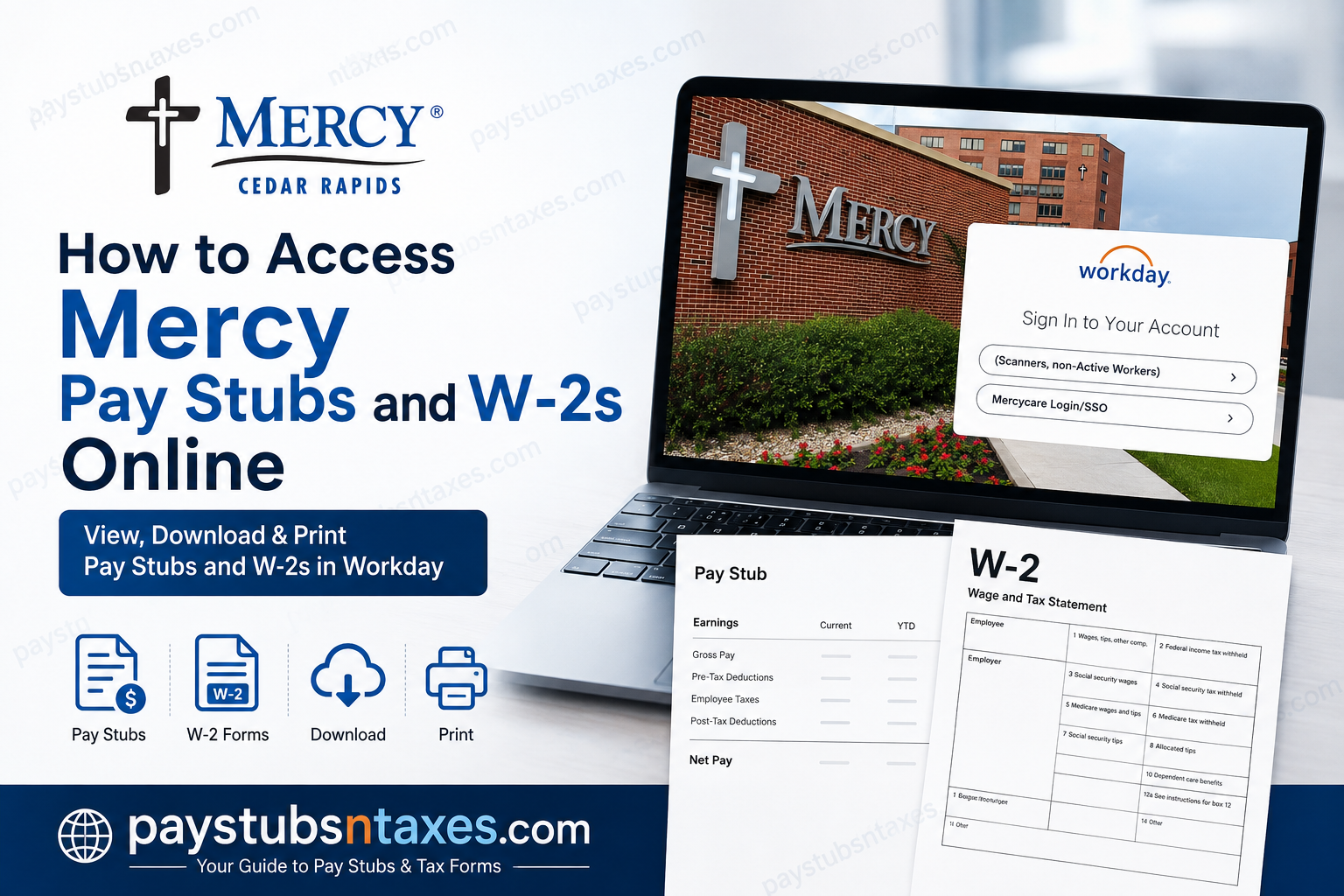
Mercy Cedar Rapids employees can access payroll information, including pay stubs and W-2 tax forms, through the Mercy Workday portal. Current employees should normally sign in through the Mercycare Login/SSO option, while the portal also provides a separate “Scanners, non-Active Workers” option for individuals who are no longer active workers or who have been instructed to use that access method. Once signed in, employees can use Workday’s Pay area to review previous payslips, examine earnings and deductions, and access available tax documents. Workday’s payslip functionality allows employees to view or print individual statements and review key payroll details such as gross pay, taxes, deductions, net pay, and year-to-date totals.
About Mercy Cedar Rapids
Mercy is an independent, locally managed, community-based healthcare organization that has served the Cedar Rapids area since 1900. Founded by the Sisters of Mercy under their vow “to care for the poor and for the sick,” the organization continues to deliver exceptional healthcare guided by the spirit of its founders.
Today, almost 3,000 employees carry this tradition forward through The Mercy Touch®—a patient-centered philosophy rooted in quality, service, and compassion. Mercy’s ICARE values—Integrity, Compassion, Accountability, Respect, and Excellence—shape how employees serve patients, support families, and work alongside one another.
In addition to providing competitive employee benefits and programs, Mercy gives eligible workers convenient online access to their payroll and tax documents through Workday.
Mercy Workday Portal Login
Use the following address to reach the Mercycare Workday sign-in page:
Workday portal: https://wd5.myworkday.com/mercycare/login.htmld
The login page presents two sign-in options:
- (Scanners, non-Active Workers)
- Mercycare Login/SSO
If you are a current Mercy employee, select Mercycare Login/SSO and sign in with your authorized Mercy credentials.
If you are no longer an active employee, use the (Scanners, non-Active Workers) option and follow the instructions displayed on the screen. Your login method may differ from that used by current employees.
Never enter your Mercy credentials on an unfamiliar website. Before signing in, check that the address begins with https://wd5.myworkday.com/mercycare/.
How to Access Mercy Pay Stubs Online
Workday stores pay statements from current and previous pay periods, enabling employees to review their earnings whenever the need arises.
Step 1: Sign in to Workday
Open the Mercycare Workday portal and choose Mercycare Login/SSO if you are a current employee. Complete any identity-verification or multifactor-authentication prompts that appear.
Step 2: Open the Pay application
From the Workday home page:
- Select Menu in the upper-left corner and choose Pay.
- Alternatively, select View All Apps, followed by the Pay application.
The wording or arrangement may vary slightly following a Workday update, but the Pay application remains the gateway to payroll information.
Step 3: Select Payslips
Within the Pay application, locate the View section and select Payslips. Workday will display the available statements by pay period.
Step 4: Choose the appropriate pay period
Find the pay statement you need and select the corresponding option:
- Choose View to open the payslip online.
- Choose Print to generate a printable version.
Depending on your device and browser, you may also be able to save the statement as a PDF instead of printing it on paper. This approach keeps paperwork to a minimum while ensuring that important payroll records remain readily available.
Information Included on a Mercy Pay Stub
A Workday pay statement generally presents a comprehensive breakdown of an employee’s compensation for the selected period. Depending on your employment circumstances and benefit elections, it may include:
- Pay-period beginning and ending dates
- Payment or check date
- Check number, when applicable
- Gross pay
- Pre-tax deductions
- Federal, state, and other employee taxes
- Post-tax deductions
- Net pay
- Current-period and year-to-date totals
- Taxable earnings
- Hours worked and applicable premium or shift pay
- Employer-paid benefits
- Taxable wages by tax category
- Federal and state withholding details
- Direct-deposit information
If you receive wages through direct deposit, the check-number field may be blank. This is ordinarily not a cause for concern. Likewise, the payment section may display more than one bank account if you have divided your direct deposit among several accounts.
Before closing the document, check the pay period, gross earnings, deductions, taxes, and net pay. If a figure appears incorrect, raise the matter promptly so that it does not become a thornier issue later.
How to Access a Mercy W-2 in Workday
Mercy employees can retrieve available W-2 tax forms from the My Tax Documents section of Workday.
Step 1: Log in
Visit the Mercycare Workday portal and sign in using the option appropriate to your employment status.
Step 2: Open Pay
From the Workday home screen, select Menu in the upper-left corner and choose Pay.
Step 3: Select My Tax Documents
Within the Pay application, select My Tax Documents. Workday will display a table containing the tax forms available for your account.
Step 4: Choose the appropriate W-2
Locate the required tax year and select the applicable W-2 form. Confirm the year carefully before downloading it, particularly if several documents are listed.
Step 5: Allow Workday to process the request
Workday may need a short time to prepare the PDF. If the message Notify Me Later appears, select it to continue rather than repeatedly submitting the request.
Step 6: Check your notifications
When the W-2 is ready, select the bell-shaped Notifications icon in the upper-right corner of Workday. Open the completion notice associated with your tax-document request.
Step 7: Open, save, or print the W-2
Open the PDF version of the W-2. You may then review it, download a copy to a secure device, or print it for your records and tax preparation.
What to Do If Your W-2 Is Not Available
If the required W-2 does not appear under My Tax Documents, first confirm that you selected the correct tax year. It may also be worth signing out, reopening the portal, and checking again after a short interval.
A newly requested form may not appear instantly because Workday sometimes prepares tax documents in the background. Watch the Notifications area for confirmation that processing is complete.
If the document remains unavailable, or if its personal or wage information appears inaccurate, contact Mercy Human Resources. Do not attempt to alter the W-2 yourself, since tax-document corrections must be handled through the appropriate payroll or human-resources process.
Mercy Human Resources Contact Information
If you cannot sign in, cannot locate a payroll document, or need help resolving an apparent discrepancy, contact the Mercy Human Resources Department.
Human Resources Department
Hours: Monday-Friday, 7:30 a.m.-4:30 p.m.
Phone: (319) 398-6150 or (319) 398-6605
When requesting assistance, be prepared to describe the problem and identify the document or tax year involved. For your security, do not send passwords, complete Social Security numbers, banking details, or authentication codes by email or through an unsecured message.
Final Thoughts
The Mercycare Workday portal offers a convenient way to manage essential payroll records without relying on a workplace computer or waiting for paper copies. Once signed in, current employees can reach pay stubs through Pay > Payslips and W-2 forms through Pay > My Tax Documents. A few sensible precautions go a long way: use the correct login option, confirm that you are on the secure Mercycare Workday site, check the document’s pay period or tax year, and keep every downloaded file confidential. Should difficulties persist, Mercy Human Resources can help put matters back on track.
Frequently Asked Questions About Mercy Pay Stubs and W-2s
1. How do I access my Mercy pay stub online?
Sign in to the Mercycare Workday portal, open Menu or View All Apps, select Pay, and then choose Payslips. Find the required pay period and select View to open the statement or Print to produce a printable copy.
2. What is the Mercy Workday portal link?
The Mercycare Workday login page is: https://wd5.myworkday.com/mercycare/login.htmld
Before entering your credentials, verify that the address begins with https://wd5.myworkday.com/mercycare/.
3. Which login option should current Mercy employees use?
Current employees should select Mercycare Login/SSO. This option connects active workers to Mercy’s authorized single sign-on process and may require identity verification or multifactor authentication.
4. Which login option should former Mercy employees use?
Former and other non-active workers should select (Scanners, non-Active Workers). They should then follow the instructions displayed on the portal, as their sign-in process may differ from that of current employees.
5. Where can I find Payslips in Mercy Workday?
From the Workday home page, select Menu > Pay > Payslips. Depending on the page layout, you may also be able to select View All Apps > Pay > Payslips.
6. How do I download a Mercy pay stub?
Open Pay > Payslips, locate the appropriate pay period, and select View or Print. When the statement opens, use the available download option or your browser’s Save as PDF feature to store it securely.
7. Can I print my Mercy pay stub from Workday?
Yes. Navigate to Pay > Payslips and select Print beside the required statement. If a dedicated Print button is unavailable, open the payslip and use your browser or PDF viewer’s printing controls.
8. What information appears on a Mercy pay stub?
A Workday pay stub may show the pay period, payment date, gross earnings, taxes, pre-tax and post-tax deductions, net pay, year-to-date totals, taxable wages, withholding details, employer-paid benefits, and direct-deposit information.
9. Why is the check-number field blank on my pay stub?
The check-number field may be blank when wages are delivered by direct deposit rather than by a physical check. Review the payment-information section to confirm how the net payment was distributed.
10. How do I access my Mercy W-2 online?
Sign in to Workday and select Menu > Pay > My Tax Documents. Locate the required tax year, choose the applicable W-2, and open the PDF when it becomes available.
11. Where are W-2 forms stored in Workday?
Available W-2 forms are stored under My Tax Documents within the Pay application. The page displays a table of tax documents associated with your Workday account.
12. What does “Notify Me Later” mean when requesting a W-2?
Notify Me Later means Workday needs additional time to prepare the W-2 PDF. Select the option, continue using or exit Workday, and check the Notifications bell for a completion message.
13. What should I do if my Mercy W-2 is missing?
Confirm that you selected the correct tax year and check the Notifications area for a pending document. If the W-2 remains unavailable, contact Mercy Human Resources for assistance rather than repeatedly submitting the same request.
14. Can I access Mercy pay stubs and W-2s from home?
Yes. Eligible employees can access the Mercycare Workday portal from a suitable personal device. Use a secure internet connection, complete all authentication prompts, and avoid downloading payroll or tax documents to a public or shared computer.
15. Who should I contact for Mercy Workday assistance?
Contact the Mercy Human Resources Department at (319) 398-6150 or (319) 398-6605. Office hours are Monday through Friday, 7:30 a.m. to 4:30 p.m. Never disclose your password or authentication code when requesting help.
