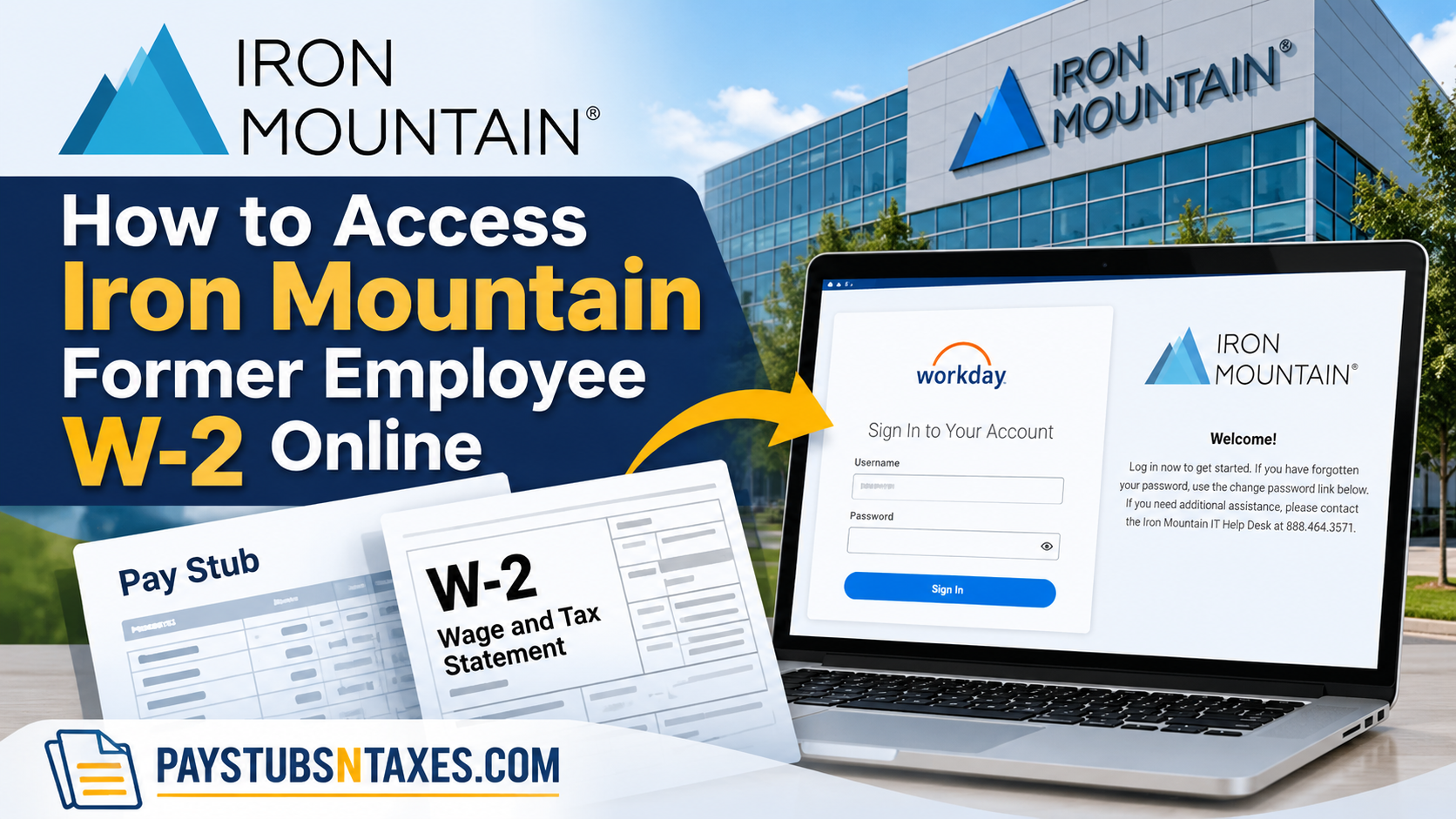
Leaving an organization does not necessarily mean losing access to essential employment records, particularly when those documents are indispensable for fulfilling annual tax obligations. For former employees of Iron Mountain Inc., retrieving a W-2 form is relatively straightforward, provided they retain access to the company’s designated Workday Employee Self-Service (ESS) portal.
Iron Mountain, a globally recognized information management company established in 1951, specializes in records management, information security, data protection, and digital transformation. Serving organizations across numerous countries, the company employs Workday, a cloud-based human capital management platform, to facilitate various human resources and payroll functions.
Through the Iron Mountain Non-SSO Workday portal, eligible former employees can securely access, review, download, and print their available W-2 tax statements without having to visit a company office.
Nevertheless, because post-employment access is typically granted for a limited period, understanding the login procedure and retrieving the necessary documents promptly can help prevent unnecessary complications.
This comprehensive guide explains how to access Iron Mountain former employee W-2 forms online, recover login credentials, download tax documents, manage paperless delivery preferences, and obtain assistance when Workday access is no longer available.
What You Need Before Signing In
Before accessing the Iron Mountain former employee Workday portal, have the following ready:
- Your non-SSO Workday username.
- Your Workday password.
- Access to the personal email address you provided during offboarding.
- A browser that allows Workday pop-ups when viewing or downloading documents.
Non-SSO access allows you to sign in with a separate Workday username and password. This is particularly useful after your company single sign-on access has ended.
Your offboarding communications should contain the credentials or instructions needed to access your account. If you cannot locate them, check your personal inbox, including its spam and junk folders.
How to Log In to Iron Mountain Workday as a Former Employee
To access your payroll and tax documents, follow these steps:
- Open the Iron Mountain non-SSO Workday login page.
- Enter your Workday username.
- Enter your Workday password.
- Select Sign In to access your account.
- Complete any additional verification requested on the screen.
Use the credentials issued for your post-employment access. Your former company sign-in details may no longer work once your employment has ended.
For this process, use Iron Mountain’s Workday portal. The Munis ESS reference does not apply to the Workday instructions below.
How to View and Download Your Iron Mountain W-2
Once you have successfully signed in, you can retrieve an available W-2 through the Pay section.
Step 1: Open the Pay Application
Select Menu in the upper-left corner of Workday, then choose Pay.
Depending on your account’s layout, you may also see the Pay application directly on your home screen.
Step 2: Select My Tax Documents
Within the Pay application, select My Tax Documents. If the page displays a View heading, look for the option beneath it.
Step 3: Choose the Correct Tax Year
Locate the W-2 for the year you need. Check the tax year carefully before downloading, particularly if several annual statements are available.
Step 4: Select View/Print
Under Employee Copy, select View/Print beside the appropriate document.
If Workday displays a message stating that your request is being processed, select Notify Me Later.
Step 5: Check Your Workday Notifications
Select the bell icon in the upper-right corner of the screen. When the document is ready, open the notification to access your W-2.
Step 6: Save or Print Your W-2
Download the document to a secure personal device, or print a copy for your records. Before closing it, confirm that the file opens correctly and shows the tax year you requested.
Select the latest tax year available in your account. A 2026 W-2 covers 2026 earnings and would ordinarily become available after that calendar year ends.
How to Change Your W-2 Paperless Delivery Preference
If your former employee account permits changes to tax-document delivery preferences, you can review your election within Workday.
- Sign in to your Iron Mountain non-SSO Workday account.
- Open Pay.
- Select My Tax Documents.
- Locate Printing Election, usually near the top-right corner.
- Select Edit.
- On the Change Year-End Tax Documents Printing Elections page, locate New Election.
- Choose your preferred option:
- Receive electronic copy of my Year-End Tax Documents, or
- Receive both electronic and paper copies of my Year-End Tax Documents.
- Select OK to save your changes.
Review the saved election to make sure it reflects your preference. Changing a printing election does not make a W-2 available before it has been issued.
Does Iron Mountain Mail W-2 Forms to Former Employees?
Iron Mountain’s former employee process includes mailing W-2 forms to the home address held in Workday, subject to the applicable delivery arrangements and printing election.
For that reason, keeping your mailing address current is essential. An outdated address can delay delivery, especially if you have moved since leaving the company.
If your account still allows personal-information updates, review your address while you are signed in. If you cannot make the change, contact Iron Mountain to request assistance and confirm how your W-2 will be delivered.
How Long Can Former Employees Access Workday?
Former employee access to Iron Mountain’s non-SSO Workday portal remains active for a limited period. The information provided does not specify an exact number of days, so check your offboarding instructions for any account-expiration details.
To avoid a last-minute scramble, download your available W-2 forms and any payroll documents you may need while your account remains accessible.
Changing your paperless preference does not extend your Workday access.
Can Former Employees Download Previous Pay Stubs?
If your account remains active and historical payroll records are available, you can also retrieve previous pay stubs through Workday.
Open Pay, look for Payslips or the equivalent payroll-document option, and select the relevant payment date. You can then view, download, or print the available statement.
Although both documents relate to your earnings, they serve different purposes: a pay stub records an individual payment, whereas a W-2 summarizes annual wages and tax withholding.
Contact Iron Mountain for Workday Assistance
The Workday assistance number provided for the Iron Mountain IT Help Desk is 888-464-3571.
When requesting help, explain whether you are experiencing a login problem, an expired account, or difficulty opening a document. For a missing or incorrect W-2, ask to be directed to the appropriate payroll or tax-document support team.
Keep your former employee details and the relevant tax year available to help the support team locate your record. Never share your Workday password.
Downloading your Iron Mountain former employee W-2 while your account is active gives you a convenient copy for tax preparation and future recordkeeping. Once saved, store it securely, since the document contains sensitive personal and financial information.
Final Thoughts
Obtaining your Iron Mountain former employee W-2 online does not have to become a frustrating administrative exercise. Through the company’s Non-SSO Workday Employee Self-Service portal, eligible former employees can retrieve available tax statements, review relevant payroll information, and download the documents necessary to complete their annual income tax returns.
The process generally involves signing in with the credentials provided during offboarding, opening the Pay application, navigating to My Tax Documents, and selecting the appropriate W-2 for viewing or printing.
Nevertheless, the temporary nature of post-employment Workday access makes timely document retrieval particularly important. Former employees should also ensure that their mailing addresses and available contact information remain accurate, especially when anticipating the delivery of year-end tax statements.
If login credentials are missing, a Workday account has expired, or a required W-2 is unavailable, contacting the Iron Mountain IT Help Desk at 888-464-3571 or the appropriate payroll representative is the most practical next step.
By taking these precautions and retaining secure copies of their tax documents, former Iron Mountain employees can manage their post-employment financial records confidently, efficiently, and with minimal disruption.
Frequently Asked Questions
1. Can former Iron Mountain employees access W-2 forms online?
Yes. Former employees can access available W-2 forms through Iron Mountain’s non-SSO Workday portal while their post-employment account remains active.
2. What is the Iron Mountain former employee W-2 login link?
The non-SSO Workday login page is https://wd5.myworkday.com/ironmountain/login.htmld?redirect=n.
3. How do I receive my former employee Workday credentials?
Your non-SSO Workday credentials are sent to your personal email during offboarding. Check your inbox, spam, and junk folders for the relevant message.
4. Can I use my previous company single sign-on account?
Your company single sign-on access may end after your employment ends. Use the separate non-SSO Workday credentials provided for former employee access.
5. Where can I find my W-2 in Workday?
After signing in, select Menu → Pay → My Tax Documents. Locate the required tax year, then select View/Print under Employee Copy.
6. How do I download or print my Iron Mountain W-2?
Select View/Print beside the available W-2. Once the document opens, use the download or print option to save an electronic copy or produce a paper copy.
7. What does “Your request is being processed” mean?
Workday is preparing your document. Select Notify Me Later, then check the notification bell in the upper-right corner to retrieve it when ready.
8. Why will my W-2 not open in Workday?
Your browser may be blocking pop-ups. Allow pop-ups for Workday and try View/Print again. Also check your Workday notifications for a completed document request.
9. How long does former employee Workday access remain active?
Access remains available for a limited period after employment ends. Check your offboarding communications for the applicable timeframe and download your documents before access expires.
10. Does Iron Mountain mail W-2 forms to former employees?
Iron Mountain also provides former employees with mailed W-2 forms at the home address on file, subject to applicable delivery arrangements and printing elections. Confirm that your mailing address is current.
11. How can I choose electronic W-2 delivery?
If the option remains available in your account, go to Pay → My Tax Documents → Printing Election → Edit. Select electronic delivery, then click OK to save your preference.
12. Can I receive both electronic and paper W-2 copies?
If offered in your account, select Receive both electronic and paper copies of my Year-End Tax Documents under Printing Election, then save the change.
13. What should I do if I cannot sign in to Workday?
Confirm that you are using the non-SSO portal and the correct former employee credentials. Use password recovery if available, or contact the Iron Mountain IT Help Desk at 888-464-3571 for assistance.
14. What if my Workday access has expired?
Contact Iron Mountain to request assistance obtaining your W-2. Specify that you are a former employee, identify the tax year needed, and confirm your current mailing address.
15. What should I do if my W-2 is missing or incorrect?
Check that you selected the correct tax year under My Tax Documents. If the form is unavailable or contains an error, contact Iron Mountain and request assistance from the team responsible for payroll and tax documents.
