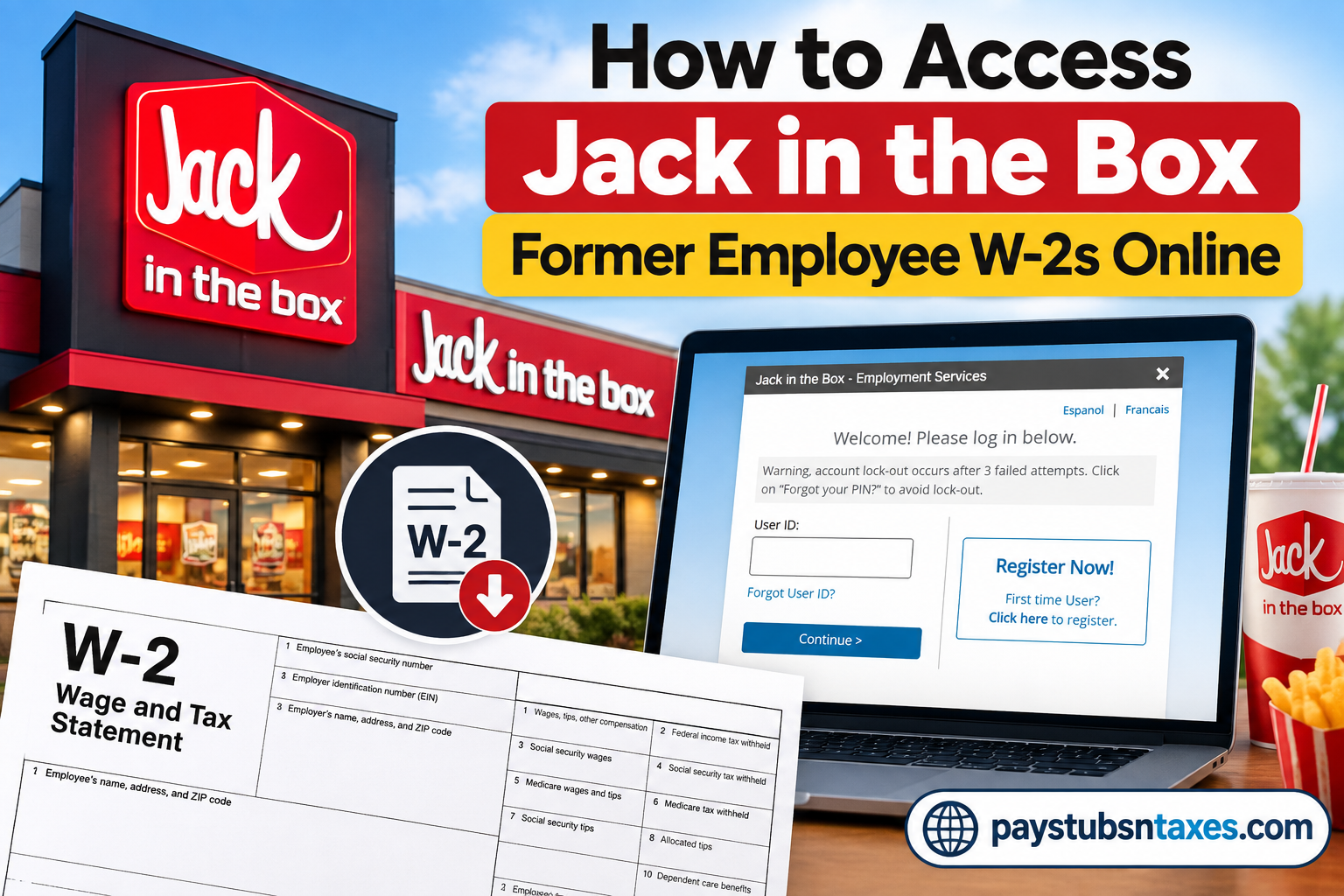
Jack in the Box, Inc. is an American fast-food restaurant chain founded by Robert O. Peterson in San Diego, California, in 1951. The company has grown into a substantial restaurant network, with 2,712 locations reported for 2025 and operations concentrated primarily in the western United States. The brand is particularly well known for hamburgers, chicken, sandwiches, breakfast items, tacos, and other quick-service menu offerings. For former employees, obtaining an old W-2 can become especially important during tax season, when applying for a mortgage, verifying income, or correcting a previous tax return. Fortunately, former Jack in the Box employees may be able to access their W-2 statements electronically through the Tax Form Management/MyTaxForm portal, rather than waiting for a paper copy to arrive in the mail. This guide explains how to register, sign in, consent to electronic delivery, and download or print your Jack in the Box W-2 online.
How Do Former Jack in the Box Employees Get Their W-2?
Former Jack in the Box employees have two principal ways to receive their W-2:
Online: Access the Tax Form Management portal through MyTaxForm.com and retrieve an available W-2 electronically.
By mail: If electronic delivery has not been selected, a paper W-2 may be mailed to the employee’s address on record. Former employees should therefore make certain that Jack in the Box has their correct mailing address, particularly if they have moved since leaving the company.
Using online delivery can be considerably more convenient because employees do not have to wait for postal delivery. MyTaxForm also allows users to download replacement copies of available tax documents when necessary.
Jack in the Box Tax Form Management Login
To begin, visit:
MyTaxForm: https://www.mytaxform.com/
The Tax Form Management login page for Jack in the Box may display “Jack in the Box – Employment Services” at the top of the login window.
Returning users can enter their existing User ID and select Continue. First-time users should choose Register Now! to begin creating an account.
If you have forgotten your login credentials, use the Forgot User ID? option rather than repeatedly entering incorrect information. The Jack in the Box Tax Form Management login screen warns that an account lockout can occur after three failed attempts.
Important Note About the Employer Code
Former employees should use only the Jack in the Box employer code supplied by Jack in the Box, their restaurant, payroll department, or HR department.
The information supplied for this article contains the number 12545, but it is specifically labeled as a Cinemark Employer Code. Therefore, it should not be represented as the Jack in the Box employer code unless Jack in the Box HR independently confirms it.
This distinction matters because entering another company’s employer code could direct you to the wrong employer account. If the MyTaxForm portal allows you to locate an employer by name, search for Jack in the Box; otherwise, contact Jack in the Box HR for the appropriate employer-specific credentials.
What You May Need Before Registering
Before beginning, gather the information the portal may use to confirm your identity:
- Your Social Security number
- Your legal name as it appeared on Jack in the Box payroll records
- Your date of birth
- Your current or former mailing address
- An accessible email address
- A mobile number capable of receiving a one-time passcode
- The Jack in the Box employer code, if supplied in your official payroll or tax instructions
For security, enter sensitive information only after confirming that you are on the legitimate mytaxform.com website. Do not send your Social Security number, password, PIN, or one-time passcode through email or ordinary text messages.
How to Register as a First-Time User
1. Visit MyTaxForm.com
Open a trusted browser and navigate directly to www.mytaxform.com. Avoid following unfamiliar links in unsolicited emails, particularly during tax season, when phishing attempts tend to multiply.
2. Locate the Jack in the Box Portal
Search for Jack in the Box or enter the employer code provided in official Jack in the Box materials. After selecting the correct employer, the page should identify itself as Jack in the Box – Employment Services.
Verifying the employer name is a small but indispensable step: employer codes are company-specific, and a code belonging to another organization will lead to the wrong registration process.
3. Select “Register Now!”
On the Jack in the Box login page, choose Register Now! or the first-time-user registration option.
The portal may ask for personal and employment information so that it can match you with the correct payroll record. Enter every detail carefully and ensure that it agrees with the information Jack in the Box had on file during your employment.
4. Complete the Security Check
Follow the on-screen identity-verification instructions. Depending on the information associated with your record, you may be asked to:
- Complete a CAPTCHA challenge
- Confirm personal information
- Select an email address or telephone number
- Request a one-time passcode
- Enter the passcode sent to your selected contact method
A one-time passcode ordinarily expires after a limited period, so enter it promptly and never disclose it to another person.
5. Create Your Login Credentials
Create a personalized User ID and a strong, unique password. Follow the exact password requirements displayed on the registration screen, as they may change over time.
If the portal offers a Check Status button for the User ID, use it to confirm that your chosen ID is available. Store your credentials securely rather than relying on easily guessed information.
6. Choose Whether to Remember the Device
The system may ask whether it should remember your device. Select this option only when using a private, password-protected computer or phone. On a public or shared device, decline the option and sign out completely when you finish.
How Returning Users Can Sign In
If you previously created a personalized Tax Form Management account:
- Go to www.mytaxform.com.
- Open the Jack in the Box employment-services portal.
- Enter your User ID.
- Select Continue and provide your password when prompted.
- Complete any additional security verification.
The Jack in the Box login page warns that an account may be locked after three unsuccessful attempts. If you cannot remember your credentials, use Forgot User ID? or Forgot your PIN? before exhausting those attempts.
How to Consent to Electronic W-2 Delivery
Registering for the portal does not necessarily mean that you have agreed to receive tax forms electronically. To choose online delivery:
- Sign in to your Tax Form Management account.
- Find the Online Delivery Consent section.
- Select the checkbox beside the tax document you wish to receive online.
- Choose Receive Forms Online or Set me up to receive my tax forms online.
- Read the electronic-delivery disclosure carefully.
- Acknowledge the terms and select Accept & Continue.
- Confirm the email address and mailing address associated with your account.
- Submit your selection and retain the confirmation or receipt page.
Electronic delivery requires your affirmative consent. The IRS permits employers to furnish W-2 statements electronically when employees agree to that delivery method and can access the form in the format provided.
If you do not consent to electronic delivery, you should ordinarily receive a paper W-2 at the address on file. Keeping that address current is therefore essential.
How to View, Download, or Print Your Jack in the Box W-2
Once your W-2 has been issued, the most recent available tax forms should appear on the portal’s home page.
To obtain a copy:
- Sign in to your account.
- Locate the relevant tax year.
- Mark the checkbox beside the W-2 you need.
- Select View to open the form electronically.
- Select Download to save a copy to your device.
- Use the document viewer’s print option if you need a paper copy.
Depending on the options available in your account, you may also be able to request delivery by postal mail or fax.
Save the downloaded document in an encrypted or otherwise protected location. Because a W-2 contains highly sensitive personal and financial information, it should not be stored on a public computer or sent through an unsecured communication channel.
When Will the W-2 Be Available?
Electronic W-2 statements are generally made available during January following the relevant tax year. When your form is ready, you may receive an email explaining that an important tax document is available and providing retrieval instructions.
Employers are generally required to furnish W-2 statements by January 31 of the following year, subject to calendar-related adjustments and other applicable rules. A mailed form does not necessarily have to arrive by that date; it generally must be properly sent by the deadline.
Remain vigilant when reading tax-document notifications. Rather than entering personal details through an unfamiliar email link, open your browser and type mytaxform.com directly.
What to Do If You Cannot Access Your Account
Use the Recovery Options
Select Forgot User ID? or the applicable password/PIN recovery link. Complete the identity check and request a one-time passcode if that option is offered.
Because the page warns of a lockout after three failed attempts, account recovery is preferable to repeatedly guessing your credentials.
Confirm That Your Information Matches Payroll Records
Registration can fail when the details entered do not correspond with the employer’s records. Check your name, date of birth, Social Security number, and former address for typographical errors.
Try Basic Browser Troubleshooting
If the page does not load or a document will not open:
- Refresh the page and sign in again.
- Try a current version of another reputable browser.
- Disable pop-up blocking temporarily for the verified portal.
- Clear the browser cache.
- Confirm that your device can open PDF files.
- Try again later if the service is undergoing maintenance.
Contact Jack in the Box HR
If your identity cannot be verified, your account remains locked, or the correct tax year is missing, contact Jack in the Box HR at (858) 571-2121, extension 3.
When calling, have your former work location, dates of employment, employee identification number if known, and current mailing address ready. Do not include your complete Social Security number in an unencrypted email.
Final Takeaway
Accessing a Jack in the Box former-employee W-2 online is usually straightforward: visit MyTaxForm, locate the Jack in the Box employment-services page, register or sign in, complete identity verification, and download the available statement. The key is to use only Jack in the Box-specific credentials and instructions. Once your account is established and electronic delivery is enabled, retrieving a tax form can be accomplished in minutes—leaving you with one less loose end to tie up during tax season.
Frequently Asked Questions
1. Can former Jack in the Box employees access their W-2 online?
Yes. Eligible former employees can access available W-2 statements through the Jack in the Box Tax Form Management portal on MyTaxForm.com.
2. How do I access my Jack in the Box W-2 online?
Visit MyTaxForm.com, locate Jack in the Box, and open the employer’s employment-services page. Enter your User ID if you already have an account, or select Register Now! to create one. After signing in, choose the appropriate tax year and open or download your W-2.
3. What information will I need to register?
You may need your Social Security number, legal name, date of birth, contact information, former address, and other details associated with your Jack in the Box payroll record. The portal may also send a one-time passcode to verify your identity.
4. What is the Jack in the Box employer code?
Use the employer code supplied in official Jack in the Box payroll, store, HR, or tax instructions. Do not use codes published for other employers. If you cannot find the correct code, contact Jack in the Box HR for assistance.
5. How do first-time users register on MyTaxForm?
Open the Jack in the Box employment-services page and select Register Now! Complete the requested personal information and security checks, create a personalized User ID and password, and follow the on-screen instructions to finish registration.
6. How do returning users sign in?
Returning users should enter their established User ID and select Continue. They can then provide their password and complete any additional identity-verification step requested by the portal.
7. What should I do if I forget my User ID or password?
Use the Forgot User ID?, Forgot Password, or Forgot your PIN? option shown on the login page. Begin account recovery before making repeated guesses, as the portal warns that an account may be locked after three unsuccessful attempts.
8. How do I consent to electronic W-2 delivery?
Sign in and locate the Online Delivery Consent section. Select the applicable tax form, choose Receive Forms Online, review the disclosure, accept the terms, and confirm your email and mailing addresses. Electronic delivery generally requires your affirmative consent.
9. When will my Jack in the Box W-2 be available?
W-2 forms are generally furnished by January 31 following the relevant tax year, subject to applicable calendar adjustments. Electronic statements usually appear in January, and you may receive a notification when your document becomes available.
10. How do I download or print my W-2?
After signing in, find the correct tax year on the home page and select the relevant W-2. Choose View to open it or Download to save it. Once opened, use the document viewer’s print option to produce a paper copy.
11. Can I request a paper copy of my W-2?
Yes. If available, select the Postal Mail option in your Tax Form Management account. You may also contact Jack in the Box HR if you cannot access the portal or need a replacement mailed to you.
12. What should I do if my W-2 is missing from the portal?
Confirm that you selected the correct employer and tax year. If the form still does not appear, contact Jack in the Box HR and provide your former work location, dates of employment, and employee number if known.
13. What if my mailing address has changed?
Update your address through the available account settings and notify Jack in the Box HR as soon as possible. Changing an address in one system may not automatically update every payroll or tax record, so confirm that HR has the correct information.
14. Whom should I contact for help with a Jack in the Box W-2?
For employer-specific assistance, contact Jack in the Box HR at (858) 571-2121, extension 3. Never send your complete Social Security number, password, PIN, or one-time passcode through an unsecured email.
15. Can I access Form 1095-C through the same portal?
If a Form 1095-C applies to you and is available online, it may appear with your other tax documents. Availability and delivery timing can differ from Form W-2, so check your account or contact HR if the form is missing.
