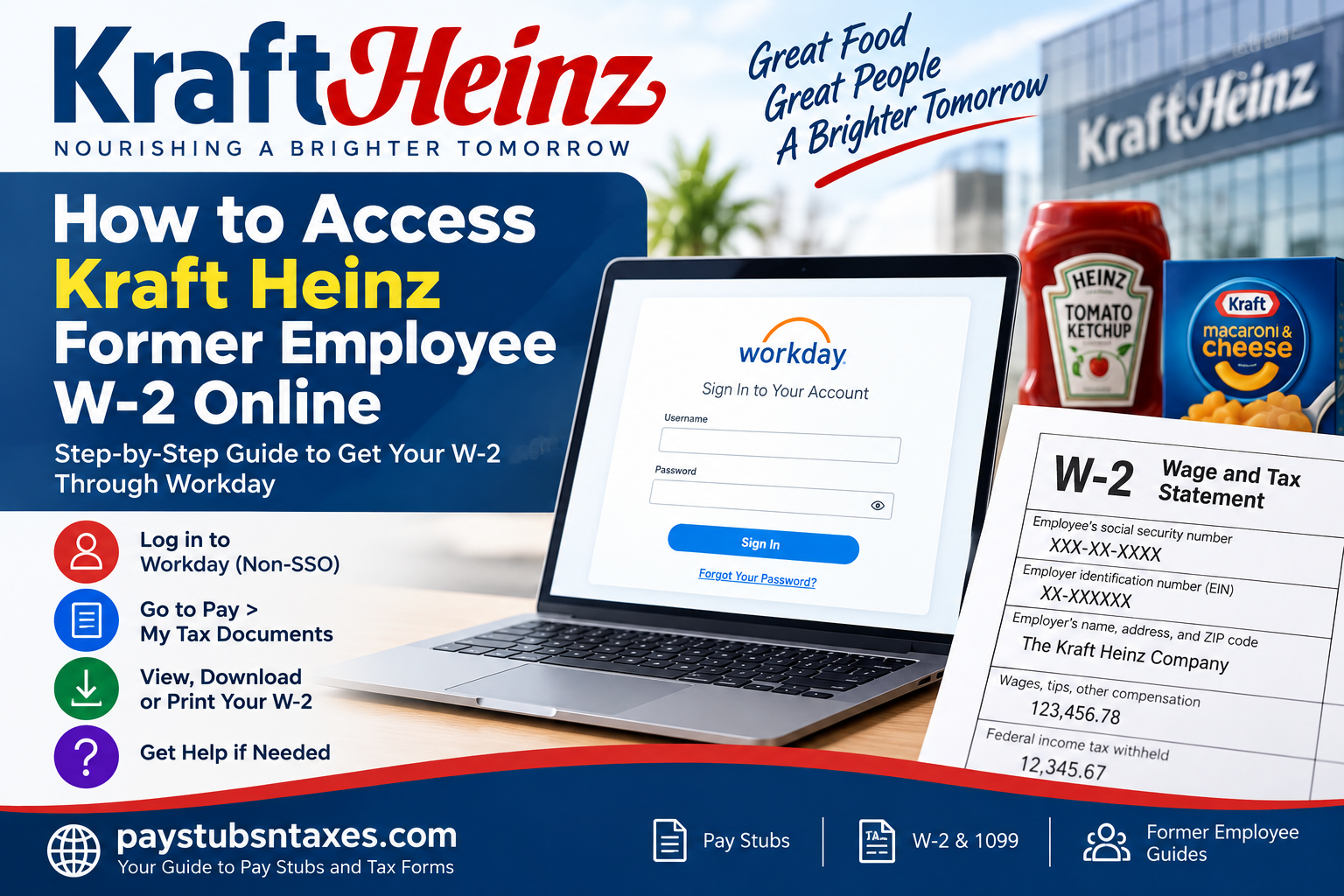
Former Kraft Heinz employees may still be able to retrieve their W-2 tax statements electronically through Workday after leaving the company. Although regular Single Sign-On access is generally discontinued once a separation has been processed, eligible former employees may receive separate credentials that provide limited, post-employment access to essential payroll and tax documents.
The process is usually straightforward once your credentials are in hand. However, password resets, multifactor authentication, outdated contact information, and missing tax forms can occasionally throw a spanner in the works. This guide explains how to access your Kraft Heinz former employee W-2 online, download or print every available form, and address the most common login difficulties.
Can Former Kraft Heinz Employees Access Workday?
In many cases, yes. Kraft Heinz’s regular employee login typically relies on the company’s Single Sign-On system. Once your employment ends and the separation is fully processed, that access may be revoked.
Former employees may instead be given a LAN ID and separate Workday credentials for limited access after separation. These details are generally sent to the personal email address associated with the employee’s records or original job application.
Because access arrangements and retention periods can vary, look through your personal inbox—including the spam, junk, and promotions folders—for messages from Kraft Heinz or Workday. Search for terms such as:
- “Workday”
- “Kraft Heinz”
- “LAN ID”
- “Former employee”
- “Password reset”
- “Tax documents”
- “W-2”
Keep your personal email account and telephone number current whenever possible. They may be used both to recover your account and to complete multifactor authentication.
Kraft Heinz Former Employee Workday Login
Former employees should use the non-SSO Kraft Heinz Workday portal:
Open the Kraft Heinz non-SSO Workday login page
Enter your LAN ID in the Username field and your Workday password in the Password field, then select Sign In.
Do not attempt to use the ordinary employee SSO route if your company access has already been deactivated. Even if the credentials once worked without a hitch, separation processing may render them invalid.
For security, type the Workday address directly into your browser or use a trusted bookmark. Avoid submitting credentials through links in unexpected emails or text messages.
How to Reset Your Kraft Heinz Workday Password
If you have received your LAN ID but do not know your password, you can initiate a password reset from the login page.
- Open the Kraft Heinz non-SSO Workday portal.
- Select Forgot Your Password? beneath the sign-in form.
- Enter your LAN ID when prompted.
- Enter the personal email address associated with your employment record or job application.
- Check that inbox for a Workday password-reset message.
- Open the secure link and create a new password.
- Return to the login page and sign in using your LAN ID and newly created password.
If the message does not arrive promptly, check every filtered folder in your email account. It is also worth confirming that you entered the same personal email address Kraft Heinz has on file; using a different address may prevent the reset request from being matched to your account.
Completing Multifactor Authentication
After your first successful login, Workday may require multifactor authentication, commonly known as MFA. This additional layer of protection helps prevent unauthorized access to sensitive payroll and tax information.
Depending on the method associated with your profile, the verification code may be delivered by:
- Email to your registered personal address; or
- SMS to your registered mobile number.
Enter the code on the verification screen to continue. Subsequent logins may require both your LAN ID and password as well as a new MFA code.
If the code never arrives, avoid making numerous requests in quick succession, as only the most recent code may remain valid. Confirm that your device has a mobile signal, check your email’s junk folder, and wait briefly before requesting another code.
When the email address or telephone number displayed by Workday is no longer yours, contact the Kraft Heinz representative identified in your separation or onboarding correspondence—such as your recruiter, former HR contact, People Services team, or payroll support channel—and ask for the contact information attached to your account to be reviewed.
How to View and Print a Kraft Heinz W-2 in Workday
Once you are signed in, follow these steps:
- From the Workday homepage, select the Pay application or dashboard.
- Locate the View section.
- If all options are not visible, select More to expand the menu.
- Choose My Tax Documents.
- Find the relevant tax year.
- Select View/Print beside the W-2 you need.
- Allow a few moments for Workday to prepare and display the document.
- Use the page-navigation controls to review every page.
- Select the Download icon to save a copy to your device.
- Select the Printer icon to print the form.
If more than one entry has a View/Print button, open and save each one. Employees who worked in multiple states, local tax jurisdictions, or payroll entities may receive more than one page or form, so one download may not tell the whole story.
Where available, the Accessible Form option presents the tax information in a format designed for improved accessibility. You can also print the accessible version using the printer icon.
Before closing the preview, confirm that you downloaded the correct tax year and that every page is legible. Store the file in a secure location; a W-2 contains sensitive personal and financial information and should not be left on a shared computer or transmitted through unsecured channels.
What to Do If Your W-2 Is Not Listed
A missing W-2 does not necessarily mean something has gone awry. The form may not yet have been published, you may be viewing the wrong year, or your former-employee access may have expired.
Work through the following checks:
- Verify that you selected the correct tax year.
- Expand the complete list under My Tax Documents.
- Look for separate W-2 entries associated with different locations or payroll records.
- Sign out, close the browser, and sign in again.
- Try a current version of another supported browser.
- Allow pop-ups and downloads from the legitimate Workday domain.
- Check your personal email for a notice stating that tax documents are ready.
- Contact the Kraft Heinz HR, payroll, or former-employee support channel provided in your separation paperwork.
When requesting assistance, be prepared to provide your full name, LAN ID or former employee ID, dates of employment, work location, tax year required, current mailing address, personal email address, and a telephone number. Do not send your full Social Security number through ordinary email unless an authorized representative supplies a secure method for doing so.
What If Your Former-Employee Workday Access Has Expired?
Post-employment access may remain available only for a limited period. If your account is no longer recognized, a password reset fails, or your access window has closed, contact Kraft Heinz through the employment-support information supplied in your separation documents or previous HR correspondence.
Ask the representative to confirm:
- Whether former-employee Workday access can be restored;
- Whether the email address and mobile number on your record are correct;
- Whether your W-2 has been issued;
- Whether it was mailed and, if so, to which address; and
- How to obtain a secure replacement copy.
Be precise when describing the problem. Saying “I cannot log in” is less useful than explaining whether Workday rejects your LAN ID, refuses your password, sends the MFA code to an outdated number, or signs you in without displaying the required tax year.
Will Kraft Heinz Mail a Former Employee’s W-2?
If electronic access is unavailable, a paper W-2 may be sent to the home address held in the payroll system. Employers are generally required to furnish W-2 forms by January 31 following the relevant tax year, although the practical delivery date may be slightly later when the deadline falls on a weekend or legal holiday.
Former employees should therefore ensure that Kraft Heinz has their correct mailing address. If you moved after leaving the company, contact the appropriate former-employee or payroll support team rather than assuming that postal forwarding will take care of everything.
Final Takeaway
Accessing a Kraft Heinz former employee W-2 online is largely a matter of using the correct non-SSO Workday portal, signing in with your LAN ID and post-employment password, completing MFA, and navigating to Pay > More > My Tax Documents > View/Print.
Download every available form, verify the tax year and page count, and keep the files somewhere secure. If your credentials no longer work, your MFA information is outdated, or the document is missing, contact the employment-support channel identified in your Kraft Heinz correspondence without delay. A little preparation—particularly keeping your personal email, telephone number, and mailing address current—can make the difference between a smooth retrieval and a last-minute tax-season scramble.
Frequently Asked Questions About Kraft Heinz Former Employee W-2 Forms
1. Can former Kraft Heinz employees access their W-2 online?
Former Kraft Heinz employees may retain limited access to Workday after separation. Instead of using the regular employee Single Sign-On system, eligible former employees generally sign in through the Kraft Heinz non-SSO Workday portal with a LAN ID and separate post-employment password.
2. What is the Kraft Heinz former employee Workday login page?
The Kraft Heinz former employee login page is the company’s non-SSO Workday portal. Former employees should use this portal when their regular company Single Sign-On access has been deactivated following separation.
3. What username should a former Kraft Heinz employee use?
The Workday username is generally the former employee’s LAN ID. This identifier may appear in an email sent to the personal address associated with the employee’s company record or original job application. If you cannot locate it, contact the appropriate former-employee support representative.
4. How do I reset my Kraft Heinz Workday password?
Select Forgot Your Password? on the non-SSO Workday login page, enter your LAN ID, and provide the personal email address associated with your employment record. Workday should send a secure link that allows you to create a new password.
5. Why have I not received the Workday password-reset email?
The message may have been redirected to a spam, junk, or promotions folder. It may also have been sent to a different personal email address held in your employment record. Check all inbox folders and confirm that you entered the address originally supplied to Kraft Heinz.
6. Does Kraft Heinz Workday require multifactor authentication?
Workday may require multifactor authentication to protect payroll and tax information. A verification code can be delivered to the personal email address or mobile number registered with the account. You may be asked to complete this security check during your first and subsequent logins.
7. What should I do if my Workday verification code does not arrive?
Check your email’s filtered folders, confirm that your phone has a reliable signal, and wait briefly before requesting another code. If Workday displays an outdated email address or telephone number, contact the Kraft Heinz representative or support channel identified in your employment correspondence.
8. Where can I find my W-2 after signing in to Workday?
From the Workday homepage, select Pay. Under the View section, choose More if necessary and then select My Tax Documents. Locate the appropriate tax year and click View/Print beside each available W-2 entry.
9. How do I download my Kraft Heinz W-2?
Open the relevant W-2 by selecting View/Print and allow Workday a few moments to prepare the document. When the preview appears, select the download icon—usually displayed as a downward-pointing arrow—to save the form securely to your device.
10. How do I print a Kraft Heinz W-2 from Workday?
After opening the W-2 preview, use the printer icon in the upper-right corner of the document viewer. Review the printer settings carefully and confirm that every page will be printed. If several W-2 entries are available, open and print each applicable document.
11. Why are several W-2 forms listed in My Tax Documents?
Multiple forms may appear when an employee worked in more than one state, local tax jurisdiction, work location, or payroll entity during the year. Open every entry with a View/Print button and retain all applicable pages for tax preparation.
12. What should I do if my W-2 is not displayed in Workday?
Confirm that you selected the correct tax year and expanded the complete My Tax Documents list. If the form remains unavailable, it may not yet have been published or your former-employee access may have expired. Contact the designated Kraft Heinz payroll or former-employee support channel.
13. Will Kraft Heinz mail a W-2 to a former employee?
If electronic delivery is unavailable, a paper W-2 may be mailed to the address held in the payroll system. Former employees who have moved should ensure that Kraft Heinz has their current mailing address rather than relying solely on postal forwarding.
14. When should a former employee receive a W-2?
Employers are generally required to furnish W-2 forms by January 31 following the applicable tax year, subject to calendar adjustments when the date falls on a weekend or legal holiday. Delivery by mail may take additional time, so confirm the address held by your former employer.
15. What should I do if my Kraft Heinz W-2 never arrives?
Contact the appropriate Kraft Heinz payroll or former-employee support channel first and confirm whether the form was issued and where it was mailed. If it remains unavailable by the end of February, the IRS advises calling 800-829-1040 and having your employment and employer information ready.
